
Sub header
Style the page-title banner shown below the header, and understand how its hide settings layer between global and per-content-type controls.
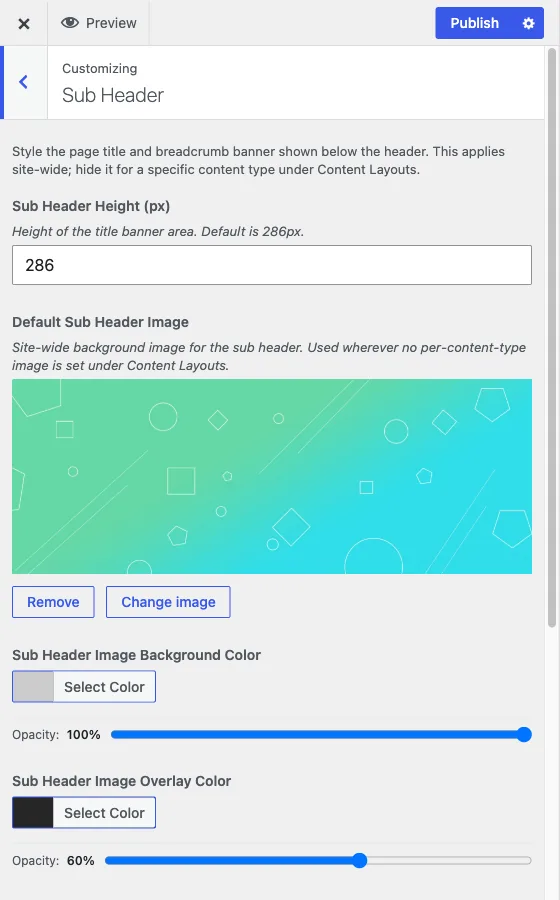
Customize > Sub Header
The sub header is the banner that shows a page’s title and breadcrumb trail, typically right below the main header. This section is a top-level Customizer section, not inside one of the panels, and it styles that banner site-wide.
Size and image
Sub Header Height (px) sets the banner’s height in pixels. The default is 286, and you can enter any value from 80 to 600 (it moves in steps of 2).
Default Sub Header Image is the background image used wherever no per-content-type image has been set. Content types (blog posts, pages, archives, and any custom post type from your plugins) can each set their own sub header image under Content Layouts; this is the fallback for whichever ones do not have one, so every content type ends up with an image instead of a gap.
Colors
Four color controls style the banner and its breadcrumb trail:
- Sub Header Image Background Color, default
#cccccc, shows through wherever the background image does not fully cover the banner. - Sub Header Image Overlay Color, default a semi-transparent dark gray
(
rgba(38,38,38,0.6)), darkens the image so the title text stays readable over it. - Sub Header Text Color, default white, colors the page title and the breadcrumb text and icons.
- Sub Header Link Color, default white, colors the clickable breadcrumb links specifically, separate from the plain breadcrumb text.
Breadcrumb
Enable Breadcrumb, on by default, shows or hides the breadcrumb trail within the banner.
How the hide settings layer
This is the part that catches people out, because “hide the sub header” is controlled from three different places, and they do not all mean the same thing:
- Per-content-type controls, under Content Layouts, one per content type: “Hide Page Sub Header” for pages, “Hide [Content Type] Sub Header” for each post type’s single view, and “Hide Archive Page Sub Header” for that type’s archive. Every one of these is ON by default, meaning the sub header banner is hidden out of the box. You have to toggle each one OFF for that specific content type before its banner shows.
- Hide Sub Header, the last control in this section, is the global override. Turn it on and the sub header disappears everywhere, on every content type, regardless of what any individual content type’s setting says.
In practice: if you want banners showing on pages and posts, go to Content Layouts and turn off “Hide Page Sub Header” and “Hide [Post Type] Sub Header” for each type you want visible. If you instead want no banner anywhere, the fastest path is the global Hide Sub Header switch here, rather than toggling every content type individually. But remember that the global switch, once on, makes the per-content-type settings irrelevant, so if a banner still is not showing where you expect it, check this global switch first before troubleshooting the individual content type.