
Sign-in and register popup
Replace the WordPress login page with an in-page popup, and know that BuddyPress owns the register fields once it is active.
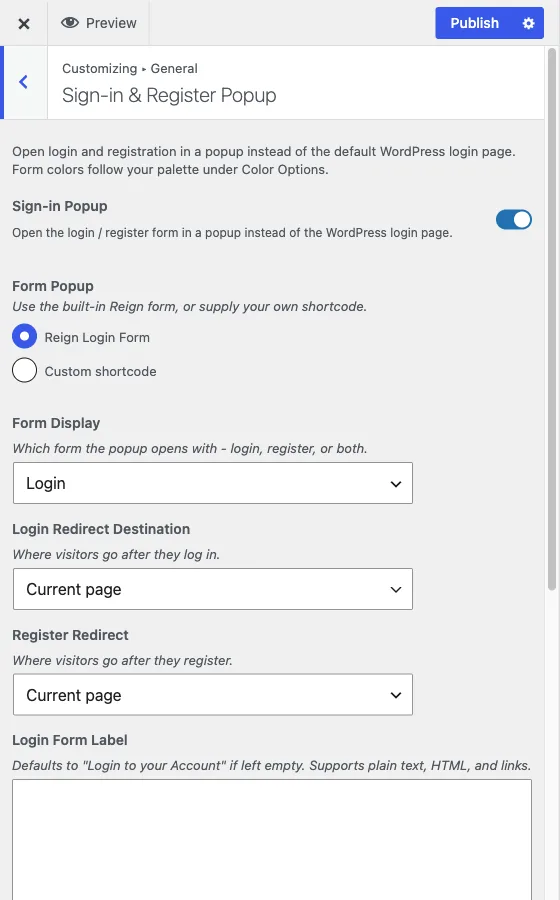
Customize > General > Sign-in & Register Popup
This section opens login and registration in a popup on top of the current
page, instead of sending visitors to wp-login.php. It is off by default.
Form colors follow your color palette under Color Options, there is nothing
to style separately here.
Turning it on
Sign-in Popup is the master switch. Once enabled, Form Popup chooses what the popup shows:
- Reign Login Form, the theme’s built-in form, configured with the remaining fields in this section.
- Custom shortcode, where you supply your own HTML or shortcode in the Popup Content field that appears in its place. Choosing this hides all the built-in form fields below, since the popup is now entirely yours.
With the built-in form, Form Display decides whether the popup opens with login, register, or both.
BuddyPress owns the register fields
If BuddyPress is active, the registration fields shown in this popup come from BuddyPress > Profile Fields, not from the theme. Editing anything in this Customizer section will not change what fields the popup’s register form shows or asks for. To add, remove or reorder registration fields on a BuddyPress site, make that change in BuddyPress’s own Profile Fields screen.
BuddyPress being active also changes what this section offers. Redirect destinations after login gain Profile page and Activity page options alongside Current page and Custom page. And the separate Register Redirect controls (destination and custom URL) that appear on a non-BuddyPress site are not shown here, because BuddyPress manages its own post-registration redirect.
If you run BuddyNext instead
BuddyNext and BuddyPress cannot both be active, and the section above applies only to BuddyPress - BuddyNext has no Profile Fields screen.
BuddyNext ships its own login and register screens. The popup wins over them: with the popup on, the header Login and Register buttons open the popup, not BuddyNext’s screens. Turn the popup off if you want members using BuddyNext’s screens. See set up BuddyNext.
Registration and what happens after it are BuddyNext’s, either way.
If you run no community plugin
Reign is a multi-purpose theme and this popup does not need one. With neither BuddyPress nor BuddyNext active you get the plain version of this section: the register form is the theme’s own, Register Redirect and Register Custom URL are both available (BuddyPress hides them, as noted above), and the redirect destinations are Current page and Custom page only - there are no Profile or Activity pages to offer.
Which screen a header button opens
Whatever your setup, Reign resolves the header Login and Register buttons in one fixed order. First match wins:
| # | Condition | Button opens |
|---|---|---|
| 1 | Sign-in popup is on | the popup |
| 2 | A Login Page / Register Page is set in the Customizer | that page |
| 3 | BuddyNext is active | the BuddyNext auth hub |
| 4 | none of the above | wp-login.php (branded, if you styled it) |
The popup sits at the top, so turning it on overrides both a custom login page and BuddyNext’s screens. That is the single most common source of “why is my login page being ignored”.
The Register button additionally needs registration to be open - Settings > General > Membership > Anyone can register. On a BuddyPress site, BuddyPress’s own membership-requests setting also counts.
Redirects and labels
Login Redirect Destination sets where a visitor lands after logging in. Choose Custom page and a Login Custom URL field appears for the destination. On a site without BuddyPress, Register Redirect and Register Custom URL work the same way for the registration side.
Three text fields let you customize what the popup says, all optional and all fall back to a sensible default if left blank:
- Login Form Label, defaulting to “Login to your Account.”
- Register Form Label, defaulting to “Register in {site name}.”
- Login Form Description, shown under the login form in the register prompt area. This only appears at all when user registration is enabled under Settings > General > Membership, since there is nothing to prompt toward otherwise.
All three accept HTML and links, not just plain text.
There is no logout redirect setting. Logging out returns visitors to the page WordPress or your community plugin sends them to.
Magic link sign-in
If you run Solid Security (formerly iThemes Security) with its Passwordless Login module switched on, the popup adds a magic link option. A visitor enters their username or email and gets a one-time sign-in link by email, with a use a password instead link to switch back.
For privacy the popup always answers with the same message, whether or not an account exists for what was entered. Without that module, the popup shows the normal password form only.
When to use this
Turn it on if you want visitors to log in or register without leaving the page they are on, useful for membership or community sites where interrupting a visitor’s flow to send them to a separate login page costs conversions. Leave it off if your site already sends people to a dedicated, branded login page, since running both a popup and a full custom login page is redundant.