
Page, search and custom post type layouts
Set the layout for a single page and for search results, plus how to find and use the matching pair of sections Reign generates for your own custom post types.
Customize > Content Layouts
How this panel is built
Content Layouts is not a fixed list of sections. Reign generates a pair of sections, “[Type]: Archive” and “[Type]: Single”, for every post type on your site that supports one, and adds them here automatically. On a default install that means Blog and Page. Install a plugin that registers its own post type, activate it, and a new pair appears in this panel the next time you open the Customizer, using that plugin’s post type name.
This means the exact list of sections you see depends on which plugins are active. A membership plugin, an events plugin, a portfolio plugin, each adds its own pair. If you are looking for layout controls for a custom post type and it is not listed under Getting Started or Customize elsewhere in these docs, look here first: it is almost certainly its own section in Content Layouts, built the same way as Page: Single below.
Every generated section shares a base shape: a Layout picker (sidebar left, right, both, or none), a hide-sub-header switch, an optional sub header image, and left/right sidebar pickers. Page and Search add a few controls on top of that base, covered below.
Every content type gets its own layout sections
Reign adds sections for every public content type on your site, including the ones your plugins create. You do not turn anything on. Open Customize > Content Layouts and look for names like these:
- Product: Archive and Product: Single (WooCommerce)
- Listora Listing: Archive and Listora Listing: Single
- Wcb Job: Archive and Wcb Job: Single
- Mvs Album: Archive and Mvs Album: Single
- Course: Archive and Course: Single
The name comes from the plugin’s own content type name, so it can look a little technical, such as “Wcb Job” or “Mvs Album”. The section still controls exactly that one kind of content.
Archive controls the list page for that type, such as the shop or a job board. Single controls one item, such as one product or one job.
A type only gets an Archive section if the plugin gives it a list page. For example, Wcb Resume shows a Single section but no Archive section on the live site. Reign also leaves out a few types on purpose, such as event organizers and venues (no Archive), Groups (no Single), Fluent products (no Archive) and LearnDash courses (no Single).
What each section contains
Archive and Single sections share the same controls:
- Layout - pick left sidebar, right sidebar, both sidebars, or no sidebar. The default is right sidebar.
- Left Sidebar and Right Sidebar - choose which widget area fills each side. The default is “Default”, and the list also shows every widget area on your site.
- Hide Archive Page Sub Header (Archive) or Hide [Type] Sub Header (Single), such as Hide Product Sub Header. This is on by default, so the banner stays hidden until you turn it off. The site-wide Sub Header > Hide Sub Header switch overrides it.
- Enable Sub Header Image - shows only after you turn the hide switch off. It is on by default.
- [Type] Sub Header Image (Archive), such as Product Sub Header Image, or Page Sub Header Image (Single) - your banner picture. It shows only when the banner is visible and the image switch is on.
- Switch Sub Header Image With Featured Image (Single only) - uses the item’s featured image as the banner and removes it from the content. Off by default.
Blog has a few extra controls of its own. See blog archive layout and blog single post layout.
Page: Single
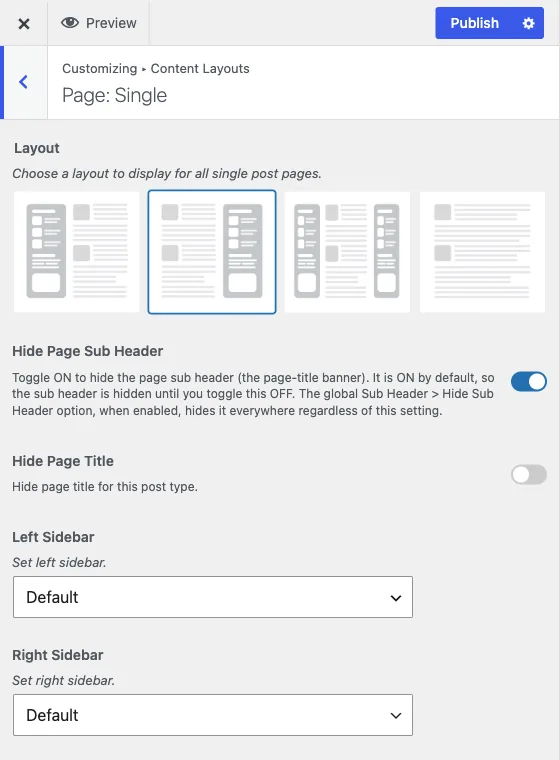
Customize > Content Layouts > Page: Single
Layout picks the sidebar arrangement for individual pages, defaulting to a right sidebar.
Hide Page Sub Header controls the page-title banner. It is on by default, meaning the banner is hidden until you turn this off. This is the setting people most often go looking for right after a fresh install, expecting the banner to show automatically. The site-wide Sub Header > Hide Sub Header switch overrides this regardless of what you set here, so if turning this off does not bring the banner back, check that global switch. See sub header.
Hide Page Title only appears once Hide Page Sub Header is switched on. It is a separate, off-by-default control for suppressing the plain page title that can still render in the content area when the banner itself is hidden, so you can remove both or just the banner.
Once the banner is showing, Enable Sub Header Image turns on a background image for it. Left Sidebar and Right Sidebar pick the widget area for each side, and only apply when Layout uses that side.
Pages: Search
Customize > Content Layouts > Pages: Search
This section styles the search results page, at ?s=your-query.
Layout and the sidebar pickers work the same way as Page: Single.
Hide Search Sub Header is on by default: no title banner on the search results page out of the box. Turn it off to show the banner, using the Sub Header Image field that appears once you do, gated behind Enable Sub Header Image.
There is only one Search section. Custom post types do not get their own search layout; WordPress search results always route through this one section regardless of what content type matched the query.
What the search results include
Out of the box Reign does not narrow the search. The results list is what WordPress itself returns: posts, pages and every content type an active plugin marks as searchable, such as products, courses, jobs or listings.
To change that, a developer can use two filters, covered in the
hooks reference:
reign_search_exclude_post_types drops a content type, and
reign_search_post_types limits search to a fixed list. A post_type set in the
search URL itself overrides both.
Results from your community plugins
Some plugins keep their content in their own tables, out of reach of WordPress search. Reign adds their matches below the normal results, one section for each kind of content that matched:
| Plugin | Sections you can see |
|---|---|
| BuddyNext | Members, Spaces, Posts, Hashtags |
| Jetonomy | Discussions, Tags, Replies |
| Eventonomy | Events |
| MediaVerse | Media, Documents |
| Learnomy | Courses |
For example, on a site with BuddyNext’s sample content, searching for “Design Critique” shows a Posts section with four matching posts, a Spaces section with the Design Critique space, and a Members section with the members who belong to it.
Each section shows its first few matches, a count, and a See all link to that plugin’s own search page. The plugins apply their own privacy rules, so a visitor sees only what they could see on the plugin’s own pages. When nothing matches, or none of these plugins is active, the page looks exactly as before.
If WordPress itself finds nothing but a plugin section does, the page shows a Results for heading instead of Nothing Found.
To remove one plugin’s section, or turn the feature off, a developer uses
reign_search_federation_excluded_providers or reign_search_federation. See
the hooks reference.
If your search goes to BuddyNext’s search page
BuddyNext 1.2.3 sent the site’s search box to its own search page, which only finds community content. Update BuddyNext to 1.2.4 or newer and search stays on Reign’s results page, with BuddyNext’s members, spaces and posts in their own sections. The header search icon still opens BuddyNext’s community search.