
Light and dark mode
Turn on the visitor toggle, choose the default mode, and know where the dark colors themselves actually live.
Customize > Color Options > Light & Dark Mode
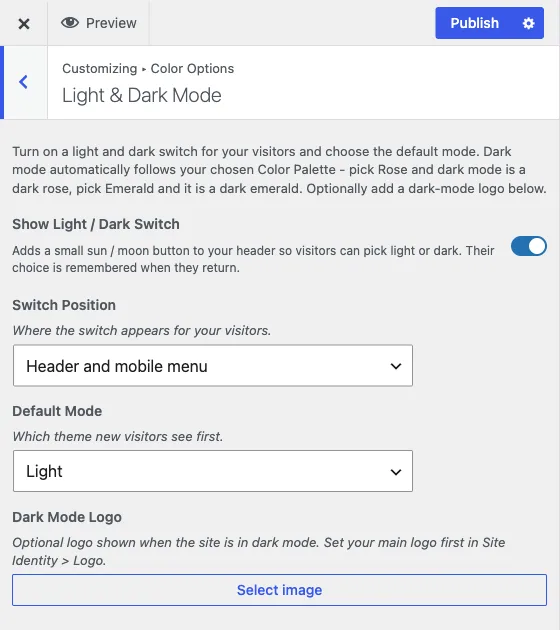
This section controls the light/dark switch for your visitors. It does not hold any colors itself - the dark palette lives in a separate section, covered below.
The four settings
Show Light / Dark Switch. Turns on a small sun/moon button in the header (and, depending on the next setting, in the mobile menu) that lets visitors choose light or dark for themselves. Their choice is remembered when they come back.
Switch Position. Where the button appears: header and mobile menu, header only, or mobile menu only. Only shows once the switch above is turned on.
Default Mode. Which mode a new visitor sees before they’ve made a choice of their own - light or dark.
Dark Mode Logo. An optional second logo shown only when the site is in dark mode, so a dark logo doesn’t disappear against a dark header. Set your main logo first in Site Identity > Logo - this field only appears once the switch above is turned on.
Plugins that follow dark mode
Reign’s dark palette also reaches the plugins it styles. wpForo forums (tabs, hovers, buttons, previews and navigation) and IdeaPush boards, forms, filters and popups both follow it, including dark scrollbars in IdeaPush form fields.
Where the dark colors themselves live
Turning the switch on does not, by itself, choose what dark mode looks like. The actual dark palette - the background, text, header, menu, button and footer colors used only when the site is in dark mode - lives in Color Options > Dark Mode Colors, a separate section from this one. It starts from whichever palette you picked in Color Palette, so most sites never need to open it. If you do need to fine-tune a color specifically for dark mode, that’s the section to use, not this one. See how the color system works for how the two sections relate, and Every colour setting for the full list of dark-mode colour controls.
Dark-mode images outside the Customizer
The Customizer only covers dark-mode colors and the optional dark-mode logo. If you need to swap a different image - a photo, an illustration, a banner - between light and dark mode, that’s a separate feature in the Reign Settings admin app, not the Customizer. Go to Reign Settings > Design and open the Dark mode images card, which links to its own settings screen for pairing a light-mode image with its dark-mode equivalent.
A common setup
- Pick a palette in Color Palette. Its dark version is prepared automatically.
- Turn on Show Light / Dark Switch here.
- Set Default Mode to whichever your site should show a first-time visitor.
- Load the site in a private window and use the switch yourself. Check a page with a photo-heavy header and a page with forms - those are the places a leftover Individual Colors override is most likely to look wrong in one mode and not the other.
- Only open Dark Mode Colors if something still needs a specific fix after that check.