
Branded login screen
Turn on the custom login screen and style its logo, background, form and button as one workflow, worth doing on any site where members see wp-login.php often.
Customize > Branded Login & Register
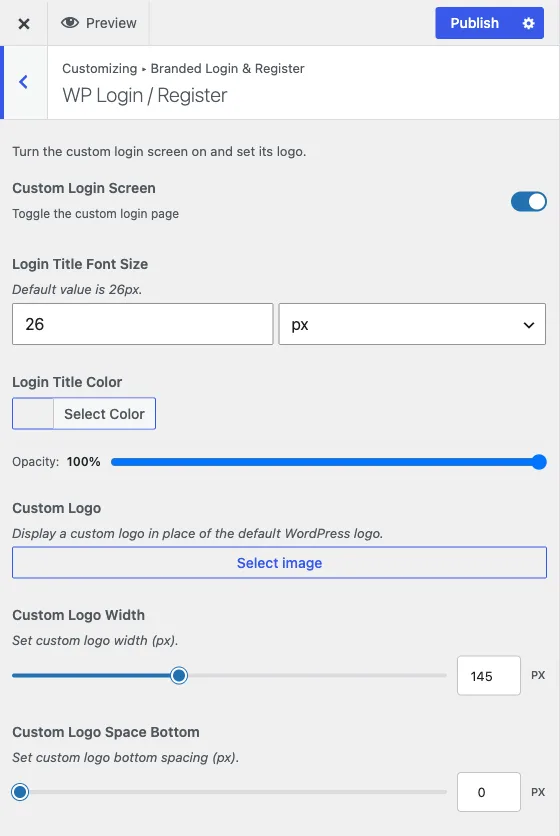
This panel restyles wp-login.php, the screen WordPress shows for login,
registration and password reset. It is optional, and it matters most on
membership and community sites, where people hit this screen constantly
rather than seeing it once at setup.
Nothing in this panel does anything until you turn on the master switch.
Turn it on
WP Login / Register > Custom Login Screen is off by default. Every other control described here, across all four sections, only takes effect on the front end once this is switched on.
Logo
Still in WP Login / Register: upload a Custom Logo to replace the default WordPress logo above the form. Custom Logo Width sets its size in pixels (default 145px, adjustable from 50 to 300), and Custom Logo Space Bottom adds space under it. Login Title Font Size (default 26px) and Login Title Color style the site name text WordPress shows under the logo.
Background
Reign has two separate background systems in this panel, and only one is active at a time, depending on the Themes > Set New Theme switch covered in login screen themes.
With Set New Theme off (the default)
Use WP Login / Register > Toggle Custom Background (Enable or Disable, off by default). It only shows while Custom Login Screen is on and Set New Theme is off. Turning it on reveals these controls:
- Background Image - your own image for the login page.
- Custom Heading - big text shown over the image. Default “Welcome back!”.
- Custom Text - a supporting paragraph under the heading. It has a friendly welcome-back message filled in by default, and it accepts basic formatting.
- Custom Heading Position - a slider from 0 to 90. Default 0.
- Overlay Opacity - a slider from 0 to 100. Default 30. It darkens the image so the text stays readable.
- Custom Heading Color - the colour of the heading and text. Default white (#ffffff).
With Set New Theme on
The toggle above and its fields stop applying. The separate Background section takes over. Its controls show only while Custom Login Screen and Set New Theme are both on, except where noted:
- Custom Background Color - a solid colour with transparency. Empty by default.
- Background Gallery - pick one of four bundled pictures. The first is chosen by default.
- Set Custom Background Image - upload your own picture instead.
- Enable Background Video? - Enable or Disable, off by default. It shows whenever Set New Theme is on. Turn it on to reveal Background Video, an upload field for your own video file.
If you turn on Set New Theme and your background does not seem to update, check here rather than in the WP Login / Register controls above. They are not both live at once.
Login form
All controls in Customize Login Form show only while Custom Login Screen is on. Where a box says “Default value is …” it is what the login screen uses when you leave the field blank.
The box itself
- Enable Form Transparency - removes the box background. Off by default.
- Form Background Image and Form Background Color - show only while transparency is off.
- Form Width - default 350px.
- Form Minimum Height - default 200px.
- Form Radius - default 5px.
- Form Shadow - default 15px.
- Form Shadow Opacity - default 80%.
- Form Padding - default 26px.
Input Fields
- Login Form Link Color and Login Form Link Hover Color - the “Lost your password?” style links.
- Input Field Background Color, Input Field Text Color and Input Field Border Color.
- Input Text Field Width - default 100%.
- Input Text Field Border Radius - default 3px.
Input Fields Labels
- Input Field Label Color and Remember me Label Color.
- Input Field Label Font Size - default 14px.
- Remember Me Font Size - default 14px.
All the colours start empty and allow transparency.
Login button
Customize Button styles the submit button. Its controls show only while Custom Login Screen is on.
Colours (all start empty and allow transparency)
- Button Background Color and Button Background Color (Hover)
- Button Border Color and Button Border Color (Hover)
- Button Text Color and Button Text Color (Hover)
Size and shape
- Button Width - default 100%.
- Button Top Padding - default 13px.
- Button Bottom Padding - default 13px.
- Button Radius - default 3px.
- Button Text Size - default 13px.
Shadow
- Button Shadow - default 0px, which means no shadow.
- Button Shadow Opacity - default 80%.
If BuddyPress is active
A Community Register section also appears in this panel, styling BuddyPress’s own registration page with an optional split-screen layout. It works independently of the login-screen controls above and is not covered on this page.
If BuddyNext is active
BuddyNext ships its own login and register screens, and Reign points WordPress’s login, register and reset URLs at that hub. So on a BuddyNext site the screen you brand here is not what members normally see - the header Login button sends them to BuddyNext’s screen instead.
This screen still exists and stays branded. It is what you get by going to
/wp-login.php directly, and it is where wp-admin sends anyone who is not
logged in. Worth keeping presentable for that reason, but do not expect members
to meet it.
If you would rather members saw this branded screen than BuddyNext’s, set it as the Login Page in the Customizer - see the precedence list in set up BuddyNext.
If you run no community plugin at all
Reign is a multi-purpose theme, and this panel does not need BuddyPress or
BuddyNext. With neither active, everything above applies exactly as written and
nothing routes away from wp-login.php - the branded screen is what everyone
sees. Only the Community Register section is absent, since there is no
community registration page to style.
Next
Pick a starting design in login screen themes, then come back here to fine-tune the form and button.