
Courses, products, jobs and places: which screen changes what
A page for a course, a product, a job or a place is controlled from more than one screen. Find the one that changes the part you want.
Also called: course page layout, shop page layout, job page layout, store page, vendor page, sidebar missing on course pages.
What this does
A course page, a store page, a job page and a place page each have up to four places that change how they look. These are Reign’s Customizer, the plugin’s own settings, a paid Reign add-on and the page itself. This page tells you which one to open for each part.
Three things are always Reign’s, whichever plugin you run. They are the header, the footer, and your colours and dark mode. Change them in Change your site colors (Colour palette), Header style, search and icons (Header layout) and Footer and copyright text.
Steps
Pick your kind of page below. Find the part you want to change in the first column, then open the screen in the second.
Courses
| You want to change | Open |
|---|---|
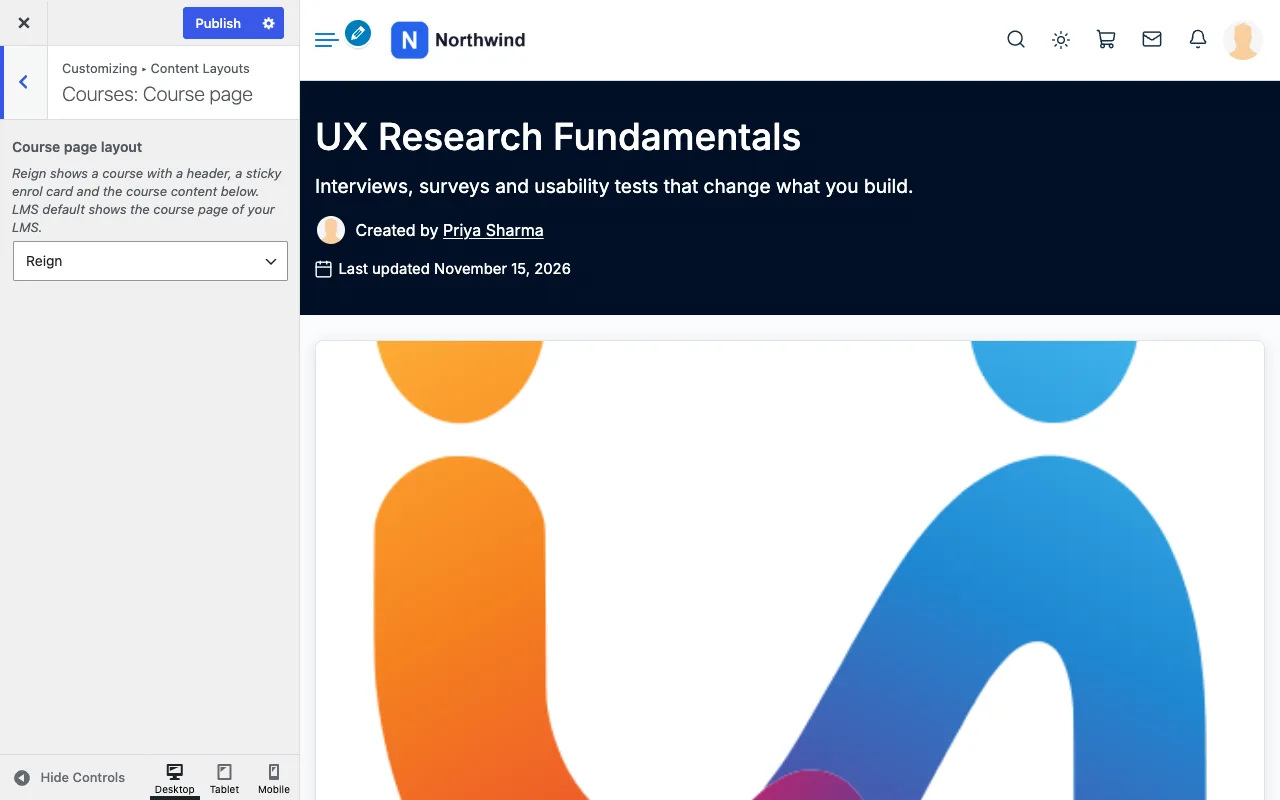
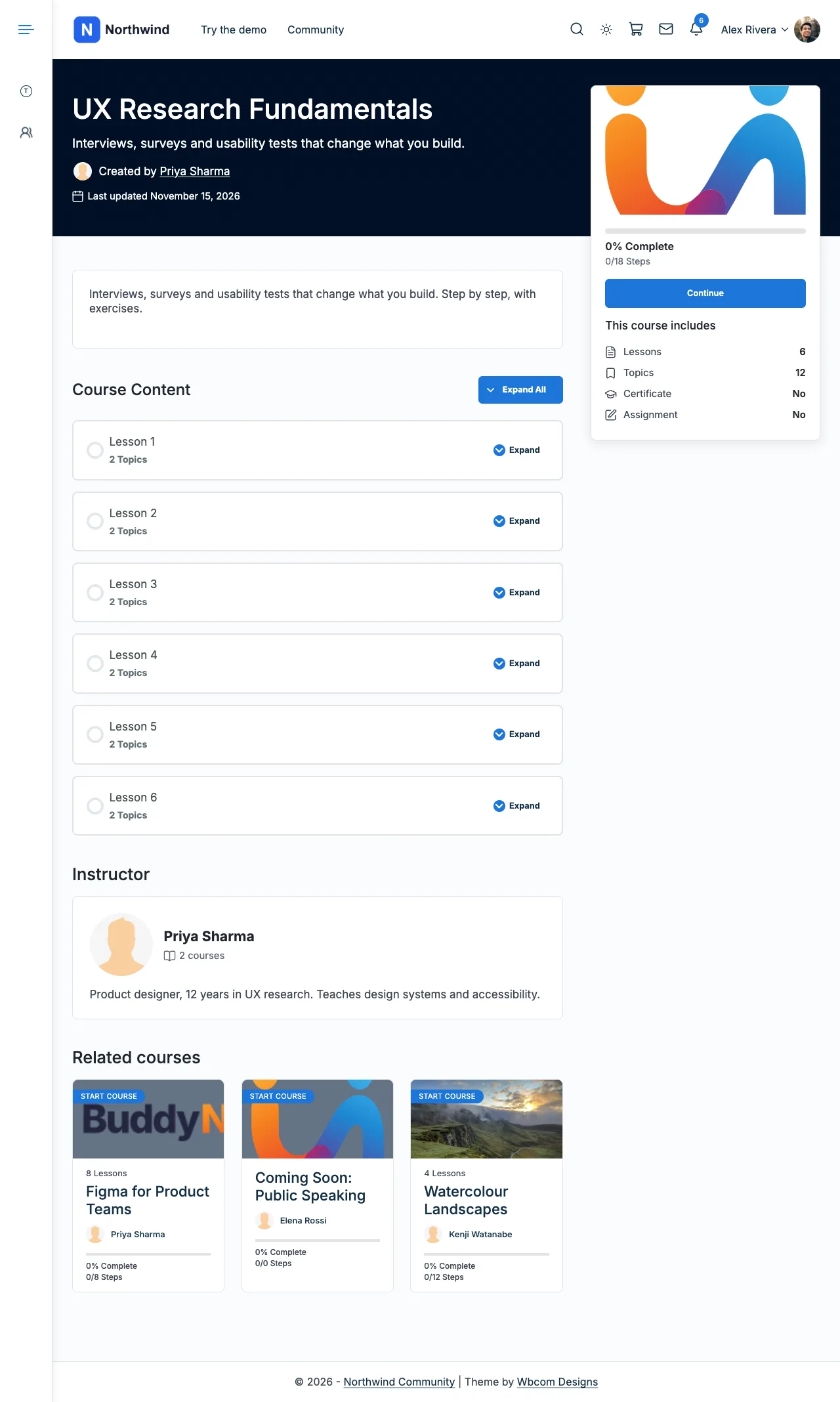
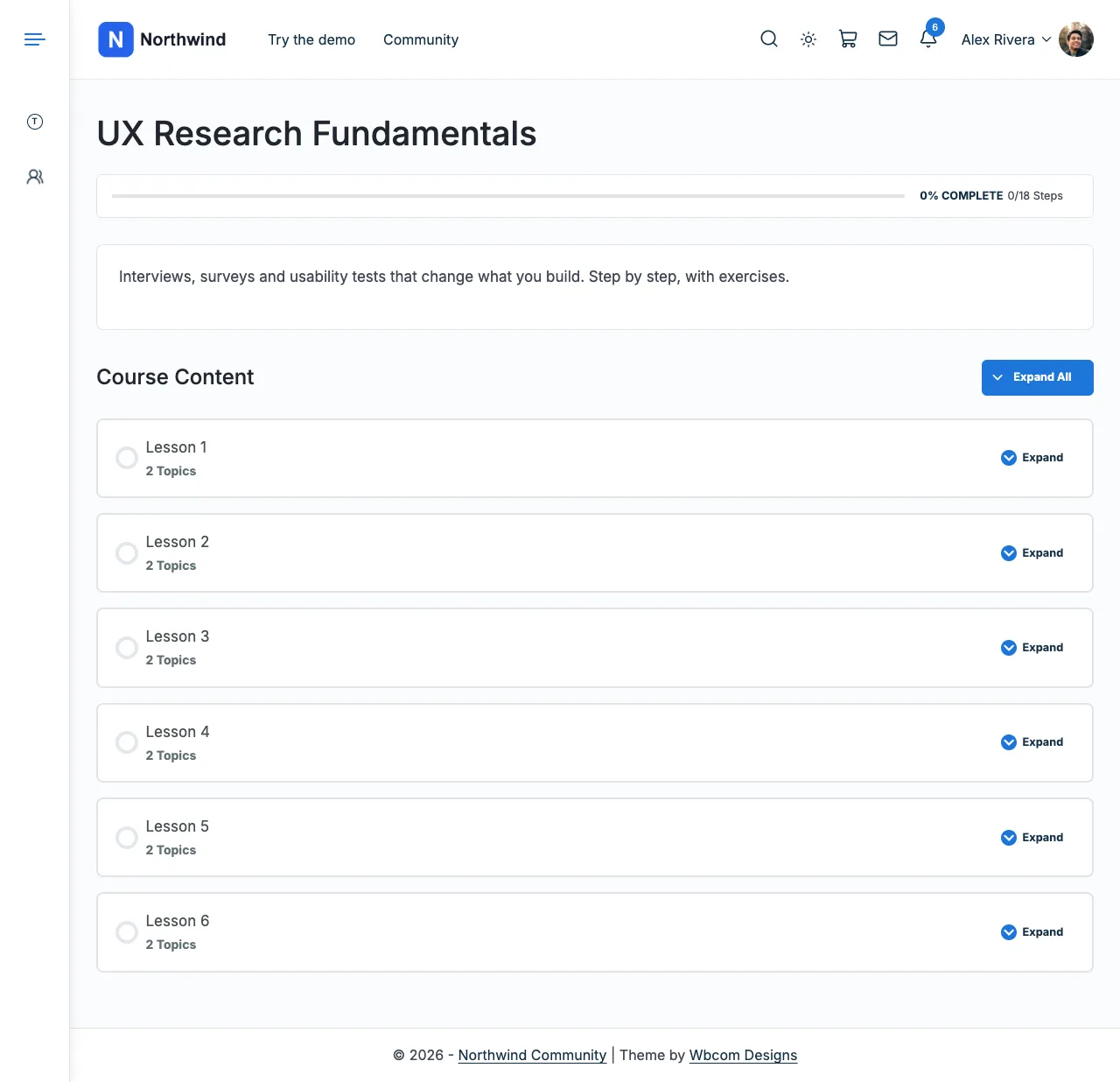
| The whole single course page: header, enrol card and content below | Appearance > Customize > Content Layouts > Courses: Course page > Course page layout. Reign shows Reign’s course page. LMS default shows your LMS plugin’s own page. |
| The sidebar and title banner of the course page or the course list | Appearance > Customize > Content Layouts, in the Course: Archive and Course: Single sections. The name follows your LMS’s label for courses. With the Reign Tutor LMS Addon active, Tutor’s courses have no section here. See Page, search and plugin-content layouts. |
| Extra course page layouts such as Spotlight, Academy or Cover | The paid add-on, in Reign Settings > Integrations. Select Configure on the LearnDash, Tutor LMS, LifterLMS or Sensei LMS tile. |
| The look of the course cards in the course list | The same add-on tile. LearnDash offers Classic cards, Soft cards and Catalog. Tutor LMS offers Classic, Soft and List. LifterLMS offers a Detail card. Sensei LMS offers Grid Classic. |
| Columns, filters and sorting in the course list | The LMS plugin’s own settings. |
| A Courses tab on member profiles | The paid add-on, with BuddyPress, BuddyBoss or PeepSo. See Change the member profile page. |
| The enrol button, price, curriculum, reviews and access rules | The LMS plugin. Reign only arranges them. |
This is the setting, with Reign selected, and the course page it gives.
With LMS default, the same course shows the LMS plugin’s own page.
With no add-on, the course page layout setting is all Reign adds. It works for LearnDash, Tutor LMS, LifterLMS, Sensei LMS and LearnPress. MasterStudy keeps its own course page. See LMS platforms.
Products and store pages
| You want to change | Open |
|---|---|
| The shop grid, filter button and products per phone row | Appearance > Customize > WooCommerce > Shop Page |
| One product’s page | Appearance > Customize > WooCommerce > Single Product Page |
| Cart and My Account | Appearance > Customize > WooCommerce, in Cart Page and My Account Page |
| The sidebar and title banner of the shop or a product | Appearance > Customize > Content Layouts, in Product: Archive and Product: Single |
| A vendor’s store page, store list and vendor dashboard | The marketplace plugin’s own settings (Dokan, WCFM, WC Vendors or MultiVendorX) |
| The WC Vendors store header | WC Vendors > Settings > Display > Enable Vendor shop headers |
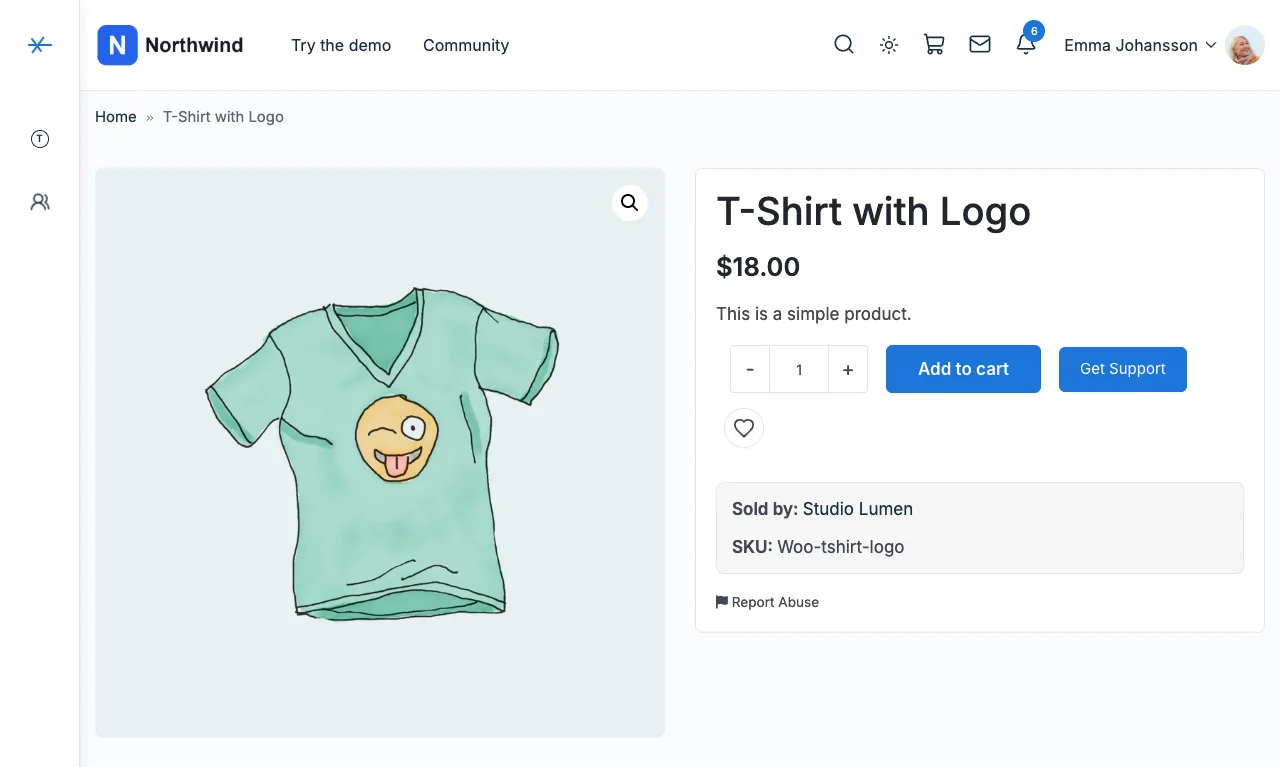
| Store card style in Dokan’s store list, “Sold by” on products, favourite products | The paid Reign Dokan Addon. Go to Reign Settings > Integrations, then Configure on the Dokan tile. |
| Favourite products and profile tabs for WCFM or WC Vendors | The paid add-on tile (WCFM Marketplace or WC Vendors) in Reign Settings > Integrations |
Here are a store card style, the Sold by line and the favourite hearts, from the Dokan add-on.
See WooCommerce and Marketplace plugins.
Jobs
| You want to change | Open |
|---|---|
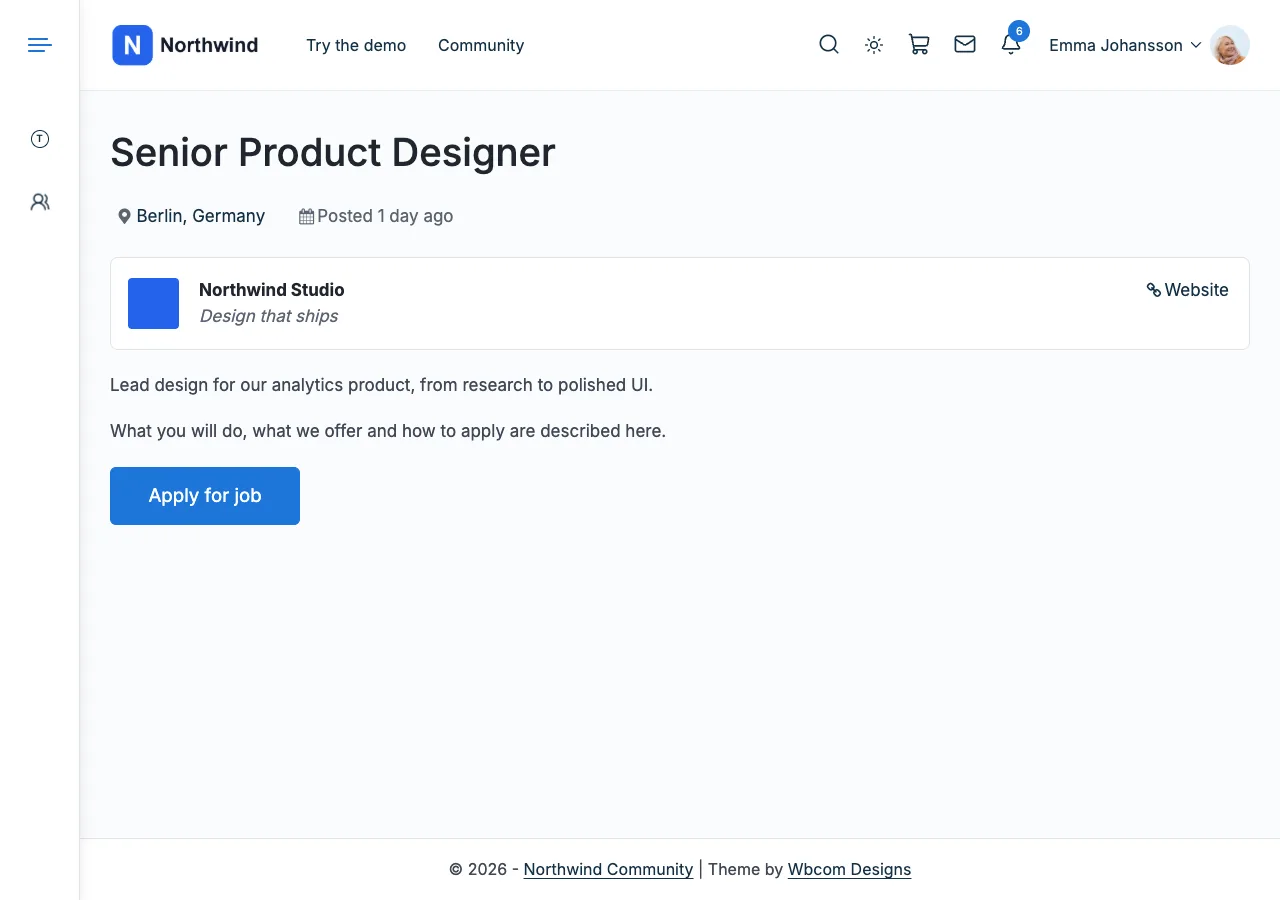
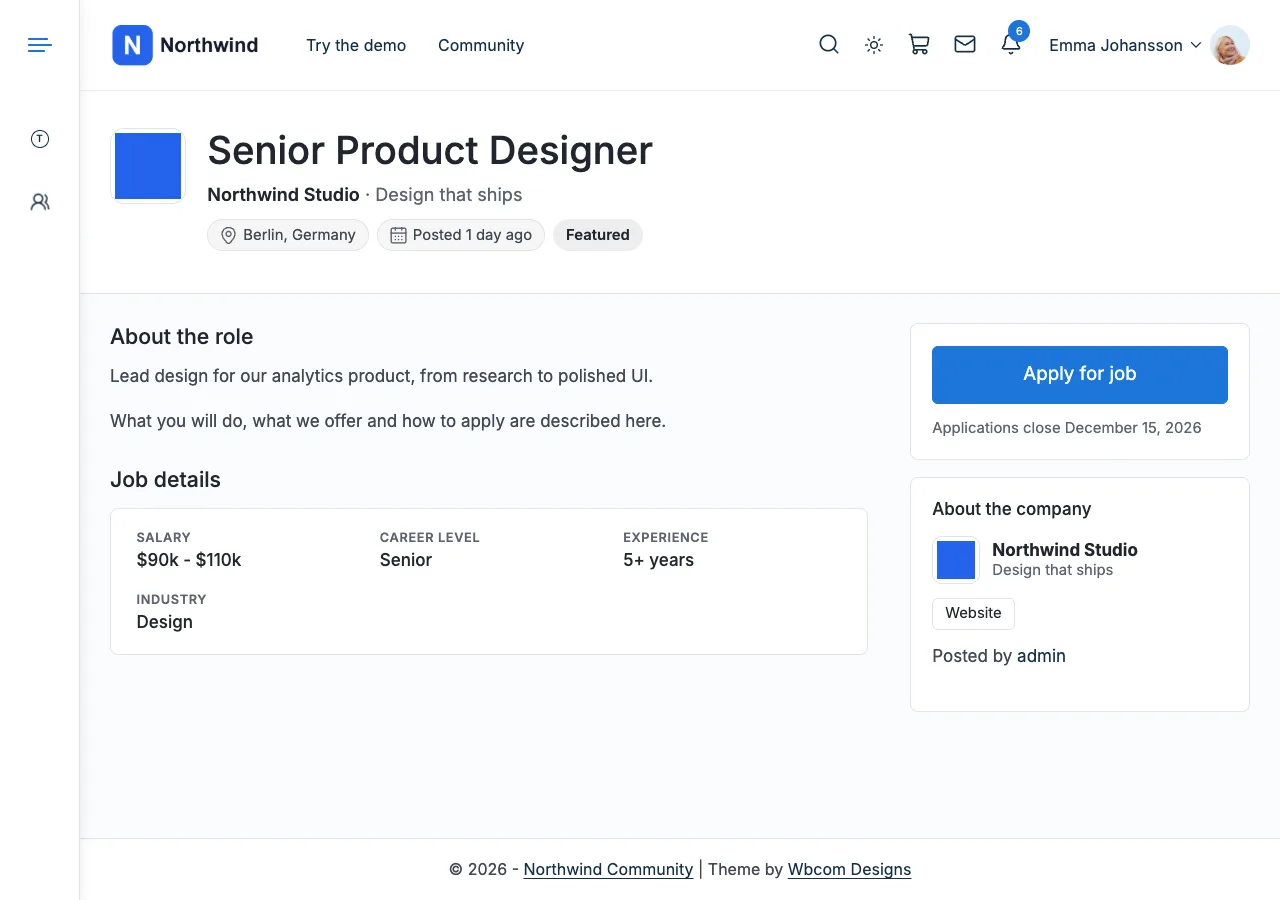
| The single job and resume page: Reign’s header and side card, or the plugin’s own page | Appearance > Customize > Content Layouts > Jobs: Job and resume pages > Job and resume page layout. Choose Reign or Plugin default. |
| The sidebar and title banner of the job list or a job | Appearance > Customize > Content Layouts, in Jobs: Archive and Jobs: Single |
| A Reading layout for job and resume pages, a Grid layout for the job list, related jobs, extra job and resume fields | The paid Reign WP Job Manager Addon. Go to Reign Settings > Integrations, then Configure on the WP Job Manager tile. |
| Search, filters and the application form | WP Job Manager’s own settings |
Here is the same job on the Plugin default layout, and on the Reign layout.
Places (GeoDirectory)
GeoDirectory draws its own place pages, search and maps. Reign keeps its header, footer, colours and dark mode around them. It adds nothing to the place page itself.
| You want to change | Open |
|---|---|
| A place page, the listing search, maps and the add-listing form | GeoDirectory’s own settings |
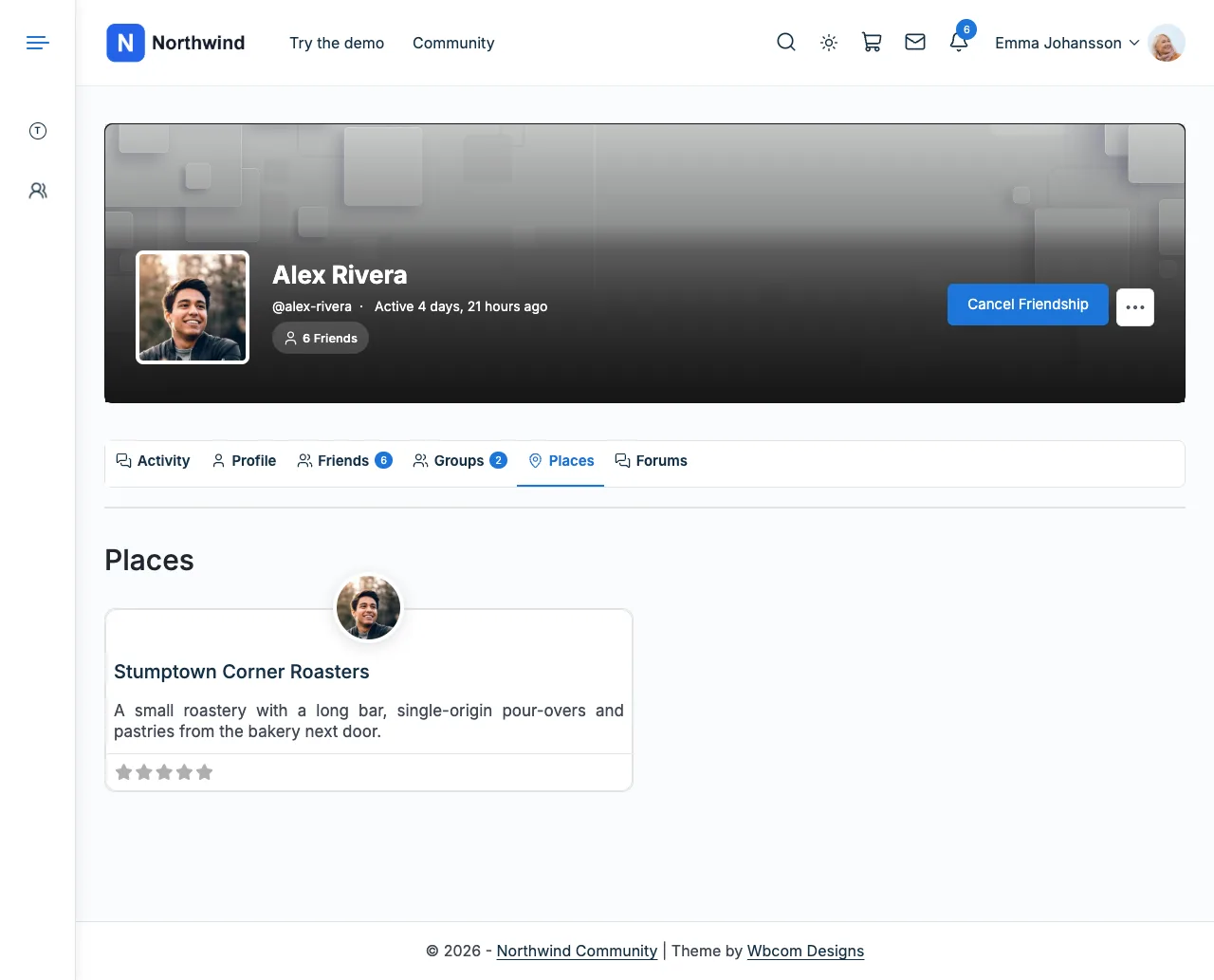
| A Places tab on each member profile, and feed posts for new, favourited or reviewed places | The paid Reign GeoDirectory Addon. Go to Reign Settings > Integrations, then Configure on the GeoDirectory tile. |
| Header, footer, colours and dark mode | Reign, as above |
A GeoDirectory place page keeps GeoDirectory’s own design inside Reign’s header and footer. The Places tab on a member profile comes from the add-on.
You’ll know it worked when
You change one setting and the part you wanted moves on the page.
Good to know
I changed a setting and nothing moved. What now?
The setting belongs to another screen in the same table. Try the next row for that part.
Why are the sidebars missing on my course pages?
The Reign course page has no sidebar column. It is a header, a card and the content below. The Content Layouts sidebar settings apply to the plugin’s own page. Set Course page layout to LMS default to use that page, then check Layout in the Course: Single section.
Where are the add-on prices and what each one adds?
See Reign add-ons.