
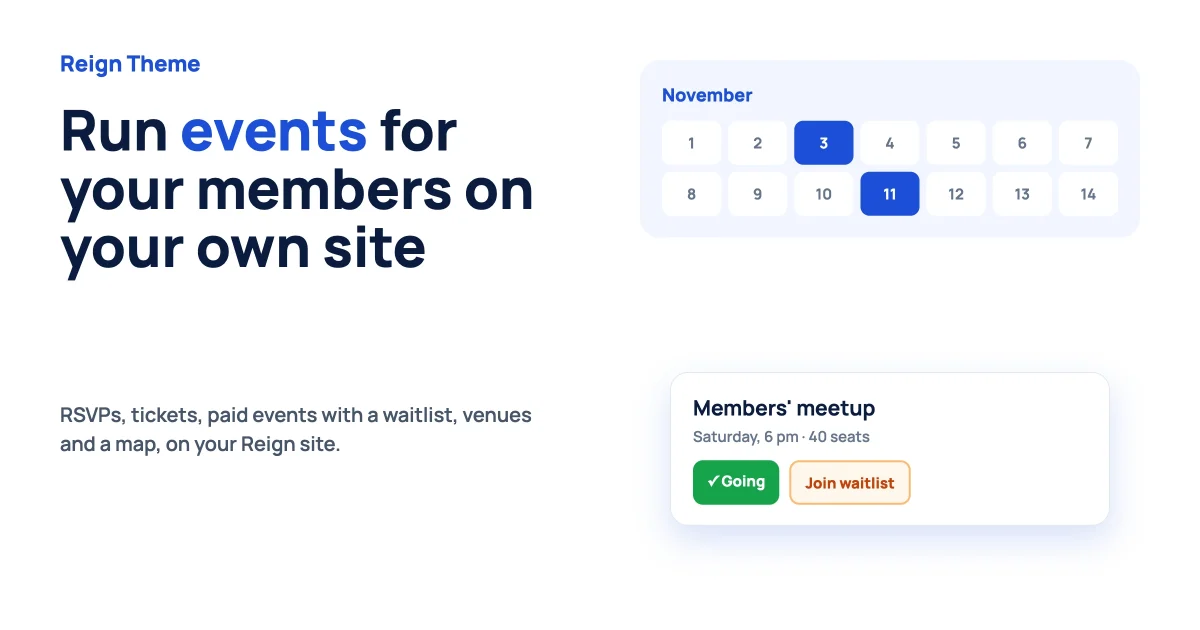
You want your members to meet. Not only to scroll a feed, but to show up: a weekly Q&A, a monthly workshop, a local meetup, a paid masterclass. You also want it on your own site, so the sign-ups, the guest list and the money stay with you instead of sitting on someone else's platform.
That is a very reasonable thing to want, and it is easier than it used to be. This guide to Reign theme events shows how to run community events on a Reign site with Eventonomy, the events plugin from Wbcom Designs. You will see what your members get, what you get as the owner, how to set it up in an afternoon and where the free version stops and the paid version begins. A quick disclosure first: Wbcom makes Reign and Eventonomy, so we are not neutral. If you already use another events plugin and it works for you, there is a fair note about that near the end.
Why events are worth the effort
A community without events is a place people visit when they remember. A community with events is a place people plan around. A date on the calendar gives members a reason to come back, and it gives you something to talk about in the feed before, during and after.
- Return visits. A weekly session creates a habit that no amount of posting can match.
- Stronger bonds. People who attend the same session remember each other.
- Content that makes itself. Questions beforehand, notes during and photos afterwards fill your feed.
- Smaller circles. Events for one group or one topic keep sub-communities alive.
- Income. Paid workshops, masterclasses and conferences become a direct revenue line.
What your members get
Think about what a member wants from an events page. They want to see what is coming, say "I am going", bring a friend and get a reminder. Eventonomy covers that in the free version, and it is described below in everyday terms.
- A page for every event. Date, time, place or link, a description and a clear Register button.
- RSVPs with a waitlist. Members can say going, maybe or no. When the room is full, the button changes to "Join waitlist" so nobody hits a dead end.
- Guest counts and sign-up questions. Let people bring guests and ask for what you need, such as a dietary note or a skill level.
- Guests without an account. Visitors can RSVP with their name and email, and the sign-up form offers to create an account instead of forcing one.
- Four ways to browse. Grid, list, month and upcoming views, so people can find events the way they prefer.
- Venue and organizer profiles. People can browse every event by one host or one venue.
- Events with no date yet. You can announce "date to be announced" and set the date later without losing the listing.
- Link-only private events. Share a private link with the people you choose, and nobody else sees the event.
- Repeating events. Daily, weekly and monthly series, each date with its own guest list.
- Calendar feed. Members can add your events to their own calendar app.
Free events, free tickets and donation pledges all work without the paid version. Paid tickets and maps need Eventonomy Pro, which we cover below.
What you get as the owner
The member side is only half of it. If you run the community, you need control without extra work.
- One Moderation inbox. Approvals for member-submitted events and member reports land in the same place, instead of two separate screens.
- A single approval switch. One "Require approval" control decides whether member events wait for you, so there are no overlapping settings to untangle.
- Member-submitted events. Let trusted members host their own events, with you approving them if you wish.
- Your data stays yours. Registrations, guest lists and orders live in your own database on your own hosting.
- No per-ticket platform fee from the plugin. The Stripe gateway in Eventonomy Pro charges 0% from the plugin side. Stripe's own processing fees still apply, as with any card payment.
- Imports from other plugins. If you already have events somewhere else, there are one-click migrations from The Events Calendar, Events Manager, EventON, WP Event Manager and Sugar Calendar.
Where free ends and Pro begins
Owners often ask what they need to pay for. Here is the plain answer, based on Eventonomy's own documentation. Most community events run happily on the free version.
| You want to | Free | Pro |
|---|---|---|
| Run free events with RSVPs, guest counts and a waitlist | Yes | Yes |
| Offer free tickets and donation pledges | Yes | Yes |
| Browse by grid, list, month and upcoming | Yes | Yes |
| Repeat events daily, weekly or monthly | Yes | Yes |
| Repeat on "every Monday and Wednesday" or "the second Tuesday" | No | Yes |
| Sell paid tickets | No | Yes |
| Take payment by Stripe, PayPal or your site's own checkout | No | Yes |
| Coupons, taxes, booking fees and refunds | No | Yes |
| Pay organizers their share (payouts) | No | Yes |
| Show all events on a map | No | Yes |
| Week and day calendar views | No | Yes |
| Check people in at the door | No | Yes |
| Events tab inside BuddyPress groups and profiles | No | Yes |
If you only run free community events, start with the free version. Add Pro when you want to charge, show a map or run a more complex schedule.
Set up Reign theme events in an afternoon
You do not need a developer for any of this. Eventonomy requires WordPress 6.5 or newer, PHP 8.1 or newer and MySQL 5.7 or newer (or MariaDB 10.4 or newer), which almost every current host provides. If you are not sure, ask your host.
Step 1: Install and run the setup wizard
Install Eventonomy from your Plugins screen and activate it. Then open its setup wizard. It walks you through seven short steps, one at a time:
- Permissions. Who can create events, and whether member events publish at once or wait for your approval.
- Locale. Your currency and the time zone of the city where your events happen.
- Get paid. How buyers pay for tickets and donations. If you only run free events, choose "Free events only".
- Emails. The sender name and address, with a test email so you can see what members will receive.
- Sample data. Optionally load demo events so you can look around before you add your own.
- Pages. The pages that will hold your events and calendar.
- Finish. Complete the wizard and create your first event.
Take the time on the time zone step. Getting it right now saves a lot of confusing questions later.
Step 2: Create your first event
Give it a title, a date and time, and a place. For an online event, add the meeting link. Write a short description that answers three questions: what is it, who is it for and what should I bring. Set a capacity if the room is limited and turn on the waitlist. Add one or two sign-up questions only if you really need the answers, because every extra question lowers the number of people who finish.
Step 3: Put your events where members will see them
Eventonomy works with blocks, so you can place a calendar or a list of events on any page in the editor. If you use a page builder or a classic theme, there are matching shortcodes for the events list, the calendar, upcoming events, RSVP and event submission. Then go to Appearance, then Menus in WordPress and add your Events page to the main menu in Reign, next to your community links. Reign's responsive menu keeps the link usable on phones, where many members will find it.
Step 4: Let members host
Communities grow faster when members run things, not only you. Turn on member event submission, decide whether you want to approve each event and tell your members how to propose one. Approved events appear on the calendar like any other. Members get their own dashboard to see the events they organise and the ones they are attending.
Step 5: Send a test, then announce
Register for your own event with a test account. Check the confirmation email, the reminder and the event page on a phone. Then announce your first event in your community feed, in a pinned post and in your newsletter.
Make it feel like part of your Reign site
Eventonomy keeps its own consistent look under any theme, including dark mode, so events pages stay readable on any site. You can also set the plugin's accent colour to follow your theme's accent colour automatically, which makes buttons and highlights match your Reign colours. On a phone, the view selector becomes a scrolling strip of tabs, and the Register button is large enough to tap.
For the best result, set your brand colours in the Reign Customizer first, then switch on the matching accent colour in Eventonomy, and finally check an event page, the calendar and the sign-up form on your own phone. If anything looks off, adjust it there rather than guessing, because every site's colours are a little different.
Events inside your community
Events work best when they live where your members already are. Which community engine you use changes how this looks.
With BuddyNext
BuddyNext lists Eventonomy as a companion plugin. With both active, events appear as cards in the community feed, and the events a member has attended show on their profile. Eventonomy can also send its notifications into the BuddyNext notification inbox, so members see event updates in the same bell as everything else. For that shared inbox to appear, keep both plugins updated together. If you are on BuddyPress and thinking about moving, our guide to running Reign on BuddyNext explains the move.
With BuddyPress
If you are still on BuddyPress, Eventonomy Pro adds an Events tab to every group. Group members see the group's events in a list or calendar, and members who can create events get a Create Event button that links the new event to the group automatically. An event can belong to several groups at once. Each member profile also gets an Events tab that shows what they organise and what they are going to, and events can post to the activity stream. Privacy is built in: other members only see the events someone is organising or going to, while their saved and maybe lists stay private.
Charging for events
Paid events are where many communities start to earn. With Eventonomy Pro, you can sell tickets in a few ways: pay through Stripe, through PayPal or through your site's own checkout. Buyers are sent to the payment page and return to your site, so card details never touch your server. You can add coupon codes, taxes, booking fees and tiered or early-bird pricing, and you can refund an order if plans change.
Two details worth knowing. First, when a paid event sells out, you can offer a "Join waitlist" option that asks for a name and email and takes no payment, so you keep the interest. Second, a donation prompt can be switched off for a single event when it does not fit. If your community also hosts events run by members, Pro includes organizer payouts, so the money can be shared with the person who hosted.
Before you charge anything, be clear about refunds. A one-line policy on the event page, such as "full refund up to seven days before", prevents most disputes.
Event ideas that fit a community
Different events do different jobs. Pick the one that matches what your community needs right now.
- Weekly Q&A. Low effort, steady rhythm. Rotate the host so it never depends on one person.
- Monthly workshop. A skill-building session with a clear outcome. This is the natural first paid event.
- Quarterly meetup. Online or in person. It builds the strongest bonds because people see each other.
- Challenge or sprint. A time-boxed group activity, such as thirty days of writing. Give it its own space or group so people can cheer each other on.
- Office hours. Open sessions where you or an expert answer questions. Regular hours build trust.
- Launch or milestone party. Celebrate a new feature, a member milestone or an anniversary together.
If you teach, a cohort works well with events as its backbone. Our guide on running a cohort programme on your own site shows how live sessions and a community fit together.
A simple rhythm that keeps events alive
The hardest part of events is not the first one. It is the tenth. Here is a simple rhythm that works for most communities.
- Announce early. Post the event two to three weeks ahead, then again a week before, then the day before.
- Send reminders. Let the plugin send them, so you do not have to remember.
- Start on time. Members notice, and they come back if you respect their time.
- Follow up within a day. Share the recording, the notes or the photos and thank the people who came.
- Look at the numbers. Compare sign-ups with actual attendance, and use that to pick better times next time.
- Ask for the next idea. End each event by asking what members want to see next.
If you already use another events plugin
You do not have to switch. The Events Calendar is a well-known plugin with a large user base, and many communities run it happily. If your current setup does what you need, keep it. The cases where owners tell us they want a change are usually when they want events to feel native to a community (RSVPs, waitlists and member-hosted events), when they want paid tickets without bolting on extra add-ons, or when they want events to show up inside a BuddyNext feed.
If you decide to try Eventonomy, you can import your existing events first and compare the two on a staging copy of your site. Wbcom has a wider look at calendar plugins for WordPress if you want to compare options before you choose.
Plan your first month of events
A calendar with one event looks lonely, and a calendar with twelve looks overwhelming. A good first month has three events, each with a different job.
| Week | Event | Its job |
|---|---|---|
| Week 1 | A free welcome session or open Q&A | Gets members used to registering and showing up |
| Week 2 | Nothing new. Send the recap and collect feedback. | Shows members that events lead somewhere |
| Week 3 | A topic workshop led by you or a member | Gives people a reason to invite a friend |
| Week 4 | A casual social hour or challenge kickoff | Builds friendships, not only knowledge |
Notice the quiet second week. A pause to send the recap and the thank-you notes is what turns a one-off event into a rhythm. After the first month, repeat the pattern that got the best attendance, and drop the one that did not.
Pricing a paid event without guessing
Owners often freeze at the price. You do not need a formula. You need three honest numbers: the time you spend preparing, the value the attendee takes away and the price people already pay for similar sessions in your field. Start there, and then test.
- Start with a founding price. A lower early-bird tier rewards people who commit first and tells you how much interest you have.
- Keep one free doorway. A free introduction session lets new members see your style before they pay.
- Cap the room. A limit makes the event feel real, and the waitlist captures anyone who misses out.
- Write what is included. A recording, slides, a worksheet or a replay link. People pay for outcomes they can picture.
- State the refund rule. One clear sentence beats a long policy nobody reads.
A short checklist before you announce
Run through this list with a test account before you tell your community. It takes ten minutes and saves a lot of replies.
- Is the time zone correct on the event page and in the confirmation email?
- Does the Register button work when you are logged out, and when you are logged in?
- Does the confirmation email arrive in the inbox, not the spam folder?
- Does the event look right on a phone, in light and in dark mode?
- Is the capacity set, and does the waitlist show when the room is full?
- If the event is online, will the meeting link reach only the people who registered, for example in the confirmation email?
- Is there one named person who will answer questions about the event?
If you can answer yes to all seven, you are ready. Announce it, and then stay close for the first day to answer questions fast.
Questions owners ask
Do I need Eventonomy Pro to run events?
No. The free version covers free events, RSVPs with a waitlist, guest counts, recurring events and four calendar views. You need Pro for paid tickets, maps, week and day views, payouts and BuddyPress group tabs.
Can members create their own events?
Yes. You can allow member submissions and decide whether each event needs your approval first. Approvals and member reports arrive in one Moderation inbox.
Can people RSVP without an account?
Yes. Guests can register with a name and email. The form offers to create an account, and that offer can be turned off site-wide.
What happens when an event is full?
The Register button changes to Join waitlist, and the live status updates without a page reload. For paid events, you can offer a waitlist that takes no payment.
Will events work on phones?
Yes. The calendar, the event list and the sign-up form are built to work on small screens, with large tap targets. Always check on your own phone before you announce.
Can I move my events from another plugin?
Yes. There are one-click migrations from The Events Calendar, Events Manager, EventON, WP Event Manager and Sugar Calendar. Rehearse on a staging copy first.
Can I use it without BuddyPress or BuddyNext?
Yes. Eventonomy runs on its own. The community features are an extra layer for sites that have a community.
Where to go from here
Start small. Create one event, invite your most active members and learn from how it goes. If you want to see the events experience before you install anything, launch the Eventonomy sandbox and click through it as a member and as an organiser. The full instructions are in the Eventonomy documentation, and you can read what has changed in each version in the Eventonomy release notes.
If you are still deciding what kind of site to build around your events, see what you can build with Reign, or see how an association or alumni network uses events to stay connected. And if you would like our team to set it up for you, ask about our WordPress maintenance and setup help.