
Your community has been running for a few years. The members are loyal, the groups are busy, and your site looks exactly the way you want it. But something feels old. The feed looks like it belongs to another decade, members tell you the phone experience is clunky, and every time you open the admin you wonder how long the engine underneath will keep up.
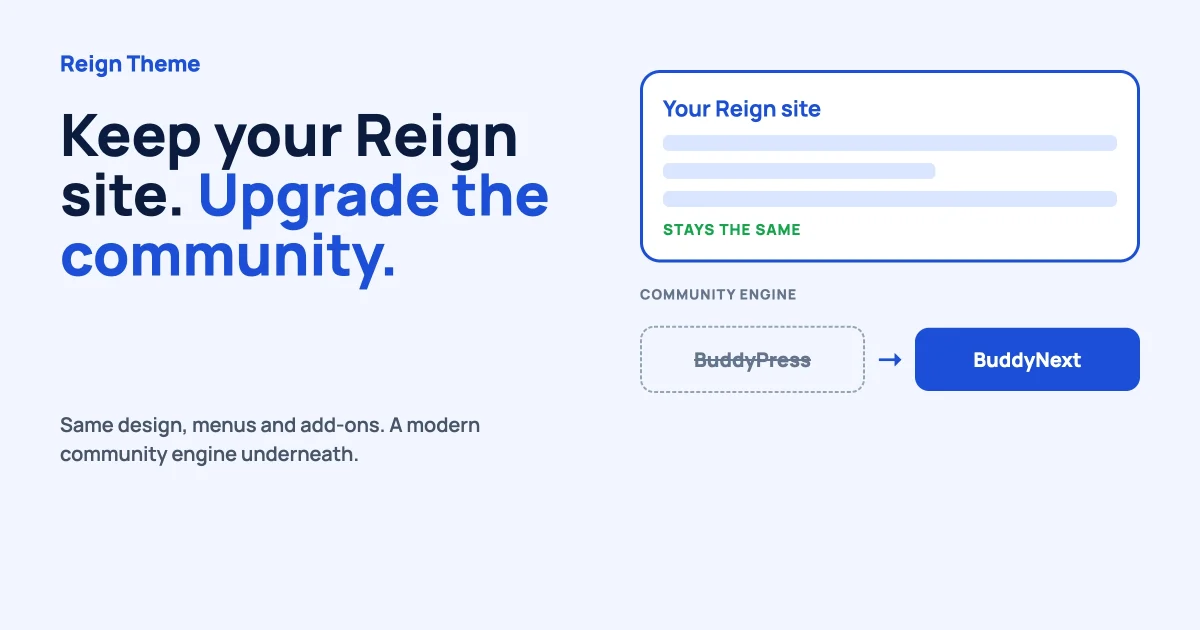
So you start to wonder: do I have to rebuild everything to get something modern? The short answer is no. If you run the Reign theme, you can keep your design, your menus, your pages and your add-ons, and change only the engine underneath. That engine is BuddyNext, and Reign already knows how to work with it. This Reign theme BuddyNext guide shows you what stays, what changes, and how to move without losing your footing.
A quick disclosure first. Wbcom Designs makes Reign and BuddyNext, so we are not neutral here. We will tell you where the move is easy, where it needs care and where you should stay put. If you are happy with what you have, staying is a perfectly good answer.
Why owners want to move
Nobody changes their community engine for fun. When owners tell us they want to move, it is almost always for a handful of everyday reasons.
- A more modern feed. People expect to post, react, reply and share in a clean stream that feels like the apps on their phones.
- Spaces that stay organised. As a community grows, a flat list of groups gets messy. Members want clear places for each topic.
- Messages and notifications in one place. One inbox for replies, mentions and messages is easier than hunting across screens.
- Privacy that members can control. Members want to choose who sees what, and owners want to meet the privacy rules that apply to them.
- A foundation that is still being built. BuddyNext is under active development, and its data is reachable through a REST API, which matters if you ever want an app.
None of these ask you to change how your site looks. That is the point. Your brand lives in your theme, and the theme can stay.
What stays exactly the same
This is the part that makes the move less scary. Reign is a theme, and a theme is separate from the community engine. When you swap the engine, these things carry on as they are:
| What you have | What happens |
|---|---|
| The Reign theme and your Customizer settings | Stay. Colours, fonts, layouts and your logo are untouched. |
| Header and footer | Stay. Reign adjusts the member icons in the header so they work with BuddyNext. |
| Your pages, posts and menus | Stay. They live in WordPress, not in the community engine. |
| Shop, courses and marketplace add-ons | Stay. WooCommerce and your course plugin keep working as before. |
| Your members as WordPress users | Stay. Accounts, logins and roles are WordPress features. |
If you have already built a membership or shop around your community, you do not have to touch any of it just to change how members chat and post.
What changes
The community features themselves are the part that changes. BuddyPress has its own words for things, and BuddyNext has its own.
| On BuddyPress | On BuddyNext |
|---|---|
| Activity stream | The activity feed, with a post composer, reactions, comments, hashtags, polls, shares and bookmarks |
| Groups | Spaces, with membership, roles and their own content |
| Member profiles and directory | Member profiles, a searchable directory and unified search |
| Friends | Connections and follows between members |
| Private messages | Direct messaging, powered by the WPMediaVerse companion plugin |
| Notifications | Notifications and branded transactional email |
| Moderation add-ons | Reactive moderation: members post freely, reports go to a review queue |
BuddyNext also adds things many BuddyPress sites have to bolt on: member onboarding, invites, social login and optional two-factor sign-in for members who want it.
One difference to know about now. BuddyPress has a Friends feature, and Reign shows a Friend Request icon in the header for it. BuddyNext uses connections and follows instead, so Reign leaves the Friend Request icon out rather than show a button that cannot work. If your members rely on friending, tell them before you move.
The honest part: BuddyPress and BuddyNext cannot run together
You cannot run both engines side by side on one site. Reign loads its BuddyPress layer when BuddyPress is active, and its BuddyNext layer only when BuddyNext is active and BuddyPress is not. Running both is not a supported setup.
That means the move is a switch, not a gradual blend. You turn one engine off and the other on. Activating BuddyNext does not carry your BuddyPress content across by itself. So the real question is what happens to your existing groups, posts and members. Let us look at that next.
What can move over, and what starts fresh
BuddyNext has a companion plugin called the BuddyNext Importer. Its public notes describe the following sources and contents. We are repeating what the project states, not promising your exact result, because every community is different.
Sources it reads: BuddyPress, including bbPress forums and rtMedia, and BuddyBoss Platform.
What it is built to bring across:
- Members, profile fields and their values, and member types
- Groups, with their privacy settings and member roles, which become spaces
- Activity posts and their comment threads
- Friendships (as connections), follows and reactions
- Forums, topics and replies, which go to the Jetonomy companion plugin
- Avatars and cover images
- Albums and media, and private messages, which go to the WPMediaVerse companion plugin
What it deliberately leaves behind: notifications. They are short-lived, so they are not imported.
Two points matter for non-technical owners. First, the importer reports what it moved and gives a plain reason for anything it did not, so you can see what arrived before you delete the old setup. Second, it is a one-way door. The project itself says to rehearse on a copy of your site and never to run it on a live community you have not already backed up. There is no undo button inside the plugin. If a run goes wrong, the fix is restoring a backup.
Forums and media need their companion plugins active. If a companion is missing, that part is skipped, and the importer says so. The importer’s own page lists the full details, and you can read it here: BuddyNext Importer on GitHub.
If you would rather not run any of this yourself, that is what our team does for owners. We will come back to it at the end.
Before you start: a short safety routine
Treat this like moving house. You do not carry everything on the first trip and you do not throw away the old place until you have checked the new one. Here is the routine we suggest.
- Take a full backup. Files and database. Then check that you can actually restore it.
- Make a staging copy. A private copy of your whole site where nothing is live. Most hosts create one in a click.
- Update Reign and your plugins on staging. Start from a current Reign release and current versions of your add-ons.
- Check your PHP version and memory. BuddyNext needs PHP 8.1 or newer and works best with 512 MB of PHP memory. Ask your host to confirm both before you start.
- Tell your members. A short note about a short change window goes a long way.
Do all the steps below on staging first. Only repeat them on your live site when staging looks right.
Set up the Reign theme with BuddyNext, step by step
These steps follow Reign's own documentation. You can read the original in the Reign guide to setting up BuddyNext.
Step 1: Install and activate BuddyNext
If BuddyPress is active, deactivate it first. Then install and activate BuddyNext. If your Reign licence is active, you can install BuddyNext in one click from Reign Settings, then Extend. That screen lists the plugins Wbcom builds for Reign and shows whether each one is connected or not installed.
Step 2: Finish BuddyNext's own setup first
When you activate it, BuddyNext opens its own setup screen. It creates your community pages and handles its own routing. Finish that setup before you judge how anything looks. Reign styles whatever BuddyNext shows, so a half-finished BuddyNext setup can look like a theme problem when it is not.
Step 3: Check the header
Reign draws the logged-in member area, with the notification bell, the messages icon and the avatar menu, using BuddyNext's own section. Reign makes sure the Message, Notification and User Menu icons are in your header icon set, even if you trimmed them while on BuddyPress. You can still reorder or hide them in the Customizer under Header, then Header Icons Options.
Step 4: Set up the profile menu
Under Appearance, then Menus, assign a menu to the User Profile location. Reign feeds it into the avatar dropdown, so members see links you chose. If you assign nothing, BuddyNext shows its own quick links. The Log Out link always stays, so you cannot lock members out by mistake.
Step 5: Decide where login and register buttons go
This one confuses many owners, so read it slowly. BuddyNext ships its own login, register and password-reset screens. With BuddyNext active, the front-end WordPress login links lead to those screens. On a default install they are /login/, /login/signup/ and /login/reset/. The normal admin login at wp-login.php is left alone, so you always have a way back in.
Your header Login and Register buttons follow a fixed order. The first rule that applies wins:
- If the Reign sign-in popup is on, the button opens the popup.
- Otherwise, if you set a Login Page or Register Page in the Customizer, the button opens that page.
- Otherwise, the button opens the BuddyNext screens.
If you want members to land on BuddyNext's screens, turn the sign-in popup off and leave the Login Page and Register Page settings empty. Also remember that the Register button only shows when WordPress allows registration, under Settings, then General, then Membership.
Step 6: Confirm Reign sees BuddyNext
Open Reign Settings, then Integrations. With BuddyNext active you should see a BuddyNext tile that reads Styling active, and no BuddyPress tile. If it still says BuddyPress, update Reign. Older builds mislabelled that tile.
Step 7: Walk through it as a member
Log in as an ordinary member, not as an admin, and try these:
- Do the bell, messages icon and avatar menu appear in the header?
- Does the avatar menu show your menu, with Log Out at the end?
- Log out and click a login link. Do you land on the BuddyNext sign-in screen?
- Open the sign-in screen on a phone. Does the cover image reach the header and footer with no gap?
- Post something, react to a post, join a space and send a message.
Only when all of that feels right should you plan the live switch.
Add more to your community, one capability at a time
Once the engine is running, you can add abilities as your community needs them. Reign's Extend screen lists the plugins Wbcom builds to work with it. Here is what each one lets you do, described by the job it does for you.
- Private messaging and photo posts. WPMediaVerse powers direct messages and media in BuddyNext. Most communities add it first.
- Discussions and forums. Jetonomy gives you a discussion area inside your spaces.
- Courses. Learnomy lets you teach lessons and quizzes, and show course progress on member profiles.
- Events. Eventonomy handles event pages, RSVPs and calendars, and shows events as cards in the feed.
- Points and badges. WB Gamification rewards the members who take part.
- Directory listings. Listora lets members publish listings that appear in the feed and on profiles.
- Jobs. WP Career Board adds a place to post and apply for jobs.
- Selling services. WP Sell Services lets members offer their work for sale.
You do not need all of these. Pick the one that solves your members' biggest need, run it for a few weeks, and then decide on the next. Each one works on its own, and removing one only switches off the feature it powered. The rest of your community keeps working.
If you are still deciding what kind of site to build around your community, our guide on what you can build with Reign shows how these pieces fit together for different kinds of owners.
Try it before you decide
The best way to judge a community engine is to use it. You can launch the BuddyNext sandbox and click around as a member and as an admin, with nothing to install and nothing at risk. It runs BuddyNext on its own, so you will see the engine rather than your Reign design.
We are also preparing a sandbox that pairs Reign with BuddyNext, so you can see both together. It is not ready yet. Until it is, the safest way to see Reign and BuddyNext together on your own content is your staging copy, following the steps above.
Should you move at all?
Here is a simple way to decide.
| Your situation | Our suggestion |
|---|---|
| Your BuddyPress community is small, quiet or easy to restart | Move soon. A fresh start on BuddyNext is quick, and you avoid carrying old clutter. |
| Your community is large and busy, and members depend on friends or custom BuddyPress add-ons | Plan it. Rehearse on staging, check each add-on, and pick a quiet week for the switch. |
| You rely on a BuddyPress add-on with no BuddyNext equivalent | Check first. List your add-ons and confirm what replaces each one before you commit. |
| Your community works well and your members are happy | Stay. Keep BuddyPress updated and revisit the question when something specific pushes you. |
| You are starting a new community today | Start on BuddyNext. There is nothing to migrate, so you skip the hard part. |
Notice that none of these answers involve changing your theme. That is the benefit of keeping the look and the engine separate. You can change one without redoing the other.
A calm cutover plan
When staging looks right and you are ready to go live, this order keeps the risk low.
- Pick a quiet time. Choose the day and hour when your members are least active.
- Put the site in maintenance mode. Show a friendly note that you are upgrading the community.
- Take a fresh backup. Even if you took one yesterday.
- Repeat your staging steps. Same order, same settings.
- Check as a member. Use the walk-through list from Step 7.
- Clear every cache. Page cache, object cache and any CDN. Old cached pages can make a good setup look broken.
- Open the doors and watch. Stay close for the first day, and answer questions fast.
- Keep the backup. Do not delete the old setup until the new one has run well for a while.
What to tell your members
The technical side is only half the job. Your members care about what they will see, not which engine runs underneath. A short, honest message before the switch avoids most of the confusion afterwards.
- When it happens. Give the day and the time window, and say the site may be unavailable for a short while.
- What looks different. Say plainly that the feed, spaces and messages look newer, and that the site itself still looks like home.
- What they need to do. In most cases the answer is nothing. Their login, their profile and their posts are meant to be there when they return.
- What is going away. If you rely on friend requests today, explain that members now connect and follow instead.
- Where to get help. Name one place, such as a support email or a pinned post, where members can ask questions in the first week.
After the switch, post a welcome note in your main space and invite people to say hello. A busy first day tells everyone the move went well.
Audit your add-ons before you commit
Your add-ons are the part of a move that surprises people most. A community site is rarely just the engine. It is a set of small extras that members use without thinking about them. Before you switch, make a list on paper or in a spreadsheet.
- List every plugin that mentions BuddyPress. Look at the plugin names and descriptions on your Plugins screen.
- Write the job each one does. For example: polls, hashtags, member blogs, badges, moderation, or a job board.
- Find the replacement. Check whether BuddyNext already covers that job, whether a companion plugin covers it, or whether you can live without it.
- Mark anything with no replacement. These are your decisions to make before moving, not after.
- Test each replacement on staging. Click through it as a member.
Some jobs are already built in. Polls, hashtags, reactions and bookmarks are part of the BuddyNext feed. Member articles, badges, events and jobs come from companion plugins you add when you need them. Anything that was a custom piece of code written for your BuddyPress site will need a developer to look at it, and that is a good moment to ask whether you still need it at all.
Common questions
Will my Reign design change?
No. Your Customizer settings stay. Reign has a styling layer for BuddyNext, so your colours, fonts and layouts carry over. Check the result on staging.
Can I run BuddyPress and BuddyNext together while I test?
No, not on the same site. That setup is not supported. Test on a staging copy instead.
Will my groups, posts and members come across?
The BuddyNext Importer is built to bring across members, groups, activity, friendships, forums, media and messages, and it reports what it could not move. Rehearse on staging, read the report, and keep a tested backup.
Do I need to buy anything for Reign to work with BuddyNext?
Reign detects BuddyNext and adjusts by itself. One-click installs from the Extend screen need an active Reign licence.
What about my BuddyPress add-ons?
List them before you move. Some features are built into BuddyNext, some come from companion plugins, and some may not have a match yet. That is the main thing to check on staging.
Where to go from here
You do not need to rebuild your site to modernise your community. Keep Reign, keep your pages and your add-ons, and change the engine underneath when you are ready. Start with a backup and a staging copy, follow Reign's setup steps, and walk through it as a member before you go live.
If you want help, our team can handle the move for you. We set up the staging copy, run and check the import, test your add-ons and plan the live switch around your quietest hours. You can ask about our WordPress maintenance and migration help. And if you want to see why more owners are building communities they fully own, read why you need a community in the AI era or see how an association or alumni network comes together on Reign.