

For every WooCommerce store owner, customer communication is more than a mere necessity - it’s a golden opportunity to strengthen brand loyalty, boost sales, and provide memorable service. While WooCommerce provides its default email templates, they often lack the personal touch your brand deserves. This is where MailPoet steps in.
MailPoet is a powerful WordPress plugin designed for email marketing automation, newsletters, and transactional emails. When paired with WooCommerce, it lets you fully customize how customers experience your brand through email. Learning how to edit MailPoet WooCommerce email isn’t just about changing colors and fonts - it’s about tailoring every message to your customer’s expectations and your brand voice.
By the end of this guide, you’ll know exactly what MailPoet does, why editing your WooCommerce emails is essential, and how to set it up from scratch so you can start sending professional, personalized messages right away.

What is MailPoet, and how does it enhance WooCommerce Emails
MailPoet is an all-in-one email marketing plugin built for WordPress. Unlike generic email tools, it integrates directly into your WordPress dashboard, allowing you to manage your email lists, newsletters, and WooCommerce transactional messages all in one place.
When WooCommerce is active on your site, MailPoet automatically takes over email sending - meaning you can customize every order confirmation, shipping notification, and abandoned cart reminder without touching a single line of code. This makes it perfect for store owners who want professional email designs but lack advanced coding skills.
Another major advantage is its built-in email editor. This drag-and-drop interface allows you to visually design your emails without worrying about HTML. Whether you want to add your logo, tweak the typography, or restructure your layout, you can easily edit MailPoet WooCommerce email templates to match your store’s aesthetic.
Why Editing MailPoet WooCommerce Emails Matters for Your Brand
Brand consistency is everything in online retail. Customers who receive cohesive, branded emails are more likely to trust your store and make repeat purchases. Leaving your WooCommerce emails in their default state can make them feel impersonal - sometimes even spammy.
When you edit MailPoet WooCommerce email templates, you create an extension of your store’s identity. This consistency strengthens brand recall, making it easier for customers to remember you. Beyond design, you can also adjust your tone of voice, add upselling opportunities, and ensure compliance with marketing regulations.
Here are some reasons why customization matters:
- Increased engagement: Customers are more likely to open and click through emails that feel tailored.
- Improved professionalism: A polished email reflects the care you put into your business.
- Better conversions: Strategic calls-to-action can lead to more purchases.
Setting Up MailPoet for WooCommerce - The Complete Walkthrough
Before you can edit MailPoet WooCommerce email templates, you need to ensure everything is installed and configured correctly. The process is straightforward, but attention to detail is key.
Step 1: Install and Activate MailPoet
- From your WordPress dashboard, go to Plugins → Add New.
- Search for “MailPoet.”
- Click Install Now and then Activate.
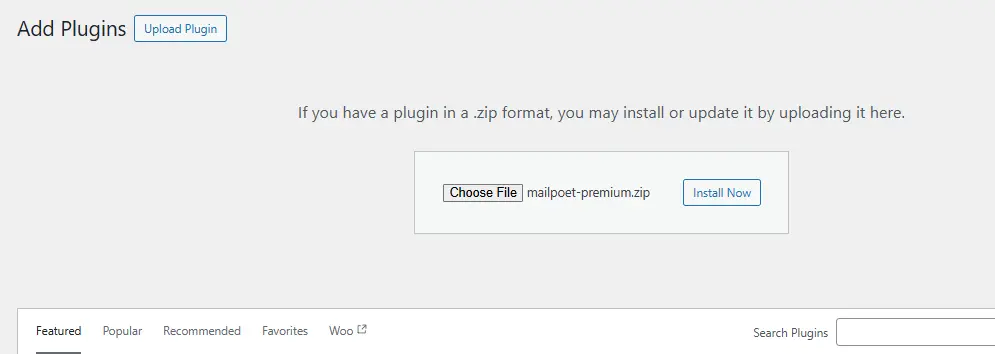
Once active, MailPoet will appear as a new menu item in your dashboard.
Step 2: Connect MailPoet to WooCommerce
If you already have WooCommerce installed, MailPoet will detect it automatically. You’ll be prompted to enable WooCommerce email integration. This ensures all transactional emails - such as order confirmations, invoices, and shipping notifications - will be sent via MailPoet.
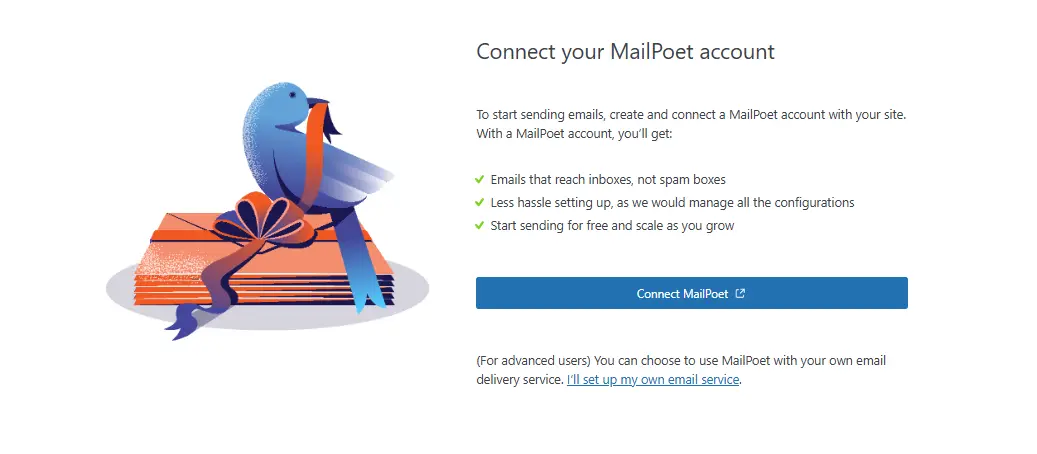
Step 3: Set Up Your Sender Information
Go to MailPoet → Settings → Basics and enter your sender name, business email, and reply-to address. This step is crucial for ensuring your emails don’t end up in spam folders.
How to Edit MailPoet WooCommerce Email Templates Step-by-Step
Once everything is set up, it’s time to dive into customization.
Step 1: Access the Email Editor
Navigate to MailPoet → Emails in your dashboard. You’ll see a list of your WooCommerce transactional emails. Click the one you want to edit.
Step 2: Choose a Layout
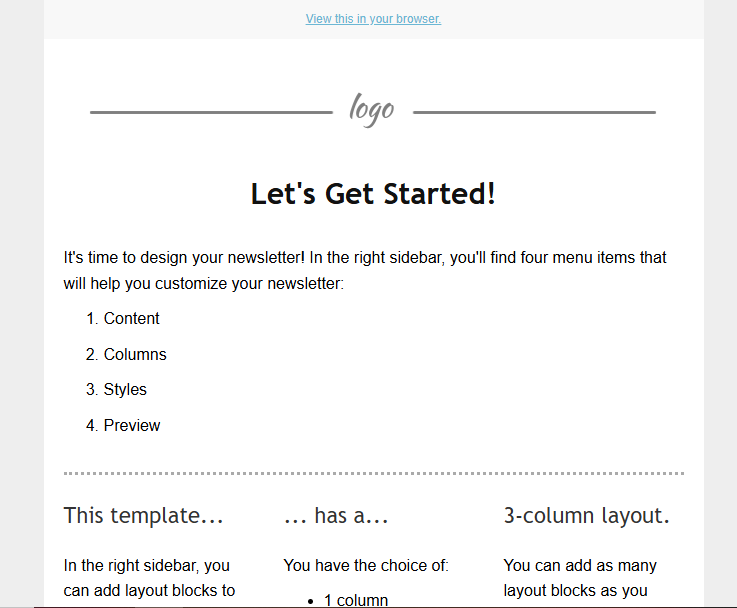
MailPoet offers pre-designed templates that you can adapt to your needs. Select a layout that matches your store’s vibe.
Step 3: Customize Content
In the drag-and-drop editor, you can:
- Add your store logo.
- Change fonts, colors, and button styles.
- Adjust spacing for better readability.
- Personalize text for a friendly tone.

When you edit MailPoet WooCommerce email templates, remember to keep your copy concise yet informative. Use dynamic placeholders such as {customer_name} or {order_date} to make messages feel personal.
Step 4: Preview and Test
Always preview your email before sending. MailPoet lets you send test emails so you can see how it looks in real inboxes.
Going Beyond Basics: Advanced Editing Tips
Once you master the standard tools, you can elevate your WooCommerce emails further.
- Incorporate upsell products: Suggest related items within order confirmations.
- Highlight discounts: Include special offers in shipping confirmation emails to encourage future purchases.
- Segment customers: Send different messages to first-time buyers and repeat customers.
When you edit MailPoet WooCommerce email content with these techniques, you go from simply delivering information to actively driving sales.
Common Mistakes to Avoid When Editing MailPoet WooCommerce Emails
Even with the right tools, certain pitfalls can reduce the effectiveness of your email campaigns.
- Overloading with content: Keep messages clear and focused.
- Ignoring mobile optimization: A large portion of customers read emails on mobile devices.
- Skipping tests: What looks good in the editor might break in certain email clients.
Avoiding these mistakes ensures your MailPoet WooCommerce email efforts deliver professional, effective results.
Testing and Deliverability - Ensuring Your Emails Reach the Inbox
A beautifully designed email is useless if it never arrives. That’s why testing is critical.
MailPoet includes built-in tools to check deliverability. You can also use third-party services like Mail-Tester.com to ensure your settings meet spam filter requirements.
Make sure your sending domain is authenticated with SPF, DKIM, and DMARC records. This technical step may sound complex, but it dramatically improves your chances of landing in the inbox.

Final Thoughts: Turning Emails Into a Brand Experience
Learning how to edit MailPoet WooCommerce email effectively is more than just a design exercise - it’s a core part of your customer experience strategy. Each message is a chance to reassure, inform, and even delight your buyers.
With MailPoet’s user-friendly tools, you can confidently transform plain transactional emails into polished, on-brand communications that leave a lasting impression. When done right, your WooCommerce emails become as much a part of your brand as your website itself.
Interesting Reads:
How to Personalize WooCommerce Checkout Fields to Match Your Store