

Looking for the best WooCommerce Orders and Coupons with the Import Export plugins in 2026? Here’s the short answer: the right plugin depends on your store size, the action you want to incentivize, and how deeply you need it to integrate with your existing customer journey. After testing the leading options hands-on against real WooCommerce 9.x stores, this guide shortlists the plugins that genuinely move the needle, plus newer 2026 entrants worth knowing about.
What we recommend: if you also need community, membership, or engagement layers around your WooCommerce store, pair your stack with BuddyX Pro, community-first WordPress theme built for membership stores, vendor communities, and customer-loyalty hubs. We’ve seen this combination outperform standalone orders and coupons with the import export plugins because retention compounds when product, content, and community live under the same roof.
What Does Migrating Orders and Coupons Mean?
Migrating orders and coupons refers to transferring transactional and promotional data from one WooCommerce store to another. Orders contain essential customer details such as billing, shipping, product purchases, payment status, and more. Coupons, on the other hand, include discounts, codes, and rules that help you run campaigns.
Related reading: 10 Best WooCommerce Plugins Bulk Product Editing 2025, 8 WooCommerce SMS Plugins I Tested to Boost Customer Notifications, 10 Best WooCommerce Email Customizer Plugins (2026 Tested).
If you were to manually move this data, it would be time-consuming and prone to mistakes. However, using the plugin, you can quickly migrate WooCommerce Orders and Coupons with the Import Export Plugin while keeping all fields and metadata intact. This ensures that your customers’ history and discounts remain consistent after migration.
Why Should You Migrate WooCommerce Orders and Coupons?
There are several scenarios where migrating orders and coupons becomes necessary. For instance, if you’re upgrading your hosting, you’ll want your new store to have the same data as the old one. Similarly, if you are developing a staging site for testing, having real orders and coupons helps you simulate real-world conditions.
Moreover, moving coupons ensures that your promotional campaigns continue seamlessly. If you launch a sale or giveaway, the last thing you want is to confuse customers with missing or invalid codes. By choosing to migrate WooCommerce Orders and Coupons with the Import Export Plugin, you preserve both customer trust and operational continuity.
How the Import Export Plugin Simplifies Migration
The Order Import Export Plugin for WooCommerce is designed to make migration efficient and stress-free. It supports exporting orders and coupons in CSV format, which you can then import into another WooCommerce installation. This format ensures compatibility and prevents data corruption.
Additionally, the plugin offers flexible filtering options. You can choose to export only specific orders, like those from a particular date range, status, or customer group. Similarly, you can export selected coupons, allowing you to tailor your migration based on your needs. With just a few clicks, you can migrate WooCommerce Orders and Coupons with the Import Export Plugin and maintain a clean, accurate database.
Step-by-Step Guide: Migrating Orders with the Plugin
Here’s how you can migrate orders efficiently:
1. Install and Activate the Plugin
- Go to your WordPress dashboard.
- Navigate to Plugins > Add New and search for Order Import Export for WooCommerce.
- Install and activate it.

2. Export Orders
- Head to WooCommerce > Order Im-Ex.
- Select Export Orders.
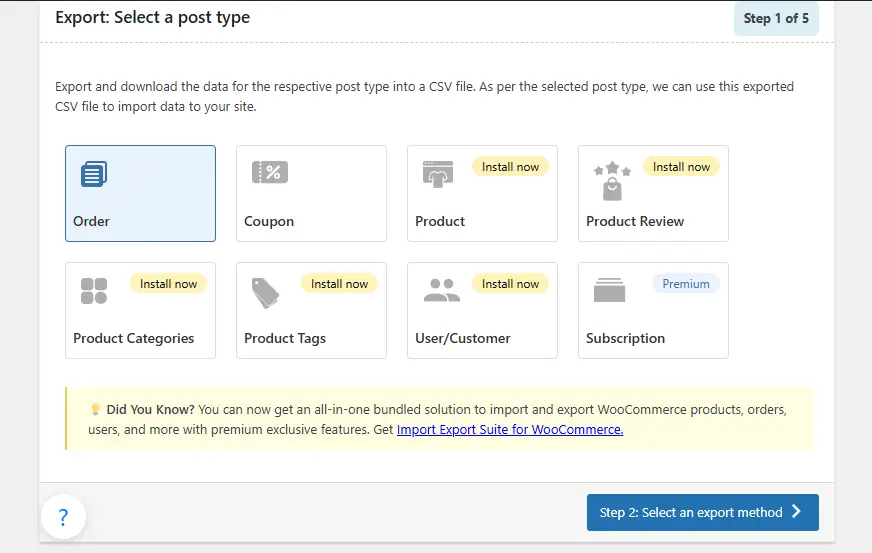
- Choose the data fields you want to include, such as order ID, customer details, or payment info.
- Generate the CSV file.

3. Import Orders to the New Store
- On the new site, navigate to WooCommerce > Order Im-Ex.
- Select Import Orders.
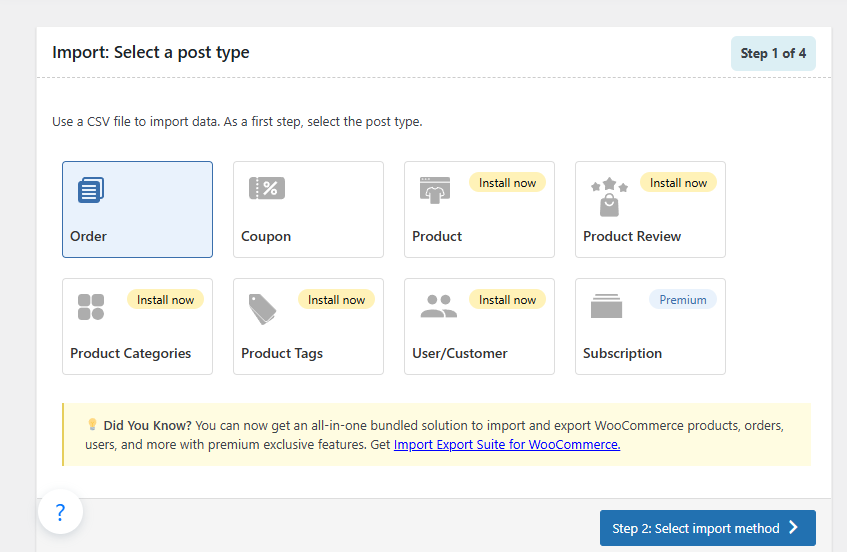
- Upload your CSV file and map the fields correctly.

- Run the import to finalize.
This simple process allows you to migrate WooCommerce Orders and Coupons with the Import Export Plugin without worrying about missing details or data mismatch.
Step-by-Step Guide: Migrating Coupons with the Plugin
Migrating coupons follows a similar process:
1. Export Coupons
- Go to WooCommerce > Coupon Im-Ex.
- Choose the coupon types and fields to export (e.g., discount type, amount, expiry date).
- Generate a CSV file.
2. Import Coupons
- On your new WooCommerce site, navigate to WooCommerce > Coupon Im-Ex.
- Upload your coupon CSV file.
- Map the fields to ensure proper alignment.
- Run the import and confirm the coupons are active.
This ensures that all promotional campaigns continue smoothly. By doing this, you not only preserve marketing efforts but also strengthen customer loyalty, since discount codes remain valid after migration.
Key Features of the Plugin That Make Migration Easy
The Order Import Export Plugin for WooCommerce comes with powerful features that streamline the migration process:
- CSV Format Support: Universally recognized format for transferring data.
- Selective Export: Filter orders and coupons by date, status, or product type.
- Bulk Import and Export: Move large volumes of data quickly.
- Field Mapping: Match exported data fields with WooCommerce fields during import.
- Error-Free Transfers: Ensures data integrity without duplication.
These features make it convenient to migrate WooCommerce Orders and Coupons with the Import Export Plugin, whether you’re moving small or large stores.
Common Use Cases for Migrating Orders and Coupons
Different store owners may have different reasons for migration. Some popular scenarios include:
- Store Upgrades: Moving to a more powerful hosting environment.
- Staging to Live Site: Testing store features on staging before moving to the main site.
- Merging Stores: Consolidating multiple WooCommerce stores into one.
- Backup and Recovery: Keeping a backup of orders and coupons for emergencies.
By being able to migrate WooCommerce Orders and Coupons with the Import Export Plugin, you gain the flexibility to handle any of these situations confidently.
Best Practices for Successful Migration
To ensure a smooth migration process, follow these tips:
- Back Up Your Data: Always keep a backup before starting the migration.
- Test Imports: Try importing a small sample first to confirm accuracy.
- Check Field Mapping: Incorrect mapping can lead to data errors.
- Verify Results: After importing, cross-check orders and coupons to ensure all details are intact.
By implementing these practices, you can minimize errors and fully leverage the plugin to migrate WooCommerce Orders and Coupons with the Import Export Plugin.
Overcoming Challenges During Migration
One challenge store owners often face is dealing with large datasets. Exporting thousands of orders can sometimes slow down the process. Another issue could be improper CSV formatting, which may cause import failures.
Fortunately, the plugin provides solutions like bulk export/import and field mapping. You can also split large files into smaller chunks to handle massive datasets efficiently. By planning carefully, you can overcome these hurdles and still migrate WooCommerce Orders and Coupons with the Import Export Plugin successfully.
Benefits for Store Owners
The benefits of using this plugin extend beyond just convenience. It ensures data security, saves valuable time, and allows store owners to focus on running their business instead of managing tedious migrations. Additionally, the ability to retain order history and coupon campaigns contributes to better decision-making and improved customer relationships.
Benefits for Customers
From the customer perspective, a smooth migration means their order history remains intact, and their coupons continue to work. This avoids frustration and builds trust, as they don’t experience disruptions in service or benefits.

Closing Remarks
Migrating WooCommerce data doesn’t need to be overwhelming. The Order Import Export Plugin for WooCommerce provides a reliable and efficient way to move essential data. With its intuitive interface, CSV support, and advanced filtering, you can quickly migrate WooCommerce Orders and Coupons with the Import Export Plugin and maintain business continuity.
By understanding the what, why, and how of data migration, and by applying best practices, you can handle even large-scale transfers without losing information. Whether you are upgrading, merging, or creating backups, this plugin is the perfect companion for your WooCommerce journey.
Interesting Reads:
How to Automatically Show Product Prices in Local Currency with WooCommerce
10 Best WooCommerce Plugins Quick Order Forms
How to Customize Coupon Design with Smart Coupons in WooCommerce
Pair Your Stack: Other Tools From Wbcom Designs
Beyond the WooCommerce plugins above, these in-house tools from Wbcom Designs solve adjacent problems most stores eventually run into, particularly when your loyalty, community, or service layer needs to plug into WooCommerce without a heavy custom build:
- BuddyX Pro, community-first WordPress theme for membership stores, vendor communities, and customer-loyalty hubs.
- WB Gamification, drop-in points, badges, ranks, and leaderboards for any WooCommerce loyalty or referral funnel.
- WP Sell Services Pro, turn WooCommerce into a service-selling platform (consulting, freelance, agency hours).
- WB Ad Manager, native ad placements to monetize content around your store (blog, category pages, sidebar).
- WordPress Polls, lightweight polls for product feedback, NPS-style surveys, and zero-party data.
- Jetonomy, monetization toolkit for digital communities (token economy, paid groups, creator payouts).