
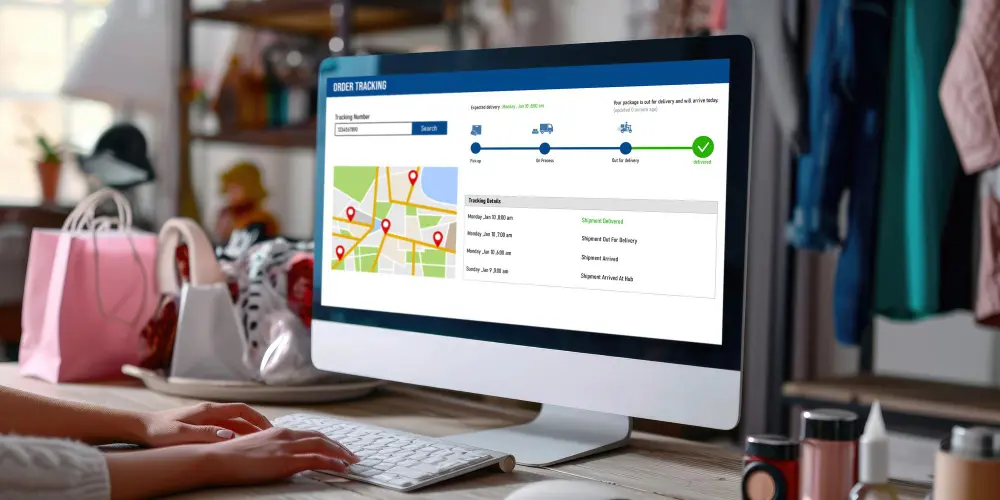
E-commerce success depends heavily on trust and transparency. Customers don’t just want their products delivered - they also want to stay informed about where their orders are at every stage. If your store lacks a proper tracking system, you risk disappointing customers and damaging your reputation.
The good news is that WooCommerce offers a powerful solution to this challenge: the WooCommerce Shipment Tracking plugin. By using it, you can Add Order Tracking in WooCommerce seamlessly, keeping your buyers informed and engaged while reducing support inquiries. This article will guide you through everything you need to know, from understanding what order tracking means to installing, configuring, and optimizing it for your online store.

What is WooCommerce Order Tracking?
Order tracking is the process of providing customers with real-time updates about the status of their shipments. Instead of wondering when a package will arrive, customers can simply enter their order number and check the current progress.
When you add Order Tracking in WooCommerce, the Shipment Tracking plugin integrates tracking details directly into your store. Customers receive a tracking link via email or on their account page, allowing them to follow their purchase from dispatch to delivery. This level of transparency builds trust and enhances the overall shopping experience.
Why Add Order Tracking in WooCommerce?
There are several reasons why order tracking is essential for any e-commerce business. First and foremost, it improves customer satisfaction. Shoppers no longer need to contact your support team to ask, “Where’s my order?” Instead, they can access updates instantly.
Moreover, when you Add Order Tracking in WooCommerce, you save valuable time and resources. Your support team can focus on solving real issues rather than responding to repetitive inquiries. Additionally, tracking builds credibility, showing customers that your business is professional and reliable.
How the WooCommerce Shipment Tracking Plugin Works
The WooCommerce Shipment Tracking plugin is a simple yet powerful tool. Once installed, it allows you to add tracking details from major shipping carriers directly into WooCommerce. The plugin supports popular services such as USPS, FedEx, UPS, DHL, and many more.
Customers receive tracking details in their order confirmation email and can also view them on their account page. When you Add Order Tracking in WooCommerce using this plugin, you essentially provide a direct connection between your store, the carrier, and the customer, ensuring full visibility throughout the delivery journey.
Key Benefits of Using the Shipment Tracking Plugin
Implementing order tracking is not just about convenience - it also drives measurable business benefits:
- Improved Customer Experience: Buyers feel confident knowing exactly where their package is.
- Fewer Support Requests: Customers check status updates themselves.
- Professional Branding: A transparent system reflects reliability.
- Global Reach: Supports numerous carriers for international shipments.
When you add Order Tracking in WooCommerce, you’re not just adding a feature - you’re elevating your entire shopping experience.
Step-by-Step Guide: How to Add Order Tracking in WooCommerce
Step 1: Purchase and Install the Plugin
- Go to the WooCommerce Shipment Tracking plugin page.
- Purchase and download the plugin package (a ZIP file).
- Log in to your WordPress admin dashboard.
- Navigate to Plugins > Add New > Upload Plugin.
- Upload the ZIP file and click Install Now.
- Once installed, click Activate to enable the plugin.

At this point, you’ve successfully added the tool that makes it possible to Add Order Tracking in WooCommerce.
Step 2: Configure Tracking Settings
- Head to WooCommerce > Settings > Shipping > Shipment Tracking.
- Enable the plugin and choose from pre-configured carriers.
- If needed, add custom carriers by entering their tracking URLs.
- Customize how the tracking information will appear in emails and on the customer’s account page.
- Save your settings.
These configurations ensure your tracking system works smoothly for every order.
Step 3: Add Tracking Information to Orders
- Go to WooCommerce > Orders in your dashboard.
- Select the order you’re fulfilling.
- Scroll down to the Shipment Tracking section.
- Choose the shipping carrier from the dropdown menu.
- Enter the tracking number provided by the carrier.
- Optionally, add the date the order was shipped.
- Click Update Order to save changes.
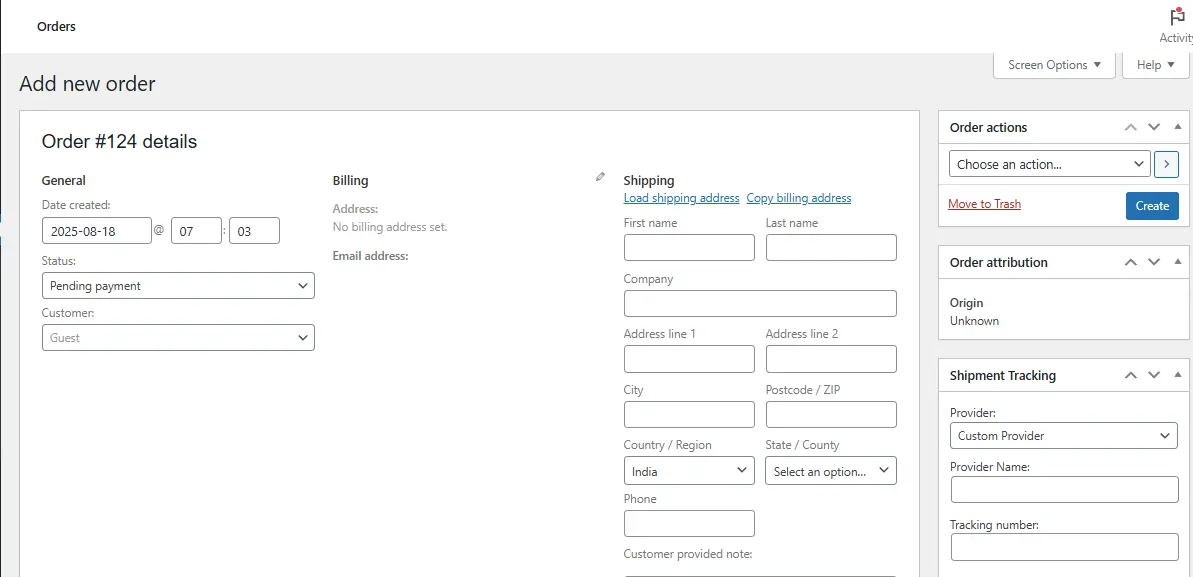
The plugin will automatically send tracking details to the customer via email and display them in their account dashboard.
Step 4: Test the Tracking Feature
- Place a test order from your store.
- Fulfill the order and add tracking details as described above.
- Check the confirmation email sent to the customer’s email address.
- Log in as the test customer and review the “My Account > Orders” section.
- Verify that the tracking link works properly and redirects to the correct carrier website.
Testing helps ensure the order tracking system is accurate, user-friendly, and reliable before going live for all customers.
Best Practices for Effective Order Tracking
Adding tracking is only the beginning; optimizing it makes the real difference. Follow these best practices:
- Send Prompt Notifications: Notify customers immediately when tracking is added.
- Offer Multiple Carriers: Give buyers choices that suit their region.
- Keep Emails Clear: Use concise language and clickable links.
- Maintain Consistency: Ensure all shipments have tracking details.
These practices guarantee that when you Add Order Tracking in WooCommerce, it adds real value to your business and enhances the customer journey.
Common Mistakes to Avoid
While the Shipment Tracking plugin is straightforward, mistakes can happen. One common error is failing to enter tracking numbers promptly, which frustrates customers. Another mistake is neglecting to customize email templates, which can result in confusing or unbranded notifications.
Additionally, relying on carriers that don’t support real-time updates can diminish the customer experience. By avoiding these pitfalls, you’ll ensure that your efforts to Add Order Tracking in WooCommerce yield the best possible results.
Advanced Tips for Maximizing the Plugin
If you want to take order tracking to the next level, consider these advanced strategies:
- Custom Branding: Add your logo and brand colors to tracking emails.
- Integrations: Connect with automation tools like Zapier to streamline workflows.
- Upsell Opportunities: Include related product suggestions in tracking emails.
- Customer Feedback: Add a quick survey link once the order is delivered.
These enhancements turn a functional system into a marketing asset. When you Add Order Tracking in WooCommerce, thinking beyond the basics can set your store apart.
Real-World Scenarios Where Tracking Shines
Order tracking isn’t just for physical products. Subscription boxes, event tickets, or any time-sensitive product benefit greatly from transparent updates.
For example, imagine selling limited-edition merchandise. Customers are eager to know exactly when it will arrive. By offering tracking updates, you build excitement while reducing uncertainty. This is one of the many reasons to Add Order Tracking in WooCommerce - it adapts to various business models.
Measuring the Impact of Order Tracking
Once your system is live, monitor metrics such as customer satisfaction scores, support ticket volume, and repeat purchase rates. Tools like Google Analytics and customer feedback surveys can provide valuable insights.
By evaluating these metrics, you’ll see firsthand how adding tracking influences your business. When you Add Order Tracking in WooCommerce, you’re not only improving logistics but also building stronger customer relationships.

Final Thoughts
A seamless order tracking system is no longer optional; it’s a vital part of running a successful e-commerce store. Customers expect transparency, and businesses that deliver on this expectation gain loyalty, trust, and repeat sales.
By learning how to Add Order Tracking in WooCommerce with the Shipment Tracking plugin, you take a significant step toward enhancing your store’s professionalism. From installation to optimization, the process is simple yet transformative. Once implemented, you’ll notice not only smoother operations but also happier, more engaged customers.
Interesting Reads:
How to Set Up WooCommerce One Page Checkout