
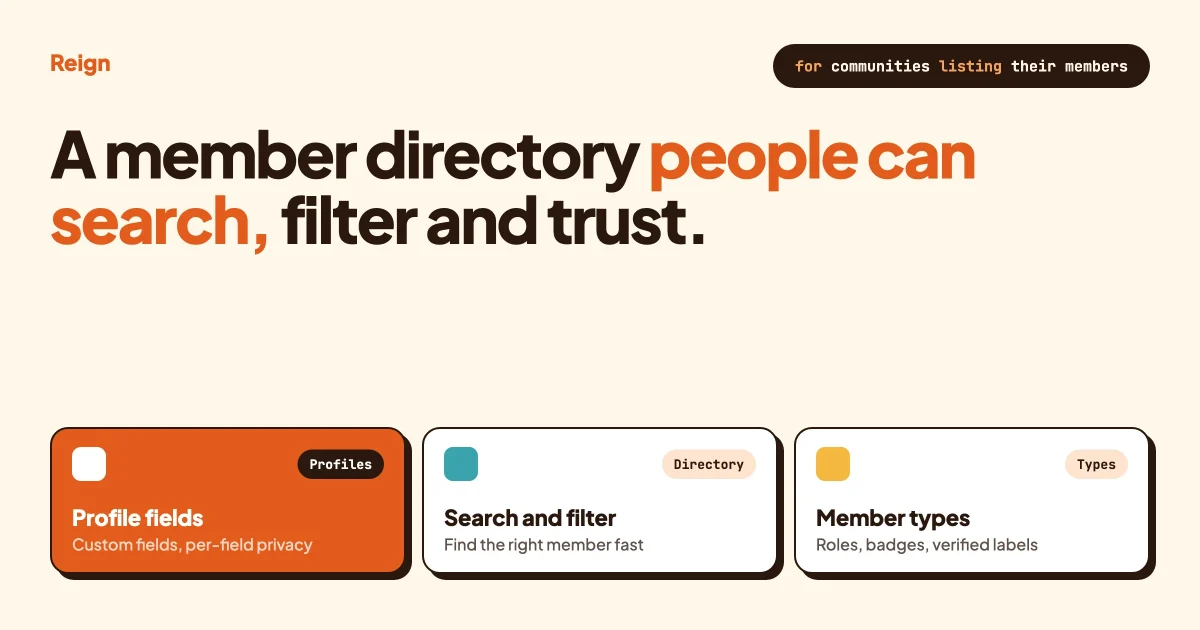
A WordPress member directory plugin gives every member a profile, lists those profiles on one searchable page, and lets members control what others can see. BuddyNext, Ultimate Member, Profile Builder, WP User Frontend and BuddyPress all do this, with different strengths. Pick by the shape of your site: a community where members talk to each other, or a plain listing of people. This guide compares them as of October 2026 and shows what to check before you commit.
Everything said about a product here comes from that product’s own site or documentation, read in October 2026. Plans and features change, so confirm anything that affects your build on the vendor’s page. We make BuddyNext and Reign, and we say so where it matters.
In this guide
- What a member directory plugin actually does
- The plugins compared, one table
- BuddyNext’s member directory
- Ultimate Member, Profile Builder, WP User Frontend and BuddyPress
- Profile fields: what to collect and what to leave out
- Search and filters that members will use
- Privacy, field by field
- Member types and verification badges
- Will it hold up with thousands of members?
- How to lay out the directory with Reign
- Set one up, step by step
- Questions people ask
What does a member directory plugin do?
It turns your registered users into browsable profile pages. A directory is the index page that lists them. A profile is the single page for one person. Good plugins add search, filters, sorting and rules about who sees what.
That sounds simple, and the basic version is. WordPress already stores users. The work is in everything around them: which fields a member can fill in, which of those fields strangers may read, how a visitor finds the right person among hundreds, and how the page behaves when you reach several thousand members.
People use two names for the same thing, “member directory” and “user directory”. Some plugins use one word, some the other. The idea is identical: a list of site users, shown to other users or to the public.
A directory is not the same as a business listing site. A listing directory holds businesses, places or jobs that someone submits. A member directory holds the people who have an account. If you want the first kind, our guide to WordPress directory plugins covers it. This post is about people.
Which member directory plugin should you pick?
Choose a community engine if members will talk to each other, and a profile and registration plugin if you mainly need a searchable list. The table below sets out what each vendor says on its own pages. A blank cell means we did not find it stated, not that the product lacks it.
| Plugin | Directory and search | Profile fields | Privacy controls | Best fit |
|---|---|---|---|---|
| BuddyNext (made by Wbcom) | Member directory with search, filter, sort and an online-only view | 13 profile field types; repeating field groups | Per-field privacy; privacy also hides points, badges, rank and kudos | A full community with feed, Spaces and messages |
| Ultimate Member | Directories filtered by role, with search and a choice of search filters | Predefined and custom fields, conditional logic | Per-field visibility: everyone, members, chosen roles, or owner and admins | Membership sites that need role-based profiles |
| Profile Builder | User listing with search and sort tags; faceted filtering on custom fields in the higher plans | Unlimited custom fields in all plans | Listings can be limited to logged-in users or chosen roles | Registration and profile forms first, directory second |
| WP User Frontend | User directory with search | Registration and profile forms | Show or hide fields in the full profile; limit who sees which users by role | Sites already using it for front-end posting |
| BuddyPress | Members directory, with member types that can have their own listing | Extended profile fields in groups | Four visibility levels per field, and members can change them | Developers who want a base to build on |
Each of those rows is expanded below, with the cases where a competitor is the better choice. We also list what we could not confirm, so you know where to ask the vendor.
What does BuddyNext’s member directory offer?
BuddyNext gives each member a profile and lists everyone in a directory that visitors can search, filter, sort and narrow to people who are online. Its features page also lists per-field privacy on profile fields, member types shown as coloured badges, and a profile completion meter. It is the plugin we make, so read this section with that in mind.
BuddyNext is a self-hosted community engine for WordPress. The member directory is one part of it, next to the activity feed, Spaces, direct messages, polls, bookmarks, hashtags and a moderation queue. That context is the main reason to choose it: the directory is not a separate plugin you bolt on, it sits inside the same profiles members already use to post and message.
From BuddyNext’s own features page, as of October 2026:
- Profiles include an avatar, a cover image and a claimable @username handle.
- A profile completion meter nudges members to fill in their details.
- There are 13 profile field types with per-field privacy, so each field carries its own visibility setting. Repeating field groups are supported.
- Member types appear with coloured badges.
- The directory supports search, filter, sort and an online-only view.
- Profile privacy also hides points, badges, rank and kudos.
- The privacy and data controls list export, delete and anonymize-on-delete options.
- The plugin has a REST API, hooks on every event and Gutenberg blocks, so a developer can read directory data or build a custom list.
Some items on that page, such as extra field types and member labels like Verified, Expert and Staff, are marked as belonging to a licensed tier. Check the product page for which licence covers what before you plan around them.
What the page does not say is just as useful to know. It does not list the 13 field types, the exact visibility levels for each field, how a member type is assigned, how a verified label is granted, or the format and contents of a data export. If any of those decide your purchase, test them on the live demo first. A demo is available at the BuddyNext demo site.
BuddyNext suits you when the directory is a means to an end. People find each other, then follow, message and join Spaces together. If all you need is a static, public list of professionals with no activity around it, a lighter profile plugin may be simpler to run.
When is Ultimate Member the better pick?
Ultimate Member is the better pick when the site is built around user roles and registration rules rather than social activity. Its features page describes directories that show only selected roles, with search that can also be restricted to certain roles. Admins choose how many search filters appear, drawn from predefined and custom fields.
Ultimate Member calls itself an all-in-one membership and community plugin. Its documented directory options are specific and practical. You can limit listings to people who have a profile photo or a cover photo. You can sort by newest, oldest, first name or last name. You decide how many profile cards appear per page and how many show in total.
Its privacy model is clear too. Each field has a visibility level: everyone, members, specific roles, or only the profile owner and admins. Members can also make their whole profile private and hide it from directories through a Privacy tab in their account.
Roles carry a lot of weight in this plugin. Per role you can set whether registration is automatic, by email activation or by manual approval, and which other profiles that role can view. For a site with several distinct kinds of member, such as students, teachers and parents, that is a strong fit.
The homepage lists extensions for profile tabs, followers, friends, groups, private messages and a Verified Users extension for verification. Whether you need those depends on how social the site should be. The pages we read did not describe any GDPR tooling, so ask the vendor if that matters for you.
When does Profile Builder make more sense?
Profile Builder makes sense when forms are your main need and the directory is secondary. Its custom fields, conditional logic and front-end forms for registration, login and profile editing are in every plan. The user listing is the part that depends on the plan.
According to the Profile Builder page, the front-end user listing is in the Pro and Agency plans, not the Basic one. Listings are built with a shortcode. You can create several listings, limit them to logged-in users or chosen roles, set users per page and set a default sort. Listing templates include search and sort tags, and the higher plans add faceted filtering by custom field.
The same page says Pro adds multiple registration forms for different roles and a BuddyPress integration. That last point matters if you later want a social layer on top. Check the plan comparison on their page before you buy, since the directory is not in the entry plan.
What about WP User Frontend and ProfilePress?
WP User Frontend is a front-end posting plugin that also ships a user directory. Its page describes pre-installed templates for profile and listing styles, a search feature, options to show or hide fields in the full profile, and control over which users each visitor can see based on role. It can turn a blog into a membership or user directory site.
That is a sensible choice if you already use WP User Frontend to let people submit posts and want a people list in the same plugin. It is a less obvious choice if the directory is the whole project.
ProfilePress also offers member directories alongside registration and membership tools. Its site blocked our automated check, so we are not describing its specifics here. Read its own feature pages before comparing it with the others.
Is BuddyPress still a good base for a member directory?
BuddyPress is a good base if you have a developer and want control. It provides a members directory, extended profile fields and member types, and it is the engine many community sites were built on. It gives you building blocks rather than a finished product.
The BuddyPress documentation describes extended profile fields you can create in unlimited numbers, from single-line text and date selectors to radio buttons, dropdowns and checkboxes. Fields live in groups. Only the “Base” group appears on the registration page.
Visibility has four default levels: Anyone, Logged In Users, Admins Only and My Friends. You can let members change a field’s visibility or enforce the default for everyone.
Member types are categories you assign to users, such as “student” or “teacher”. BuddyPress registers none by default, so a plugin or theme must register them. Since BuddyPress 2.3 a type can have its own directory page at a URL like /members/type/foo/, and the query-string form ?member_type=foo also works.
If you already run BuddyPress and wonder whether to stay, read BuddyPress alternatives and how to migrate BuddyPress to BuddyNext. For a page-by-page view of what profiles, groups and activity feeds look like on any WordPress site, see how to add member profiles, groups and activity feeds.
Which profile fields should a member directory collect?
Collect only the fields that help one member decide to contact another, and make everything else optional. Every extra required field lowers sign-ups and raises the amount of personal data you hold.
Start with a short list. A name, a photo, a one-line headline and a location cover most communities. After that, add fields that match why people use the directory. A professional association might add job title, employer, specialism and years of experience. An alumni network might add graduation year and city. A hobby club might add skill level and favourite subjects.
Think about field type, because it controls what you can filter on later. A free-text box cannot be filtered cleanly. A dropdown, a set of checkboxes or a date can. If you want members to filter by specialism, make specialism a dropdown or a multiple-choice field, not a text box where one person writes “SEO” and another writes “search optimisation”.
Plan for conditional fields too. Ultimate Member and Profile Builder both document conditional logic, which shows a field only when an earlier answer calls for it. BuddyNext lists a conditional field type among its advanced types. Conditional fields keep the form short for people to whom a question does not apply.
Separate what you need from what you want. You need an email address to run an account. You do not need a phone number or home address for a directory, and collecting them creates risk without helping members find each other.
How should search and filters work?
A search box finds a name; filters find a kind of person. Members need both, and the filters matter more as the list grows.
Most visitors do one of two things. They type a name they already know, or they look for people who share something, such as a city, an industry or a membership level. The first needs plain search. The second needs filters built from your profile fields.
The plugins differ in how much of this they document. Ultimate Member lets you pick the number of search filters from custom and predefined fields. Profile Builder’s higher plans add faceted filtering by custom field, where each filter narrows the list further. BuddyNext lists search, filter, sort and online-only on its directory. WP User Frontend lists search. BuddyPress member types give you one extra way to slice the members list.
Do not offer every field as a filter. Five well-chosen filters beat fifteen. Pick the fields members actually use to choose someone, and hide the rest from the filter bar. If a filter would return three people, it is not worth the screen space.
Sorting deserves a decision as well. Newest first suits a growing community where fresh faces are interesting. Alphabetical suits a reference list. Recently active suits a community where you want to surface people who respond. Pick the default for the problem your directory solves, and let members change it.
How does privacy work in a member directory?
Privacy in a directory has two layers: whether a profile appears at all, and which fields on it each viewer can read. Good plugins let you control both, and let members control their own share.
Field-level visibility means each field has its own rule. A member might show their job title to everyone, their email only to logged-in members and their phone number to nobody. The documented models differ:
- Ultimate Member: everyone, members, specific roles, or only the owner and admins, plus a way to hide the profile from directories.
- BuddyPress: Anyone, Logged In Users, Admins Only or My Friends, with the choice of letting members change it.
- BuddyNext: per-field privacy, with profile privacy also hiding points, badges, rank and kudos. The exact levels are not listed on its features page.
- Profile Builder and WP User Frontend: listings limited by role or login status, and in WP User Frontend, fields can be shown or hidden in the full profile.
Set sensible defaults. A default of “visible to everyone” for every new field means members share more than they intended. A default of “members only” is a safer starting point for most communities, and members can open it up.
On data rights: if you serve people in the EU or UK, they can ask to see or delete the personal data you hold. BuddyNext’s features page lists export, delete and anonymize-on-delete options among its privacy and data controls, but does not describe the file format or what data is included, so test an export yourself. Ultimate Member’s pages we read did not describe GDPR tools. Whatever you choose, write a privacy policy, say what the directory shows, and check your local rules. This is general information, not legal advice.
For the human side of keeping a directory safe, read our community moderation guide. A directory that anyone can join needs someone watching for fake and abusive profiles.
How do member types and verification badges work?
A member type is a category you give a person, such as student, mentor or sponsor. A verification badge is a visible mark that someone has checked the member is who they say they are. Types describe; badges vouch.
Member types let you offer separate directory views and different fields per group. BuddyPress supports them in code, with an optional directory page per type. BuddyNext shows member types as coloured badges. Ultimate Member handles the same need through user roles, with per-role registration and profile viewing rules. Pick the model that fits your plugin rather than forcing one onto another.
Verification is a trust feature, and it only works if you do the checking. A badge that anyone can claim is worse than none. Decide who verifies, what they check and how a member loses the badge.
On the plugins we read: BuddyNext’s features page lists member labels such as Verified, Expert and Staff as a licensed-tier feature, and its screenshot caption mentions verified badges. It does not say how verification is granted, so check the product page. Ultimate Member’s homepage names a Verified Users extension. We did not find verification described for Profile Builder or WP User Frontend, or in the BuddyPress administrator guide.
A practical pattern for associations: use member types for membership class, and a verified label only for people whose credentials you have actually confirmed. Our guide to building a professional association or alumni network with Reign shows how that fits into a full site.
Will a member directory work with thousands of members?
It will if the directory pages results, searches on indexed data and avoids loading everything at once. No plugin page can promise that for your server, so test with realistic numbers before launch.
These are general practices, not claims about any product. Whatever plugin you choose, check them.
- Pagination. The directory should fetch a page of results at a time, with a total count and next and previous links. Ultimate Member documents cards per page and a total cap, and Profile Builder documents users per page. A list that loads every member in one request will slow down as you grow.
- Indexed search. Searching a field is fast when the database has an index on it, and slow when it must scan every row. Searching free text across many custom fields is the usual weak spot. Ask the vendor how directory search queries the data.
- Filters on structured fields. Dropdowns and dates filter faster and more cleanly than free text.
- Avoid one query per row. A directory that asks the database a separate question for every card gets slower with every member added.
- Caching. Public directory pages that rarely change can be cached. Pages that depend on who is viewing, because of field privacy, need care.
- Good hosting. A directory is a database-heavy page. Cheap shared hosting is the first limit you will hit.
The way to know is to test. Create a few thousand dummy users with WP-CLI or an import tool, open the directory, search it, filter it and page through it. Do this on a staging copy, not your live site. If a page takes several seconds to load at your expected size, fix it before you launch, not after.
How do you lay out a member directory with Reign?
Reign is the theme layer: it styles the directory, profiles and the pages around them so they match the rest of your site. The plugin decides what the directory does, and Reign decides how it looks.
Reign styles member profiles, the activity feed, groups and messages for BuddyNext out of the box, and it styles BuddyPress, BuddyBoss Platform and PeepSo in the same way. It has five header layouts, colour tokens and dark mode, all changed without code edits. For a directory site that means you set the brand once and every profile card, filter bar and profile page follows it.
A few layout choices matter more than the rest. Keep cards short: a photo, a name, a headline and one or two key facts. Put filters above or beside the list where they are visible without scrolling. Make sure the cards reflow to a single column on a phone, because many members will open the directory from their mobile. Check the dark mode version of every page too, since photos and badges can look different against a dark background.
If you are changing theme on a live community, see how to change your community theme without losing members or content first. For a directory where members pay to be listed, launch a directory your members pay to be listed in walks through that setup. And if your directory serves a church, school or club, church, school and association directories with BuddyPress shows a worked example.
How do you set up a member directory step by step?
Set it up in the order of decisions, not the order of menus. Five steps cover it.
Step 1: Decide what the directory is for
Write one sentence: “Members use this directory to find ___.” Fill the blank with a mentor, a local supplier, a classmate, a fellow specialist. Every later choice should serve that sentence.
To confirm it worked, show the sentence to two likely members and ask whether the directory would help them. If they hesitate, rewrite it.
Step 2: Choose the plugin
Use the table near the top. If members will chat, post and join groups, a community engine such as BuddyNext fits. If you need role-driven registration, look at Ultimate Member. If forms matter most, look at Profile Builder. Try the vendor’s demo or a staging install before buying.
To confirm it worked, make a test member and check that the profile, the directory entry and the privacy settings behave as the vendor’s page describes.
Step 3: Build the profile fields
Create the short field list from earlier. Use dropdowns and multiple-choice fields for anything you will filter on. Mark only the essentials as required. Set each field’s visibility, with a cautious default.
To confirm it worked, view a profile while logged out, while logged in as a normal member, and as an admin. Each view should show only what you intended.
Step 4: Set up the directory, search and filters
Create the directory page, choose the default sort, set the number per page and pick the few filters members will use. Add member types if you have distinct groups.
To confirm it worked, search for a person you know exists, apply each filter and check the count matches what you expect.
Step 5: Style it with Reign and test at scale
Install Reign, set your colours and header layout, then view the directory on a phone and in dark mode. Finally, load test data and check search and paging at the size you hope to reach.
To confirm it worked, open the directory on a phone, search, filter and page through results. Nothing should overflow the screen or take several seconds to respond.
Questions people ask
What is the best WordPress member directory plugin?
There is no single best one. For a community where members interact, BuddyNext, which we make, is built around that. For role-based membership sites Ultimate Member is a strong choice, and for form-led sites Profile Builder is worth a look. Match the plugin to the job.
Can members hide themselves from the directory?
Some plugins allow it. Ultimate Member documents a Privacy tab where members can make a profile private and hide it from directories. BuddyNext lists per-field privacy. Check the specific plugin’s page for whole-profile hiding before you promise it to members.
Can I filter the directory by custom fields?
Yes in several plugins, with limits. Ultimate Member chooses search filters from custom fields, Profile Builder’s higher plans add faceted filtering by custom field, and BuddyNext lists a filter option on its directory. Use structured fields such as dropdowns so the filters stay clean.
Is a member directory the same as a business directory?
No. A member directory lists people with accounts on your site. A business directory lists places or companies that someone submits. Different plugins suit each, so decide which you are building first.
Do I need BuddyPress for a member directory?
No. Ultimate Member, Profile Builder and WP User Frontend all offer directories on their own. BuddyPress is one option among them, and BuddyNext is another that does not depend on it.
Where to go from here
Pick the plugin that matches what your members will do after they find each other, build a short, careful field list, and test at the size you expect to reach. Then give it a design that fits your brand. Reign styles BuddyNext, BuddyPress and the Wbcom plugins without add-ons, so the directory looks like part of your site from day one. For the wider picture of self-run platforms, see best self-hosted community platforms, and for BuddyNext against a well-known alternative, BuddyNext vs BuddyBoss.