
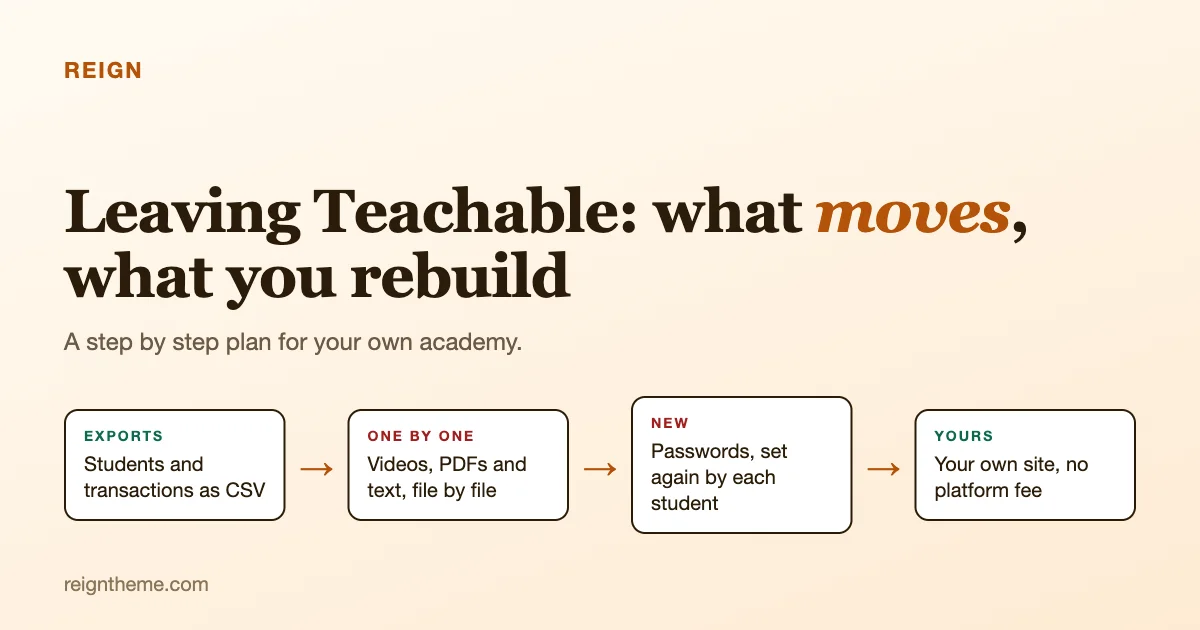
You built your school on Teachable. The courses are good, students are learning, and the money arrives every month. Then one day you open the pricing page, or the payout report, and ask a quiet question: “Why am I renting this?” If that question has been in your head, this guide is for you. It shows what moving to a site you own really involves, what comes with you, what does not, what it costs, and how to do it in an order that never leaves your students stranded.
We will be honest in both directions. Teachable does real work for you: it hosts your videos, takes payments, sends emails and runs student apps. Leaving means taking on some of that yourself. For many instructors it is worth it, because the audience, the email list and the revenue become theirs. For some it is not yet. Read the whole guide before you decide, and we will help you tell which kind of instructor you are.
The short answer
- You can take your student list. Teachable lets you export users and transactions as CSV files, emailed to you.
- You cannot take your courses in one click. Teachable’s own support article says there is no export-everything option, and files are downloaded one at a time. You rebuild the courses on your new site.
- Passwords do not come with you. The export fields Teachable lists do not include them, so every student sets a new password on your new site.
- Plan on a few weeks, not a weekend, and keep Teachable running until your new academy is tested and your students know where to go.
Why instructors leave, in plain numbers
Before you move, put numbers next to the reasons. We read Teachable’s pricing page on 23 October 2026. It shows no date, says charges are subject to change, and lists prices in US dollars, so check it again before you decide.
| Plan | Monthly | Billed yearly | Sales transaction fee |
|---|---|---|---|
| Starter | Monthly subscription | Lower monthly rate, billed yearly | 7.5% |
| Builder | Monthly subscription | Lower monthly rate, billed yearly | 0%, with Teachable Payments |
| Growth | Monthly subscription | Lower monthly rate, billed yearly | 0%, with Teachable Payments |
The page adds processing fees on top: a percentage plus a small fixed amount per payment, with different rates for US cards, international cards and PayPal, and a separate chargeback fee. It lists 5, 10 and 50 products on Starter, Builder and Growth, and says the lowest plan has one admin user.
A worked example
Say you sell 50 courses a month, all by US card.
| Line | Starter | Builder |
|---|---|---|
| Plan, billed monthly | Monthly subscription | Monthly subscription |
| Transaction fee | A share of each sale | None |
| Card processing | A percentage plus a fixed amount per sale | Card processing fees on each sale |
| Total a month | Subscription, share of sales and processing fees | Subscription and processing fees |
Two honest lessons. First, the processing fee is not Teachable’s profit and it does not go away when you leave. On your own site you also pay a payment provider, so read Stripe’s or PayPal’s page for your country (confirm). Second, the big saving in this example is the transaction fee on the lowest plan, and the next plan up already removes it. If you are on Starter, compare moving up a plan before you decide to move house.
What you do remove by leaving is the monthly plan and the platform’s cap on products and admin users. What you add is hosting and, if you want it, a course plugin licence. We cover the full picture in our guide to what you pay to teach and what owning it looks like, and if you are comparing other platforms too, see our Kajabi alternative guide.
What owning it looks like
A site you own is built from three layers, and it helps to know them before you start.
- WordPress and hosting. The site itself, on a host you choose.
- A course plugin. The part that handles lessons, quizzes, enrolment, certificates and payments. Learnomy is the one we use in this guide.
- A theme. The look and the layout around everything. This is where Reign comes in: it turns the pieces into an academy that looks like yours, with your colours and your layout, and a community around the courses if you want one. Our guide to installing Reign and importing a demo shows the first step.
What Learnomy says it does
From Learnomy’s own product page, read on 23 October 2026 (version 2.1.3, updated 15 October 2026), which is marketing copy and not independent review:
- A free plugin, described as forever and not a trial, with courses, quizzes, certificates, payments, memberships and instructor revenue sharing, with no student cap.
- Payments through Stripe, PayPal and a WooCommerce adapter, using your own gateway accounts. The page says there are no platform fees and no per-student charges.
- Six quiz question types free and five more with Pro, signed and QR-verifiable certificates with a drag-and-drop designer, and recurring memberships with trials.
- Content drip and prerequisites listed as built in, with Pro adding learning paths, cohorts and business seat packs.
- Pro is a paid licence, yearly or lifetime: Personal for one site, Professional for five sites, and Agency for unlimited sites, with a 30-day money-back guarantee on Pro plans.
One more fact matters for you. The page describes a guided importer for courses coming from LearnDash, Tutor LMS and LifterLMS. Teachable is not mentioned anywhere on the page, so there is no claimed Teachable importer, and we will not pretend there is one. Moving from Teachable means rebuilding, and the plan below is built around that.
What moves and what does not
What Teachable lets you take
From Teachable’s support article “How to export school content and data,” read on 23 October 2026:
- Your students (CSV). In the Users section, you apply any filters, click Export CSV, and the file is emailed to you. The fields reported for this export include user ID, full name, email, phone number, last login, joined date and tags.
- Your transactions (CSV). In the Transactions section, the same button emails you a file.
- Reports. Course reports such as quiz scores and lesson completion can be exported as CSV, except video stats.
- Your content files, one by one. Videos, PDFs, resources, audio and banner images each have a download option. Images inside text blocks are saved by right-clicking, and text has to be copied out.
What Teachable says you cannot take
- There is no export-everything option. The article says Teachable does not support bulk exporting or downloading all course files and folders at once, and that its support team cannot perform a full export for you.
- It says your course is stored in a format that cannot be opened or read by other software.
- A duplicated course stays inside Teachable. It is a copy, not an export.
The article does not cover how long the emailed file stays valid, any size limits, passwords, or migrating students to another platform. A different Teachable page, which we found through a search and could not read in full, mentioned that the emailed file expires quickly. Download it as soon as it arrives.
The things that quietly do not come with you
- Passwords. Plan a “set your password” email.
- Saved payment methods and subscriptions. We have not seen any way to move a student’s saved card between platforms, and the cards are held by the payment processor. Assume that students on a recurring plan will need to subscribe again, and confirm with Teachable support.
- Progress and quiz scores. You can export the reports for your records, but we have not found any importer that reads them into Learnomy. Treat them as an archive, not as a migration.
- The Teachable student app. Teachable’s pricing page lists iOS and Android student apps. A WordPress site works in a phone’s browser. It does not replace an app.
- Your Teachable web address. Links people saved to your courses will stop working when you close the school, unless you redirect them or keep a landing page there for a while.
- Reviews, comments and discussions. Check whether you have any that matter. We could not find an export for them in the article.
The plan: eight steps, in order
The order protects your students. Nothing changes for them until the new site is ready and tested.
Step 1: Write down what you have
Make a simple list: every course, how many sections and lessons, the kinds of content (video, PDF, quiz, text), your prices, coupons, bundles, and how many active students you have. This is your rebuild checklist, and it tells you how big the job is. Five short courses is a month of evenings. Fifty is a project.
Step 2: Download your files, one course at a time
Because there is no bulk export, start now. For each course, download the videos, PDFs and audio from the three-dot menu on each file. Save them in folders named by course and lesson number, such as course-1/03-lesson-name.mp4. Copy the lesson text into a document. Save images from text blocks. It is dull work, and it is the part that takes longest. Do one course a day.
While you are there, check that you really own the originals. If your lesson videos were recorded straight into Teachable and you have no other copy, download them first.
Step 3: Export your students and transactions
Export the Users list and the Transactions list as CSV files, and download them as soon as they arrive. Open each in a spreadsheet and look at them. Are the emails clean? Are there duplicates? Remove test accounts. Keep a copy somewhere safe, because this list is your audience.
Step 4: Build the new site
Set up WordPress with a host you trust, install Reign and a demo, then install Learnomy. Use a staging address, not your real domain, so students never see a half-built school. Set your branding first, because everything after it inherits your colours and fonts. Connect Stripe or PayPal in test mode.
Step 5: Rebuild one course and test it as a student
Pick your best-selling course. Create it, add the sections and lessons, upload the videos, rebuild the quizzes, and set the price. Then buy it yourself with a test payment, log in as a test student, watch a lesson, take the quiz and finish the course. Fix what is awkward. Only then copy the pattern to the others.
Two practical choices come up here. For video, decide where it lives: your own hosting is simple for a few lessons, and a dedicated video host is better for many. We did not find a section in Learnomy’s documentation hub that covers video hosting, so check the docs for your setup before you commit. And if you offer certificates, rebuild the design once and reuse it.
Step 6: Decide how students arrive
You have two ways to bring your existing students over, and you can use both.
- Let them come as they are ready. Send an invitation with a link, they register, and you enrol them in the courses they bought. It is slower and puts nobody at risk.
- Create accounts for them. WordPress can create users from your list of names and emails, and you can enrol them in the right courses. Learnomy’s documentation hub lists sections for the student experience and for commerce, and we did not find a page that names a student CSV import or bulk enrolment, so ask Learnomy support how to do this at your size before you promise a date.
Either way, nobody has a password, so the first thing each student does is set one. Write that into your email.
Step 7: Tell your students, twice
Send one message about two weeks before the move, and another on the day. Here is wording you can copy and change.
Subject: [School name] is moving to a new home on [date]

Hi [name],

On [date] my courses are moving to [new address]. Everything you
bought comes with you. You will have your own login on the new
site, and you set your password the first time you visit.

What to do: on or after [date], go to [new address], click
"Set your password", and your courses will be there.

Your old Teachable login keeps working until [date], so you can
finish what you are in the middle of.

If anything looks wrong, reply to this email and I will fix it
the same day.

[Your name]
Be specific about dates and about what happens to anyone on a monthly plan. If you do not know yet how recurring students will move, say that you will write to them separately.
Step 8: Run both for a while, then close the old school
Do not shut Teachable the day you launch. Keep it for at least one full billing cycle so that students who are halfway through a course can finish, and so that you can fix anything you missed. Stop selling there on launch day, by unpublishing or redirecting your sales pages. When the last active student has moved, export your data one more time and then close the school.
How long it takes, and what it costs you in effort
Here is a rough guide. Your numbers will differ, and they depend mostly on how much video you have.
| Your school | Rebuild effort | Plan for |
|---|---|---|
| 1 to 3 courses, mostly video | A few evenings per course | 3 to 4 weeks, including testing |
| 5 to 10 courses with quizzes | Several weeks of part-time work | 6 to 8 weeks |
| More than 10 courses, many students | A project, perhaps with help | 2 to 3 months |
These are planning figures, not measurements. If your time is worth more than the fees you will save, factor that in honestly. For a big school, hiring someone to rebuild is a reasonable choice, and you can still own the result.
The money side on your own site
Add up the real costs before you leave, so that you compare like with like.
- Hosting. A plan suited to a WordPress site with video lessons. Video is the heavy part, so consider a dedicated video host for anything beyond a few lessons.
- Your course plugin. Learnomy’s page says the free version includes the core teaching features, and lists the Pro prices above.
- A theme. Check Reign’s current pricing on its own page.
- Payment processing. You still pay Stripe or PayPal. Read their pages for your country (confirm).
- Email. A way to send your announcements and reminders reliably.
- Your time. Support, updates and backups become yours. Put a number on it.
What you get in return: no platform transaction fee, no product caps, your student list in your own database, and a school that looks like yours and not like a template.
Should you leave now, or later?
Leave now if
- You pay a platform transaction fee that adds up to more than your whole migration would cost.
- You are hitting product or admin user limits.
- You want a community, memberships or a layout that your platform cannot give you.
- You are tired of the platform deciding how your students see you.
Wait if
- Most of your students are on recurring plans and you cannot yet say how they will move.
- Your students rely on the Teachable mobile app.
- You are in the middle of a launch, a cohort or a busy season.
- You have no copy of your videos and no time to download them.
Waiting is not failing. A good move done in spring is better than a rushed one in the middle of a launch.
Common mistakes
Closing the old school too early
Keep it running until the last student has moved. The few weeks of fees cost less than a refund request.
Moving everything on one day
Move your newest or smallest course first, and use it to find out what goes wrong. Then move the rest.
Forgetting the email list
Your students’ emails are an audience. Check that you have permission to email them about the move, and that your new site has an unsubscribe link and a clear privacy page.
Skipping the test purchase
Always buy your own course on the new site before announcing it. A broken checkout on launch day is the most expensive mistake on this list.
Frequently asked questions
Can I move my courses to WordPress automatically?
Not from Teachable, as far as we can find. Teachable says there is no export-everything option, and Learnomy’s page names importers for LearnDash, Tutor LMS and LifterLMS, not Teachable. You rebuild.
Will my students lose their progress?
You can export progress reports for your records, but we have not found a way to load them into Learnomy. Tell students that progress starts again, and consider giving people who were far through a course a quick path to the end.
Do I have to leave Teachable completely?
No. Some instructors move their newest courses first and keep older ones where they are while they decide. Only be careful that students do not get two logins to remember.
What does it cost to run my own academy?
It depends on your hosting and plugin choices, and it is the sum of the list above. Add up hosting, any plugin licence, the theme and your payment provider’s fees, and compare it with your Teachable plan plus its transaction fee.
Is Learnomy the only option?
No. We use it here because it is built by the team behind Reign. Other course plugins exist, and our guide to alternatives to a hosted platform compares more of the field.
The complete path: courses and community on one site you own
Moving your files is the smaller half of leaving. The bigger half is having somewhere good to land: a place where your courses, your students and the conversation around them live together, under your name, with no platform between you and your payments. Here is the full setup we would build, using three pieces from the same team, and only what their own pages say (read on 23 October 2026).
The three pieces
- Reign, the look and the shell. The Reign page (version 8.0.8, updated 7 October 2026) lists five header layouts, sixteen Customizer panels, dark mode and a front-end login popup. Reign Only is a yearly or lifetime licence for one site, up to five sites, or up to twenty; see the pricing page. Annual licences renew at 30 percent off, with a 30-day money-back guarantee.
- Learnomy, the courses. The Reign page lists Learnomy as “Free version included,” with a course builder, lessons, quizzes and certificates. On Learnomy’s own page, the free plugin includes courses, quizzes, certificates, payments through Stripe, PayPal or a WooCommerce adapter, memberships and instructor revenue sharing. Pro adds more question types, learning paths, cohorts and business seat packs, as a yearly or lifetime licence per site. Pro is bought per plugin, and the Reign page says no Pro version of any plugin is included in the theme price.
- BuddyNext, the community. BuddyNext’s page calls it free forever, with an activity feed, spaces (open, private or secret), members and profiles, messaging, notifications and email digests, moderation and gamification labelled as free. Monetisation, AI and real-time push are labelled Pro, a paid licence. The Reign page says Reign now runs on BuddyNext.
How the pieces map onto what you had on Teachable
| On Teachable | On your own site |
|---|---|
| Courses, lessons, quizzes | Learnomy course builder, lessons and quizzes (Free). More question types are Pro. |
| Certificates | Learnomy certificates, which its page lists as part of the free plugin. |
| Checkout and payouts | Learnomy checkout through your own Stripe or PayPal account, or WooCommerce. You pay your payment provider, not a platform fee. |
| Student community, if you used one | BuddyNext spaces, activity and messaging (Free). |
| Your school’s look | Reign, with your colours and layout. |
| Student mobile app | Not replaced. The site works in a phone’s browser. |
What moves and what does not, in one place
Moves: your student and transaction lists as CSV files, and your files after you download them one at a time. Does not move: course structure as an export (you rebuild it), passwords, saved payment methods and recurring plans, progress, and the Teachable student app. Learnomy’s page names importers for LearnDash, Tutor LMS and LifterLMS, and does not name Teachable, so the rebuild in the plan above is the honest route. The Reign page describes Reign LearnDash and Reign LifterLMS as paid yearly add-ons that style those course plugins (see the pricing page), which matters if you later choose one of them instead.
One thing to check about the link between courses and community
BuddyNext’s page says Learnomy is part of its ecosystem. Learnomy’s FAQ says Learnomy notifications appear in the BuddyNext notification centre only with BuddyNext Pro. If you want course news in that bell, plan for the Pro price, and decide whether you need it at the start. The free parts already give students a place to talk.
A path you can follow
- Export your students and transactions, and start downloading course files.
- Install WordPress, Reign and a demo on a staging address, then BuddyNext and Learnomy, all at their free versions.
- Rebuild your best-selling course, connect Stripe or PayPal in test mode, and buy it yourself.
- Create a space for each course if you want a student community, and invite a few friendly students first.
- Send the two announcement emails from the plan above, move students across, and close Teachable after one full billing cycle.
Start with the Reign page, which lists the demos and the bundle, and the Learnomy page. If you want someone to rebuild your courses and move your students for you, our team does that as custom work, and it starts with a short call.
Your next step this week
Do two small things before you commit to anything. Export your students and your transactions, which takes five minutes and gives you a copy of your audience whatever you decide. Then download the files of your best-selling course, so you can see how big the real job is. After that you will know whether this is a month of evenings or a summer project, and you can plan the rest from facts.
When you are ready to build, start with what you can build with Reign.
Where this comes from, read on 23 October 2026
- Teachable pricing (undated, subject to change)
- Teachable support: how to export school content and data
- Learnomy product page, version 2.1.3
- Learnomy documentation hub