
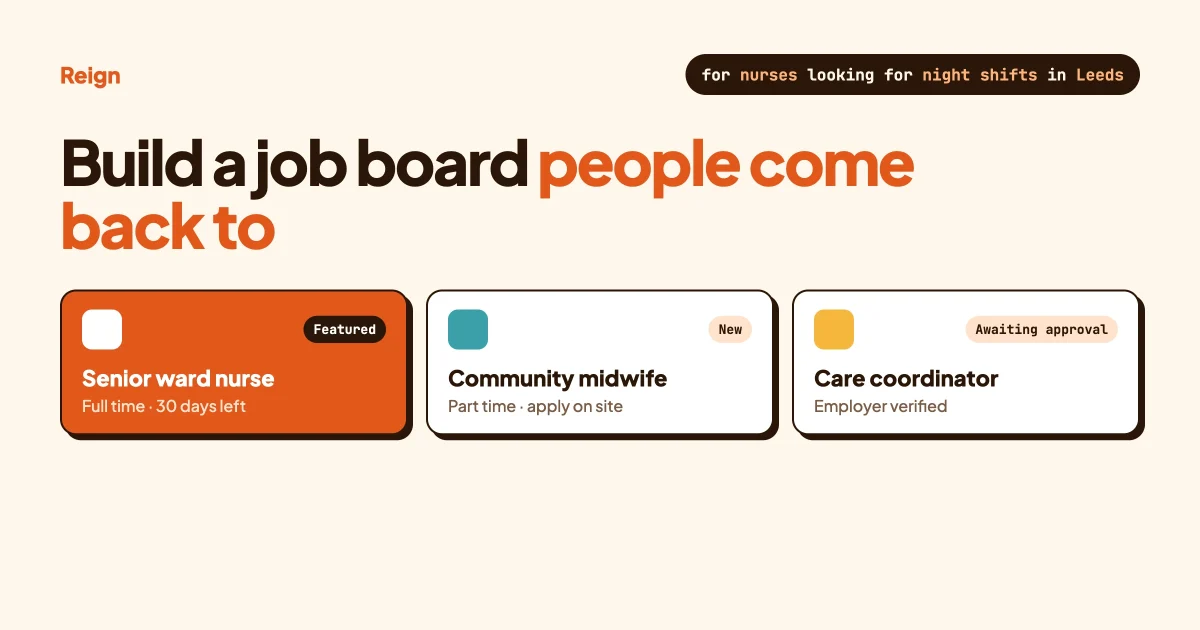
A job board on WordPress is three things: a theme that makes the pages look good, a job plugin that stores and searches the listings, and a few ordinary pages that tie it together. With Reign you pick one of two job plugins, WP Job Manager for a classic listings-and-applications board or WP Career Board when you want employer dashboards, a hiring pipeline and paid job credits, and Reign styles either. What makes a board worth visiting is a narrow focus, fresh listings and employers people can trust.
This guide is for someone who wants to run a niche, local or community job board and does not write code. Technical terms are explained the first time they appear. This is not legal or financial advice, so check local rules on job advertising and applicants’ personal data before you launch.
In this guide
- Which kind of job board you are building, and why that choice decides everything else
- WP Job Manager or WP Career Board: what each does, with a side-by-side table
- Setting up a job board with Reign, step by step
- Getting the first listings and keeping them fresh
- Making jobs findable in Google with job posting structured data
- Starting a niche board and charging employers to post
- Earning from paid and featured listings
- Moderation, spam and employer trust
- Questions people ask
What kind of job board are you building?
Decide the kind of board first, because it sets who posts, who applies, whether you charge, and how much moderation you need. There are four common kinds, and most successful small boards are one of them, not a bit of each.
A niche board
A niche board covers one profession or industry, such as nursing, WordPress development, wildlife conservation or architecture. The risk is volume: a narrow board has fewer jobs, so every stale or off-topic listing hurts more. Reign’s own build page for job boards says the same thing about launch day: an empty board never recovers, so get a real number of listings in place before you promote it.
A local board
A local board covers one town or region. Employers are small businesses that want simple posting and a low or zero price at first. Location filters and clean town pages matter most here.
A community board
A community board belongs to a group that already exists: an association, an alumni network, a club, a forum. The members are your candidates and often your employers, which is where Reign fits best. If your community runs on BuddyPress, see how to add a job board to a BuddyPress community site, and for the professional-network angle see the Reign and WP Career Board playbook. We cover the wider case in One Theme, Many Sites You Own: What You Can Build With Reign.
An internal or careers board
An internal board lists the jobs of one organisation. You do not need paid listings, but you do need applications and a way to move people through hiring stages, which is where the pipeline in WP Career Board Pro helps.
Write one sentence before you install anything: “This board is for [who] looking for [what] in [where].” If you cannot finish the sentence, the board is too broad. That sentence becomes your site title, your tagline, your category list and your outreach email.
Which job plugin should you choose?
Choose WP Job Manager if you want a proven, simple job listings board with a large library of add-ons. Choose WP Career Board if you want employer and candidate dashboards, company profiles, moderation tools and a hiring pipeline from one set of plugins. Both work with Reign, and you can start with one and move later.
What WP Job Manager gives you
WP Job Manager is a free plugin on WordPress.org, built by Automattic (the company behind WordPress.com and WooCommerce). Its plugin page and documentation describe a job board that is shortcode based. A shortcode is a short tag in square brackets that you paste into a page, and WordPress swaps it for a working feature. The free plugin includes:
- Searchable, filterable listings on a page with the
[jobs]shortcode - Front-end submission forms for guests and registered users, with a preview step
- An employer dashboard page,
[job_dashboard], to edit, mark filled or delete listings - Applications by email address or website link
WP Job Manager’s own site lists paid extensions for what the free plugin leaves out: Applications (a form on the listing and an application manager), WooCommerce Paid Listings (job packages employers buy), Resume Manager, Job Alerts, Bookmarks and Application Deadline, plus a discounted bundle. Check its extensions page for current prices.
What WP Career Board gives you
WP Career Board is our own job board plugin, built on Gutenberg blocks and the WordPress Interactivity API. The free version, according to its readme and capabilities notes, includes:
- A job form (multi-step or single-page), search and filters including a salary range slider
- Employer and candidate dashboards, company profiles, and applications stored in the plugin, guests included
- Pre-moderation: new jobs wait for approval, can be rejected, and employers can resubmit a rejected job
- A flagged queue and a report-a-job option, and the ability to ban an employer from the admin screen
- Automatic job expiry, deadline reminder emails and automatic expiry of featured listings (30 days by default)
- reCAPTCHA v3 or Cloudflare Turnstile on forms
- Editable email templates, a one-click importer from WP Job Manager, job posting structured data and shortcodes for page builders
WP Career Board Pro, a separate paid plugin that needs the free one, adds an application pipeline (a drag-and-drop Kanban board with hiring stages per job), a resume builder and search, a credits system for charging employers, AI-assisted job descriptions and applicant ranking, multiple boards from one install, a custom field builder, job alerts, a job map and analytics. We covered the pipeline in From Job Post to Hire: Running a Kanban Hiring Pipeline with WP Career Board.
A fair comparison
| Question | WP Job Manager | WP Career Board |
|---|---|---|
| Employer dashboard | Yes, [job_dashboard] | Yes, in the free plugin |
| Applications stored on your site | Paid Applications extension (free core uses email or a link) | Yes, in the free plugin, guests included |
| Approval before publishing | Yes, “Moderate New Listings” setting | Yes, approve, reject and resubmit |
| Charging for listings | WooCommerce Paid Listings extension | Credits in Pro, sold through WooCommerce, Paid Memberships Pro or MemberPress |
| Hiring pipeline stages | Not listed among its core features | Kanban pipeline in Pro |
| Resumes | Resume Manager extension | Resume builder and search in Pro |
| Add-on library and years in the field | Large, with many third-party extensions | Newer, one vendor |
| How Reign styles it | Through the Reign WP Job Manager add-on | Out of the box, no add-on |
The honest summary: WP Job Manager has the longer track record and the bigger ecosystem, and if your board already runs on it, there is no reason to switch. If you are starting from nothing and expect to charge employers or run a hiring pipeline, WP Career Board is the shorter path. If you want a plain listings board with the widest choice of extensions, WP Job Manager is a sound choice.
How do you set up a job board with Reign, step by step?
Install Reign, install one job plugin, let it create its pages, add those pages to your menu, set who can register, then pick the layout. The steps below follow that order. We mark where the steps differ between the two plugins.
Step 1: Install Reign and the job plugin
Install and activate the Reign theme from Appearance, then Themes. Then go to Plugins, then Add New, and install your job plugin. For WP Job Manager, search for “WP Job Manager” and click Install Now, then Activate. For WP Career Board, upload the plugin zip from Plugins, Add New, Upload Plugin, and activate it.
If you chose WP Job Manager, you can add the Reign WP Job Manager add-on. Its product page says it needs Reign and WP Job Manager and themes WP Job Manager instead of replacing it, across eight screens: the listing grid, single job page, employer profile, application form, resume manager, job dashboard, activity integration and search with filters. If you chose WP Career Board, there is no add-on to buy: Reign’s page says it styles the plugin out of the box.
Step 2: Create the three job pages
Every job board needs three pages: a jobs list, a submit-a-job page and an employer dashboard. Both plugins can create them for you.
- WP Job Manager: after activation it shows an optional Setup Wizard that creates the default pages. Its documentation warns that if you skip the wizard you cannot run it again unless you delete and reinstall the plugin. If you skip it, create the pages by hand with these shortcodes:
Jobs (all listings)      [jobs]
Post a Job               [submit_job_form]
Job Dashboard            [job_dashboard]
Then go to Job Listings, then Settings, then the Pages tab, and make sure each setting points at the right page. The page title can be anything, as long as the setting points to the page that holds the shortcode. Do not wrap a shortcode in other formatting, because that is a common cause of styling problems.
If the dashboard buttons do nothing
Symptom: an employer clicks Mark Filled or Delete on the job dashboard, the page reloads, and nothing has changed. No error appears anywhere. This was a real bug in WP Job Manager up to version 2.4.7, reported on the plugin’s GitHub page as issue 3120. It happened when the dashboard shortcode was not typed into the page’s own content but came from somewhere else, such as a synced pattern, a block template or a page builder’s saved element. The dashboard looked normal and the buttons were silently ignored.
Check: in Plugins, read your WP Job Manager version. Then, on a test listing, click Mark Filled and look at the address bar. When the action works, the page redirects and a confirmation notice appears. When it is ignored, the page simply reloads.
Fix: update to WP Job Manager 2.4.8 or newer, released on 7 October 2026. Its changelog says the configured Job Dashboard page is now honoured and a declined action shows an error notice. Then confirm that the Job Dashboard setting on the Pages tab points to the page your employers really use. If you cannot update yet, put the [job_dashboard] shortcode directly into that page’s content.
Prevent: after any change to a page builder, a pattern or the job plugin, log in as a test employer and mark one test job as filled. It takes a minute, and employers rarely tell you when a button fails. They just stop posting.
- WP Career Board: go to Career Board, then Settings, and run the Setup Wizard, which creates the required pages. Each feature is a block you can place on any page, and each block also has a shortcode such as
[wcb_job_listings],[wcb_job_form],[wcb_employer_dashboard]and[wcb_candidate_dashboard]for page builders.
To check that this worked, open each of the three pages in a private browser window. The list should show jobs (or an empty state), the submit page should show a form, and the dashboard should ask a logged-out visitor to log in.
Step 3: Build the menu
A visitor wants four links near the top: Browse jobs, Post a job and the employer or candidate dashboard. Go to Appearance, then Menus, add your pages, drag them into order and assign the menu to a location. WordPress’s documentation notes that this screen is for classic and hybrid themes, and that block themes manage navigation through the Navigation block.
Step 4: Set up registration and roles
A role is a set of permissions attached to a user account. Employers need to create accounts to post and manage jobs, and you decide how open that door is.
- In Settings, then General, WordPress has an “Anyone can register” checkbox and a “New User Default Role” setting. Keep the default at Subscriber.
- In WP Job Manager, the Job Submission settings tab has “Account Required”, “Account Creation” and “Account Role”, which defaults to Employer. Its documentation says it has no built-in registration and login page, so you may need one from your community plugin or WooCommerce.
- In WP Career Board, employers register through an employer registration block, and any logged-in member can apply without a Candidate role (the Require Candidate Role setting reserves it if you want stricter separation). On a community site, your members are already your candidates.
Let employers in through the job plugin’s own employer role, and never raise the general default role.
Step 5: Choose the layout
Reign’s theme page says it gives you custom colour tokens, dark mode and five header layouts without code edits. For job pages, Reign’s WP Job Manager add-on page describes a branded listing grid with filters for location, type, salary, remote or onsite and employer, a single job page with logo, salary and apply button, and a sticky filter sidebar with header search. For WP Career Board, Reign’s page says listings, filters and the single job page inherit the type scale, spacing and colours you set once in the customizer, and the plugin lets you reorder or hide filter groups per block.
Test the layout with 50 listings, not three. If a visitor cannot find the right job in ten seconds, you have too many filters or the wrong ones. Keep job type, category and location, and hide the rest. Also check the list, a single job and the apply form at phone width before you launch.
How do you get the first listings?
Seed the board yourself, invite a few local employers personally, and set an expiry date on every listing so the board never fills up with dead jobs. An empty board stays empty, because employers will not pay to post where no candidates look and candidates will not return to a board with nothing on it.
Seed by hand
Reign’s job board page suggests about 50 sample roles, about 10 employers approached personally and about 100 listings before you promote the board. Be careful with “public sources”: a job on an employer’s own careers page is public, but copying it without asking can upset the employer and may raise copyright or data rules. Safer: ask first, with a short email such as “We are building a job board for [niche] in [place]. Can we list your open roles for free for the first three months?”, and link to the employer’s own application page.
WP Job Manager lets employers apply by email or link, and WP Career Board has a CSV import in Pro, so you can load a prepared spreadsheet of jobs that employers have approved. If you are moving from WP Job Manager to WP Career Board, the free plugin has a one-click migration tool that leaves the original data untouched. Test that on a copy of the site first.
Invite local employers
Contact ten employers by name, offer a free first listing, and ask what would make them post again. For a community board, ask members to recommend employers. The directory guide What Makes a Directory Worth Running: Claims and Paid Slots covers seeding the first hundreds of listings and the order in which to switch on paid layers, and the same thinking applies to a job board.
Keep listings fresh
Symptom: candidates apply and hear nothing, or reach a page that says the job is filled. Check: sort your job list by oldest and look at the first page. Fix: set an expiry period and make sure expired jobs disappear.
- In WP Job Manager, set Listing Duration in the Job Submission settings (leave it blank and listings never expire). “Hide expired listings” is on by default and keeps expired jobs out of search. Employers can mark a job as filled from their dashboard, and the filled-positions setting controls whether filled jobs stay visible.
- In WP Career Board, a daily scheduled task checks job expiry and sends application deadline reminders, and featured status expires after a set number of days.
Prevent it by telling employers on the submit page how long a listing stays up.
Avoid scraped and stale jobs
Scraping other sites’ listings fills a board quickly and ruins it just as quickly. The jobs are often already filled, and employers who find their jobs copied may ask you to remove them. Google’s job posting policy also lists fake or non-existent jobs, and postings made to collect applicants’ details rather than hire, as violations. A small board of real, current jobs beats a large board of old ones.
How do you make jobs findable in Google?
Add job posting structured data to every individual job page, keep each job on its own clean page, and give visitors location and category pages that search engines can read. Structured data is extra code on a page that tells search engines what the page is about, in a form machines understand.
What Google asks for
Google Search Central documents a type of structured data called JobPosting. It says that adding it makes your postings eligible to appear in a special job search experience on Google, with your logo and job details, and that job seekers can filter by things like location or job title. Eligible does not mean guaranteed: Google does not promise placement, and a page with perfect markup can still not appear.
Google’s required properties include the job title, a full HTML description, the date posted, the hiring organisation (the company, not a branch) and, for jobs that are not fully remote, the physical location including the country. A valid-through date is required for jobs with an expiry date. Salary, employment type and remote status are recommended. Google also says to put the data on the page for one specific job, not on list pages, and that everything in the markup must be visible on the page.
What the plugins do
WP Job Manager’s documentation says it adds JobPosting structured data to every individual job page automatically, but does not submit jobs to Google, which finds them by crawling. WP Career Board also emits JobPosting data (posted date, expiry, employment type, organisation, salary, remote status), though its own notes say the output has not been validated against the Rich Results Test and a full physical location block is not confirmed. Test your own job pages rather than assuming.
To check a page, paste its address into Google’s Rich Results Test and read the errors and warnings. Then use the URL Inspection tool in Search Console to confirm Google can reach the page: it must not be blocked by robots.txt, a noindex tag or a login. Google says new pages can take several days to be found.
Expire jobs properly
Google says jobs no longer open must be expired, and that failing to do so can lead to a manual action (a penalty applied by a Google reviewer). Accepted ways are a valid-through date in the past, removing the page so it returns a 404 or 410, or removing the structured data. Use the plugin’s expiry features rather than leaving old jobs online.
Clean pages, locations and categories
- Give every job its own page with a readable address. In WP Job Manager, you can change the job permalink base; check the plugin’s documentation for the steps.
- Turn on job categories and job types in the plugin settings, and fill them in consistently. Both plugins use them as filters and as archive pages.
- For a local board, make sure the location is a real place name, typed the same way each time.
- Do not require a login to read a job. Google’s policy lists that as a violation.
- Submit your sitemap to Search Console as usual. Google recommends the Indexing API for job posting URLs because it prompts a faster crawl, while still recommending a sitemap for the whole site.
I want to start a niche job board and charge employers to post. Where do you begin?
Begin with a narrow niche and free listings, and add the price once employers come back on their own. You need three things before you charge: enough real jobs that a candidate has a reason to visit, a way to take payment at the moment of posting, and one clear promise about what the employer gets for the money.
- Pick the niche in one sentence. Use the sentence from the top of this guide: who, looking for what, where.
- Seed about 100 real listings with employers’ permission, as described above.
- Offer the first listing free to ten employers you contact by name, and ask each one what result would make them pay next time.
- Switch on paid posting when employers return without being asked. With WP Job Manager that is the WooCommerce Paid Listings extension. With WP Career Board it is credits in Pro.
- Sell one simple product first. One listing, a fixed number of days, one price. Add featured placement and packages later.
- Show proof on the pricing page. The number of applications or views a typical listing received last month is more convincing than any description.
Price by asking, not guessing. Employers in your niche already pay something to hire, whether that is a general job site or a recruiter, and they will tell you what it costs them if you ask. The next sections cover the paid features in detail.
How can a job board earn money?
The usual order is free listings at launch, then paid listings, then featured jobs and packages once employers are coming back. Charging on day one on an empty board usually fails. Say plainly what the employer gets: how many days, how many listings, and whether featured placement is included.
Paid listings
With WP Job Manager, the WooCommerce Paid Listings extension turns job packages into products employers buy during submission, so you can charge per listing, sell subscriptions or both. Reign’s WP Job Manager add-on page says featured badges, paid packages and the upgrade prompts are styled to match.
With WP Career Board, free ships the hooks and Pro adds credits: employers buy credits through WooCommerce, Paid Memberships Pro or MemberPress, and credits are deducted when they post. Admins set the cost per board.
Featured jobs
A featured job appears at the top of the list or in a featured block. In WP Job Manager, the jobs shortcode can show featured jobs first. In WP Career Board, featured listings expire after a configurable number of days, which makes “featured” a time-limited product. If half the list is featured, the label means nothing.
Employer packages
A package is a bundle, such as a number of listings, a longer duration or a featured slot for a set fee. Both plugins support packages through their paid routes above. For a community board, consider a lower price for members. The reasoning in What Makes a Directory Worth Running: Claims and Paid Slots applies here too.
Check tax and refund rules where you operate before you take payments.
How do you handle moderation and spam?
Approve new listings before they go public, check who your employers are, give people a way to report a bad job, and add a spam check to the forms. A job board that accepts anything quickly becomes a place for scams, and scam listings damage the trust you are building.
Approval before publishing
Symptom: a fake or irrelevant job appears on your front page. Check: look at the newest listings every day for the first month. Fix and prevent: require approval.
- WP Job Manager: turn on “Moderate New Listings” in the Job Submission settings. New submissions stay inactive until an admin approves them in Job Listings, using the Approve action. Its documentation notes that the plugin does not send notifications for jobs pending approval, so it suggests a third-party notification plugin.
- WP Career Board: pre-moderation is built in. Jobs go from pending to approved or rejected, and a rejected job shows as Rejected to the employer, who can resubmit it for approval.
Employer verification
Neither plugin, as far as the documents we read state, offers an automatic identity check for employers, so verification is a process you run. For each new employer, confirm the company has a real website, that the contact email uses the company’s own domain, and that the job matches what the company does. Reject anything that asks candidates to pay a fee or to send sensitive documents before an interview. WP Career Board has public company profiles with trust signals and lets you ban an employer from the admin screen, which removes their Career Board abilities.
Reporting
WP Career Board includes a report-a-job option and a flagged queue, so visitors can flag a bad listing and you review it in one place. With WP Job Manager, put a clear “report this job” email address on the single job page and answer within a day.
Spam
Automated spam hits public forms. WP Job Manager has a CAPTCHA settings tab and a documented reCAPTCHA tutorial. WP Career Board supports reCAPTCHA v3 and Cloudflare Turnstile. Turn one on before launch, not after the first spam wave.
Questions people ask
What is the best WordPress theme for WP Job Manager?
The answer depends on whether your board stands alone or sits inside a community. WP Job Manager works with most modern themes, and dedicated job board themes exist. Reign is built for boards that are part of a community, and Reign’s WP Job Manager add-on styles the listing grid, single job page, employer profile, application form, resume manager and dashboard. Reign’s job board build page sets out both routes.
Is WP Job Manager free?
The core plugin is free on WordPress.org and covers listings, search and filters, front-end submission forms, the employer dashboard and structured data. Extra features such as stored applications, paid listings, resumes and job alerts come from paid extensions sold on its own site.
Do you need WP Career Board, or is WP Job Manager enough?
WP Job Manager is enough for a simple board where employers post and candidates apply by email or link. Consider WP Career Board if you want applications, dashboards and moderation tools in the free plugin, or hiring stages, resumes and credits in Pro. You can also move from one to the other: WP Career Board has a built-in WP Job Manager migration tool.
Will Google show my jobs in its job search?
It may, but nobody can promise it. Adding correct JobPosting structured data makes pages eligible for Google’s job search experience. Google decides what to show, so keep jobs current, visible without a login and expired on time.
Reign is the theme behind every setup in this guide. It styles WP Career Board out of the box, works with WP Job Manager through its add-on, and sits on top of the community features your candidates and employers share. See the details, pricing and demos on the Reign theme page.