
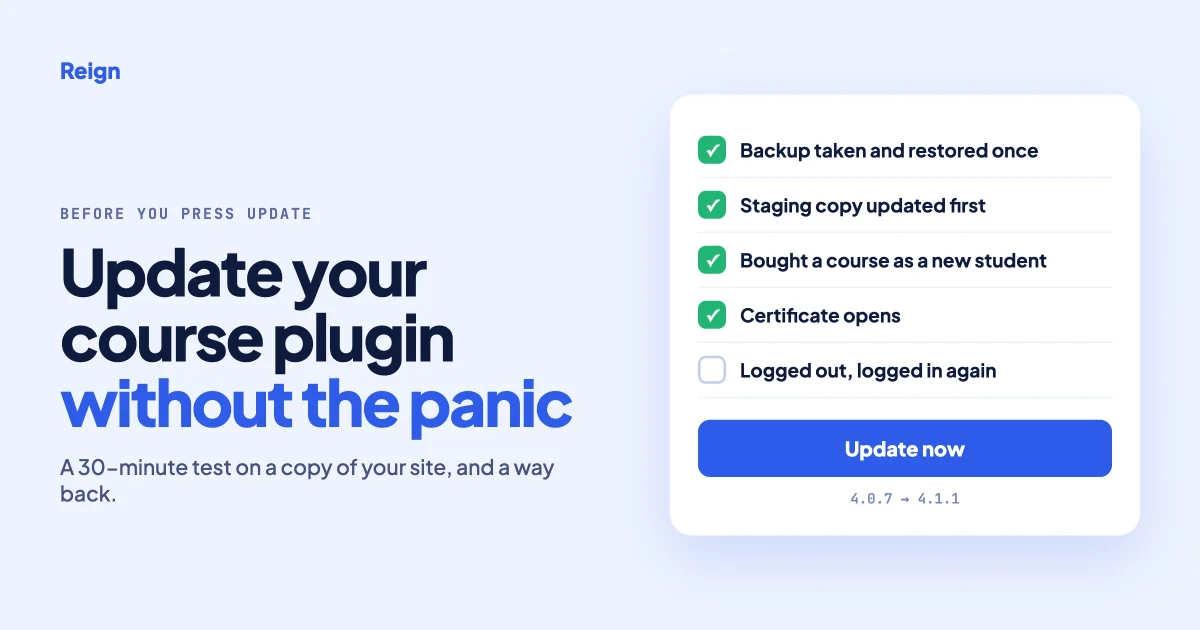
If your courses run on Tutor LMS and you are on version 4.0.7 or older, update soon, because three security holes were fixed between 4.0.6 and 4.0.8. Do it on a copy of your site first, run the 30-minute test below, and keep a backup you have already tried restoring. The same plan works for any course plugin, so you can reuse it whatever you teach with.
You sell knowledge, not software. But the plugin under your academy is software, and this autumn it changed a lot. This guide is for the instructor, coach or small team who has to press the Update button and would like to know what happens next. Every technical word is explained the first time it appears.
In this guide:
- What changed in Tutor LMS 4 this autumn, with dates
- Should you update now or wait?
- The 30-minute check before you update
- The test to run on a copy of your site
- Problems other course owners reported, and how to test for each
- What to do if the live site breaks
- Apps and automations that talk to your course site
- Why a cracked copy costs more than a licence
- Eight questions to ask before you build on any course plugin
- Questions people ask
What changed in Tutor LMS 4 this autumn?
Tutor LMS moved to a new major version, 4, in July 2026 and has shipped a release every week or two since. A major version is the kind of update where screens, files and settings are reorganised, not just patched. The plugin’s own changelog on WordPress.org lists the releases below. On 12 October 2026 the current version was 4.1.1, on about 100,000 active sites.
| Version | Date | What matters to a course owner |
|---|---|---|
| 4.0.1 | 10 July | Tighter course access checks for apps and integrations, plus fixes for lesson video loading and quizzes that would not start |
| 4.0.5 | 12 August | Stronger instructor permission checks, and a fix for cancelled failed orders removing course access |
| 4.0.6 | 18 August | “Patched a security vulnerability” |
| 4.0.8 | 10 September | Option to show or hide your header and footer in the dashboard and learning area, many quiz fixes |
| 4.0.9 | 17 September | “Improved overall performance and strengthened security measures” |
| 4.1.0 | 29 September | A new Cart button, quiz marking changes in Pro, faster instructor dashboard |
| 4.1.1 | 6 October | Missing checks added to payment method and withdrawal method settings |
Source: the Tutor LMS changelog on WordPress.org.
The three security fixes behind those short changelog lines
A changelog line such as “patched a security vulnerability” tells you nothing about how serious it was. The public CVE records do. CVE is the worldwide catalogue of known software security flaws, and each entry has a number you can look up.
| Record | Affects | In plain words |
|---|---|---|
| CVE-2026-19094 | Version 4 before 4.0.6 | A visitor with no account could read quiz questions and answers from courses that are not public |
| CVE-2026-16759 | 4.0.5 and older | A visitor with no account could make the site run certain code it should not |
| CVE-2026-78175 | 4.0.7 and older | Any logged-in user, including a student, could plant data that leads to running code on the server. Rated 8.8 out of 10 |
The third one matters most for a course site, because letting strangers register as students is the whole point of the site. If you are on 4.0.7 or older, that record is your reason to update this week.
Should you update now or wait?
Find your version first. In your WordPress admin, open Plugins and read the version number under Tutor LMS. Then use this rule.
| You are on | What to do | Why |
|---|---|---|
| 4.0.7 or older in the 4 series | Update this week, after the staging test below | The security records above apply to you |
| 4.0.8 to 4.1.0 | Update at your next quiet time, after the staging test | You already have the fixes above. Later releases add smaller checks and fixes |
| A 3.x version | Plan a proper move, with a staging copy and a free afternoon | You are crossing a major version. The dashboard, templates and some add-ons changed |
| 4.1.1 | Nothing today. Set up the routine below for next time | You are current |
Two more rules save a lot of grief. Never update during a launch week or the day before a cohort starts. And never update the free plugin and leave its paid companion behind. Tutor LMS Pro and the Certificate Builder are separate downloads with their own version numbers, and several of the reports below come from sites where the parts did not match.
What should you check in the 30 minutes before you update?
You need a backup you have tested, a copy of the site to practise on, and a short written note of how things are set today. Without the note you cannot tell what the update changed.
- Take a full backup and restore it once. A backup is a copy of your files and your database (the place where students, orders and progress are stored). Most hosts have a one-click backup. Restore it to a test address at least once. A backup nobody has restored is a hope, not a plan.
- Ask your host for a staging copy. Staging is a private clone of your site at a different address. Many hosts include it. If yours does not, a backup plugin can clone the site to a subdomain.
- Write down the versions. Tutor LMS, Tutor LMS Pro, Certificate Builder, your theme, WooCommerce if you use it, and WordPress itself. Five lines in a note.
- Write down your permalink setting. Go to Settings, then Permalinks, and copy the structure exactly. Permalinks are the pattern your page addresses follow. You will see below why this one matters.
- Write down how you take money. Is it the plugin’s own checkout or WooCommerce? Which payment methods are switched on? Which product is attached to which paid course?
- List what talks to your course site from outside. A mobile app, an automation tool that adds buyers to your email list, a membership plugin, a single sign-on service. Anything that enrols students or reads progress without a person clicking.
- Pick a quiet time and tell someone. Look at your analytics for the hour with the fewest students online. Tell one colleague or friend when you are updating, so somebody notices if the site misbehaves.
What should you test on the staging copy?
Update the staging copy first, then walk through the site as three people: a new student, an existing student and yourself as the instructor. It takes about 30 minutes and it catches most surprises before a paying student does.
As a new student, in a private browser window
- Open the course list. Do the images, prices and buttons look right?
- Register a new account. Does the confirmation email arrive?
- Buy a paid course with your payment provider’s test mode, or a 100 percent coupon. Does the order complete and the course unlock?
- Open the first lesson. Does the video play, on a laptop and on a phone?
- Take a quiz to the end. Is the score what you expect?
- Finish a short course. Can you open and download the certificate?
As an existing student
- Log in as a test student who was already part way through a course. Is the progress still there?
- Open the student dashboard. Does anything block the screen?
- Use the lost password link. Does it land on your own login page?
As the instructor and site owner
- Log out, then log in again at your normal admin address. This sounds too simple to test, and it is the one that hurts most when it fails.
- Open a course in the builder, change one word and save. Reopen it. Did the change, the price and the attached product all stay?
- Go to Settings, then Permalinks. Is the structure the same as your note?
- Open three old blog posts or pages from a search engine result or a saved link. Do they still open?
- Check the orders or earnings screen for a sale you made in the student test.
If all of it passes, repeat the update on the live site at your quiet time and run the short version of the test: register, buy, play a lesson, open a certificate, log in to admin.
What problems have other course owners reported?
These are reports from the public Tutor LMS support forum on WordPress.org. They are single sites describing what they saw. We have not reproduced them, and in several the support team could not either. They are still useful, because each one tells you a specific thing to test on your own copy.
| What the owner reported | When | What support said | Your test |
|---|---|---|---|
| A welcome popup on the student dashboard that would not close, on 4.1.1 | 10 October | Likely specific to the site’s theme. Try a default theme | Open the student dashboard as a student who has never seen the new version |
| Custom certificates showing an error page, with Certificate Builder 1.1.1, Tutor LMS 4.1.0 and Pro 4.0.3 | 30 September | Pro questions go to the paid support desk, not the public forum | Open a real certificate link while logged out, and check that Pro and the free plugin are on matching versions |
| The WooCommerce product chosen for a paid course disappearing after saving | 26 September | Could not reproduce. Pointed to the integration setup guide | Save a paid course, reopen it, confirm the product is still attached |
| The site-wide permalink structure being changed from a custom pattern to the standard post name pattern | 15 September | Tutor LMS needs the post name structure and may update the setting | Compare Settings, Permalinks with your note, then open old links |
| The login page and admin not loading after 4.0.7 | 25 August | Could not reproduce. Suggested checking for a conflict with another plugin or a security setting | Log out and back in on staging before touching the live site |
| An update from 3.2.1 to 4.0.8 that would not run | 15 September | A Pro licence question, sent to the paid support desk | Confirm your Pro licence is active before you start a jump from version 3 |
The permalink report deserves a second look if your site uses an unusual address pattern, for example addresses ending in .html. In that thread the support team says the plugin needs the standard post name structure. If your existing pages rank in search with a different pattern, a silent change would break every old link. Check the setting before and after, every time.
Notice the pattern in the replies too. Half of them say “this is the paid version, please open a ticket”. That is a normal rule on the WordPress.org forum. It means your paid support login is part of your update kit, so find it before you need it.
What do you do if the live site breaks after the update?
Go back first, investigate second. Your students do not care why it broke.
- If you can still reach the admin, restore the backup you took before updating. Most hosts restore in a few minutes. Any orders or enrolments made in between will need adding back by hand, which is why you chose a quiet time.
- If you cannot log in at all, use your host’s file manager. Open the wp-content folder, then plugins, and rename the tutor folder to tutor-off. WordPress switches off a plugin it cannot find, and the login page comes back. Your courses and students stay in the database. Then restore the backup.
- If only one thing is broken, such as certificates, check that every Tutor part is on a matching version before you roll anything back. A free plugin on a new version with Pro on an old one is the most common mismatch.
- Tell your students in one line. “We are fixing a problem with certificates today. Your progress is safe.” Silence costs more trust than the bug.
- Report it properly. Give support your versions, the steps and what you saw. Mention what you tried on a default theme. A clear report gets a faster answer.
Rolling back is a pause, not a home. If the version you returned to has one of the security holes above, plan the second attempt within days, not months.
What about apps and automations that talk to your course site?
Test every one of them on staging, because this is where the plugin has been tightening the rules. Outside tools talk to your site through its REST API, which is a set of addresses on your site that software can call to read or change data without using the screens.
The 4.0.1 changelog says it “enhanced course access security through REST APIs”, and 4.0.5 and 4.1.1 added more permission and input checks. In early October the Tutor LMS team also told its community group that an upcoming release adds a further verification step across those addresses, and asked people with custom integrations to test on staging. On 12 October that release was not yet on WordPress.org, so we cannot tell you what it changes. Treat it as fair warning.
Stricter checks are good news for your students’ data. They can also stop a tool that was quietly relying on a loose rule. So for each item on the list you wrote earlier:
- Make a test purchase and confirm the buyer appears where the automation should put them, such as your email list.
- Open the mobile app, log in as a student and load a lesson.
- If a developer built a custom connection for you, send them the changelog link and ask them to test before you update.
- Check which account each tool logs in with. A tool should have its own account with only the permissions it needs, not your administrator login.
Why does a cracked copy cost more than a licence?
Because it cannot be updated safely, and this autumn shows what that means. A cracked or “nulled” copy is a paid plugin shared without a licence. People look for one when the yearly price feels too high for a new course business. That worry is fair. The saving is not real.
- No updates through the normal route. Paid add-ons fetch updates with a licence key. Without one you stay on whatever version you downloaded. If that version is 4.0.7 or older, you keep the security holes listed above for as long as the site lives.
- You do not know what else is in the file. Whoever removed the licence check could add anything. Hidden admin accounts and spam links are the kind of thing that turns up in cracked plugins when a hacked site is cleaned.
- No support desk. As the forum replies above show, questions about paid features are answered only for licence holders.
- The clean-up bill. One hacked site means lost sales days, emails to every student, and usually a paid clean-up. Set that against one year of a licence before you decide.
If money is tight, there are honest ways through. The free version of Tutor LMS on WordPress.org is a real plugin and gets every security fix. Start there, sell your first course, and buy the paid tier from the income. Or pick a course plugin whose free version already includes the thing you were about to pirate.
Eight questions to ask before you build on any course plugin
You are choosing something you will live with for years. Ask these of any plugin, and ask for written answers.
- How often do you release, and do you publish a dated changelog?
- When you fix a security problem, do you say which versions were affected?
- Do the free and paid parts have to be on matching versions, and does the plugin warn me when they are not?
- Can I download an earlier version if a release breaks my site?
- Does the plugin change any site-wide WordPress setting, such as permalinks?
- Can I take payments without a separate shop plugin, and which payment methods are in the free version?
- Can I export my courses, students and progress in a file I can open?
- Where is support for the free version, and how fast is the paid desk?
We covered a second set of checks, about protecting what you sell, in how to stop course account sharing and what to check in a course plugin.
Is Tutor LMS still worth it, or is there something better?
Yes, it is still worth it if your academy already runs on it and the staging test passes. It is actively maintained, with eleven releases between 10 July and 6 October 2026, and its security fixes arrived within weeks. “Better” only makes sense against a specific need, so write down the one thing that keeps costing you time, and compare plugins on that one thing.
Stay if your students are learning without trouble and your main worry is the update itself. The routine in this guide solves that. Look around if you keep paying for add-ons to get basics, if updates break your site more than once a year, or if you want fewer moving parts. If you run courses inside a member community, our guide to building an online learning community with Reign and Tutor LMS shows how the pieces fit together.
What’s the best WordPress LMS plugin if I want built-in payments and certificates without WooCommerce?
Choose one that has its own checkout and its own certificates in the same plugin, then check which parts are free. Fewer plugins means fewer things to keep on matching versions, which is the lesson of this whole guide.
Tutor LMS has its own selling option, which its changelog calls Native Monetization, so you can stay there and drop the shop plugin. Check its pricing page for which payment methods and certificate features need the paid tier. If you are already planning a move, Learnomy is the course plugin our team builds. Its site lists Stripe and PayPal checkout with no WooCommerce needed, and a certificate designer with automatic issue and QR verification in the free version. For a wider look at how course plugins differ, see which LMS fits your academy.
Questions people ask
How long should you wait after a new version comes out?
For a security fix, a few days at most, with a staging test. For a release that only adds features, a week or two is reasonable. Read the support forum for that version before you update, because other people’s reports are free testing.
Will students lose their progress when you update?
An update should not remove progress, because progress lives in your database and the update replaces plugin files. “Should not” is not a promise, which is why the test includes logging in as a student who was part way through a course. Your backup is the real protection.
Can you skip versions, for example go from 4.0.5 straight to 4.1.1?
Within the same major version, usually yes, and the plugin runs any data changes it needs. Crossing from 3 to 4 is a bigger step, so do that one on staging with time to spare.
Should you turn on automatic updates for a course plugin?
Only if your host takes a daily backup and you check the site the same morning. For a site that takes payments, a planned update at a quiet hour with a ten-minute test is safer than an update that arrives while you sleep.
Do you need a developer for any of this?
Not for the routine. Backup, staging, the walk-through test and the folder rename are all things an owner can do with a host’s control panel. Bring in a developer if you have a custom app or integration, or if a jump from version 3 fails on staging.
What does the theme have to do with it?
A lot of update trouble shows up as layout problems: a popup that will not close, a missing header, a dashboard that looks broken. Test with your real theme on staging, and switch to a default theme for a minute if something looks wrong, so you know which side to report it to.
Your academy is yours to run, and that includes the day you press Update. If you want the course pages, the community and the member dashboards to look like one site, see what the Reign theme styles out of the box.