
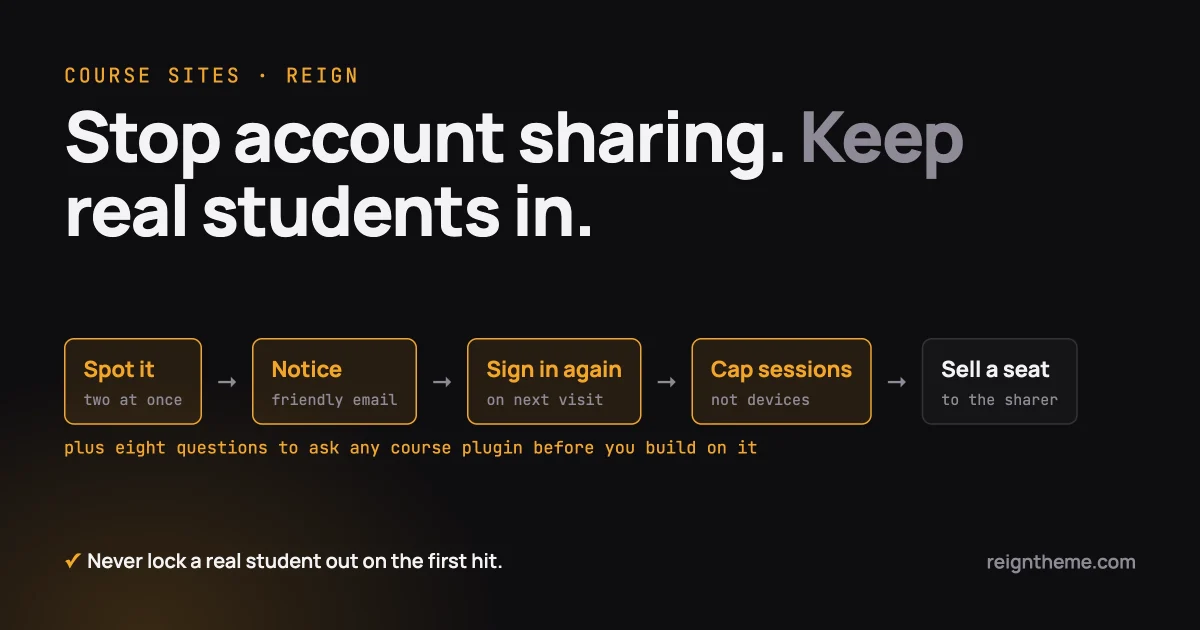
The short answer: do not put a hard device limit on your students. It turns a revenue problem into a support problem, because real students use a phone, a laptop and a work computer. Limit how many sessions can be active at the same time instead, respond in small steps, and sell the second seat to the person who is borrowing the first one.
This guide has two parts. Part one is about stopping account sharing without locking out paying students. Part two is a checklist of questions to ask about any course plugin before you build a business on it. Everything here is written for course sellers and academy owners, not developers.
In this guide
- Why a hard device limit usually backfires
- Why honest students look like sharers
- The signals that really separate sharing from normal use
- A response in steps, with a copy-ready notice email
- What WordPress gives you, and what needs a plugin
- How to sell the seat the sharer wants
- What to log, how long to keep it, and a privacy note
- Part two: eight questions to ask any course plugin
- A setup note for Reign owners
- Questions people ask
Part one: stopping account sharing
Why does a hard device limit usually backfire?
A hard device limit says “this account may work on two devices, and the third is refused.” It sounds fair. In practice it creates a steady stream of messages from paying students who cannot get in, and each of those messages costs you time and goodwill.
Honest students get punished, and a determined sharer still manages, because sharing is a human arrangement, not a technical accident. So the aim is different. You do not need to make sharing impossible. You need to make it inconvenient enough that sharing stops being the cheap option, while real students never notice anything.
The idea we recommend is to limit simultaneous sessions. A session is simply “this person is logged in right now, in this browser.” Two people cannot comfortably use one account at the same moment for long without one of them being signed out. A student switching from phone to laptop is almost never on both at once. That single difference is what lets you catch sharing without catching normal life.
Why do real students look like sharers?
Before you try to catch anyone, picture the honest cases, because they are far more common than the dishonest ones. Each of these produces what looks like suspicious behaviour in a log:
- Phone and laptop. A student watches a lesson on the train, then continues at home. Two devices in one day.
- A work computer. Lunch-break study at the office, then evening study at home: two networks, two places.
- A new browser or a cleared cache. The site treats it as a brand new device.
- Travel. A student logs in at home, then from an airport or hotel in another country the next day. Their address on the internet changes completely.
The lesson: a second device, a second place or a second browser is not evidence. It is Tuesday. If your system reacts to those alone, you will lock out honest students every week.
Which signals actually separate sharing from normal use?
Three signals are worth watching. None is proof alone. Together they are a strong hint.
1. Two sessions active at the same time
This is the strongest signal. If the same account is clearly in use from two places in the same short window, for example both sessions loading lessons within the same few minutes, and this happens on many different days, two people are probably using it. One person moving between devices does not do this repeatedly.
2. Places that are too far apart for the time
If a login appears from one city and a second login appears from a city thousands of kilometres away a few minutes later, one person cannot have made both. People call this “impossible travel.” Location from an internet address is approximate, though, so use it only as a second opinion.
3. Progress that jumps around in a way one person would not
A single learner usually moves through a course in a rough order, with gaps. Two people on one account often show a different pattern: lesson 3 completed, then lesson 22, then lesson 4, with timestamps overlapping. Another sign is a whole module finished in an hour that normally takes a week.
Rule of thumb: one signal means watch, two signals repeated across several days means send the polite notice, and nobody is locked out on a single hit.
What should the response look like, step by step?
A graduated response protects honest students and quietly raises the cost for sharers. Here are the steps in order. Do not skip ahead.
Step 1: a friendly notice
Send a short, calm email. It says what you noticed, reminds the student that the account is personal, and tells them what happens next. It accuses nobody. Here is wording you can copy and adjust:
Subject: A quick note about your account at [Academy name]
Hi [First name],
We noticed that your account was open in more than one place at the same time recently. That can happen when you switch between a phone and a laptop, so there is nothing you need to fix if that is what happened.
Your membership is personal to you. If someone else has been using your login, please change your password here: [link]. If you would like a colleague or family member to learn alongside you, we offer extra seats: [link].
If you were locked out or something looks wrong, reply to this email and we will sort it out the same day.
Thanks for learning with us,
[Your name]
The email gives a harmless explanation first, offers a fix and a purchase, and gives a way to reach a human.
Step 2: ask them to sign in again
If the pattern continues, end all of that account’s other sessions, so that everyone is signed out except the person who answers. Then let the student sign in again. The real owner does this in seconds; a borrower has to ask for the new password, which is exactly the inconvenience you want. Pair it with a password reset prompt in the same email.
Step 3: cap simultaneous sessions
If it still continues, turn on a limit for that account (or for everyone) of one or two active sessions at a time. When a third session tries to start, the oldest one is signed out, or the newcomer sees a clear message explaining why. Do not show a bare error. Say what happened and how to fix it, for example “You are signed in on two other devices. Sign out of one to continue here.”
Two sessions at a time is a sensible start for most academies. It lets a student have a phone and a laptop open without a problem, and it stops a family or a team from sharing at once.
What does WordPress itself give you?
This is worth knowing before you spend money, because WordPress already tracks sessions. These facts come from WordPress’s own documentation.
- “Log Out Everywhere Else.” On the Your Profile screen there is a button with this name. The documentation describes it as a way to log out of other devices, such as a phone or a public computer. A student can use it themselves. This is your manual version of step 2 above.
- Session tokens. WordPress keeps each login as a session token, managed by a class called WP_Session_Tokens. Its developer reference lists methods to get all of a user’s sessions, destroy all of them, or destroy all except the current one. That is the building block a developer would use to automate steps 2 and 3.
- Who may register, and as what. Under Settings, General, “Anyone can register” lets visitors create accounts, and “New User Default Role” sets the role each of them receives. The documentation lists Subscriber among the valid choices. We come back to why this matters in part two.
What WordPress does not give you out of the box, as far as its documentation shows, is a setting to cap simultaneous sessions, a screen comparing session locations, or an automatic notice email. Those need a plugin or custom work.
If you are comfortable with a command line, WP-CLI has documented commands to list and end a user’s sessions (replace 123 with the student’s user number). As with any command that signs people out, try it on a test site first:
wp user session list 123
wp user session destroy 123 --all
What do the course plugins say about session limits?
We only list what each vendor’s own pages say today. If a point is missing here, we could not confirm it on the vendor’s own page.
- LearnDash documents concurrent login prevention in its Integrity add-on. Its help page describes it as a way to stop one username and password being used from different locations or devices at the same time, with the option to exclude certain user roles and to bypass the lockout per user. The same page says LearnDash must be installed and active, and mentions needing an active LearnDash licence.
- Tutor LMS announced a “Manage Active Login Sessions” setting in its 2.1.10 release post (April 2023). The post places it under Tutor LMS, Settings, Authentication, says the owner sets how many login sessions students can have, and says students can manage their own sessions from their dashboard. The post does not say which edition includes it, so check the current plans before you rely on it.
- LifterLMS: we could not confirm a session or login limit on LifterLMS’s own pages, so we say nothing about it here.
- Learnomy (our own course plugin, by Wbcom Designs): its Free and Pro readmes, read today, do not mention session, device or concurrent login limits. So we will not claim that Learnomy does this. The advice in this guide works with any plugin, because WordPress sessions sit underneath all of them. If you use Learnomy, the practical route is the manual and WordPress-level steps above, or a general session plugin or custom work from a developer.
How do you sell the seat the sharer wants?
Most sharing is not theft in the mind of the person doing it. It is a friend, a spouse, a colleague or a team lead who thinks “we only need one login.” The better answer is to make a second seat easy to buy.
Two groups are worth designing for:
- Families and friends. A “learn together” price for a second person is simple and cheap to offer. It turns a sharer into a customer.
- Companies and teams. A manager who buys a course for ten people wants one invoice, a way to add and remove people, and proof that people are finishing. This is a bigger sale than a single seat, and it is the reason to offer seat bundles at all. Our companion guide on BuddyX, How to Sell Corporate Training with Seat Licenses on WordPress, walks through the commercial side in detail.
What does a buyer and a manager need to see? A buyer needs a clear price per seat, what is included, and how extra seats are added later. A manager needs a list of the people on the team, who has started, who has finished, and a way to remove someone who has left the company and give the seat to a new hire.
What does Learnomy offer for team and group seats?
Here we keep strictly to what the Learnomy readmes state. Team seats are a Pro feature.
- The Learnomy Pro readme describes B2B and team selling under the name Spaces: seat plans, seat limits, an owner dashboard, sub-groups with scoped managers, bulk invite and CSV onboarding, and JSON and CSV progress reports.
- The Learnomy readme describes the same area as spaces for selling to companies: sell seat bundles and extra seat packs, bill a recurring team subscription, give each team a branded portal with its own managers and departments, bulk-import members by CSV, suspend and restore members, and export compliance reports.
Payments are built in on the Free side: the readme says Stripe and PayPal checkout work without WooCommerce, with an optional WooCommerce adapter if you already use it. Free Learnomy also includes certificates with public verification links. None of this is a session limit. It is how you sell the second seat.
If you already run LearnDash, Tutor LMS or LifterLMS, the same idea applies: sell seats through whatever your plugin or store supports. Our earlier piece, Running Reign With LearnDash? Your Options If Your Course Plugin Changes, covers what to do if you are weighing a change, and we do not repeat it here.
What should you log to answer a disputed lockout?
Sooner or later, a student will say “you locked me out unfairly.” You want to answer in two minutes with facts, not memory. Keep a simple record for each action you take on an account:
- Who: the account, and the person on your team who acted (or “automatic”).
- What you saw: which of the three signals fired, and on how many days.
- What you did: notice sent, sessions ended, limit applied, account suspended.
- What the student said: any reply, and what you offered in return.
How long should you keep these records, and what about privacy?
Keep them only as long as you need them to settle a dispute. A common approach is to keep action records for a fixed period you choose, such as a few months after the last event, then delete them. Raw session details such as network addresses and locations are personal data in many places, so keep those for a shorter time than your action notes, and delete them on a schedule.
Three simple habits keep you on the right side of privacy expectations:
- Tell students. Put one clear paragraph in your terms or privacy policy: accounts are personal, you monitor sessions to protect against sharing, what you record, and how long you keep it.
- Be able to export and erase. Students may have rights to see or delete their data. Learnomy’s readme says it hooks into WordPress core’s personal data exporter and eraser, so enrolments, progress, quiz attempts and certificates are included in the standard privacy export and can be erased on request.
This is general guidance, not legal advice. Rules differ by country, so ask a qualified person.
Part two: what to check in a course plugin before you build on it
A course plugin is not a small choice. Your content, your students’ records and your income all sit on top of it. Rather than compare products, here are eight questions to put to any course plugin, including ours. Ask them the same way each time and write down the answers.
1. How often does it ship security fixes, and how fast do you hear about them?
Open the plugin’s page on wordpress.org and read the changelog. Look for the words “security” or “fix,” and look at the dates. A plugin that ships regularly is looking after itself. A plugin silent for a year is a warning. Then ask the vendor how they announce serious fixes.
A real example: Wordfence, a WordPress security company, published an advisory (CVE-2026-78175) on Tutor LMS version 4.0.7 and earlier. It describes a flaw that a logged-in user with the Subscriber role could exploit, and it states that Tutor LMS 4.0.8 fixes it. The advisory also says there is a route for people without an account when registration is open, and that the monetization feature must be enabled. Read the full Wordfence advisory for the details. Any popular plugin can have a flaw like this. The lesson is not about one vendor. It is that fixes only protect you once you have installed them, and that the role you give new students decides how far an attacker with a student account can reach.
Your action: turn on update notices, test updates on a staging copy, and apply security releases within days, not months.
2. What role do new students get by default?
Go to Settings, General in WordPress and read “New User Default Role.” Most course sites need only the lowest sensible role, and many plugins add their own student role. Never leave it on something powerful like Editor or Author. If registration is open to anyone, remember that anyone includes people you would not choose.
Your action: confirm what role a brand new sign-up gets, then register a test account and check what that account can do. If registration is not needed, switch off “Anyone can register” and let the plugin create accounts when someone buys.
3. Is selling built in, or does it need a store plugin?
This changes how many moving parts you maintain. From the vendors’ own pages today: LearnDash documents Stripe and PayPal under LearnDash LMS, Settings, Payments. Tutor LMS’s wordpress.org page describes native eCommerce as well as compatibility with WooCommerce, Easy Digital Downloads and Paid Memberships Pro. LifterLMS’s wordpress.org page describes built-in Stripe and PayPal gateways with memberships and subscriptions. Learnomy states built-in Stripe and PayPal in its Free readme.
Your action: write down every plugin involved in taking a payment and giving access. Each one is something that must be kept updated.
4. How can student data be exported?
You will need your student list, progress and results for reports, for a migration, and sometimes for a legal request. Ask whether the plugin offers CSV export, whether it works with WordPress’s own personal data exporter and eraser, and whether it can export progress, not just names.
Your action: export your data once now, before you need it. A tool you have never exported from is a tool you cannot leave.
5. Can AI tools read your course data, and who controls that?
WordPress now has an Abilities API, a standard way for a plugin to list the actions it allows, so that approved AI assistants and automations can find and use them. Some course plugins have started to register their data this way. LifterLMS’s own changelog for version 10.1.0 says it added Abilities API integration so courses, lessons, students, enrollments and progress are discoverable by AI clients and automation tools, and its documentation says tools act according to the connected user’s permissions. Learnomy’s Free readme states that 54 LMS actions across 8 categories are AI-discoverable through the same API. We could not confirm the same on LearnDash’s or Tutor LMS’s own pages today, so we leave them out.
What matters for you is control. Ask: can it be switched off? Does it follow the permissions of the signed-in user? Does it expose student personal data, or only course structure?
Your action: if you do not use AI tools with your courses, check whether the feature can be turned off. If you do, give the connected account the lowest permissions that work.
6. What happens to your courses if you stop paying?
Ask what happens at renewal if you decline: do your courses keep working, do you lose updates, or do features switch off? Updates stopping is a real cost, because security fixes stop too. Look for the answer in the vendor’s terms, in plain words.
Your action: read the renewal terms before you buy, and put the renewal date in your calendar.
7. Can you group students under a manager?
If you ever sell to companies or families, ask whether the plugin supports seats, groups, managers and progress reports. Ask what a manager can see and what they cannot. Your answer decides whether you can grow beyond single sales.
Your action: list the three reports a manager would ask for, then check the plugin can produce them.
8. Why does a cracked or “nulled” copy cost more than a licence?
Some people look for a free copy of a paid course plugin on a site that distributes “nulled” or cracked versions. We understand the temptation, but the true cost is higher than the licence, for plain reasons:
- You cannot be sure what was changed. Anyone who altered the files could have added code to read your students’ details or to create a hidden administrator.
- You do not receive the vendor’s updates and security fixes through the normal route, which is the protection question 1 is about.
- Your students’ trust, and in many places your legal duties, depend on keeping their data safe.
Your action: use only copies from the vendor or from wordpress.org.
The eight questions on one page
| Ask | What a good answer looks like |
|---|---|
| Security fixes | Regular dated releases and a clear way to hear about serious fixes |
| Default role | New sign-ups get the lowest sensible role, and you have tested it |
| Selling | You know every plugin involved in taking payment |
| Data export | Students, progress and results export, and privacy tools are supported |
| AI access | Can be switched off and follows permissions |
| If you stop paying | Stated in plain words before you buy |
| Groups and managers | Seats, managers and reports you could sell |
| Licence source | Only vendor or wordpress.org copies |
If you want to see how three popular options and Learnomy compare in a plain way, our guide LearnDash vs LearnPress vs MemberPress vs Learnomy: Which LMS for Your Academy already does that, so this checklist does not.
A setup note for Reign owners
Reign is your theme, and it stays your theme whichever course plugin you use. Nothing in this guide asks you to change it. The theme controls how your academy looks. The course plugin controls enrolment, sessions and payments. Because they are separate, you can tighten sessions, add seat selling or change the default role without touching your design.
- Check Settings, General for “Anyone can register” and “New User Default Role” first. It takes a minute.
- Add a visible “need seats for your team?” link on your course and pricing pages, so the sharer finds the right answer.
If you want your academy to look the part while you tighten the business side, see How to Make Your LearnDash Course Site Look Like a Real Academy.
Questions people ask
Do device limits stop account sharing?
They reduce casual sharing, but they also lock out honest students who change browsers or phones, which creates support work. Limiting simultaneous sessions and responding in steps catches more sharing with far fewer false alarms.
How many simultaneous sessions should an academy allow?
Two is a sensible start for most academies, because it covers a phone and a laptop open together. Go to one only if your content is high value and your students mostly use a single device.
Does Learnomy limit sessions or devices?
Its Free and Pro readmes do not mention it, so we do not claim it. The steps in this guide work on any plugin, and Learnomy Pro adds team seat selling through Learning Spaces if you want to sell the second seat.
Is a nulled copy of a paid plugin fine while starting out?
No. You cannot know what was changed in the files, and you miss security updates. Start with a free, legitimate version instead.
If you are building or tidying a course business on WordPress, the Reign theme page shows what you can build on a theme you own, and Learnomy is our own course plugin, described on its product page. Start with the simple steps in part one, run the eight questions in part two, and add stricter controls only if they prove necessary.