
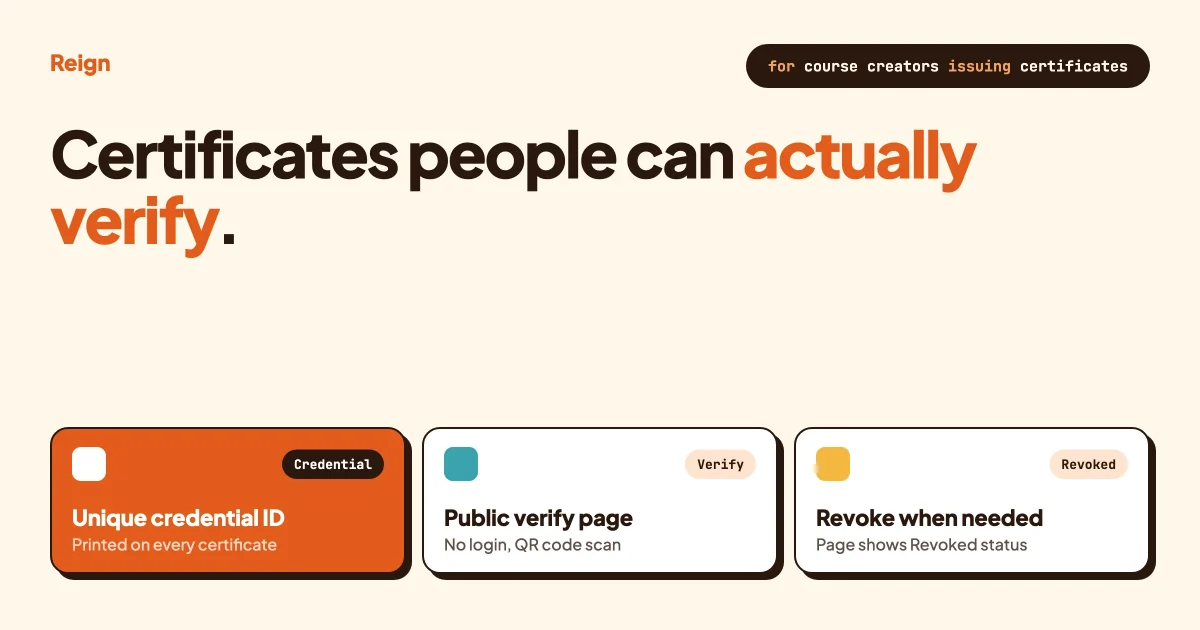
A course certificate people can verify has four things: a unique ID, a public web page anyone can open to confirm it is real, clear details of who issued it and to whom, and a way for you to revoke it. On WordPress you get this either from your LMS or from a separate certificate plugin. A certificate that is only a PDF with a name on it proves nothing, because anyone can edit a PDF.
Product details below were read from each vendor’s own documentation in October 2026. Features change, so check the linked pages before you commit.
In this guide
- What makes a course completion certificate credible
- How Learnomy handles certificates, including verification
- What LearnDash, LifterLMS, Tutor LMS and Sensei document
- When a separate certificate plugin makes sense
- A comparison table
- Designing the certificate itself
- PDF or web page, and sharing on LinkedIn
- Completion or passing score: who should get one
- Privacy, accreditation and what a certificate is not
- Step by step: issue your first verifiable certificate
- Questions people ask
What makes a course certificate credible?
A certificate is credible when a stranger can check it without trusting you or the student. That means a unique ID on the document, a public page that confirms the ID, the issuer’s name, and a visible status that changes if you cancel it. Everything else is decoration.
Think about who looks at these. A hiring manager has a PDF in an email. They cannot call you, and they have no reason to believe a file that anyone with a free editor could have made. What they can do is type an address or scan a code and see a page on your site that says: this person, this course, this date, valid. That is the whole idea behind verifiable certificates.
The four parts
A unique credential ID. A short code that belongs to one certificate and no other. It is printed on the document and used in the verification address. Learnomy’s sample certificate shows an ID in the form LRN-9F2A-77C1, and its verification address uses a long random identifier instead of a counting number, so nobody can guess the next one.
A public verification URL. A web page that needs no login. It shows the student name, course title, issue date and ID, plus a status. If the page is behind a login, an employer cannot use it.
Issuer details. Your organisation name, the instructor, the date, and the course title. Without these, the page confirms an ID exists but not who stands behind it.
Revocation. You will eventually need to cancel one: an exam was cheated, a payment was reversed, or the wrong person was awarded it. A verifiable system shows a “revoked” status on the public page instead of simply deleting it, because a deleted page looks the same as a forged one.
Some systems add a fifth part, a digital signature or a tamper record, which lets a checker detect that the certificate data was changed after it was issued. It is useful, not essential for a small academy.
How does Learnomy handle course certificates?
Learnomy, the course plugin from Wbcom Designs, issues certificates automatically when a student completes a course, and each one gets a public verification page. Wbcom makes Learnomy, so weigh this section with that in mind. Everything here comes from the Learnomy certificates page and its certificates documentation.
Here is what the documentation says, piece by piece.
- Automatic issue. A certificate is issued when the student meets the course completion requirement, with no admin action, and duplicates are prevented.
- Designer. You build the layout in a canvas editor inside wp-admin, starting from Classic, Modern or Minimal layouts. Four curated templates (Course Completion and Quiz Completion, each in Elegant and Modern styles) ship with every install. The quiz templates show the student’s score.
- Merge tags. These fill in the student name, course name, issue date, score, hours, credential ID, instructor name and site name when the certificate is issued.
- QR code. A QR block links to the certificate’s public verification page, so a printed copy checks itself.
- Verification page. Every certificate has a permanent public address in the form /verify/ followed by a unique ID. No login is needed. It shows the student name, course title, issue date and credential ID, with a status of Valid or Revoked.
- Signature. The page says every certificate is digitally signed with Ed25519, and that an edited copy fails the check.
- Revocation. An admin can revoke a certificate from the Certificates screen. The public page then shows “Certificate Revoked” to anyone who visits the address. The page notes that revocation is permanent in the admin interface, so treat it as a decision, not a toggle.
- PDF and print. Students can download a PDF or open a print-ready view, from their account or from the public verification page.
- LinkedIn. There is a documented “Share a Certificate on LinkedIn” page. It describes adding the certificate to a profile with a pre-filled link that carries the course name, organisation, issue date and credential ID, and copying the public verification link.
Learnomy also lists extras, such as Open Badges 3.0, a Credly connection and a tamper-evident hash record. Which of these your licence covers is something to check on the Learnomy product page before you buy. The basics above are what most small academies need.
One honest limit: the documentation I read does not describe awarding by quiz score as a certificate rule. Certificates are enabled per course under a “Completion and Certificate” section, with the option to award on completion. If your rule is “must score 80 percent”, build that into the course so that completion itself requires passing the quiz, and test it before launch. Learnomy’s docs also have a Quizzes and Grading section worth reading for this.
What do LearnDash, LifterLMS, Tutor LMS and Sensei offer?
All four issue completion certificates, but they differ sharply on public verification. Only some document a way for an outsider to check a certificate. Here is what each vendor’s own pages say, and where I found nothing.
LearnDash
LearnDash’s certificate documentation (hosted at docs.nexcess.com/software/learndash/certificates/) says certificates can be awarded on course completion or on passing a quiz. Setup is two steps: create the certificate, then associate it with a course or quiz. It also has a page of certificate shortcodes for displaying dynamic content on the certificate. That page did not mention PDF output, QR codes or a verification process, so if you need those with LearnDash, check its current documentation or pair it with a certificate plugin. LearnDash is the better pick if you want to award on a quiz pass as a built-in rule. See our comparison of WordPress LMS plugins with certificates for a wider list.
LifterLMS
LifterLMS includes certificates as part of its course features. Check its documentation for how awards are triggered and how students can share them before you rely on a specific workflow.
Tutor LMS
Tutor LMS has a Certificate Builder. Its announcement lists draggable elements including Student Name, Course, Instructor, Signature, Grade, Verification ID and QR, and says there are 25 or more pre-built templates in horizontal and vertical versions. The QR element opens the certificate URL when scanned, and the Verification ID element is described as a way for students to confirm their certificate is authentic. I could not find an official page that walks through how an outsider verifies one, so test the flow on a staging site before you promise employers anything.
Sensei LMS
Sensei’s certificates extension gives learners a certificate when they complete a course, delivered as a PDF that opens in a new tab. You design templates under Certificates, with a required background image (PNG or JPG, recommended at 1200 by 675 pixels) and five text sections, and placeholders such as the learner name, course title and completion date. By default only the student and administrators can view a certificate. Public viewing needs a site setting plus the student switching on “Allow my Certificates to be publicly viewed” on their profile. The documentation does not describe a verification process. Sensei suits sites where privacy by default is the priority.
If you are still choosing a course plugin, our LearnDash, LearnPress, MemberPress and Learnomy comparison and the guide to choosing an LMS for a Reign site cover the other differences.
Do you need a separate certificate plugin?
You need one only if your LMS cannot give outsiders a way to check a certificate. A dedicated plugin adds the ID, the verification page and revocation on top of whichever LMS you already run.
One example I could read in full is PressPrimer Certificate. Its plugin listing says each certificate gets a unique, hard-to-guess ID, QR codes are optional and link to a verification page, and the public page shows whether a credential is valid, revoked or expired. It supports revoking and reinstating a certificate, generates PDFs on your own server, and lists integrations with Tutor LMS, LearnDash, LifterLMS and LearnPress. I have not tested it, and I mention it as an example of the category, not a recommendation. Our roundup of certificate and badge generator plugins covers more.
Before adding any plugin, ask three questions. Does the verification page work without a login? Does revoking change what that page shows? Where do the PDFs get made, on your server or a third party’s? The third answer matters for privacy, which we come back to below.
How do the options compare?
The table records only what each vendor’s own pages stated when I read them in October 2026. “Not found” means I looked and the page did not say, not that the feature is missing.
| Option | Awarding | Public verification | Revocation | |
|---|---|---|---|---|
| Learnomy | On course completion, per course | Yes, public page per certificate, plus QR | Yes, public page shows Revoked | Yes, plus print view |
| LearnDash | Course completion or quiz pass | Not found | Not found | Not found |
| LifterLMS | Engagements, or manual award | Sharing link per certificate; no ID check found | Not found | Via the PDFs add-on |
| Tutor LMS | Not stated on the pages read | QR and Verification ID elements; flow not documented | Not found | Not found |
| Sensei LMS | Course completion | Optional public viewing; no verification process described | Not found | Yes, PDF in a new tab |
| PressPrimer Certificate (plugin) | Triggers from several LMS plugins | Yes, with QR | Yes, can reinstate | Yes, generated locally |
Read the table as a starting checklist. LearnDash and LifterLMS have large ecosystems and documentation beyond what I fetched, so a “not found” is a prompt to ask support, not a verdict.
How should a certificate look?
A good certificate is plain, readable and honest about what it is. Put the course name and the student’s name in the largest type, add the issue date, your organisation name and the ID, and leave plenty of white space. Decoration that crowds the ID makes the document less useful.
A few practical rules from how these designers work:
- Use landscape unless your template says otherwise. Most built-in templates are landscape, and Learnomy lets you pick portrait.
- Keep the QR code large enough to scan from a printout, and do not place it over a background pattern.
- Put a logo and a signature block on it. A name and title under a signature line signals who stands behind it.
- Use the merge tags or placeholders your plugin gives you instead of typing names by hand. Hand-typed names are where typos and fake documents come from.
- Check the output as a PDF. Learnomy’s documentation notes that PDFs use standard fonts, so its Preview PDF button is the most accurate check of the final layout.
Your site’s look matters too, because the verification page lives on your domain. If it looks like part of your brand, it reads as trustworthy. With a theme such as Reign, the page that holds your courses and the account area where students download certificates share the same colours and header, and Reign has paid add-ons for LearnDash, LifterLMS, Tutor LMS and Sensei. If you are starting from scratch, importing a Reign demo gets you a styled site in an afternoon.
Should you issue a PDF or a web page?
Issue both. A PDF is what people attach to a job application, and a web page is what proves the PDF is real. The PDF carries the ID and a QR code, and the web page confirms them.
A PDF alone is portable but easy to alter. A web page alone is verifiable but awkward to put in a folder. Together they cover each other’s weakness.
- PDF: works offline, prints well, can be sent by email. Weakness: can be edited unless the system signs it or locks it. PressPrimer’s listing says its PDFs are protected against editing in Acrobat and similar tools, and Learnomy says its certificates are signed so an edited copy fails the check.
- Web page: always current, so a revocation shows at once. Weakness: it only works while your site is online and you keep the address stable.
That second point is easy to miss. If you ever change your permalink structure, move to a new domain, or rebuild the site, every printed QR code stops working. Plan the verification address as something you keep for years. Write the redirect rule down on the day you launch.
Can students add a certificate to LinkedIn?
With Learnomy, yes. Its documentation has a page on sharing a certificate on LinkedIn, which describes adding an earned certificate to a profile and copying the public verification link. The certificates page adds that the Add to Profile link carries the course name, organisation, issue date and credential ID.
For LearnDash, LifterLMS, Tutor LMS and Sensei, I did not find LinkedIn instructions in the pages above, so I will not claim one. A workable fallback with any of them is manual. LinkedIn profiles have a licences and certifications section where a person can type the name, issuer, date and a credential URL. If your system gives each certificate a public address, that address goes in the credential URL field, and that is the whole point of having one.
Tell students how to do this on the day they finish. A short email with the steps and the link gets far more certificates onto profiles than a hope that they will work it out.
Who should get a certificate: completion or a passing score?
Award on completion when the goal is finishing, and award on a passing score when the certificate claims the student knows something. Mixing the two up is the most common reason certificates lose value.
A completion certificate says “this person went through the material”. A pass certificate says “this person met a standard”. Both are fine, as long as the wording matches the rule. Do not title a document “Certified” if all it took was clicking through lessons.
Ways to set the rule
- Completion only. Every lesson marked done. Simple, encouraging, suits self-paced hobby and onboarding courses.
- Quiz pass. LearnDash documents awarding a certificate on passing a quiz. In other plugins you can usually make completion depend on a final quiz.
- Whole track. LifterLMS documents awarding when a student finishes every course in a track.
- Manual award. LifterLMS lets an admin award one to a chosen student. Useful for live workshops where attendance is checked by a person.
If you teach in groups, a cohort adds another variable, because you may want a certificate only for people who attended the live sessions. Our guide to running a cohort programme on your own site covers that setup, and the quiz-focused LMS roundup helps if scoring is your rule.
Whatever you choose, write the rule on the course page: “You receive a certificate when you complete all lessons and score at least X on the final quiz.” Students trust a rule they can read.
What about privacy?
A public verification page shows a real person’s name, so tell students before you publish it. At minimum, the page Learnomy documents shows the student name, course title, issue date and credential ID. That is the right amount for verification, and it is also personal data.
Some practical steps:
- Say in your course terms or checkout notes that a certificate has a public page with the student’s name on it.
- Prefer an unguessable address over a numeric one, so people cannot list every student by counting upwards. Learnomy uses a random identifier in its address.
- If the plugin lets the student opt out of public viewing, use it. Sensei makes public viewing opt-in by the student, and LifterLMS lets students disable sharing.
- Know where PDFs are made. A plugin that builds PDFs on your own server keeps the name on your hosting. PressPrimer’s listing says it generates PDFs locally. For any other plugin, ask the vendor.
- Decide how you handle a deletion request. If a student asks to be removed, a revoked entry may still show a name. Check your local data protection rules and ask your plugin vendor what the page shows after removal.
I am not giving legal advice here. Privacy rules differ by country and by who your students are, so check your local rules, and if you issue certificates to employees or to children, get proper advice.
Is a course certificate an accredited qualification?
No. A certificate of completion from your site records that someone finished your course. It is not a degree, a licence or an accredited qualification, and it does not become one because the design looks official.
Accreditation comes from a recognised awarding or regulatory body, and the rules about who may use words like “diploma”, “licensed”, “accredited” or “certified” differ by country, profession and sometimes by state. Some titles are protected by law.
- Use words that describe what happened: “Certificate of Completion”, “Attended”, “Passed the final assessment”.
- Do not imply a professional licence, continuing-education credit or employer recognition unless a body has actually approved your course.
- If you do hold approval, name the body on the certificate and on the verification page, and keep the approval reference current.
- Check your local rules, and the rules of the profession you teach, before you choose the title.
This is not a weakness. A well-run completion certificate with real verification is useful in a portfolio or a job application. It just has to claim only what it is.
How do you issue your first verifiable certificate, step by step?
You can have a working, checkable certificate in about an hour. The steps below use Learnomy, because its documentation covers every one of them. If you use another plugin, the same order applies.
Step 1: Decide the rule and the wording
Choose completion or a passing score, and write the one-sentence rule you will show students. Pick the title that matches, such as Certificate of Completion. To confirm it worked, ask someone who has not seen the course to read your rule and tell you what they must do to earn it.
Step 2: Create or choose a template
In Learnomy, go to Learnomy, then Certificates, then Design New Template, or start from one of the four curated templates. Set the orientation, add your logo, the merge tags for name, course, date and credential ID, a signature block, and a QR code. To confirm it worked, click Preview PDF and check that nothing overlaps and the QR code is large enough.
Step 3: Attach it to the course
Open the course editor, find Completion and Certificate, tick “Award a certificate on completion”, pick your template from the dropdown and save. To confirm it worked, re-open the course and check the template name is still selected.
Step 4: Run a test student through
Create a test account, enrol it and finish the course. Then open the certificate from the student account. To confirm it worked, you should see a PDF with a credential ID, and the certificate should appear in the admin Certificates list.
Step 5: Check the public page like a stranger would
Copy the verification address, open it in a private browser window where you are not logged in, and scan the QR code with your phone. To confirm it worked, the page should show the name, course, date and ID with a Valid status, without asking you to sign in.
Step 6: Test revocation
Revoke the test certificate from the Certificates screen and reload the public page. To confirm it worked, the page should now show “Certificate Revoked”. Remember the documentation says revocation is permanent in the admin interface, so do this on the test certificate only.
Step 7: Tell students what to do with it
Send a short email on completion that explains the PDF, the verification link and how to add it to LinkedIn. To confirm it worked, ask your first few finishers whether they found it.
Certificates also work well alongside points and badges. Our post on gamifying a learning experience shows how, and why a course needs a community explains why finishers stay around. If you moderate a student forum, the moderation guide is a good companion.
Questions people ask
Can I issue course completion certificates in WordPress for free?
What is included at no cost differs by plugin and changes over time, so check each vendor’s pricing page. For Learnomy, check the product page for what your licence covers.
Can someone fake a certificate that has a QR code?
They can copy an image of one, but the QR code should lead to your verification page, and that page will show the real name and date. If the name on the paper differs from the name on the page, it is fake. Signed certificates add another check, because an edited copy fails the signature test.
What happens if I change my domain or permalinks?
Printed QR codes and shared links point at the old address, so they break unless you redirect them. Keep the verification path stable for years, and set up a redirect before any migration.
Is a certificate of completion legally recognised?
Not as a qualification. It records that a person finished your course. Whether any employer, regulator or professional body accepts it is up to them, and the rules vary by country, so check your local rules.
Can students put the certificate on LinkedIn?
Yes. Learnomy documents an Add to Profile link and a copyable verification link. With other tools, a student can add it by hand in the licences and certifications section, using the certificate’s public address as the credential URL if one exists.
Where to go from here
Pick the rule first, then the tool, then test the public page as a stranger. If you run a course site with a community around it, the Reign theme gives the course pages, student accounts and verification page one consistent look, and Learnomy is the course plugin from the same team if you want certificates, quizzes and student progress in one place. For a wider comparison, read Best WordPress LMS with Certificates.