

When it comes to online shopping, adding delivery date selection in WooCommerce has become essential to meet rising customer expectations. According to a report by Metapack, 73% of shoppers prioritize delivery convenience over product cost, and 56% will abandon their carts if flexible delivery options aren’t available. If you run a WooCommerce store, this insight is critical.
Today’s customers want more than fast shipping - they want control over when their order arrives. By enabling delivery date selection, you turn fulfillment into a personalized, customer-first experience.
The good news? The WooCommerce Order Delivery plugin makes this easy. It lets you offer delivery date and time selection, apply custom delivery rules, and improve satisfaction - without any coding required.
In this guide, we’ll walk you through how to install, configure, and optimize this plugin step by step, so you can boost customer trust and streamline your order management.

What Is WooCommerce Order Delivery?

WooCommerce Order Delivery is a premium plugin developed by the official WooCommerce team that lets you add delivery date selection in WooCommerce with precision and flexibility. It’s built to enhance the checkout experience by giving customers the power to choose when they want their orders delivered - making your store more transparent, efficient, and user-friendly.
This plugin is not just about picking a date - it’s a complete WooCommerce shipping scheduler that helps streamline logistics, reduce delivery errors, and improve customer satisfaction.
Key Features at a Glance:
-
Let customers choose their delivery date: Empower shoppers to select their preferred delivery day during checkout, reducing failed deliveries and support queries.
-
Set delivery days and blackout dates: Block weekends, holidays, or non-working days to avoid scheduling conflicts and keep your operations smooth.
-
Customize delivery rules by shipping method or zone: Tailor delivery availability depending on product types, regions, or shipping services.
-
Add lead times and preparation buffers: Account for packing or handling time by setting a minimum number of days before delivery can be scheduled.
-
Automated email notifications: Keep customers in the loop by sending expected delivery dates in the order confirmation email.
With WooCommerce Order Delivery, you’re not just improving the customer experience - you’re also giving your business the tools to scale smarter, optimize order fulfillment, and eliminate delivery guesswork.
Why Add Delivery Date Selection in WooCommerce?
Adding delivery date selection in WooCommerce isn’t just a nice-to-have - it’s a strategic upgrade that improves customer experience, reduces operational headaches, and boosts your bottom line. When you give users control over when their order arrives, you’re building trust and reducing friction at checkout.
1. Improve Customer Satisfaction
Clear delivery expectations = happier customers. Allowing buyers to choose a delivery date adds transparency, minimizes confusion, and fosters confidence in your brand. It also reduces the number of support tickets asking, “Where’s my order?”
2. Reduce Failed Deliveries
Missed deliveries are costly. By letting customers select a time that works for them, you ensure someone is available to receive the package. This reduces return rates, shipping costs, and customer frustration.
3. Enhance Operational Planning
With access to scheduled deliveries, your warehouse and logistics teams can better plan packaging, staffing, and shipping routes. It’s a win for inventory management and a smoother fulfillment process.
4. Boost Conversion Rates
A personalized checkout experience can lower cart abandonment. Offering WooCommerce delivery options is especially powerful for time-sensitive orders - such as gifts, event items, or holiday purchases - where timing is crucial.
Step-by-Step: How to Add Delivery Date Selection in WooCommerce
Step 1: Purchase and Download the Plugin
To begin, go to the official plugin page and purchase the WooCommerce Order Delivery plugin.
Once purchased:
-
Download the
.zipfile from your WooCommerce account. -
Keep your license key handy - you’ll need it after installation.
Step 2: Install and Activate the Plugin

-
Log in to your WordPress dashboard.
-
Navigate to Plugins > Add New.
-
Click Upload Plugin, choose the
.zipfile, and hit Install Now. -
After installation, click Activate Plugin.
-
Enter your license key to enable automatic updates.
Step 3: Configure Basic Settings
Now go to WooCommerce > Settings > Order Delivery.

You’ll see several tabs to fine-tune delivery preferences:
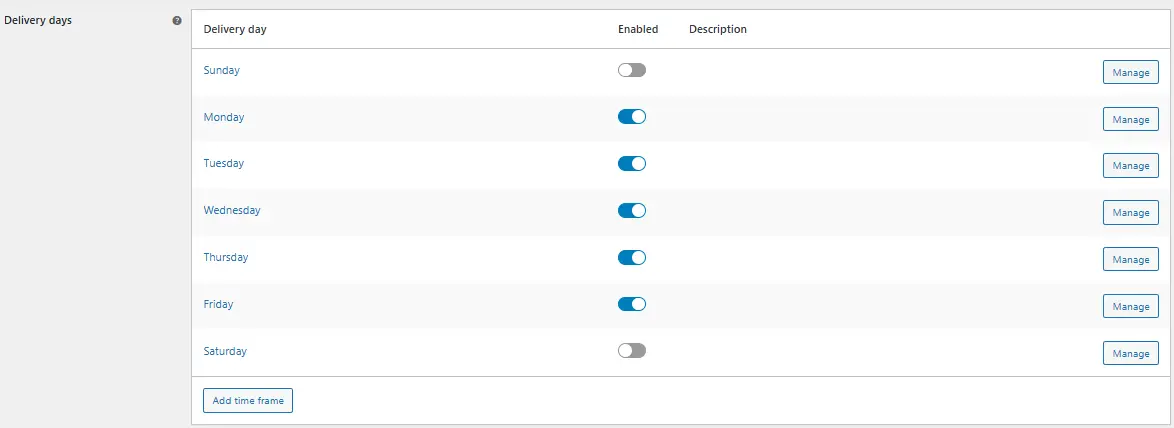
a) Delivery Days
Choose which weekdays are available for delivery.
-
Enable/disable days like Sunday or Monday based on your business model.
b) Delivery Time Frames
Set specific time windows (e.g., 9 AM - 12 PM, 12 PM - 3 PM).
-
You can allow multiple delivery slots in a day.
-
Use this to align with carrier schedules.
c) Minimum Delivery Time
This lets you define lead time based on your production and shipping speed.
-
Example: Add a minimum of 2 days to prevent same-day delivery options.
d) Cut-off Time
Set the latest time a customer can place an order for the next delivery slot.
-
Useful for same-day or next-day delivery restrictions.
Advanced Options to Customize the Experience
Step 4: Add Delivery Constraints
Under the Constraints tab, you can restrict delivery based on:
-
Shipping Methods: Only allow date selection for specific shipping types.
-
Shipping Zones: Customize availability for different regions or countries.
-
Product Types: Disable for virtual products or services.
Step 5: Set Holidays and Blocked Dates
Navigate to the Holidays tab.
-
Add holidays or dates you won’t deliver on (e.g., national holidays, business closures).
-
These will be automatically excluded from the calendar.
Step 6: Enable Email Notifications
Enable delivery date info in the order confirmation emails sent to customers.
-
Navigate to WooCommerce > Settings > Emails
-
Edit templates like “Customer Processing Order” to include the delivery date tag (
{delivery_date}).
Step 7: Test the Checkout Experience
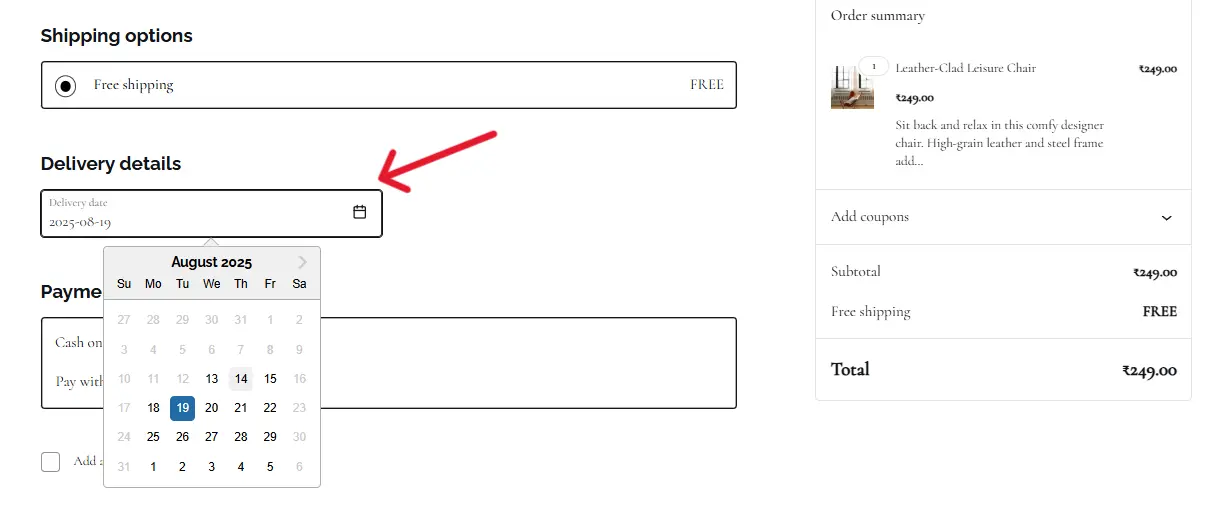
-
Add a product to the cart and go through the checkout process.
-
Ensure the delivery date selector appears and works as expected.
-
Complete a test order to confirm that delivery details are saved and displayed properly.
Pro Tips to Maximize the Plugin’s Impact
Enhance your customers’ experience and streamline fulfillment with these best practices:
1. Offer Fewer, Clearer Choices: While flexibility matters, offering too many delivery time slots can overwhelm users. Limit choices to 2 - 4 meaningful options per day for a smoother decision-making process.
2. Combine with Local Pickup: Enable customers to schedule pickup times just like delivery. The plugin supports local pickup date selection, giving shoppers added control and reducing order handling time.
3. Use Conditional Logic: Pair this plugin with tools like WooCommerce Conditional Shipping to show delivery dates based on cart contents, shipping classes, or customer location. Tailored options improve both UX and logistics.
4. Test Before Launch: Before going live, run multiple test checkouts to ensure the calendar loads, validates, and functions correctly. Use a staging plugin like WP Staging to avoid issues on your live store.
Compatible Plugins That Work Well With WooCommerce Order Delivery
Take your store’s delivery scheduling to the next level by integrating these powerful WooCommerce extensions:
WooCommerce Subscriptions
Ideal for stores offering recurring deliveries. Combine it with delivery date selection to let customers set preferred delivery windows for each renewal cycle.
WooCommerce Advanced Shipping
Add advanced shipping rules based on cart weight, product quantity, customer location, and more. This helps tailor delivery date availability to specific conditions.
WooCommerce Checkout Field Editor
Enhance your checkout process by adding custom fields for delivery instructions, gift notes, or preferred delivery preferences - great for personalization and logistics.
How Customers Experience Delivery Date Selection
Once the plugin is set up, here’s how the delivery selection process appears to your customers:
-
Interactive Calendar at Checkout
Customers can choose from available delivery dates directly on a user-friendly calendar interface. -
Time Slot Selection
Depending on the chosen day, they’ll see a list of available time slots for more precise delivery planning. -
Confirmation Email with Delivery Details
After purchase, customers receive an order confirmation email that includes the selected delivery date and time.
This transparent process enhances customer confidence, reduces delivery-related support queries, and builds long-term trust in your brand.
Common Use Cases for WooCommerce Delivery Date Selection
Adding delivery date selection isn’t just for eCommerce basics - it opens up specialized experiences tailored to your customers’ needs:
Gifting & Special Occasions: Enable scheduled deliveries for birthdays, anniversaries, or festive holidays to ensure perfect timing for memorable moments.
Fresh & Perishable Products: Ideal for food, flowers, or baked goods - timely deliveries help preserve quality and customer satisfaction.
B2B & Corporate Deliveries: Schedule drop-offs during office hours or within strict delivery windows to meet business expectations.
Service-Based Bookings: Let customers choose dates for technician visits, product installations, or consultations - perfect for hybrid product-service models.

Let Customers Choose Convenience
Adding delivery date selection in WooCommerce isn’t just a functional tweak - it’s a powerful way to show customers you value their time. Empowering buyers with the ability to choose when their order arrives builds trust, boosts satisfaction, and strengthens brand loyalty.
With the WooCommerce Order Delivery plugin, implementing this feature is straightforward yet flexible enough to adapt to your store’s unique needs.
Ultimately, letting your customers control their delivery schedule isn’t just convenient - it’s smart business.
Ready to boost your WooCommerce store’s delivery game?
Get WooCommerce Order Delivery Plugin →
Interesting Reads:
How to Schedule Posts Ahead and Stay Consistent Online with BuddyPress
10 Best WooCommerce Cross‑selling & Product Bundles Plugins
WooCommerce 10.0 Released: Here’s Everything You Need to Know