
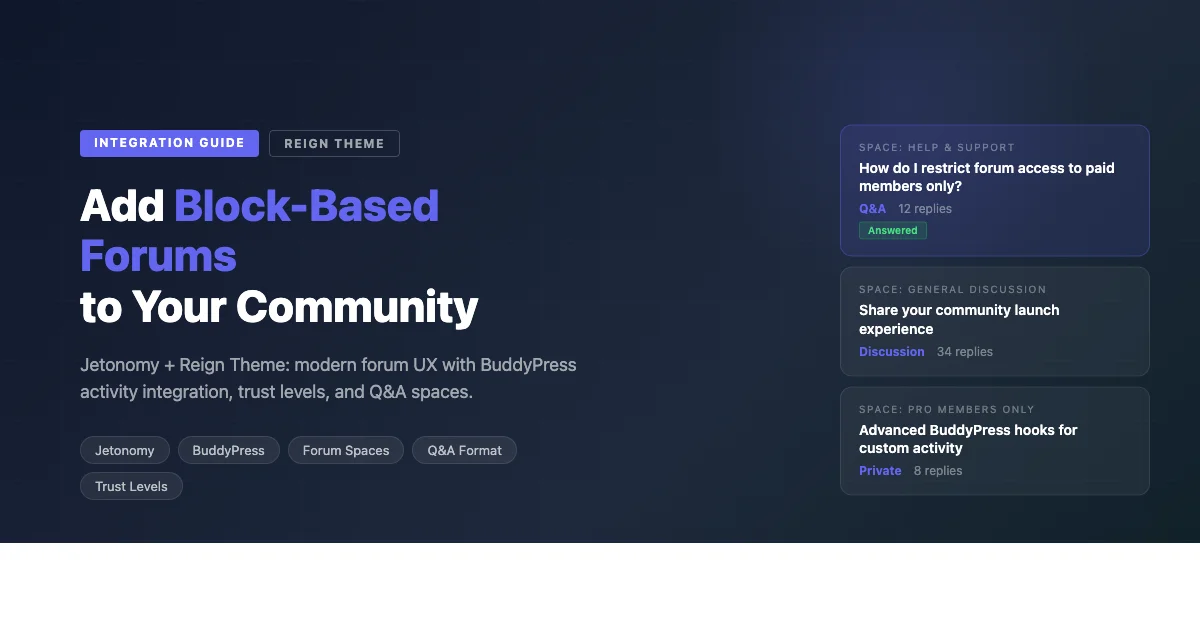
Most forum plugins feel like they were built for a different era of the web. bbPress works, but it looks like 2011 and requires extra plugins to do things that should be standard. Jetonomy is different. It is a block-based forum system built for modern WordPress communities, and it integrates directly with Reign Theme and BuddyPress without friction. This walkthrough covers the full installation and configuration for Reign users.
This is not a generic Jetonomy review. It is specifically written for community operators who are already running or building a site on Reign Theme, and want to know how the reign jetonomy integration works in practice. Every step assumes you have Reign and BuddyPress already installed. For a broader look at the platform, see our Reign vs BuddyBoss comparison which covers how the full plugin ecosystem compares.
What Jetonomy Is and How It Differs from bbPress
Jetonomy is a modern forum plugin built on WordPress block architecture. Every forum, space, post, and reply is rendered using the block editor. This means your forum content inherits your theme’s design system, uses the same typography and color variables as the rest of your site, and can be edited with the same tools your team already uses for page creation.
| Feature | bbPress | Jetonomy |
|---|---|---|
| Editor | Classic editor | Gutenberg blocks |
| Post types | Forum, topic, reply | Space, post, reply |
| BuddyPress integration | Via plugin or theme | Native, built-in |
| Activity stream posts | Partial, via BuddyPress | Full, automatic |
| Q&A format | No | Yes, native support |
| Trust levels | No | Yes, configurable |
| Rich media in posts | No | Yes, via blocks |
| Block placement in templates | Not available | Full block support |
The key practical difference: bbPress creates an island of old-style content inside your modern site. Jetonomy posts look like the rest of your community. That consistency matters for member retention. Members should not feel like they are switching tools when they go from the activity feed to the forums.
Step 1: Install Jetonomy
Jetonomy is available in two versions: free and Pro. The free version includes core forum functionality: spaces, posts, replies, and basic moderation. Jetonomy Pro adds trust levels, Q&A format, advanced moderation tools, and additional block types.
Install the Free Version
- Download the free Jetonomy plugin from the Wbcom Designs store. Jetonomy is not listed on WordPress.org, so searching for it under Plugins > Add New will not find it.
- Go to Plugins > Add New > Upload Plugin in your WordPress admin.
- Upload the zip, then install and activate the Jetonomy plugin.
- You will see a Jetonomy menu item appear in your WordPress sidebar after activation.
Install Jetonomy Pro
- Purchase Jetonomy Pro from the Wbcom Designs store.
- Download the Pro plugin zip file from your account dashboard.
- Go to Plugins > Add New > Upload Plugin in your WordPress admin.
- Upload the Pro plugin zip and activate it.
- Enter your license key in Jetonomy > Settings > License to enable automatic updates.
Step 2: Understand Jetonomy’s Structure
Before configuring anything, it helps to understand how Jetonomy organizes forum content. The terminology differs from bbPress, so a quick orientation prevents configuration mistakes later.
- Spaces: The top-level containers for forum discussions. A Space is equivalent to a forum category in bbPress. Examples: “Product Feedback”, “Getting Started”, “Off-Topic.”
- Posts: Individual discussion threads started within a Space. These are what members create when they have a question or want to start a discussion.
- Replies: Responses to Posts. Replies can be nested (threaded) or flat, configurable per Space.
- Q&A: A special post format where one reply can be marked as the Accepted Answer. This format is ideal for support-oriented spaces where members are looking for definitive solutions.
Spaces can be public (visible to all visitors), community (visible to logged-in members), or private (visible only to assigned members or groups). The privacy level is set per Space and can be connected to BuddyPress group membership.
Step 3: Create Your First Spaces
Go to Jetonomy > Spaces > Add New Space. Start with three to five spaces. Too many spaces at launch dilutes discussion across empty containers. Members see empty forums and disengage. Better to have three active spaces than ten quiet ones.
For a typical community site built on Reign, consider this starting structure:
- Welcome & Introductions: Public, Q&A format off, all members can post. This is where new members land first.
- Announcements: Community visibility, posting restricted to admins. Members can reply but not create new posts. Use this for product updates and community news.
- General Discussion: Community visibility, all members can post. No Q&A format. Free-form conversation.
- Help & Support: Community visibility, Q&A format on. This allows accepted answers to be marked, making it easy to find solutions later.
- Pro Members Only: Private, connected to BuddyPress Pro Members group. Only paid members see this space.
Space Settings to Configure
- Name and description (shown in the Space directory)
- Icon (supports any Gutenberg icon or custom SVG)
- Visibility level (public, community, private)
- Post format (discussion or Q&A)
- Who can create posts (all members or restricted)
- BuddyPress activity integration (on by default, leave it on)
Step 4: Configure Reign Theme Token Inheritance
Reign Theme uses CSS custom properties (CSS variables) for its design system. Colors, typography, spacing, and border radii are all defined as variables on the :root element. Jetonomy is built to inherit these variables automatically, which means your forum will match your community theme without custom CSS.
Verify the inheritance is working correctly by checking these elements after installation:
- Forum post cards should use the same border radius as your community cards
- Reply buttons should use your primary brand color (defined as -reign-primary in Reign’s CSS variables)
- Forum typography should match the rest of the site (font family, size scale)
- Space header backgrounds should respect your community color palette
If any of these elements look off, check Appearance > Customize > Colors and verify your brand colors are set. Reign pushes these values into CSS variables on save. If Jetonomy was installed before the brand colors were configured, clear your site cache and reload.
Step 5: Place Forum Blocks in Reign Templates
One of Jetonomy’s most useful features for Reign users is block placement. You can embed Jetonomy blocks inside any Reign page template or widget area. This lets you surface forum content in locations that make sense for your community, rather than requiring members to navigate to a separate forum page.
Available Jetonomy Blocks
- Space List: Shows a grid or list of all available Spaces. Use on your community homepage or a dedicated forums page.
- Recent Posts: Shows the most recent forum posts across all Spaces. Embed in the community sidebar or homepage to drive traffic to active discussions.
- Space Posts: Shows posts from a specific Space. Use on dedicated landing pages for individual community areas.
- Trending Posts: Shows posts with the most recent activity. Good for homepage placement to highlight what’s hot.
- Post Composer: Embeds the post creation form inline. Allow members to start discussions without navigating to a Space first.
Recommended Placements for Reign
- Community homepage: Add the Trending Posts block below the Activity Feed block. This surfaces forum discussions alongside social activity without requiring a separate page visit.
- Sidebar widget area: Add the Recent Posts block to the community sidebar. Members see active forum threads while browsing profiles and groups.
- Member profile pages: Use the Space Posts block filtered to show posts by the current user. This gives members a forum history on their profile.
- BuddyPress group pages: For private groups tied to membership levels, embed a Space Posts block showing the corresponding private Space. This creates a members-only discussion area inside the group.
Step 6: Configure BuddyPress Activity Integration
When a member creates a forum post or reply in Jetonomy, it appears automatically in the BuddyPress activity stream. This keeps the community feed active and surfaces forum discussions to members who never visit the forums directly. Configure this in Jetonomy > Settings > BuddyPress Integration:
- Enable “Post forum activity to BuddyPress” - publishes new Space posts to the global activity stream
- Enable “Post reply activity to BuddyPress” - publishes replies to the stream as well (optional, can be noisy for active forums)
- Set the activity post format - choose between a short excerpt with a link, or a full post preview
- Enable “@mention support” - allows Jetonomy posts to @mention BuddyPress members, triggering their notification system
Step 7: Configure Trust Levels (Jetonomy Pro)
Trust levels automatically grant forum permissions based on member activity and tenure. This reduces moderation overhead and rewards engaged members with more capabilities over time.
| Trust Level | Default Name | Capabilities Added |
|---|---|---|
| 0 | New Member | Can post in public spaces, 5 posts/day limit |
| 1 | Basic | No post limit, can use @mentions |
| 2 | Member | Can flag content, access community spaces |
| 3 | Regular | Can mark accepted answers in any Q&A space |
| 4 | Leader | Can edit others’ posts, close threads |
Configure trust level thresholds in Jetonomy > Settings > Trust Levels. Adjust the point requirements based on your community’s activity level. A community with 50 active daily members will hit trust level thresholds much faster than a community with 5. Start conservative and lower the thresholds if members are not progressing at the pace you want.
Step 8: Connect Private Spaces to BuddyPress Groups
Private Spaces can be restricted to specific BuddyPress groups, which means your forum access automatically follows your group membership rules. This is especially powerful when combined with a paid membership setup, where your membership plugin assigns the BuddyPress group as soon as a member’s level changes.
- Create the private Space in Jetonomy > Spaces > Add New. Set visibility to “Private.”
- In the Space settings, find the “Restrict to BuddyPress Group” option. Select the group that should have access.
- Save the Space. Members in the selected group will see this Space. Members not in the group will not see it in any Space listing.
The full automation chain: member pays, gets the Pro membership level, the PMP to BuddyPress integration adds them to the Pro BuddyPress group, and they gain access to the private Pro Space. No admin intervention is required after the initial configuration. See our guide on the Reign + PMP paid community setup for full details on the membership layer.
Step 9: Moderation Setup
Jetonomy includes a moderation queue for flagged content. Members with trust level 2 or higher can flag posts and replies. In Jetonomy > Settings > Moderation, configure:
- Auto-hide threshold: Number of flags required before a post is automatically hidden pending moderator review. Setting this to 3 balances responsiveness with false-positive risk.
- Moderator roles: Which WordPress user roles have access to the moderation queue. Administrator and Editor have access by default.
- New member posting limit: Restrict trust level 0 members to a limited number of posts per day. This prevents spam from new accounts before you have verified them.
Performance Considerations
Jetonomy stores forum posts as a custom WordPress post type. For communities with active forums (hundreds of posts per day), enable object caching via a Redis or Memcached integration. Jetonomy’s Space and post queries benefit significantly from object cache hits. Use a page caching plugin that supports cache invalidation for logged-in users. Forum pages should be cached for anonymous visitors but served fresh to logged-in members so they see unread post indicators and trust level-gated content correctly.
Jetonomy vs bbPress: Which to Use for a Reign Site
The short answer: if you are building a new Reign community site, use Jetonomy. If you have an existing bbPress installation with thousands of topics and an active member base, the migration cost may outweigh the benefits. Evaluate based on your specific situation.
bbPress remains the better choice if your forum content is deeply indexed by Google and you need to preserve URLs without a redirect layer. bbPress topic URLs are well-established on many older sites. Switching to Jetonomy would change the URL structure and require redirects to avoid losing search equity. For new sites or sites where forum SEO is not a priority, Jetonomy’s modern UX and block integration make it the stronger option. The consistent styling alone reduces the bounce rate from members who feel the design shift between community and forums.
Get Jetonomy
Both Jetonomy free and Jetonomy Pro are downloaded from the Wbcom Designs store, alongside the Reign Theme product family. They are separate purchases: Reign is $99 a year or $249 once on a lifetime licence for a single site, and Jetonomy Pro is $69 a year or $199 lifetime. If you also want the Reign add-ons for LearnDash, Dokan, WP Job Manager and the rest, the Reign Addons Bundle packages the theme and every add-on under a single licence.