
You built your course site the way most people did a few years ago: LearnDash for the lessons and quizzes, Kadence for the look. It worked. Students signed up, finished courses and came back for the next one. Then the renewal emails started to look different, and you began to wonder whether you are paying for a stack that has grown around you instead of for you.
This guide is for you if you are thinking about leaving both pieces at once. Not another list of LearnDash alternatives (you have seen plenty of those), but the actual move to one LearnDash alternative and one Kadence alternative: what you run today, what replaces each piece, the order to do it in so your students barely notice, and what the site costs you each year afterwards. The new home is Reign for the design and Learnomy for the courses. We make both at Wbcom Designs, so read with that in mind and test everything on a copy of your site before you trust it.
What you are paying for today
Start with the money, because that is usually what starts the conversation. On 18 October 2026, the official pricing pages listed these annual plans:
| Piece | Plan | Price per year |
|---|---|---|
| LearnDash | Pro (the lowest plan now listed) | $399 |
| LearnDash | Elite (instructor role, front-end course creation, selling seats) | $599 |
| Kadence | Pro (theme and blocks Pro features) | $299 |
| Kadence | Elite (agency tools) | $499 |
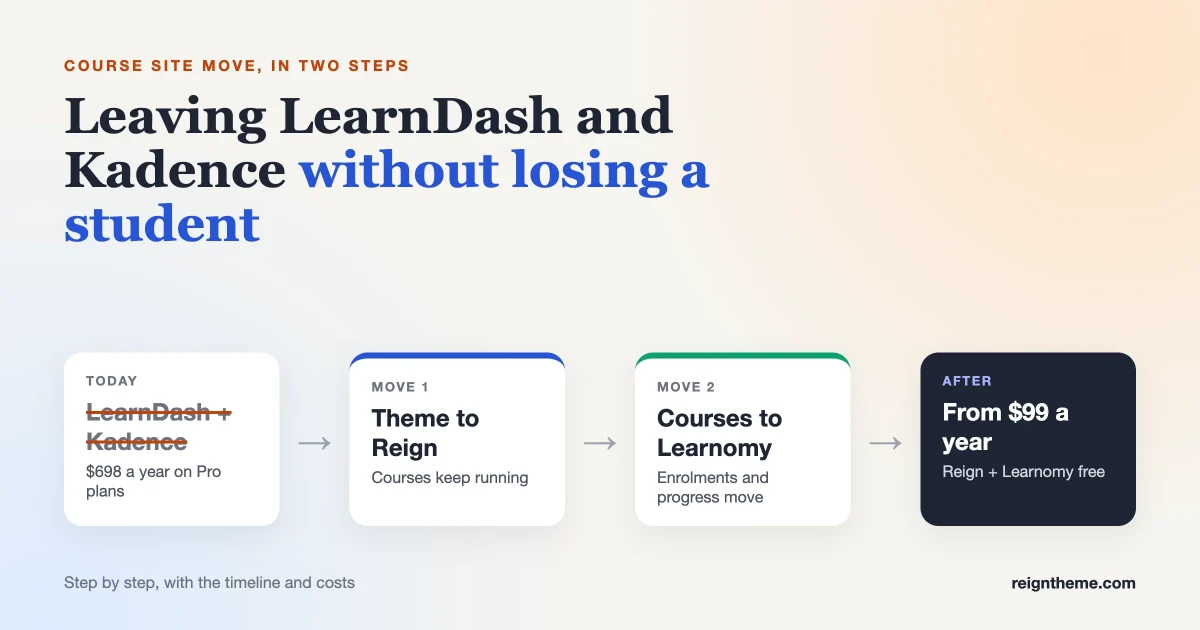
So the common setup, LearnDash Pro with Kadence Pro, now costs $698 a year for one academy. If you have been on LearnDash for a while, you may remember a single-site plan at $199. That plan is no longer on the LearnDash pricing page, which now starts at $399. The Kadence pricing page starts its paid plans at $299.
Two fair points before you decide anything. First, the Kadence theme itself has a free version, so if you never bought Kadence Pro your current cost is only the LearnDash part. Second, Kadence’s Pro plan now bundles more than design (its page lists membership levels, backups and security features), so check which of those you actually use before you count a saving. A switch is only cheaper if you were paying for things you do not need.
Your LearnDash alternative and Kadence alternative, piece by piece
Here is the swap in one table. Keep it next to you while you plan.
| What you use today | What does that job after the move | Cost |
|---|---|---|
| LearnDash courses, lessons, topics, quizzes | Learnomy courses, sections, lessons and sub-lessons, quizzes | Free |
| LearnDash checkout, memberships, coupons | Learnomy Stripe and PayPal checkout, membership plans, coupons | Free |
| LearnDash certificate builder | Learnomy certificates with a public verification page and QR code | Free |
| Cohorts, drip, gradebook, selling seats to companies | Learnomy Pro | From $149 a year |
| Kadence theme: header, footer, colours, fonts, layouts | Reign theme | $99 a year, or $249 once |
| Kadence Blocks on your pages | Keep the Kadence Blocks plugin for now (more on this below) | Free plugin |
Learnomy’s free plugin is not a trial. According to the Learnomy site, it includes unlimited courses and students, Stripe and PayPal checkout, membership plans, quizzes and certificates with no time limit. Pro is for when you sell training to companies, grade written coursework, run cohorts or pay a team of instructors. Many solo course creators never need it.
What a year costs after the move
| Setup | First year | Every year after |
|---|---|---|
| Today: LearnDash Pro + Kadence Pro | $698 | $698 or more, at the rate on your renewal notice |
| Reign (annual) + Learnomy Free | $99 | $99 |
| Reign (annual) + Learnomy Pro Personal | $248 | $248 |
| Reign lifetime + Learnomy Pro lifetime | $648 once | $0 for updates and support |
Prices are for one site and come from the Reign pricing page and the Learnomy download page on the same date. Your hosting, payment fees and any other plugins stay the same either way, so leave them out of the comparison.
The idea that makes this easy: two small moves, not one big one
Most people picture a migration as one scary weekend where everything changes at once. You do not have to do it that way, and you should not.
Your site has layers. The theme decides how it looks. The course plugin decides how lessons, quizzes and progress work. They are separate, and Reign already styles LearnDash properly: course grids, a course header with the instructor and last-updated date, and its own layout settings for lessons, topics and quizzes. The Reign LMS documentation lists exactly what it covers.
That gives you a clean plan:
- Move 1: the theme. Swap Kadence for Reign while your courses keep running on LearnDash. Students see a new look. Nothing about their courses changes.
- Move 2: the course plugin. A few weeks later, once the new design has settled, move the courses, enrolments and progress from LearnDash to Learnomy.
Each move is smaller, easier to test and easier to undo. If something feels wrong after move 1, you have not touched a single enrolment. And if you decide to stop after move 1 and stay on LearnDash, that is a perfectly good result too. We wrote about that choice in your options if your course plugin changes.
Before you start: a one-hour inventory
Open a blank document and write down what you actually have. This hour saves you days later, and it is the list you will check against at the end.
- Courses: how many, and which ones still sell.
- Students: roughly how many are active, and how many are partway through a course right now.
- Money: one-off course sales, memberships, recurring subscriptions, coupons, and where each one is processed (LearnDash, WooCommerce, a membership plugin).
- Certificates: which courses issue them, and whether students download them or share them online.
- Kadence pieces: your header and footer, any Kadence Elements (hooked sections, banners), pages built with Kadence Blocks, and Kadence forms.
- Add-ons: anything that plugs into LearnDash, such as reporting, Zapier, email marketing or a gamification plugin.
- Emails: welcome emails, course reminders and completion emails your students receive.
- Your quiet weeks: the times of year when few students are active. That is when you will go live.
Then make a full backup, files and database, stored away from your web server. Check you can restore it. A backup you have never restored is a hope, not a backup.
Move 1: from Kadence to Reign
Step 1: make a staging copy
A staging site is a private copy of your academy where nothing is live. Most hosts have a one-click staging tool. If yours does not, ask your host or developer to clone the site. Before you touch anything, make sure the copy cannot send emails to real students. One stray reminder email from a test site causes more confusion than any migration.
Step 2: install Reign and switch the theme
Upload Reign, activate it, and look at your home page. Some things will look broken. That is expected, and here is why each one happens:
- Header and footer: these were built in the Kadence theme’s own settings, so they belong to Kadence and do not travel. You rebuild them in Reign’s Customizer. Write down your menu items, logo sizes and footer links first.
- Kadence Elements and hooked sections: these are theme features, so they disappear with the theme. Note what each one did (a banner, a notice bar, a block above the footer) and recreate the ones you still want.
- Pages built with Kadence Blocks: these keep working. Kadence Blocks is a separate plugin, not part of the theme, so leave it active and your sales pages, landing pages and forms still render. You can rebuild them slowly later, or never.
- Colours and fonts: set them once in Reign so every page, course and lesson picks them up.
Step 3: check your course pages
Open a course, a lesson, a topic and a quiz while logged in as a test student. Reign styles all of them for LearnDash, and each content type has its own layout section in the Customizer. Look for anything that feels cramped or lost, and adjust it there rather than with custom code. If you want ideas for how a course site can look once it stops looking like a plugin demo, see how to make your LearnDash course site look like a real academy.
Step 4: check it on a phone
Most of your students learn on small screens, often on the way somewhere. Open the home page, your sales page, a lesson and a quiz on your own phone. Tap through the menu. Start a lesson, leave, and come back. If you only check one thing in this whole guide, check this.
Step 5: go live with the new theme
Pick a quiet day. Take a fresh backup of the live site, switch the theme, rebuild the header and footer from your notes (or copy your staging settings if your host can push staging to live), and walk the same pages again. Keep the Kadence theme installed but inactive for a few weeks so you can switch back in a minute if something important breaks.
Then stop and live with it. Two or three weeks is about right. Watch your support inbox. Ask two or three regular students what they think. You have just finished half of the move, and nothing about anyone’s progress has changed.
Move 2: from LearnDash to Learnomy
This is the move that touches students’ records, so it gets the most care. The good news is that the tool does most of the work and was built to be careful.
What the migration moves, and what it leaves
Learnomy’s free plugin includes a migration wizard for LearnDash, Tutor LMS and LifterLMS. Our migration guide sets out what it does, item by item. The short version for LearnDash:
| From LearnDash | Moves across? |
|---|---|
| Courses, sections and lessons | Yes |
| Topics | Yes, as sub-lessons under their parent lesson |
| Quizzes and questions | Yes. A question type with no direct match uses the closest one, and the preview tells you which |
| Course categories and tags | Yes |
| Who is enrolled in what | Yes |
| How far each student got | Yes, so someone halfway through lands halfway through |
| Certificates | No. You turn on a certificate template per course after the import |
| Per-question quiz scores | No. A student who passed is marked complete, but the score history stays behind |
| Prices, orders, coupons, subscriptions | No. The tool never touches money. Imported courses arrive free and you set prices again |
Two promises in that guide matter most. The migration only reads from LearnDash and never writes back to it, so your original data is untouched. And it never reads or writes anything to do with payments.
Step 1: plan the money first
Because prices and subscriptions do not move, decide what happens to them before you run anything:
- One-off course sales: easy. Students who already paid keep access, because their enrolment moves. You set the price on each course in Learnomy for new buyers.
- Memberships: recreate your plans in Learnomy with the same names and prices, so new members see what they expect.
- Recurring subscriptions: the careful part. Billing for existing subscribers lives wherever you set it up today, so it does not move by itself. Do not switch off the old plugin until you have a plan for every active subscription, whether that is letting it run to the end of its term or asking subscribers to re-subscribe on the new checkout. If you sell through WooCommerce or a separate membership plugin, those orders and customers stay where they are, which makes this much simpler.
- Coupons: recreate any that are still in use.
Step 2: run the preview on staging
Make a fresh staging copy (it now has Reign on it), install Learnomy, and open the migration wizard. Run the preview first. It counts what it found and lists warnings, and it writes nothing. Read every warning. A warning is not a failure. It is the tool telling you plainly what will need your attention, usually a question type that maps to a close cousin.
Step 3: run it for real on staging
Run the migration. Larger course libraries can run in the background in batches, so you are not stuck watching a browser tab. Running it again does not create duplicates, because the tool remembers what it already moved. And every run has its own number, so if a run looks wrong you can undo exactly what it created and try again.
Step 4: check real students, not just courses
Courses appearing in the list proves very little. Pick five real students: one who just enrolled, one halfway through a long course, one who finished, one in several courses, one who bought through a coupon. Log in as each on staging (or ask a developer to check their records) and confirm their courses and progress match what they had before. This is the step people skip, and it is the one that matters.
Step 5: set up what did not move
- Prices and checkout: connect Stripe or PayPal in Learnomy and set each course price. The Learnomy commerce docs walk through it.
- Certificates: design a certificate and turn it on for each course that issued one. See the certificate docs. On staging, check what a student who finished a course before the move sees. If they cannot get a new certificate for it, ask them to download their old one before you switch.
- Emails: read the welcome and completion emails Learnomy sends, and change the wording to sound like you.
- Add-ons: anything that plugged into LearnDash needs a new connection or a replacement. Learnomy has webhooks and a REST API, so tools like Zapier or Make can usually be rewired.
Step 6: tell your students, then go live
Send a short note a week before. Students care about one thing: can I still learn, and is my progress safe? Keep it that simple.
- The date and a rough time window.
- That their account, courses and progress will be there afterwards.
- One thing that changes for them, such as how certificates look, or that old quiz scores will not show.
- Where to ask for help.
On the day, take a fresh backup, run the migration on the live site exactly as you rehearsed it, check your five students again, and set your course prices. Keep LearnDash installed but inactive for a month. Deactivating a plugin leaves its data in your database, so you still have it if a student asks about something from before the move. Remove it only once you are sure you will not need it.
Your students’ day after the move
Here is what changes for a student, which is worth reading as if you were one.
They log in with the same email and password, because WordPress users do not move anywhere. They land on a site that looks like the one they saw for the last few weeks, because the design changed in move 1, not today. Their course is where it was, and the lesson they stopped at is still the next one. A student who finished a course still sees it as complete. The quiz screens look different, and if they passed a quiz before the move they will not see the old per-question breakdown. That is the one thing to mention in your note.
On a phone, the course reads in the same Reign layout as the rest of the site. Learnomy follows your theme, light or dark, so lessons do not look like they belong to a different website.
Your day as the instructor after the move
Your day changes more than your students’ does, so give yourself a week to settle in.
- Building: courses are built with a drag-and-drop builder, with sections and lessons, much like before. The course docs cover the details.
- Selling: checkout, coupons and membership plans live inside Learnomy, so you do not need WooCommerce or a membership plugin just to take payments.
- Quizzes: six question types in the free plugin, with timed exams, a question map and autosave for long tests. Pro adds more types, such as matching, ordering and maths.
- Other instructors: if you invite other teachers, they can apply, you approve them and earnings split automatically. Teaching alone? A Solo Academy switch hides all of that.
- Design: you change how things look in one place, the Reign Customizer, and it applies to your pages, blog and courses together.
The thing most course creators notice after a month is quieter: there is one less renewal to remember and one less vendor to keep an eye on.
A realistic timeline
| When | What you do | Done when |
|---|---|---|
| Week 1 | Inventory, backup, staging copy, install Reign on staging | Your notes list every course, payment type and Kadence piece |
| Week 2 | Rebuild header, footer and colours in Reign; check course pages and phone | Staging looks right on a phone |
| Week 2 or 3 | Move 1 live on a quiet day | New theme live, courses still on LearnDash |
| Weeks 3 to 5 | Live with the new design; plan prices, subscriptions and certificates | No open support issues about the design |
| Week 5 | Preview and full migration on a fresh staging copy; check five real students | Every test student matches their old progress |
| Week 6 | Student notice, then move 2 live | Courses live on Learnomy, prices set, students learning |
| Week 10 | Remove LearnDash and the Kadence theme if all is well | One theme, one course plugin, fewer renewals |
A small academy with a handful of courses can do this faster. A large one with years of students should take the full six weeks, and maybe longer between the two moves.
When you should not move yet
Leaving is not always the right call. Wait if any of these sound like you:
- You rely on a LearnDash add-on that has no replacement yet, and it is central to how you teach.
- You have a large group of recurring subscribers and no plan for their billing.
- A big launch or enrolment period is coming in the next month.
- Your current setup works, your renewal is affordable, and the only reason to move is that you read something online.
In those cases, do move 1 only, or test both moves on staging and keep the notes for later. A rehearsed plan you use next year is worth more than a rushed one this month. If you want to compare engines more widely before you commit, our look at LearnDash vs LearnPress vs MemberPress vs Learnomy lays out the trade-offs.
Questions course creators ask
Can I keep LearnDash and only change the theme?
Yes. Reign styles LearnDash out of the box, so move 1 on its own is a complete, sensible project.
Will my students need new passwords?
No. Their WordPress accounts stay exactly as they are. Only the course plugin changes.
Do my Kadence Blocks pages break when I switch themes?
No, as long as you keep the Kadence Blocks plugin active. It is a separate plugin from the Kadence theme. What you rebuild is the header, footer and any theme-level sections.
Does the migration change anything in LearnDash?
No. It only reads from LearnDash. If you stop halfway, your LearnDash courses and records are still there.
What happens to recurring subscriptions?
They do not move, because the migration never touches payments. Plan them before you start: let them run out, or move subscribers to the new checkout with a clear note.
Do I need Learnomy Pro?
Only if you need its extras: selling seats to companies, grading written assignments, cohorts and drip, SCORM content, or paying instructors through Stripe Connect. Courses, checkout, memberships, quizzes and certificates are in the free plugin.
Can I try it before touching my site?
Yes. Open the Learnomy sandbox and click around as a teacher and a student. Nothing is installed on your own site.
Where to go from here
You do not need to decide everything today. Write the one-hour inventory this week. Make a staging copy. Try Reign on it and see how your course pages look. That alone tells you most of what you need to know, and it costs you nothing but an afternoon.
When you are ready for the courses, download Learnomy free, run the preview on staging, and check five real students before anything goes live. And if you would rather have our team plan and run the move with you, rehearsed on staging and checked against real learners, ask about our WordPress maintenance and migration help. Your academy is your courses and your students. The plugins underneath should be the easiest part to change.