
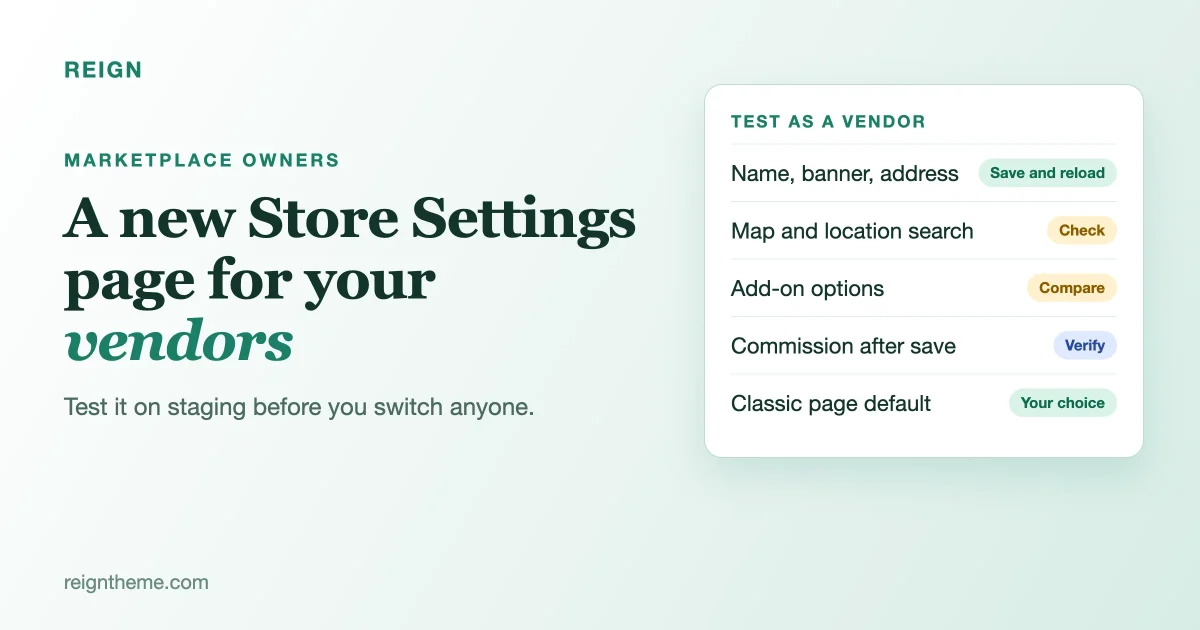
If you run a marketplace on WordPress with Dokan, your vendors are about to meet a new version of the page they use most: Store Settings. This is where a seller sets their store name, banner, address, phone number, payment details and social links. When it breaks or confuses people, your inbox fills up with “I cannot find my settings” messages, and you are the one who answers them.
The good news is that nothing changes on your site until you decide it does. The new page arrived in Dokan 5.3.0, and the plugin’s changelog says existing sites stay on the classic page by default. You choose when to move vendors over. This guide shows you how to use that choice well: how to see what you are running, how to try the new page safely, what to test with a real vendor account, and what to tell your sellers before and after.
We write this for the person who owns the marketplace, not for a developer. You do not need to touch code. You need an hour, a staging copy of your site, and a test vendor account.
One honest note before we start. We have read Dokan’s changelog on WordPress.org, and that is where every fact about Dokan below comes from. We have not tested the new page on a Reign marketplace, so we are not making any promise that the Reign Dokan add-on and the new page work together. That is exactly what the staging test below is for.
What changed, in plain words
The changelog for Dokan Lite, read on 23 October 2026, lists these changes that touch vendors and their settings:
- A redesigned Store Settings page in the new vendor dashboard. It arrived in version 5.3.0, released on 8 October 2026.
- Room for add-ons. Add-ons and extensions can show their own options on the new Store Settings page. If another plugin on your marketplace adds fields for vendors, this is where they can appear.
- A switch between old and new. You can move vendors between the new and the classic Store Settings pages from Dokan’s Appearance settings. Existing sites stay on the classic page by default.
- Map and location fixes. Vendor store maps now open on the default location you set in Geolocation settings, and saving store settings no longer removes a vendor from geolocation search results.
- A safer setup guide. If a step fails, it shows an error and a retry option, and it stops you moving on while the required admin commission is empty.
The changelog does not describe how the new page looks, which fields moved, or what is different from the classic page. We will not guess. You will see the difference yourself on staging, and we show you what to look for.
Before anything else: check what version you run
Open your WordPress admin, go to Plugins, and find Dokan. Note the version number. Then look at what is current. When we checked, Dokan Lite was at 5.3.2, updated on 22 October 2026, on more than 30,000 sites, and it asks for WordPress 7.0 or higher and PHP 7.4 or higher.
Why does the version matter here? Because two of the releases after 5.3.0 fix security problems that affect marketplaces. Read this part even if you never switch the settings page.
Updates that matter for your vendors’ data
According to the changelog:
- 5.3.0 stopped vendors from changing a customer’s password or login email through the customers REST endpoint, and stopped vendors from storing serialized PHP objects in product meta through the products REST endpoint. The second one is described as closing a PHP object injection vulnerability.
- 5.3.2 closed another PHP object injection route: tampered product attribute data can no longer be turned into PHP objects when a vendor saves or edits a product.
- 5.3.1 fixed several vendor-facing bugs, listed below.
In a marketplace, your vendors are people you do not fully control, and they can submit data to your site. So updates that tighten what a vendor can send are the ones to take seriously. If you are on a version older than 5.3.2, plan an update on a staging copy first and then on the live site. You do not have to switch the new Store Settings page to get these fixes. The two are separate.
The 5.3.1 and 5.3.2 fixes worth knowing about
These are small items in a changelog, but each one is something a vendor would have noticed. If any of these matched a complaint you got, the update may be the fix.
- Downloadable products no longer reset buyers’ limits. Saving a downloadable product from the vendor dashboard used to reset download limits, expiry dates or download counts for people who had already bought it. If a vendor said “my customers lost their downloads after I edited a product,” this is the likely cause.
- Creating a vendor from the admin no longer drops details. When you create a vendor yourself with selling enabled, their phone, address, payment details and social links are kept.
- Download permissions show on orders. Vendors can see download permissions for variable products and variable subscriptions on an order.
- Custom commission survives a user save. In 5.3.2, saving a vendor from the WordPress Users screen no longer resets their custom commission to the global rate. If you give some sellers a different rate, check that yours are still right.
- Add-ons can adjust earnings splits. 5.3.1 lets add-ons change how an order’s earnings are divided between vendor and admin, for example when a vendor funds an affiliate commission.
- Clearer errors. The admin dashboard and REST requests show the real error message instead of a generic one, which makes problems easier to report.
How to try the new page without risking your live marketplace
Treat this like a small project with five steps. None of them needs code.
Step 1: Make a staging copy
Most hosts have a one-click staging tool. Use it. You want a full copy, with vendors, products and orders, so you test with data that looks like your real marketplace. If your host has no staging, ask them. Do not test on the live site.
Step 2: Update Dokan on staging
Update to the current version on the staging copy only. Open a vendor dashboard and check that it loads. At this point the vendors on staging are still on the classic Store Settings page, because that is the default.
Step 3: Create a test vendor
Make a new seller account with a name like “Test Vendor,” and use a separate browser or a private window to log in as that person. Never judge a vendor page from your admin account, because you see more than they do. Fill in the test vendor’s store the way a real one would: store name, a banner, address, phone, a payment method and links to social profiles.
Step 4: Switch to the new page
In your admin, find Dokan’s Appearance settings. The changelog says this is where you move vendors between the new and classic Store Settings pages. Switch to the new one, then log back in as the test vendor and open Store Settings.
Step 5: Walk through the checklist below
Run every line. Write down anything that looks wrong, with a screenshot. If you find something, you have a short list to show your developer or to send to Dokan support before any real vendor sees it.
The checklist: what to test as a vendor
Saving and reading back
- Change the store name and save. Reload. Is the new name there?
- Upload a banner and a profile picture. Do they appear on the vendor’s public store page?
- Enter an address and a phone number, save, and reload. Are both still there?
- Add a payment method, save, and reload. Is it still there, and is it hidden from other vendors?
- Add social links. Do they show on the public store page?
The point is to save, leave the page and come back. A form that looks fine but forgets what you typed is the worst kind of bug, because the vendor finds it a week later.
The map and location
5.3.0 changed how the map and location behave, so test them on purpose. Open the store map. Does it start on the default location you set in your Geolocation settings? Set a location, save the settings, and then search for the store through your marketplace’s location search. The changelog says saving store settings no longer removes a vendor from geolocation search results, so the vendor should still be found after saving. If your marketplace relies on location search, this is the most important test of the day.
Extra fields from other plugins
Add-ons can now show their own options on the new page. If you use any add-ons that add vendor fields (shipping, vacation mode, extra profile fields, anything else), compare the classic and new pages side by side. Is every option you had before still there and still saving? If an add-on’s options are missing on the new page, that add-on may need an update from its author. The changelog says add-ons can add options to the new page, not that every add-on already does.
The theme around the page
On a Reign site, check how the page looks inside your theme, not just inside Dokan. Look at the width, the spacing, the buttons and the colours. Look in dark mode if you offer it, and look at the page on a phone, because most vendors check their store from one. Open the browser’s narrow-screen view and make sure nothing is cut off. We have not tested the new page inside Reign, so treat this as a real step and not a formality.
Permissions
Log in as the test vendor and try something they should not be able to do, such as opening another vendor’s store settings by changing the address. You should be blocked. Then log in as a second test vendor and confirm that the first one’s private details (payment details, phone) are not visible to them.
Your own side
Check that the commission you set for the test vendor is still correct after the vendor saves their settings. Open the vendor from Users, click save, and check the commission again. The 5.3.2 fix is aimed at exactly this.
Should you switch your live vendors to the new page?
Here is how we would decide. There is no rush: your site stays on the classic page until you change it, and the security fixes arrive with the update whichever page you use.
Switch sooner if
- You are launching a new marketplace and have no vendors used to the old page.
- Every test in the checklist passed, including the map and the add-on options.
- You want your add-ons’ options to appear alongside the core ones, and your add-on authors support the new page.
Wait if
- Your marketplace depends on location search and anything on the map test failed.
- You use a custom or paid add-on that adds vendor fields and you have not confirmed it works on the new page.
- You have a busy period coming, such as a sale or a seasonal peak. Do not change what vendors see in the week they sell most.
- You use a Reign child theme or custom CSS around the vendor dashboard and have not checked it on the new page.
If you are not sure, waiting costs you nothing. The classic page keeps working.
How to tell your vendors
A change vendors did not expect feels like a problem even when it is an improvement. Send a short message before you switch, and another after. Here is wording you can copy and change.
Subject: A new Store Settings page on [Marketplace name], from [date]

Hi [name],

On [date] we are moving the Store Settings page in your vendor
dashboard to a new design. Your information stays as it is.

What to do: after [date], open Store Settings, check that your store
name, address, phone, payment details and social links look right,
and tell us if anything is missing.

If something looks wrong, reply to this email with a screenshot and
we will fix it the same day.

Thank you,
[Your name]
Switch at a quiet time, such as early in the week and in the morning, so that you can fix problems while people are around. Then watch your support inbox for three days.
If you need to go back
The Appearance setting works both ways, according to the changelog: it moves vendors between the new and classic pages. If a problem shows up on the live site, switch back first, then investigate on staging. That is far better than trying to fix a live vendor page while sellers are using it. Keep a note of what the setting was before you changed it.
When the new page is not the problem
Many vendor complaints blamed on a design change turn out to have other causes. Before you assume the new page is at fault, check these.
“My settings did not save”
Check: can you reproduce it as the test vendor? Look for a browser extension, a caching plugin that caches a logged-in page, or a security plugin that blocks the save request. Fix: exclude the vendor dashboard from page caching, and check your firewall’s log for a blocked request. Prevent: test saves after every plugin update.
“My store is missing from the map”
Check: the vendor’s address and the default location in your Geolocation settings. A store with no address cannot appear on a map. Fix: ask the vendor to add a full address and save. Prevent: make the address a required field where you can.
“The page looks broken on my phone”
Check: does it also look broken with a default WordPress theme? If not, the cause is in the theme layer. Fix: look at any custom CSS you added around the dashboard. Prevent: keep your customisations in a child theme, and see our guide to customising Reign without losing changes on update.
A word on running a marketplace for the long run
The vendor dashboard is the part of your site that your sellers live in. A marketplace where sellers get stuck on their own settings loses sellers quietly, and a marketplace where the data is wrong loses buyers. That is why we suggest the same routine for every Dokan update, not only this one:
- Update on staging first.
- Log in as a test vendor and as a test buyer.
- Walk the checklist: save, reload, check the public page.
- Update live in a quiet hour, with a fresh backup.
- Watch your support inbox for three days.
It takes less than an hour, and it is the difference between finding a problem yourself and having five vendors find it for you.
If you are still planning your marketplace, our guide to building a multivendor marketplace on WordPress you own covers the choices before launch, and the one on building a Fiverr-style services marketplace shows how another kind of seller fits in.
What the first week after switching should look like
Switching is not the finish line. Plan the first week so you learn from real vendors quickly, while the change is still fresh in everyone’s mind.
Day one: watch the first saves
Pick two or three active vendors you trust and ask them, personally, to open Store Settings and save once. A friendly message works better than a broadcast: “Could you open your Store Settings today and tell me if anything looks off?” These sellers tell you the truth, and they will tell you in your own words what confused them.
Days two and three: read the questions
Collect every question that arrives, even the ones that look silly. If three people ask where the payment details went, you do not have three confused vendors. You have a labelling or a layout problem that deserves a short help article, and a link to it from your vendor welcome email.
Days four to seven: check the numbers
Look at three things. First, how many stores appear in your location search compared with the week before the switch. A sudden drop means saved settings are affecting visibility, and you should switch back and investigate. Second, whether payout details are complete for the vendors who saved, because a missing payout method becomes a problem at the end of the month and not today. Third, whether any vendor’s custom commission differs from what you agreed. Open five of them and compare.
Questions to put to your add-on authors
If you rely on paid or custom add-ons around your vendors, send each author the same short question before you switch: does your add-on show its options on the new Store Settings page, and from which version? Keep their answers in one note. When a vendor asks why an option vanished, you will know in a minute whether it is waiting on an update.
The complete setup: a marketplace on Reign
Everything above is about keeping a marketplace you already run in good shape. If you are building one, or rebuilding one, here is the whole picture from the Reign side, using only what Reign’s own page says (version 8.0.8, updated 7 October 2026, read on 23 October 2026). We have not tested Dokan 5.3 with the Reign add-on, so none of this is a compatibility claim.
The pieces
- Reign, the theme. Reign’s page describes one theme for community features, course pages and marketplace support, with five header layouts, sixteen Customizer panels and dark mode. Reign Only is a yearly or lifetime licence with tiers for one site, up to five, and up to twenty, with a 30-day money-back guarantee. See the pricing page for current figures.
- The marketplace add-ons. The page lists Reign Dokan, Reign WC Vendors and Reign WCFM as marketplace add-ons, each sold as a paid yearly or lifetime licence. Pick the one that matches the marketplace plugin you run. They are bought separately, and the page says no Pro version of any plugin is included in the theme price.
- The bundle. A Reign Bundle includes the theme plus every Reign add-on, as a yearly or lifetime licence for one site.
- Services on the marketplace. If your sellers sell time and not goods, the page lists WP Sell Services with a free version included, where members sell services to each other and the site owner keeps the marketplace fee on every booking. Our Fiverr-style marketplace guide shows how that kind of store fits together.
The path from here
- Choose your marketplace plugin, and read our guide to building a multivendor marketplace on WordPress you own.
- Install Reign and import a demo on a staging address, then add the matching Reign add-on.
- Set up a test vendor and run the checklist in this guide, including the vendor Store Settings page.
- Add services through WP Sell Services only if your sellers deliver work, not goods.
- Update on staging first, every time.
See the Reign page for the add-ons and the bundle. If you want a marketplace built and tested for you, our team does that as custom work, and it starts with a short call.
Frequently asked questions
Will my vendors see the new Store Settings page when I update Dokan?
Not by default. The changelog says existing sites stay on the classic page. You choose when to move vendors, from the Appearance settings.
Do I have to switch to get the security fixes?
No. The fixes in 5.3.0 and 5.3.2 come with the plugin update, whichever Store Settings page you use.
Does the new page work with my Reign theme?
We do not know yet, and we are not claiming it does. Test it on staging with the checklist above. If you find a layout problem, note the screen and the browser and send it to us.
Will I lose vendor data if I switch?
The changelog does not say data is moved or changed by switching, and we would not assume either way. That is why you back up first and test on a copy. Check that each field saves and reads back.
What if one of my add-ons does not appear on the new page?
Ask the add-on’s author whether it supports the new Store Settings page, and stay on the classic page until it does.
Is this the same as the new product editor?
No. The changelog mentions a new product editor in a separate item, where a new action lets features save their own data after a product is saved. Store Settings is the page for the store itself. Test both if you use both.
Your next step this week
Do three things. Check your Dokan version and plan the update if you are behind 5.3.2. Make a staging copy and try the new page with a test vendor. Write down the result, even if the result is “all fine.” Then decide, with real information, whether to switch your sellers now or after your next busy period.
If you want a marketplace that looks like yours and not like a pile of plugins, start from what you can build with Reign.
Where this comes from
- Dokan Lite on WordPress.org: version, requirements and the changelog for 5.3.0, 5.3.1 and 5.3.2, read on 23 October 2026