
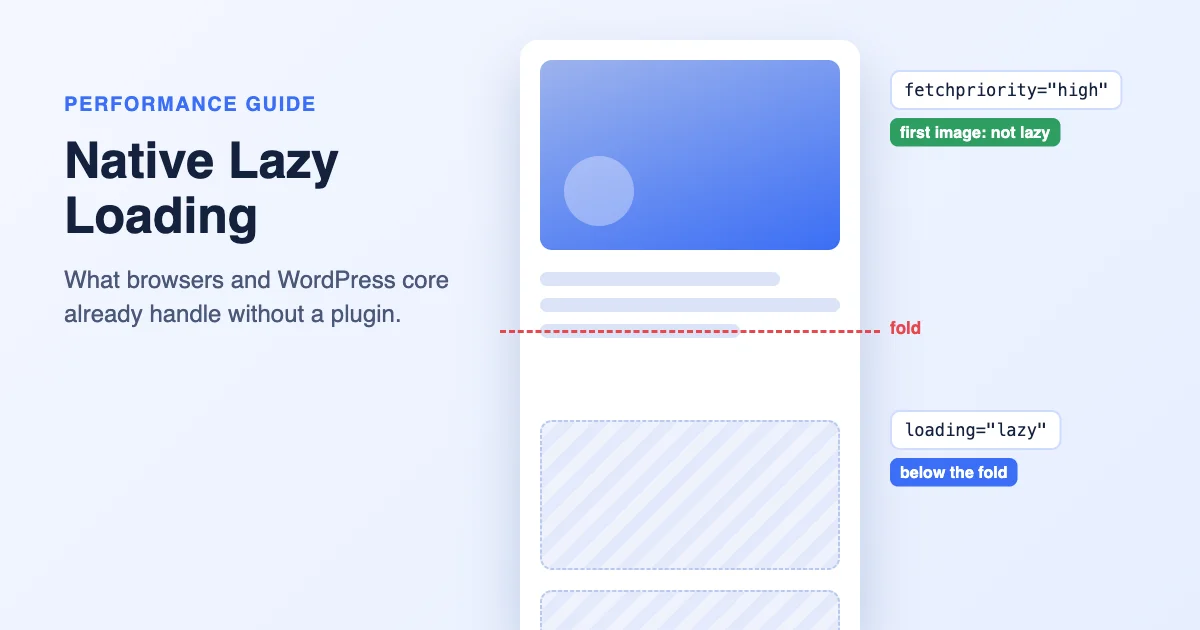
Lazy loading used to need a plugin. A script watched the scroll position, swapped placeholder images for real ones as they came into view, and added weight of its own. Browsers now do the job themselves, and WordPress core uses that ability on your behalf. On a recent install, images and iframes in your content are already being lazy loaded before you add anything.
That changes the question. It is no longer “which lazy loading plugin should I install?” but “what is already happening on my site, is it correct, and what is left that a plugin could improve?” This guide answers that. It covers the browser’s loading attribute, what WordPress core adds to your pages automatically, the one image you must never lazy load, how iframes fit in, and the cases where a plugin still earns its place. If you do want to compare plugins, our list of WordPress lazy loading plugins does that. Read this first, because it may save you the install.
What the browser does with the loading attribute
The loading attribute is part of the HTML img element, and it takes two values. According to the Mozilla Developer Network’s reference for the img element:
| Value | What the browser does |
|---|---|
eager |
Loads the image immediately, whether or not it is in the visible area. This is the default |
lazy |
Delays loading until the image is a calculated distance from the viewport, as decided by the browser |
A page with no loading attribute behaves as if every image were eager. Adding loading="lazy" to an image far down the page means the browser skips it until the visitor scrolls close. Pages that scroll a long way, such as blog posts, product grids and galleries, benefit most.
Three details from MDN worth knowing
- Width and height matter. MDN recommends explicit
widthandheightattributes on all images, and says they are especially important for lazy loaded ones. A lazy image that has not loaded has no size, so without dimensions the page layout jumps when the image arrives. With dimensions, the browser reserves the space. - It only works when JavaScript is enabled. MDN explains that loading is deferred only when scripting is on, as an anti-tracking measure.
- Lazy images do not hold up the load event. The window
loadevent is based on eager images, so a lazy image inside the viewport may not have finished loading when it fires. This can confuse tools that measure the load event.
Related attributes you will see
Two other image attributes appear alongside loading in WordPress output:
fetchprioritygives the browser a hint about how important an image is relative to others. MDN listshigh,lowandauto, withautoas the default.decodinghints whether the browser should decode the image off the main thread. MDN saysasyncmeans the next paint does not wait for the image to decode, and notes that the effect on static images can be hard to see.
Browser support is wide, but exact versions change, so check MDN’s compatibility table for the browsers your visitors use.
What WordPress core adds automatically
WordPress has used the loading attribute since the core team announced it in their lazy loading note. Later releases refined it. The current behaviour is documented on the developer reference page for wp_get_loading_optimization_attributes(), and in the core team’s note on image performance enhancements. Because versions matter here, check your WordPress version against those pages rather than assuming.
In summary, core can add up to three attributes to an img tag:
| Attribute | Added to | Purpose |
|---|---|---|
loading="lazy" |
Images that are probably below the fold | Skip them until the visitor nears them |
fetchpriority="high" |
The image most likely to be the largest on screen | Tell the browser to fetch it first |
decoding="async" |
Images in general | Let the page paint without waiting for decoding |
The developer reference describes the logic in the function itself:
- Dimensions are required. If an image lacks
widthandheight, core does not add the lazy or priority attributes. The original lazy loading note adds that core back-fills missing dimensions for images that belong to the media library and carry the usualwp-imageclass. - Images likely to be visible are not lazy loaded. Core counts the images in the main content, and skips the
loadingattribute for the first few. The number is set by a filter,wp_omit_loading_attr_threshold, and the image performance note says the default was raised from 1 to 3 when that change shipped, so check your version. Images in the header area are also treated as visible. - The likely largest image gets high priority. Core adds
fetchpriority="high"to the image it thinks is the largest content element. The image performance note describes this as the image most likely to be the LCP image, and says it typically improves Largest Contentful Paint. There is also a minimum size, set through thewp_min_priority_img_pixelsfilter, so small images in the viewport do not qualify. - Never both. The function never returns
fetchpriority="high"together withloading="lazy"for the same element, and triggers a warning if you set both yourself. The note calls that combination an anti-pattern. - Your attributes win. If you set
loadingorfetchpriorityyourself before the function runs, core keeps your value.
Where core applies it
The image performance note lists where the function is used: in post content, in images printed with wp_get_attachment_image() or get_the_post_thumbnail(), in avatars, in the custom header image, in shortcodes, and in the image widget. The original lazy loading note also lists excerpts and text widgets.
That list has a practical consequence. Images that a theme or plugin prints as raw HTML, with a hard coded img tag, do not pass through those functions and get no help from core. If you find images without a loading attribute, look at the template that prints them.
Iframes too
The wp_lazy_loading_enabled() function, documented in the developer reference, returns true by default for both img and iframe tags. Embedded videos and maps that WordPress outputs as iframes with dimensions can therefore be lazy loaded in the same way. Check the rendered HTML of a page with an embed to confirm what your version does.
The one image you must not lazy load
The single most common lazy loading mistake is applying it to the image at the top of the page. The browser delays that image, and the page’s main visual shows up late. This is exactly the measurement that Largest Contentful Paint captures.
Why core avoids it, and where it can still go wrong
Core’s logic is designed to leave the first content images alone. It still can get things wrong when:
- The hero is a featured image or banner printed by the theme in a way core cannot classify.
- The hero is inside a slider or carousel whose first slide is not recognised as visible.
- The hero is a CSS background image, which the
loadingattribute does not affect at all. - A plugin adds lazy loading to every image on the page, including the first, because its rule is blunt.
- The image is small or lacks dimensions, so core does not treat it as a priority candidate.
How to check your page
- Open the page in a private window.
- Right click, choose View page source, and find the first large image.
- Look at its attributes. It should not have
loading="lazy". If it is the main visual,fetchpriority="high"is a good sign. - Run the page through a performance tool such as PageSpeed Insights or the Performance panel in your browser’s developer tools. Both identify the largest contentful element, and you can then confirm that this element is not lazy loaded.
How to fix it
If the hero is an image you control in a template, set the attributes yourself. Core respects them:
echo wp_get_attachment_image(
    $image_id,
    'full',
    false,
    array(
        'loading'       => 'eager',
        'fetchpriority' => 'high',
    )
);
wp_get_attachment_image() accepts an array of attributes as its fourth argument, and attributes you pass are kept. Setting eager makes your intent explicit, and fetchpriority tells the browser it is the priority.
If a single context should never be lazy loaded, you can turn it off with the wp_lazy_loading_enabled filter. The original lazy loading note gives a snippet in this style, which turns off lazy loading for images printed by wp_get_attachment_image():
add_filter( 'wp_lazy_loading_enabled', 'myshop_no_lazy_for_template_images', 10, 3 );

function myshop_no_lazy_for_template_images( $default, $tag_name, $context ) {
    if ( 'img' === $tag_name && 'wp_get_attachment_image' === $context ) {
        return false;
    }

    return $default;
}
Be careful with that one: it removes lazy loading from every template image, including ones far down the page. Prefer setting attributes on the specific hero.
If your page has an unusually large number of images at the top, such as a wide row of logos, raise the threshold with wp_omit_loading_attr_threshold so more of them load straight away.
Do not mark everything high priority
fetchpriority="high" is a hint about relative importance. If you mark five images high, none of them is. Reserve it for the one image that is the main visual.
Iframes and embeds
An embedded video or map pulls in a lot of resources from another site. Lazy loading the iframe means those requests wait until the visitor scrolls near it.
What to check:
- Does the iframe have
loading="lazy"? Look in the rendered HTML. Core adds it to iframes it outputs with dimensions, but an embed pasted as raw HTML from a service may not have it. - Is the embed above the fold? If a video is the main content of the page, do not lazy load it, for the same reason you do not lazy load a hero.
- Does the page have several embeds? A page with many video embeds can be heavy even with lazy loading. A common approach is to show a thumbnail and load the player when someone clicks. The
loadingattribute alone does not do that. It needs a plugin or custom code.
If you embed from a service that gives you its own iframe code, you can add loading="lazy" to it yourself when it sits far down the page.
What native lazy loading does not cover
The attribute is simple, and that simplicity has limits. Here is what falls outside it.
| Situation | Why native loading does not handle it |
|---|---|
| CSS background images | The loading attribute applies to img and iframe, not to styles |
| Images inserted by JavaScript | Server side filters never see them, so the script must set the attribute |
Raw img tags in custom templates |
They bypass the core functions that add attributes |
| Blurred placeholders while loading | The attribute defers loading but does not show a placeholder |
| Click to load video embeds | Needs a facade, which is not part of the attribute |
| Fine control per page or per element | Core offers filters, but not a settings screen |
| Visitors with JavaScript disabled | MDN says loading is not deferred without scripting |
When a plugin still adds value
With that list, the case for a plugin becomes specific. A plugin is worth installing when it solves a problem on the right hand side of the table above, and you have confirmed that the problem exists on your site.
| You need | Native loading | A plugin may help |
|---|---|---|
| Lazy loaded CSS background images | No | Yes, if it supports them |
| Click to load video embeds | No | Yes |
| Placeholders or blur up effects | No | Yes |
| Exclusion rules by page or class | Needs code | Yes |
| Lazy loading for images in a builder or custom template that bypass core | Not automatically | Possibly, or fix the template |
| One screen to manage lazy loading, caching and other settings | No | Yes, as part of a larger performance plugin |
When not to add one
- If your images already carry
loading="lazy"and the hero is correct, a second tool adds nothing. - If a plugin duplicates core, you may see repeated attributes on the same tag, or two scripts doing one job. Check the HTML after installing, and turn off one of them.
- If your only reason is a speed test suggesting “defer offscreen images”, re-run the test first. The warning may refer to an image that core already handles, or to a background image.
If you do add one
- Look for a setting to leave the first images alone, or to exclude an image by class.
- Turn off any overlapping lazy loading in your caching or optimisation plugins.
- Test the page in a private window and compare the HTML before and after.
- Check that the hero loads quickly and that nothing jumps as you scroll.
Dimensions, layout shift and responsive images
Lazy loading depends on the browser knowing an image’s size before it loads. Three habits keep that reliable.
- Always output width and height. WordPress adds them for library images. If you hand code an
img, add them. - Let CSS scale the image. A rule like
height: autoon images lets the dimensions act as an aspect ratio while the layout stays fluid. The same note makes the point: if CSS changes one dimension, set the other toauto. - Serve the right size. Responsive
srcsetattributes are generated automatically for images in the media library. Dimensions and sizes are covered in our guide to serving properly sized images in WordPress, and the choice of file type is covered in image formats for WordPress.
A checklist you can run in fifteen minutes
- Open your homepage and one long post in a private window.
- In view source, find the first large image. It should not be lazy, and ideally has
fetchpriority="high". - Find an image far down the page. It should have
loading="lazy"and explicit width and height. - Find any iframes. Those below the fold should have
loading="lazy". - Look for repeated attributes on the same tag. If you find them, two things are adding the same attribute.
- Check the main hero for a CSS background. If it is one, make it an
imgor add a preload hint. - Run PageSpeed Insights on the page and read which element is the largest contentful element.
- Scroll the page slowly and watch for layout jumps.
- If you use a performance plugin, disable its lazy loading option temporarily and compare the HTML.
If you run a community on Reign, long activity pages are where lazy loading matters most, and the Reign performance guide covers how it applies there.
Frequently asked questions
Does WordPress lazy load images by default?
Yes, on current versions. Core adds loading="lazy" to images that are probably below the fold, provided they have width and height attributes. The behaviour has changed over several releases, so check your WordPress version against the core team’s notes, or look at the rendered HTML.
Do I need a lazy loading plugin?
Often you do not. If your images and iframes already have the correct attributes and your hero image loads quickly, a plugin adds little. Consider one if you need to lazy load CSS background images, add placeholders, or use click to load video embeds.
Should I lazy load the featured image?
If it is the main visual at the top of the page, no. Lazy loading it delays the largest element on the screen. Core normally avoids this, but check your own pages and set loading and fetchpriority yourself in the template if needed.
What does fetchpriority high do?
It tells the browser that this image is more important than others, so it should be fetched sooner. WordPress adds it to the image it thinks is the largest on screen. Use it on one image per page, never on an image that is also lazy loaded.
Are iframes lazy loaded as well?
WordPress core is set up to add loading="lazy" to iframes as well as images, according to the developer reference. Embeds pasted as raw HTML may not have the attribute, so check the output and add it yourself for embeds far down the page.
Will lazy loading hurt my SEO?
Lazy loading that works correctly should not stop images loading when they come into view. Problems come from lazy loading the main image, missing dimensions, or scripts that need a click or special interaction to reveal images. Check the page in a private window and with a performance tool, and test any plugin before relying on it.