
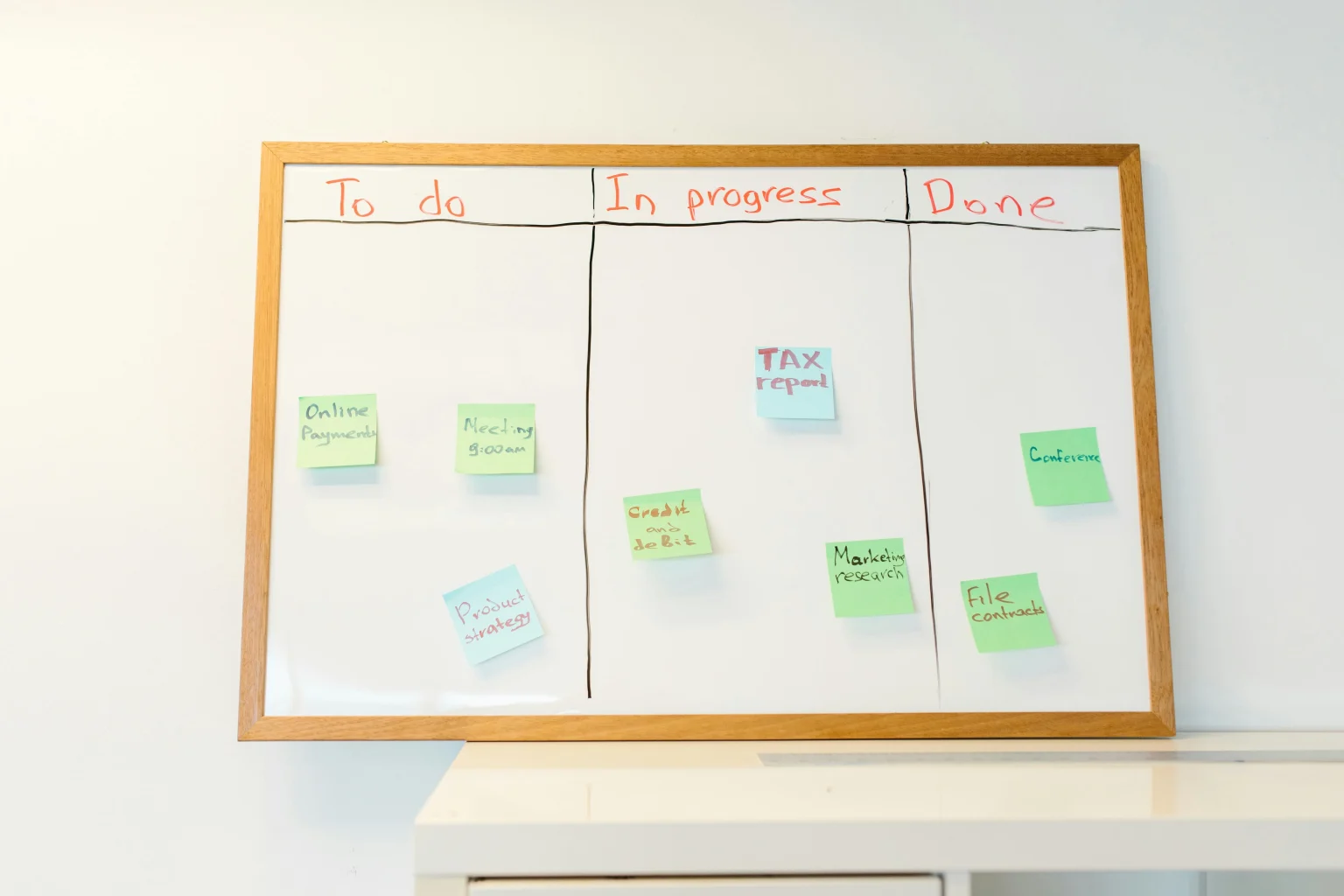
If you have ever worked with a team on a project, you know how quickly things can spiral out of control. Tasks pile up, priorities shift, and no one is quite sure who owns what. A kanban board fixes that problem by giving everyone a clear, visual snapshot of where every task stands at any given moment.
In this guide, you will learn what a kanban board actually is, how it compares to other project management approaches, and how to add a fully functional kanban-style project board to any WordPress theme using the Product Roadmap plugin.
What Is a Kanban Board and Why Does It Matter?
A kanban board is a visual workflow management tool that originated in Toyota’s manufacturing system during the late 1940s. The word “kanban” is Japanese for “visual signal” or “card.” The core concept is straightforward: you represent work items as cards and organize them into columns that represent different stages of your workflow.
At its most basic level, a kanban board has three columns: To Do, In Progress, and Done. Cards move from left to right as work progresses. This visual approach makes it immediately obvious where bottlenecks are forming, which tasks need attention, and how much work is actually in flight at any given time.
The beauty of kanban lies in its flexibility. Unlike rigid project management methodologies that require extensive upfront planning, kanban adapts to your existing workflow. You start with what you have, visualize it, and then optimize from there. This makes it particularly well suited for WordPress site owners and small teams who need structure without bureaucracy.
Kanban vs. To-Do Lists vs. Gantt Charts: Which Approach Fits Your Workflow?
Before you commit to a kanban approach, it helps to understand how it stacks up against other popular methods for managing work.
To-Do Lists
A to-do list is the simplest form of task management. You write things down, check them off when they are done, and call it a day. This works fine for personal tasks or very small projects, but it breaks down quickly when multiple people are involved or when tasks have dependencies. There is no way to see the big picture, no status tracking, and no way to spot bottlenecks before they become problems.
Gantt Charts
On the opposite end of the spectrum, Gantt charts show tasks plotted along a timeline with dependencies mapped out between them. They are excellent for complex projects with hard deadlines and intricate task relationships. However, they require significant upfront planning, are difficult to maintain as things change, and can feel overwhelming for teams that prefer a more agile approach.
Kanban Boards
Kanban sits in the sweet spot between simplicity and structure. You get visual organization without the rigidity of a timeline. You get status tracking without the overhead of a full project management suite. For most WordPress-based teams, agencies, and product creators, kanban provides exactly the right level of visibility and control.
Introducing the Kanban View in Product Roadmap Plugin
The Product Roadmap plugin for WordPress includes a fully featured kanban board view that you can embed on any page of your site. It works with any WordPress theme, requires no coding knowledge, and can be configured to match your exact workflow.
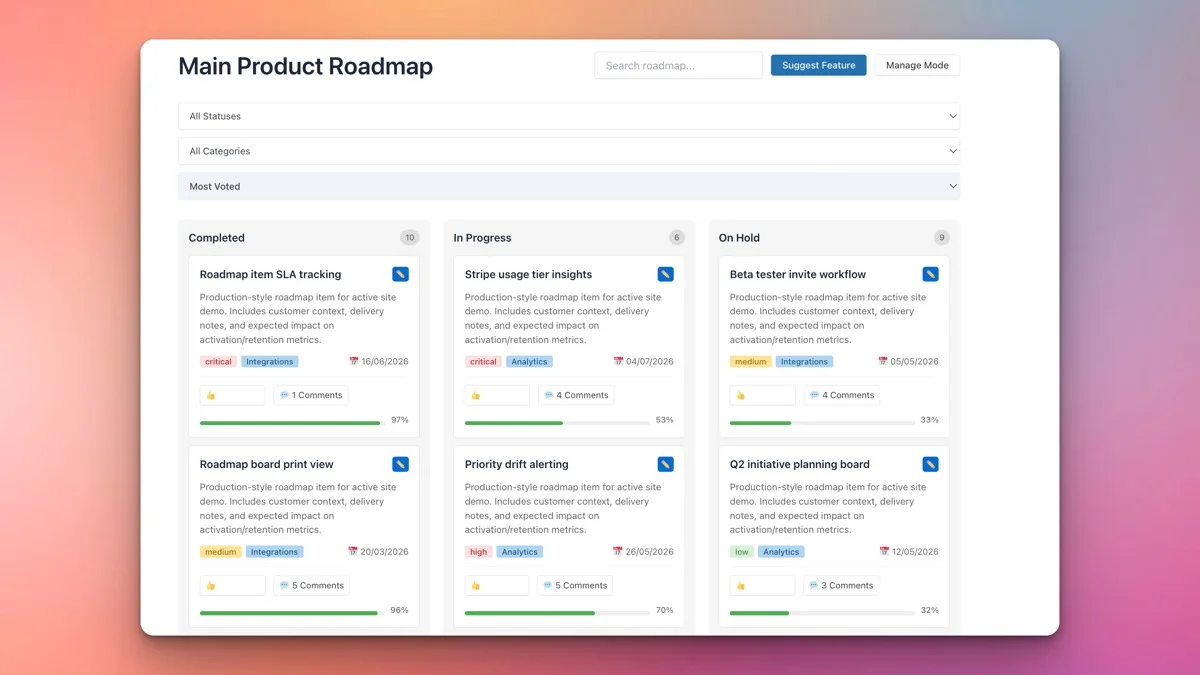
Here is what makes this kanban implementation particularly useful for WordPress users:
- Theme agnostic: The kanban board renders cleanly regardless of what WordPress theme you are running. Whether you use Astra, GeneratePress, Reign, OceanWP, or a custom theme, the board adapts to your design.
- Shortcode based: Embedding is as easy as dropping a shortcode onto any page or post.
- No external dependencies: Everything runs natively in WordPress. There is no need for third-party SaaS accounts or external API connections.
- Frontend display: Your kanban board is visible to visitors, making it ideal for public roadmaps, project transparency, and community engagement.
Understanding the Default Status Columns
Out of the box, the Product Roadmap plugin comes with status columns that cover the most common workflow stages. Here is how each one works and when to use it.
Completed
The Completed column is where finished items land. When a feature has been shipped, a task has been wrapped up, or a milestone has been reached, moving it to Completed gives your audience (or your team) a clear record of what has been accomplished. This column serves double duty as a changelog of sorts, showing a running history of finished work.
In Progress
Items actively being worked on belong in the In Progress column. This is the heartbeat of your kanban board. At a glance, anyone viewing the board can see what your team is currently focused on. Keeping this column lean is a core kanban principle. If too many items pile up here, it is a signal that work is starting but not finishing, which is a classic sign of overcommitment or unclear priorities.
On Hold
Sometimes work gets paused. Maybe a dependency is not ready, a decision needs to be made, or priorities have shifted. The On Hold column provides a transparent way to communicate that certain items are not abandoned, they are waiting. This is far better than leaving items in progress when no one is actually working on them, because it keeps your board honest and your status columns meaningful.
Additional Statuses
Beyond these three defaults, many teams add columns for stages like “Under Review,” “Planned,” “Backlog,” or “Needs Feedback.” The Product Roadmap plugin supports custom statuses so you can tailor the board to your process.
Embedding Your Kanban Board with Shortcodes
One of the most practical features of the Product Roadmap plugin is how simple it is to get your kanban board onto a live page. The plugin uses WordPress shortcodes, which means you can place a board on any page, post, or even a widget area that supports shortcodes.
Here is the basic process:
- Install and activate the Product Roadmap plugin on your WordPress site.
- Add your roadmap items through the plugin’s admin interface. Assign each item a status (Completed, In Progress, On Hold, or a custom status).
- Create a new page (or edit an existing one) where you want the kanban board to appear.
- Insert the shortcode provided by the plugin into the page content.
- Publish the page. Your kanban board will render on the frontend, organized by status columns.
This shortcode approach gives you complete control over where the board appears. You might place it on a dedicated “Roadmap” page, embed it in a project overview post, or even include it in a client-facing dashboard. The board inherits your theme’s styles, so it blends in naturally with the rest of your site.
Custom Statuses and Colors (Pro Feature)
The free version of the Product Roadmap plugin covers the essentials, but the Pro version opens up powerful customization options that let you build a kanban board tailored to your specific workflow.
Creating Custom Status Columns
With Pro, you can create unlimited custom status columns. Here are some examples of how different teams might configure their boards:
Software development team:
- Backlog
- Planned for Next Sprint
- In Development
- Code Review
- QA Testing
- Deployed
Content marketing team:
- Ideas
- Research
- Writing
- Editing
- Scheduled
- Published
Client services agency:
- Proposal Sent
- Approved
- In Progress
- Client Review
- Revisions
- Delivered
Color-Coded Columns
The Pro version also lets you assign custom colors to each status column. Color coding adds another layer of visual communication to your board. You might use green for completed items, yellow for items under review, red for blocked tasks, and blue for items in active development. This makes it possible to scan the board at a glance and immediately understand the overall health of your project without reading a single card title.
Priority Levels and How to Use Them
Not every task on your board carries the same weight. The Product Roadmap plugin supports priority levels that help you communicate urgency and importance alongside status.
Here is how to think about priority levels on your kanban board:
- Critical: Items that need immediate attention. These are show-stoppers, security issues, or time-sensitive deliverables. On the kanban board, critical items should be addressed before anything else in the same column.
- High: Important items that should be tackled soon but are not emergencies. These are your core features, key milestones, or significant improvements.
- Medium: Standard priority work. The bulk of most boards will consist of medium-priority items. These are the steady-state tasks that keep the project moving forward.
- Low: Nice-to-have improvements, minor enhancements, or items that can wait. Low priority does not mean unimportant. It means these items should not take precedence over higher-priority work.
Using priority levels effectively turns your kanban board from a simple status tracker into a genuine prioritization tool. When your team looks at the In Progress column, they can immediately see not only what is being worked on but also which items matter most.
Progress Bars: Visualizing Completion at a Glance
Another feature that sets the Product Roadmap plugin’s kanban view apart is its support for progress bars on individual items. While the column structure tells you the status of an item, the progress bar tells you how far along it is within that status.
For example, a feature card in the “In Progress” column might show a progress bar at 75%, indicating that it is nearly ready to move to the next stage. This granular visibility is valuable for both internal teams and external stakeholders because it sets expectations without requiring detailed status meetings or update emails.
Progress bars work particularly well for:
- Multi-step tasks: Features that involve design, development, testing, and documentation can show overall completion.
- Long-running items: Tasks that spend weeks in a single column benefit from showing incremental progress.
- Public roadmaps: When users or customers can see that a requested feature is 80% done, it builds confidence and reduces support inquiries.
Theme Compatibility Tips
Since the Product Roadmap plugin is designed to work with any WordPress theme, you generally should not encounter display issues. However, here are some best practices to ensure the smoothest possible experience:
Use a Full-Width Page Template
Kanban boards benefit from horizontal space. If your theme offers a full-width page template (no sidebar), use it for the page where you embed the board. This gives the columns room to breathe and prevents the board from feeling cramped, especially if you have four or more status columns.
Test on Mobile
The plugin’s kanban view is responsive, but the experience naturally differs on smaller screens. On mobile devices, columns typically stack vertically rather than displaying side by side. Test your board on a phone and tablet to make sure the reading order makes sense and that cards are easy to tap and read.
Check for CSS Conflicts
Some themes apply aggressive global styles that can affect plugin output. If your board’s fonts, colors, or spacing look off, check your theme’s CSS for overly broad selectors targeting elements like cards, buttons, or list items. A quick Custom CSS override in the WordPress Customizer usually resolves these issues.
Caching Considerations
If you are running a caching plugin (WP Super Cache, W3 Total Cache, LiteSpeed Cache, etc.), make sure your kanban board page is either excluded from caching or set to a short cache duration. Since the board reflects live data, aggressive caching could show visitors outdated information. Most caching plugins let you exclude specific pages by URL.
Page Builder Compatibility
The shortcode-based approach means the kanban board works inside any page builder that supports shortcode elements, including Elementor, Beaver Builder, Divi, and the native WordPress block editor (Gutenberg). In the block editor, you can use a Shortcode block. In Elementor, use the Shortcode widget. The board will render correctly regardless of the builder you choose.
Real-World Use Cases for a WordPress Kanban Board
To bring this all together, here are some practical scenarios where embedding a kanban board on your WordPress site adds real value:
Public Product Roadmap
Show your customers what you are building, what is coming next, and what has been delivered. This builds trust and reduces “when will you add X?” support tickets.
Internal Team Dashboard
Give your team a shared view of current work without requiring everyone to log into a separate project management tool. The WordPress admin is already familiar territory.
Client Project Tracking
If you run a WordPress agency, embedding a kanban board on a password-protected page gives clients real-time visibility into project progress without constant status update emails.
Community Feature Voting
Combined with the voting features of the Product Roadmap plugin, a kanban board lets your community see which requested features are under consideration, in development, or shipped.
Getting Started
Adding a kanban-style project board to your WordPress site does not require a complex setup or a hefty subscription to a SaaS platform. The Product Roadmap plugin gives you everything you need, right inside WordPress.
Start with the default status columns. Add a few items. Embed the board on a page. From there, you can customize statuses, add priority levels, enable progress bars, and fine-tune the experience to match your workflow. Whether you are managing a product, running an agency, or keeping a team organized, a visual kanban board is one of the most effective ways to bring clarity to your work.
Get the Product Roadmap plugin and add a kanban board to your WordPress site today.