
Every product, plugin, theme, or service evolves over time. Bugs get fixed. Features get added. Improvements get shipped. But if your users do not know about those changes, the work might as well not have happened. A changelog page solves this by giving your audience a clear, chronological record of every update you make.
In this guide, you will learn why every product needs a changelog, how a changelog differs from a roadmap, and how to build a professional changelog and “What’s New” page in WordPress using the Product Roadmap plugin.
Why Every Product Needs a Changelog
A changelog is more than a technical document for developers. It is a trust signal, a marketing tool, and a support resource all rolled into one. Here is why it matters:
Builds Trust and Transparency
When users can see a steady stream of updates, it tells them the product is actively maintained. This is especially important for WordPress plugins and themes, where users make purchase decisions partly based on whether the developer is still actively shipping improvements. A product with a changelog showing regular updates feels alive. A product with no changelog, or one that hasn’t been updated in months, raises red flags.
Reduces Support Requests
A significant portion of support tickets come from users asking “Did you fix the X issue?” or “When will Y feature be available?” A well-maintained changelog answers these questions proactively. When users can search or scan the changelog, they find answers without contacting support. This saves your team time and gives users a better experience.
Supports Upgrade Decisions
For products with paid upgrades or subscription renewals, a changelog helps users evaluate whether the updates justify the cost. Seeing a long list of bug fixes, new features, and improvements makes the renewal decision easier. It is concrete proof that their money is being invested in the product’s continued development.
Serves as a Marketing Channel
Every new feature in your changelog is a marketing opportunity. When you ship something significant, the changelog entry can link to a detailed blog post, a tutorial, or a video walkthrough. Users who check the changelog regularly become your most engaged audience. They are the ones most likely to try new features, provide feedback, and recommend your product to others.
Provides a Historical Record
Over time, your changelog becomes a comprehensive history of your product’s evolution. This is valuable for onboarding new team members who need to understand why certain decisions were made. It is also useful for compliance scenarios where you need to demonstrate when specific changes were implemented.
Changelog vs. Roadmap: Understanding the Difference
A changelog and a roadmap are complementary but serve different purposes. Understanding the distinction helps you use both effectively.
A Roadmap Looks Forward
A roadmap shows what you plan to do. It communicates future direction, upcoming features, and strategic priorities. Roadmap items are typically in states like “Planned,” “In Progress,” or “Under Consideration.” The audience for a roadmap includes existing users who want to know what is coming, potential users evaluating the product’s future, and internal stakeholders aligning on priorities.
A Changelog Looks Backward
A changelog shows what you have already done. It documents completed work, shipped features, and resolved issues. Changelog entries are in the past tense: “Added dark mode support,” “Fixed login redirect issue,” “Improved page load performance by 40%.” The audience includes current users who want to know what changed, developers integrating with your product, and support staff answering update-related questions.
Together, They Tell the Full Story
When you have both a roadmap and a changelog, users get the complete picture. They can see where the product has been (changelog), where it is going (roadmap), and what is happening right now (items in the “In Progress” status). The Product Roadmap plugin supports this dual approach by letting you use the same system for both forward-looking roadmap items and backward-looking changelog entries.
Using the Completed Status Column as Your Changelog
Here is where the Product Roadmap plugin really shines for changelog purposes. The plugin’s kanban board includes a “Completed” status column where finished items land. This column effectively functions as your changelog.
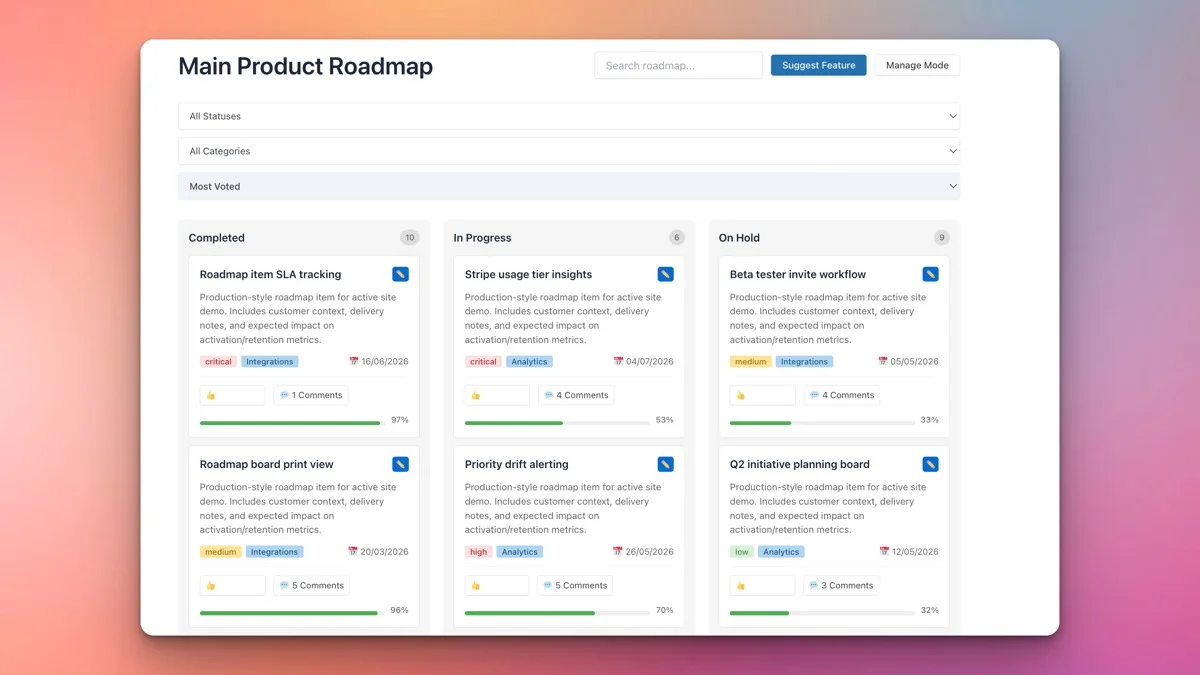
When you move a roadmap item from “In Progress” to “Completed,” it simultaneously updates your roadmap (removing it from active work) and populates your changelog (adding it to the finished work column). This means you do not need to maintain two separate systems. Your roadmap and changelog are part of the same workflow.
How to Optimize the Completed Column for Changelog Use
- Write clear, user-facing titles: Instead of “Fix bug #4521,” write “Fixed: Login page no longer redirects to a blank page on Safari.” Your changelog readers are users, not developers. Titles should describe the impact, not the ticket number.
- Use descriptions for detail: The item description is where you add context. Explain what changed, why it matters, and any steps users need to take (like clearing their cache or updating their settings).
- Set priority levels: Even for completed items, priority levels add useful information. A “Critical” bug fix carries more weight than a “Low” priority cosmetic tweak. Users scanning the changelog can focus on the changes that matter most to them.
- Update progress bars to 100%: Completed items should show full progress bars. This provides a satisfying visual cue and confirms that the item is truly done, not just mostly done.
Organizing Changelog Entries by Category
A flat list of completed items is better than nothing, but organizing your changelog by category makes it far more useful. Users want to quickly scan for the type of change that is relevant to them. Here are the standard categories and how to use them.
Bug Fixes
Bug fixes address things that were broken. They restore expected behavior. Examples include:
- Fixed: Email notifications not sending when a new comment is posted.
- Fixed: Mobile menu not closing after tapping a link.
- Fixed: CSV export including duplicate rows for multi-author posts.
When categorizing bug fixes, be specific about what was broken and what the fix does. Users who experienced the bug will be looking for exactly this information.
New Features
New features add capabilities that did not exist before. They expand what the product can do. Examples include:
- New: Dark mode support with automatic detection of system preferences.
- New: Bulk import tool for migrating items from Trello boards.
- New: Webhook integration for sending notifications to Slack channels.
For new features, consider linking to documentation or a tutorial so users can start using the feature right away.
Improvements
Improvements enhance existing functionality. The feature already existed, but now it works better, faster, or more intuitively. Examples include:
- Improved: Dashboard loading speed reduced by 60% through query optimization.
- Improved: Search now supports partial matching and typo tolerance.
- Improved: Export format updated to include additional metadata fields.
Improvements are sometimes the hardest to write compelling entries for, but they often represent the most impactful work. Do not undersell them.
How to Categorize in the Plugin
You can use the Product Roadmap plugin’s tagging or taxonomy system to categorize items as Bug Fix, Feature, or Improvement. When combined with the kanban view, users can filter the Completed column to see only the category they care about. This is particularly useful for technical users who want to see only bug fixes or for product managers who want to showcase new features.
Adding Dates as Release Dates
A changelog without dates is just a list. Dates transform it into a timeline that users can reference. Here is how to handle dates effectively in your changelog.
Version-Based Dating
If your product follows semantic versioning (e.g., v2.4.0, v2.4.1), group changelog entries by version number and include the release date for each version. This approach works well for plugins, themes, and software products where users update to specific versions.
Example format:
- v2.5.0 (March 15, 2026) - Three new features, two improvements, one bug fix.
- v2.4.2 (February 28, 2026) - Two bug fixes.
- v2.4.1 (February 10, 2026) - One critical bug fix, one improvement.
Rolling Date-Based Updates
For SaaS products, membership sites, or services that deploy continuously, version numbers may not make sense. In that case, use dates as the organizing principle. Group changes by week or month and list what shipped during that period.
Using the Plugin for Date Tracking
When you move an item to the Completed status in the Product Roadmap plugin, the completion date is recorded. This date can serve as the release date for changelog purposes. If you batch multiple items into a single release, you can update all of them to Completed on the same date, creating a natural grouping that corresponds to a version release.
Embedding Your Changelog on a Dedicated Page
The most effective changelogs live on dedicated, easy-to-find pages. Here is how to set up a proper changelog page in WordPress using the Product Roadmap plugin.
Step 1: Create a Dedicated Changelog Page
Create a new WordPress page with a clear title like “Changelog,” “Release Notes,” or “What’s New.” Use a full-width page template if your theme offers one, since changelog entries benefit from horizontal space.
Step 2: Add an Introduction
Before the changelog itself, add a brief paragraph explaining what the page contains. Something like: “This page documents all updates, improvements, and bug fixes for [Product Name]. Entries are organized by date, with the most recent changes at the top.”
Step 3: Embed the Roadmap Shortcode
Insert the Product Roadmap plugin’s shortcode, configured to display only the Completed status column. This filters out in-progress and planned items, showing only what has shipped. The result is a clean, focused changelog that is not cluttered with future plans.
Step 4: Link from Key Locations
A changelog page that no one can find is not useful. Link to it from:
- Your main navigation menu or footer.
- Your product’s documentation or help center.
- Your plugin or theme’s description page in the WordPress repository.
- Your email notifications when new versions are released.
- Your dashboard or admin panel within the product itself.
Step 5: Set Up a Redirect for Common URLs
Users often guess URLs like /changelog, /release-notes, or /updates. If your page slug is different, set up redirects from these common paths to your actual changelog page. This small detail improves discoverability.
Creating a “What’s New” Landing Page
While a changelog is a comprehensive historical record, a “What’s New” page is a curated highlight reel of your most recent and most notable changes. Think of it as the marketing-friendly companion to your technical changelog.
What Makes a “What’s New” Page Different from a Changelog
- Scope: A changelog lists everything. A “What’s New” page highlights only the most significant recent changes.
- Tone: A changelog is factual and concise. A “What’s New” page can be more conversational, explaining the benefits of each change in a way that excites users.
- Visuals: A changelog might be text-only. A “What’s New” page often includes screenshots, GIFs, or short videos demonstrating new features.
- Frequency: A changelog updates with every release. A “What’s New” page might update monthly or quarterly, covering the highlights from multiple releases.
How to Build It
Create a separate WordPress page for your “What’s New” content. Use the Product Roadmap plugin to pull in recently completed items, then supplement with rich content blocks:
- Hero section: A bold headline like “What’s New in [Product Name]” with the date range covered.
- Featured updates: Two or three major changes with screenshots, descriptions of the benefit, and links to documentation.
- Additional improvements: A shorter list of other notable changes pulled from your Completed column.
- Bug fixes summary: A condensed list of resolved issues.
- What’s next: A brief preview linking to your roadmap page, connecting the changelog to the forward-looking view.
Linking Changelog Entries to Detailed Notes
For significant updates, a single line in the changelog is not enough. Users want to know more. Linking changelog entries to detailed blog posts or documentation pages serves both user education and SEO purposes.
When to Create Detailed Notes
Not every changelog entry needs its own page. Reserve detailed notes for:
- Major new features: Any feature that adds significant new capability deserves a dedicated post explaining how it works, how to set it up, and what problems it solves.
- Breaking changes: If an update changes existing behavior, a detailed note helps users understand what changed and what they need to do to adapt.
- Complex improvements: Performance improvements, security updates, or architectural changes benefit from technical explanations for advanced users.
- Migration guides: When an update requires users to take action (update settings, migrate data, change integrations), a detailed step-by-step guide prevents confusion and reduces support load.
How to Link Them
In the Product Roadmap plugin, each completed item has a description field where you can include links. For items with detailed notes, add a “Learn more” or “Read the full details” link in the description pointing to the corresponding blog post or documentation page. This creates a layered information architecture: the changelog provides the overview, and the linked pages provide the depth.
Automating Notifications for New Releases (Pro)
A changelog that users have to remember to check is only half as effective as one that proactively notifies them. The Pro version of the Product Roadmap plugin includes features that support notification workflows around completed items.
Email Notifications
Set up email notifications to alert subscribers when new items are marked as Completed. This works particularly well for products with dedicated user bases who want to stay informed about updates. The notification can include the item title, a brief description, and a link to the changelog page for full details.
RSS Feed Integration
Generate an RSS feed from your Completed items. Users who prefer RSS readers can subscribe to your changelog and get updates in their workflow without visiting your site. This is especially popular among developer audiences and power users.
Webhook Integration
For teams that use Slack, Discord, or Microsoft Teams, webhooks can push changelog updates to your communication channels automatically. When a roadmap item moves to Completed, a message is sent to the designated channel with the item details. This keeps your team informed and creates a natural moment for celebration when features ship.
Social Media Announcements
Major changelog entries can be automatically shared to social media channels. While you will want to curate which items get social coverage (not every minor bug fix needs a tweet), automating the initial draft saves time and ensures significant updates do not slip through the cracks.
Best Practices for a Great Changelog
To wrap up, here are the key principles that separate a useful changelog from a forgettable one:
Write for Users, Not Developers
Unless your audience is exclusively technical, write changelog entries in plain language. “Improved page load speed by optimizing database queries” is more user-friendly than “Refactored N+1 query in posts controller to use eager loading.” Save the technical details for linked documentation.
Be Consistent
Use a consistent format for every entry. Start with a category label (Fixed, New, Improved), follow with a clear description of the change, and include a link if more detail is available. Consistency makes the changelog scannable and sets user expectations.
Update Regularly
A changelog that is updated sporadically undermines trust. If you ship updates weekly, update the changelog weekly. If you release monthly, update monthly. The cadence matters less than the consistency.
Include Both Big and Small Changes
It is tempting to only log major features, but small improvements and bug fixes matter to the users who encountered those issues. A comprehensive changelog shows that you care about the details, not just the headline features.
Make It Searchable
As your changelog grows, users need to be able to find specific entries. The Product Roadmap plugin’s filtering and categorization features help with this. Additionally, since the changelog lives on a WordPress page, it is indexed by your site’s search functionality and by external search engines.
Getting Started with Your Changelog
Building a professional changelog and “What’s New” page in WordPress does not require a custom solution or a separate tool. The Product Roadmap plugin provides everything you need: status columns that double as changelog categories, item descriptions for detailed notes, priority levels for highlighting importance, and shortcode embedding for placing your changelog anywhere on your site.
Start by moving your existing completed work into the plugin. Set up a dedicated Changelog page. Organize entries by category. Add dates. Link significant entries to detailed blog posts. And if you are on the Pro plan, set up notifications so your users never miss an update.
Your users are making decisions about your product every day. A well-maintained changelog makes sure those decisions are informed by the full picture of what you have built and what you continue to deliver.
Get the Product Roadmap plugin and start building your changelog today.