

When most people hear “roadmap plugin,” they immediately think of SaaS companies mapping out their next feature releases. And sure, that is a solid use case. But limiting a roadmap tool to product development is like using a Swiss Army knife only to open bottles. There is so much more it can do.
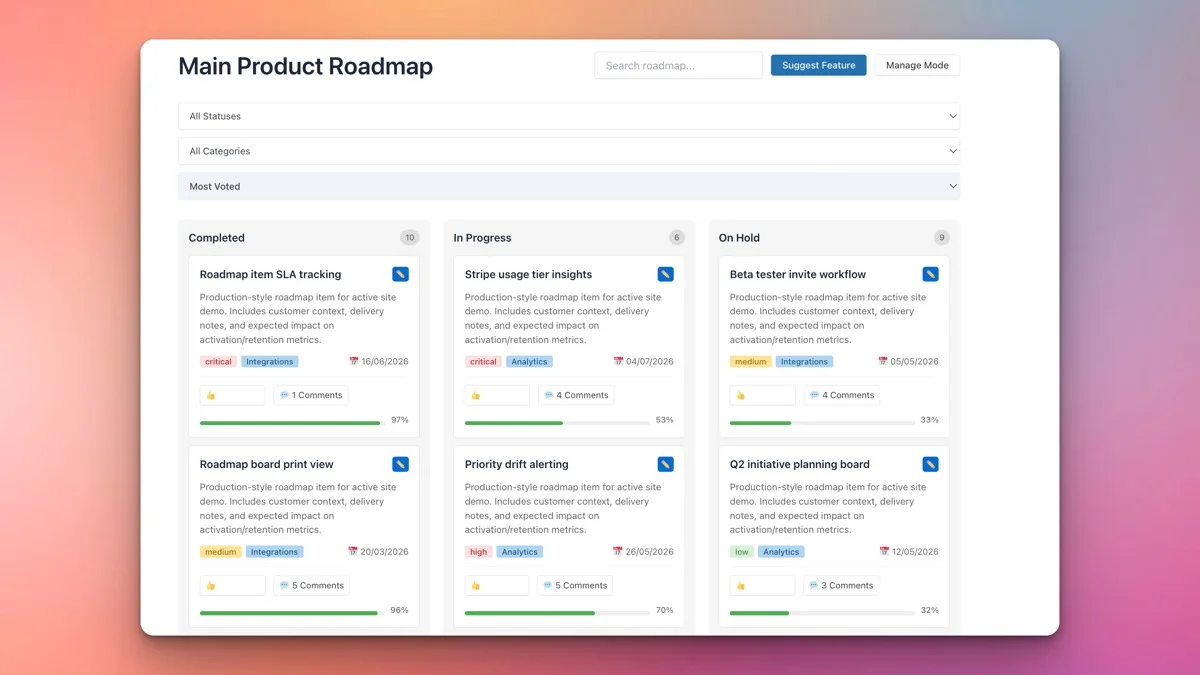
The Product Roadmap plugin for WordPress gives you a visual kanban board, item detail views, status tracking, priority levels, and progress indicators. That combination of features is useful far beyond the world of software development. In this post, we will walk through seven creative and practical ways to use a roadmap plugin that have nothing to do with shipping code.
Why a Roadmap Plugin Works for More Than Products
Before diving into the specific use cases, it helps to understand why a roadmap plugin is so versatile. At its core, a roadmap is a visual representation of planned work organized by status. That description applies to far more than product features.
Any project or process that involves multiple items moving through stages can benefit from a roadmap-style view. The key ingredients are:
- Items: Individual tasks, goals, initiatives, or deliverables.
- Statuses: Stages that items move through (e.g., Planned, In Progress, Completed, On Hold).
- Priorities: A way to indicate which items matter most.
- Visibility: A shared view that multiple people can access and understand at a glance.
With those building blocks, you can model almost any workflow. Let us look at seven specific examples.
1. Course Curriculum Planning
If you run an online learning platform, a membership site with educational content, or even a single course on your WordPress site, planning your curriculum is a multi-stage process that benefits enormously from visual organization.
How to Set It Up
Create custom status columns that match your course development workflow:
- Topic Research: Modules or lessons in the idea and research phase.
- Content Creation: Lessons actively being written, recorded, or designed.
- Review and Edit: Content that is drafted but needs review for accuracy, quality, or pacing.
- Published: Lessons that are live and available to students.
Each roadmap item represents a lesson or module. Use the item description to capture learning objectives, estimated duration, prerequisites, and resource links. Priority levels can indicate the order in which lessons should be completed or their importance within the curriculum.
Why It Works
Course creators often juggle dozens of lessons across multiple modules. A kanban view lets you see the entire curriculum at once and quickly identify which areas are content-rich and which need more development. If you are working with a team of subject matter experts, instructional designers, and video editors, the board gives everyone a shared reference point.
You can also make the board public to give prospective students a preview of the curriculum. Seeing planned content alongside published lessons builds excitement and demonstrates the depth of your offering.
2. Event Planning and Conference Management
Planning an event, whether it is a local meetup, a virtual conference, or a multi-day summit, involves tracking hundreds of moving pieces. Speakers need to be confirmed. Venues need to be booked. Marketing materials need to be created. Sponsors need to be secured. A roadmap plugin turns this chaos into an organized workflow.
How to Set It Up
Configure your status columns around event planning phases:
- Proposed: Ideas and possibilities that have not been committed to yet.
- Confirmed: Items that are locked in (speakers confirmed, venue booked, etc.).
- In Preparation: Active work happening (designing slides, setting up registration, preparing swag).
- Ready: Everything is done and waiting for the event day.
- Completed: Post-event items like sending thank-you notes, publishing recordings, or compiling feedback.
Each roadmap item could represent a speaker session, a logistics task, a marketing deliverable, or a sponsor agreement. Use priority levels to flag time-sensitive items that have hard deadlines before the event date.
Why It Works
Event planning is inherently collaborative and time-pressured. The visual kanban layout lets your planning committee see at a glance what is confirmed, what is still up in the air, and what needs attention. When you embed this on a shared page (password-protected for your planning team), it eliminates the need for lengthy status update emails and reduces the risk of things falling through the cracks.
3. Editorial Calendar for Content Teams
If you publish content regularly, whether blog posts, podcasts, videos, or newsletters, an editorial calendar is essential. While there are dedicated editorial calendar plugins, a roadmap plugin offers unique advantages, especially when you want to share content plans with stakeholders or the public.
How to Set It Up
Design your columns around content production stages:
- Ideation: Topic ideas and pitches.
- Assigned: Ideas approved and assigned to a writer or creator.
- Draft in Progress: Content actively being created.
- Editorial Review: Drafts submitted for editing and feedback.
- Scheduled: Finalized content with a publication date set.
- Published: Live content.

Each roadmap item represents a piece of content. Use the description field to capture the content brief, target keywords, target audience, and publication date. Priority levels can reflect editorial importance or time sensitivity.
Why It Works
Content teams need transparency. Writers need to know what is expected. Editors need to see what is coming their way. Stakeholders need confidence that the content plan is on track. A roadmap board provides all of this in one place, embedded directly on your WordPress site where your team already works.
For media companies or blogs with guest contributors, making parts of the editorial board visible can help contributors understand the pipeline and see where their submissions fit in the bigger picture.
4. Nonprofit Initiative Tracking
Nonprofits typically manage multiple programs, campaigns, and initiatives simultaneously. Donors want to know where their money is going. Board members need visibility into organizational priorities. Staff need to coordinate across departments. A roadmap plugin addresses all of these needs.
How to Set It Up
Configure statuses around initiative lifecycle stages:
- Proposed: New initiatives awaiting board approval or funding.
- Approved: Initiatives that have received the go-ahead but have not started yet.
- Active: Programs currently being implemented.
- Evaluation: Initiatives under review for impact assessment.
- Completed: Finished programs with documented outcomes.
Each item represents a program, campaign, or major initiative. Use descriptions to capture goals, target beneficiaries, budget information, and key milestones. Priority levels can reflect organizational strategic priorities or urgency.
Why It Works
Transparency is a core value for most nonprofits. Embedding a public roadmap on your website lets donors and supporters see exactly what you are working on and what has been accomplished. This is far more compelling than a static annual report. Progress bars on individual initiatives show incremental progress, which is particularly powerful for fundraising campaigns or long-term programs.
Internally, the board gives leadership a dashboard view of everything the organization is doing, making it easier to allocate resources and identify when teams are overcommitted.
5. Agency Client Work Management
Digital agencies juggle multiple clients, each with their own set of deliverables, timelines, and expectations. A roadmap plugin can serve as a lightweight project management overlay that keeps clients informed without requiring them to learn a new tool.
How to Set It Up
You have two approaches here. The first is to create a single board with columns based on project phases:
- Discovery: Initial research, requirements gathering, and strategy.
- Design: Wireframes, mockups, and visual design.
- Development: Building the actual deliverables.
- Client Review: Awaiting client feedback.
- Revisions: Incorporating feedback and making changes.
- Delivered: Work handed off or launched.
The second approach is to create separate boards for each client, embedded on password-protected pages. This gives each client a personalized view of their project without seeing other clients’ work.
Why It Works
Clients love visibility. The number one complaint agencies hear is “I do not know what is happening with my project.” A kanban board embedded on a client-specific page solves this problem permanently. Clients can check the board anytime, see what stage their deliverables are in, and feel confident that work is progressing. This reduces status update meetings, cuts down on “just checking in” emails, and builds trust.
For the agency team, having all client work visualized in one place helps with resource allocation and capacity planning. When you can see at a glance that five projects are in the Development column, you know your developers are at capacity.
6. Hiring Pipeline and Recruitment Tracking
If your organization is hiring, tracking candidates through the recruitment process is a natural fit for a kanban-style board. Each candidate or open position becomes a card, and the columns represent stages of your hiring funnel.
How to Set It Up
Configure statuses to match your recruitment process:
- Open Position: Roles that have been approved and posted.
- Reviewing Applications: Positions that are actively being sourced for.
- Interview Stage: Candidates in the interview process.
- Offer Extended: Candidates who have received an offer.
- Hired: Positions that have been filled.
- On Hold: Roles paused due to budget or timing.
Each item can represent either an open position or an individual candidate, depending on your preference and privacy requirements. For a public-facing careers page, you would track positions. For an internal HR board, you might track candidates (on a private, password-protected page).
Why It Works
Recruitment involves multiple stakeholders: hiring managers, HR teams, interviewers, and sometimes external recruiters. A shared kanban view ensures everyone knows where things stand. For public-facing use, embedding a board on your careers page showing open positions and their current stage signals to potential applicants that your organization is active, organized, and transparent.
Priority levels work well here to indicate urgency. A critical hire for a key role can be flagged differently from a nice-to-have position that has been open for months. Progress bars can show how far along in the interview process a position has progressed.
7. Personal Goal Tracking and Life Planning
This last use case is the most personal, but it is also one of the most powerful. If you use WordPress as a personal site, journal, or portfolio, a roadmap plugin can serve as a public or private goal tracker.
How to Set It Up
Create status columns that reflect personal goal stages:
- Someday/Maybe: Goals and aspirations you are considering but have not committed to.
- This Quarter: Goals you are actively working toward in the current quarter.
- In Progress: Goals you are actively working on right now.
- Achieved: Goals you have completed.
Each item represents a personal goal: learning a new skill, running a marathon, writing a book, traveling to a specific destination, building a side project, or any other ambition. Use descriptions to capture action steps, resources, and deadlines. Priority levels can reflect how important each goal is to you.
Why It Works
There is a growing body of research showing that publicly committing to goals increases accountability and follow-through. Embedding a goal board on your personal site is a form of public commitment. Your friends, family, or readers can see what you are working toward, which creates gentle social pressure to keep making progress.
Even if you keep it private (on a password-protected page), having a visual layout of your goals organized by status is more motivating than a static list. Watching items move from “This Quarter” to “In Progress” to “Achieved” provides a sense of accomplishment that keeps you going.
Configuration Tips for Non-Product Use Cases
Regardless of which use case resonates with you, here are some general tips for configuring the Product Roadmap plugin for non-product scenarios:
Rename Your Mental Model
The plugin uses terms like “roadmap items,” but you can think of these as tasks, goals, initiatives, content pieces, or anything else. The underlying functionality is the same: an item with a title, description, status, and priority. Do not let the product-focused naming limit your imagination.
Start with Three to Four Columns
It is tempting to create a column for every possible stage, but more columns means more complexity. Start with three or four columns and add more only when you find that items are getting stuck or that you need finer-grained status tracking.
Use Colors Strategically (Pro)
If you have the Pro version, assign colors that make intuitive sense for your domain. For event planning, you might color-code by event track. For an editorial calendar, you might use colors to indicate content format (blog post, video, podcast). For a hiring pipeline, colors might represent departments.
Leverage Priority Levels Consistently
Whatever priority scheme you choose, be consistent. If “High” priority means different things to different people, the priority field becomes meaningless. Define what each level means in your context and communicate it to everyone who uses the board.
Set Progress Bars Thoughtfully
Progress bars are most useful when you have a clear sense of what “done” looks like for each item. For a course lesson, 100% might mean the lesson is recorded, edited, and published. For a nonprofit initiative, 100% might mean the program has been delivered and evaluated. Define completion criteria so progress bars are meaningful rather than arbitrary.
Control Visibility
Decide upfront whether your board should be public or private. For public boards (product roadmaps, career pages, nonprofit transparency), use a regular published page. For internal boards (team planning, hiring pipeline), use password-protected pages or restrict access with a membership plugin.
Getting Started with Your Creative Roadmap
The Product Roadmap plugin is far more versatile than its name suggests. Whether you are planning a conference, managing an editorial calendar, tracking nonprofit programs, running an agency, building a hiring pipeline, or mapping out your personal goals, the combination of kanban-style visual management, priority levels, progress tracking, and WordPress-native simplicity makes it a powerful tool for any organized effort.
Pick the use case that resonates most with your situation, install the plugin, set up your columns, and start adding items. You will be surprised how much clarity a visual board brings to work that used to live in spreadsheets, email threads, and sticky notes on your monitor.
Get the Product Roadmap plugin and start building your custom workflow board today.