
Building a private social network no longer requires a team of developers or a six-figure budget. With WordPress and BuddyPress, you can launch a fully functional community platform that rivals commercial solutions - and you maintain complete ownership of your data. This guide walks you through every step, from installation to launch, so you can build a thriving private network in 2026.
Why Build a Private Social Network in 2026?
The demand for private, niche social networks has never been higher. According to a Grand View Research report, the global social networking market is projected to reach $939.68 billion by 2030, growing at a CAGR of 26.2%. But the real growth story is in private communities - platforms where members share a common interest, profession, or organization.
Public social media platforms like Facebook, X (formerly Twitter), and LinkedIn continue to struggle with algorithm changes, data privacy concerns, and content moderation challenges. A 2025 Pew Research Center survey found that 68% of adults feel they have little to no control over their personal data on mainstream social platforms. This has fueled the rise of self-hosted community solutions.
“The future of social media is not one giant platform for everyone - it is thousands of smaller, purpose-built communities where people feel safe, heard, and valued.”
- Matt Mullenweg, Co-founder of WordPress, WordPress.org
WordPress powers over 43% of all websites on the internet (W3Techs, 2025), and BuddyPress extends it into a full social networking platform. Together, they offer the most accessible path to building a private social network without writing code from scratch.
What You Need Before You Start
Before diving into the build process, make sure you have the following prerequisites in place. Each one is essential for a smooth installation and a performant community platform.
| Requirement | Recommended Specification | Why It Matters |
|---|---|---|
| WordPress Hosting | Managed WordPress host (Cloudways, SiteGround, or WP Engine) | BuddyPress needs reliable PHP processing and database performance |
| WordPress Version | 6.5 or later | Block editor compatibility and REST API improvements |
| PHP Version | 8.1 or higher | Performance and security updates |
| SSL Certificate | Free via Let’s Encrypt or hosting provider | Required for user login security and trust |
| Domain Name | Custom domain (e.g., community.yourbrand.com) | Professional appearance and brand recognition |
| BuddyPress-compatible Theme | Reign theme (recommended) | Purpose-built for BuddyPress with modern UI and responsive design |
Step 1: Install WordPress and Configure Your Foundation
If you already have a WordPress site running, you can skip ahead to the BuddyPress installation. For those starting fresh, here is how to set up your foundation properly.
Choose the Right Hosting
Community websites generate more database queries than standard blogs. Every activity update, friend request, and message triggers a database call. Choose a host that offers dedicated MySQL resources, object caching (Redis or Memcached), and a PHP workers count of at least 4. Managed WordPress hosts like Cloudways, SiteGround, and WP Engine handle these requirements out of the box.
Install WordPress
Most managed hosts offer one-click WordPress installation. After installing, complete the initial setup wizard, set your permalink structure to “Post name” (Settings > Permalinks), and configure your timezone. These settings are foundational and changing them after your community is live can break existing URLs.
Step 2: Install and Activate BuddyPress
BuddyPress is a free, open-source plugin maintained by the WordPress community. It transforms your WordPress installation into a social networking platform with profiles, activity streams, groups, messaging, and friend connections.
Installation Process
- Navigate to Plugins > Add New in your WordPress dashboard
- Search for “BuddyPress” in the plugin directory
- Click Install Now and then Activate
- After activation, navigate to Settings > BuddyPress to access the component settings
The official BuddyPress documentation at codex.buddypress.org provides additional guidance for complex server configurations. For most managed WordPress hosts, the standard plugin installation process works without modification.
Enable Core Components
After activation, BuddyPress presents a component selection screen. For a full private social network, enable all of the following components:
- Extended Profiles - Custom profile fields beyond the WordPress default (job title, bio, social links, location)
- Activity Streams - The central feed where members post updates, share content, and interact
- User Groups - Members can create and join groups around topics, projects, or departments
- Private Messaging - Direct, private conversations between members
- Friend Connections - Members can send and accept friend requests
- Notifications - Real-time alerts for mentions, messages, friend requests, and group invitations
Step 3: Set Up Extended Profiles
Rich user profiles are the backbone of any social network. BuddyPress lets you create custom profile field groups and fields that go far beyond the default WordPress user fields.
Creating Profile Field Groups
Navigate to Users > Profile Fields in your dashboard. BuddyPress comes with a default “Base” field group. You can add additional groups to organize profile information logically:
- Basic Information - Name, location, bio, website
- Professional Details - Job title, company, industry, skills
- Social Links - Twitter/X, LinkedIn, GitHub, personal website
- Interests - Hobbies, favorite topics, expertise areas
Each field supports multiple types: text box, multi-line text, date selector, dropdown, multi-select, checkbox, radio button, and URL. The WordPress developer documentation at developer.wordpress.org explains the underlying user meta API if you need to extend profiles programmatically.
Profile Visibility Settings
For a private network, you want granular control over who sees what. BuddyPress offers per-field visibility options that members can set themselves: Everyone, Only Me, All Members, or My Friends. As an administrator, you can set default visibility levels and lock specific fields to ensure privacy compliance.
Step 4: Configure Activity Feeds
The activity feed is the heartbeat of your social network. It is where members see updates, interact through comments and likes, and stay engaged with the community.
“Activity streams are the single most important feature for community engagement. If your feed is empty or boring, members will not return. The key is to configure it to surface relevant content and make posting effortless.”
- John James Jacoby, Lead Developer of BuddyPress, developer.buddypress.org
Activity Feed Settings
Go to Settings > BuddyPress > Options and configure which activities appear in the feed. By default, BuddyPress tracks profile updates, new friendships, group joins, and new blog posts. For a richer feed experience, consider these configuration tips:
- Enable activity posting on member profiles and group pages
- Allow activity comments to encourage conversation
- Enable @mentions so members can tag each other
- Consider adding media upload support with a plugin like BuddyPress Activity Plus or rtMedia
Step 5: Create and Manage Groups
Groups are the organizational backbone of a community. They allow members to cluster around shared interests, projects, or departments. BuddyPress groups support three privacy levels that are essential for a private network.
Group Privacy Levels
| Privacy Level | Who Can See | Who Can Join | Best For |
|---|---|---|---|
| Public | Anyone on the network | Anyone can join | Open discussions, general interest topics |
| Private | Members only | Request to join or invited | Teams, departments, moderated discussions |
| Hidden | Members only | Invite only | Executive teams, confidential projects |
Group Features
Each group in BuddyPress comes with its own activity feed, member list, and admin panel. Group admins can moderate content, manage membership, and configure settings independently. You can extend group functionality with plugins that add document sharing, event calendars, and forums to each group.
As the site administrator, you can create starter groups during the initial setup to seed content and guide new members toward active conversations.
Step 6: Enable Private Messaging
Private messaging is a core social networking feature that keeps conversations off public channels. BuddyPress messaging supports one-on-one and group conversations with read receipts and threaded replies.
Messaging Configuration
Navigate to Settings > BuddyPress > Components and ensure the Messages component is active. Then configure messaging behavior:
- Enable notifications - Members receive email and on-site notifications for new messages
- Set message threading - Conversations stay organized in threads rather than flat lists
- Restrict non-friend messaging (optional) - For tighter privacy, require a friend connection before members can message each other
For enhanced messaging features like emoji support, file attachments, and real-time chat, consider the BuddyPress Better Messages plugin, which adds a modern messaging interface similar to Facebook Messenger or Slack.
Step 7: Set Up Friend Connections
Friend connections create the social graph of your network. When members connect as friends, they see each other’s activity prominently in their feeds, can send private messages, and build the reciprocal relationships that make a community sticky.
The Friends component is enabled by default in BuddyPress. Members can send friend requests from any user profile, and the recipient can accept or reject. Accepted connections are mutual - both members appear in each other’s friend lists.
To encourage early connections, consider using the BP Suggested Friends plugin or manually featuring active members on the community homepage. Research from the Journal of Computers in Human Behavior shows that users who make at least 3 connections in their first week are 4 times more likely to remain active after 30 days.
Step 8: Make Your Network Private
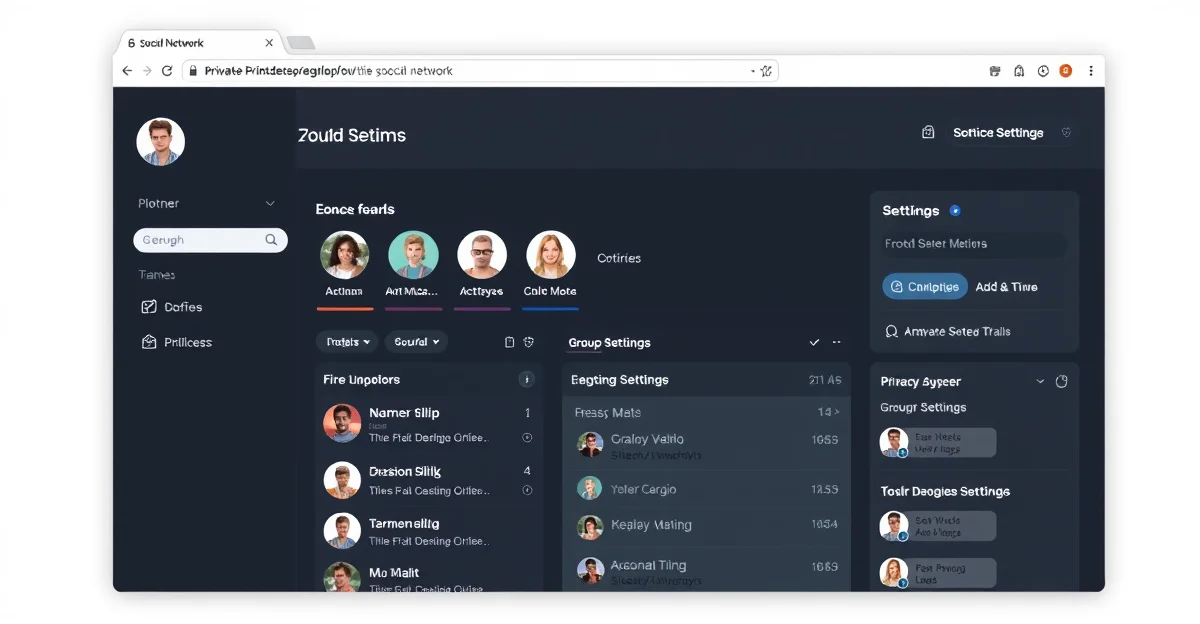
By default, WordPress and BuddyPress content is publicly accessible. To create a truly private network, you need to restrict access to logged-in members only.
Methods for Restricting Access
- BuddyPress Private Network Plugin - Forces login for all pages. Non-members see only the registration and login pages.
- WP Private Content Plus - Granular access control at the page, post, and menu level.
- Restrict Content Pro or MemberPress - If you want to monetize access with membership tiers, these plugins add payment integration alongside access control. For a detailed comparison, see our guide to the top WordPress membership plugins that work well with BuddyPress communities.
- Custom code approach - Add a redirect hook in your theme’s
functions.phpthat sends non-logged-in users to the login page. The WordPress Developer Reference documents theis_user_logged_in()function used for this purpose.
Registration Control
Control who can join your network by configuring registration settings. Go to Settings > General and check “Anyone can register.” Then install a registration management plugin to add:
- Admin approval for new registrations
- Email domain restrictions (e.g., only @yourcompany.com)
- Invitation-only registration codes
- Custom registration form fields
Step 9: Choose the Right Theme for Your Community
Your theme determines the visual experience and usability of your social network. Not every WordPress theme is designed to handle BuddyPress components effectively. A standard blog theme will render BuddyPress pages with broken layouts, missing styles, and a frustrating user experience.
A BuddyPress-optimized theme is not optional - it is a requirement. The difference between a generic theme and a purpose-built community theme is the difference between a functional network and a broken one.
The Reign theme is specifically built for BuddyPress and bbPress communities. It provides a modern, social-media-style interface with pre-designed templates for profiles, groups, activity feeds, and member directories. Key features include:
- Multiple header and layout options - Choose from boxed, full-width, and sidebar layouts that adapt to your community’s needs
- Dark mode support - A toggleable dark mode that members can activate for comfortable browsing
- Responsive design - Fully optimized for mobile devices where a significant portion of community engagement happens
- BuddyPress component styling - Every BuddyPress page (profiles, groups, activity, messages, notifications) is styled consistently without custom CSS
- WooCommerce integration - If you plan to sell products, courses, or memberships alongside your community, Reign integrates seamlessly with WooCommerce. You can even add social login options to let members sign in with their existing social accounts
- LearnDash and LifterLMS compatibility - Build a learning community with integrated course platforms
- Performance optimized - Lightweight codebase with lazy loading, minimal asset footprint, and fast page load times
Step 10: Extend Your Network with Essential Plugins
BuddyPress provides the foundation, but a production-ready social network benefits from additional plugins that fill gaps and enhance the experience.
| Plugin | Purpose | Why You Need It |
|---|---|---|
| bbPress | Discussion forums | Structured, threaded discussions that complement activity feeds |
| BuddyPress Media (rtMedia) | Media uploads | Allow members to upload photos and videos to their profiles and activity feeds |
| BP Better Messages | Enhanced messaging | Modern chat interface with real-time messaging, emojis, and file sharing |
| BuddyPress Member Blog | Member blogging | Let members publish their own blog posts within the community |
| GamiPress | Gamification | Points, badges, and leaderboards to drive engagement |
| WooCommerce | E-commerce | Sell memberships, products, or courses to your community members |
Performance Optimization for Community Sites
Community websites face unique performance challenges compared to standard blogs. Activity feeds generate real-time database queries, member directories load dozens of avatar images, and concurrent users can spike during active discussions.
Caching Strategy
Implement a layered caching strategy for optimal performance:
- Object caching with Redis or Memcached - Cache database query results to reduce MySQL load. Most managed hosts offer Redis as an add-on.
- Page caching (with exclusions) - Use WP Rocket or W3 Total Cache, but exclude BuddyPress pages (activity, profiles, messages) from full-page caching since they display dynamic, per-user content.
- CDN for static assets - Serve images, CSS, and JavaScript from a CDN like Cloudflare or BunnyCDN to reduce server load and improve global page load times.
Database Optimization
BuddyPress stores activity, metadata, and notifications in custom database tables. As your community grows, these tables can become large. Schedule regular database optimization with WP-Optimize or a similar plugin, and ensure your hosting provides adequate MySQL resources. For communities exceeding 10,000 active members, consider upgrading to a dedicated database server.
Security Best Practices for Private Networks
A private social network holds sensitive member data, conversations, and interactions. Security is not optional - it is a fundamental responsibility to your community.
- Enforce SSL everywhere - Every page, API call, and media file should be served over HTTPS
- Two-factor authentication - Install a 2FA plugin (like WP 2FA or Wordfence Login Security) and encourage or require all members to enable it
- Regular backups - Automate daily backups with UpdraftPlus or your host’s backup solution. Test restoration periodically.
- Limit login attempts - Prevent brute force attacks with login rate limiting
- Keep everything updated - WordPress core, BuddyPress, themes, and all plugins should be on their latest versions
- GDPR compliance - If your members are in the EU, implement data export and deletion features. BuddyPress supports WordPress’s built-in privacy tools for data export and erasure requests.
Launching Your Community: The First 30 Days
Building the platform is only half the work. A successful private social network requires a deliberate launch strategy to generate initial activity and establish community norms.
“The cold-start problem is the biggest challenge for any new community. You need to seed conversations, invite your most engaged contacts first, and create a reason for people to come back daily.”
- Richard Millington, Founder of FeverBee and author of Buzzing Communities
Week 1: Seed Content and Invite Founding Members
- Personally invite 20-50 founding members who are likely to be active
- Create 5-10 starter groups with clear descriptions and a first post in each
- Post a welcome message on the activity feed with community guidelines
- Complete your own profile fully to set an example
Week 2-3: Drive Engagement
- Host a welcome thread or AMA (Ask Me Anything) session
- Share exclusive content that members cannot find elsewhere
- Send personalized welcome messages to new members
- Highlight active members in weekly roundup posts
Week 4: Evaluate and Iterate
- Review member signups, active users, and engagement metrics
- Survey founding members for feedback on features and usability
- Adjust group structure, navigation, and features based on feedback
- Plan a broader launch or marketing push if metrics are positive
Real-World Examples of WordPress + BuddyPress Communities
Thousands of organizations run private communities on WordPress and BuddyPress. Here are categories that thrive on this stack:
- Corporate intranets - Companies use BuddyPress for internal communication, replacing expensive SaaS tools like Workplace from Meta
- Alumni networks - Universities and schools build private networks for graduates to stay connected
- Professional associations - Industry groups create member directories, discussion forums, and resource libraries
- Online learning platforms - Course creators pair BuddyPress with LearnDash or LifterLMS for social learning
- Nonprofit communities - Volunteer coordination, event planning, and donor engagement
- Niche hobby communities - Photography, gaming, fitness, and other interest-based groups
Cost Comparison: WordPress + BuddyPress vs. SaaS Alternatives
One of the strongest arguments for building with WordPress and BuddyPress is cost. SaaS community platforms charge monthly fees that scale with your membership, while WordPress gives you full ownership at a fraction of the price.
| Solution | Annual Cost (500 members) | Annual Cost (5,000 members) | Data Ownership |
|---|---|---|---|
| Mighty Networks | $1,188 - $2,388 | $2,388 - $4,788 | Platform-hosted |
| Circle | $1,188 - $4,788 | $4,788 - $11,988 | Platform-hosted |
| Discourse (hosted) | $1,200 - $6,000 | $6,000+ | Can self-host |
| WordPress + BuddyPress + Reign | $300 - $600 (hosting + theme) | $600 - $1,200 (hosting upgrade) | 100% self-hosted |
The WordPress stack costs 60-90% less than SaaS alternatives while giving you complete control over your data, design, and functionality. As your community grows, you scale your hosting rather than paying per-member fees.
Frequently Asked Questions
Is BuddyPress free?
Yes, BuddyPress is 100% free and open-source. It is maintained by the WordPress community and available from the official plugin directory at wordpress.org/plugins/buddypress. You only need to pay for hosting, a domain, and optionally a premium theme like Reign.
How many members can BuddyPress handle?
BuddyPress itself has no hard member limit. Performance depends on your hosting infrastructure. With proper caching (Redis), a decent managed host, and optimized database queries, BuddyPress comfortably handles 10,000-50,000 members. Larger communities may need dedicated servers or a VPS with custom tuning.
Can I monetize my private network?
Absolutely. Combine BuddyPress with WooCommerce to sell memberships, digital products, or courses. Plugins like Paid Memberships Pro and WooCommerce subscription plugins let you create tiered access levels where different membership plans unlock different community features. The Reign theme integrates natively with WooCommerce, making it easy to build a community with a built-in storefront.
Do I need to know how to code?
No coding is required for a standard setup. WordPress, BuddyPress, and the Reign theme all offer point-and-click configuration. If you want custom functionality beyond what plugins provide, you can hire a WordPress developer or learn basic PHP and WordPress hooks. The BuddyPress developer documentation is an excellent resource for those who want to extend the platform programmatically.
Start Building Your Community Today
Building a private social network with WordPress and BuddyPress in 2026 is more accessible than ever. The combination of a mature CMS, a powerful social networking plugin, and a purpose-built theme gives you everything you need to launch, grow, and manage a thriving community - all on your own terms.
The key decisions that determine your success are choosing reliable hosting, enabling the right BuddyPress components for your use case, implementing proper privacy controls, and selecting a theme that is designed for community experiences.
If you are ready to build your private social network, start with the Reign theme as your foundation. It is purpose-built for BuddyPress communities, offers modern design options, and integrates with the plugins you will need as your community grows. Visit the BuddyPress developer portal to explore the platform, and check out the WordPress Developer Resources for in-depth technical documentation.