When I decided to finally clean up the maps on my WordPress sites, I assumed it would be a quick win. Install a plugin, drop in a map, and move on. Instead, I fell a surprisingly deep rabbit hole. Some plugins were beautifully simple. Others looked promising and then completely fell apart during setup. A few genuinely impressed me.
So I did what I usually do when things get messy. I tested everything side by side.
This post is the result of hands-on time with ten of the most talked-about WordPress Google Maps plugins. I installed them, configured them, broke a few test pages, and paid close attention to what would matter most to beginners and small business owners. Along the way, I took notes on usability, flexibility, performance, and whether each plugin actually delivered on its promises.
What follows is not a feature dump or a rewritten sales page. It is an honest, practical breakdown of what I found, what surprised me, and what I would personally use depending on the situation.

Why I Decided to Test 10 Map Plugins Instead of Just One
At first, I only wanted a simple map for a client’s contact page. However, once I started researching, I realized how fragmented this space really is. Every plugin claims to be the best, yet they all solve slightly different problems.
Some are built for single-location businesses. Others focus on directory-style sites with dozens of pins. A few lean heavily into design, while others prioritize speed and API control. Because of that, choosing blindly often leads to frustration.
So instead of guessing, I tested ten plugins under the same conditions. I used a clean WordPress install, the same theme, and identical test data. This approach helped me see clear differences, especially the ones marketing pages tend to gloss over.
Most importantly, I evaluated each tool through the lens of real users. If I struggled to figure something out, I assumed a beginner would too. That perspective shaped everything you are about to read.
What I Looked for While Testing These Plugins
Before installing anything, I defined a clear set of criteria. Without that, it would have been too easy to get distracted by flashy features that rarely get used.
First, I focused on the setup experience. Could I create a working map in under ten minutes? Did the plugin guide me clearly, or did it assume I already understood Google Maps APIs and shortcodes?
Next, I looked at flexibility. A plugin might be easy, but if it cannot handle multiple locations, custom markers, or responsive layouts, it quickly becomes limiting for growing businesses.
Finally, I paid attention to performance and reliability. Maps can be heavy, and poorly optimized plugins noticeably slow down pages. I also watched for bugs, conflicts, and whether updates felt trustworthy.
With that framework in mind, I moved on to testing.
The 10 WordPress Google Maps Plugins I Tested (Detailed, Hands-On Findings)
After installing and actively using all ten tools, I noticed that each plugin shines in a very specific scenario. Some surprised me in a good way. Others worked, but only if you were willing to compromise. Below is what I genuinely experienced while testing each one.
1. WP Google Maps – The Safest Starting Point for Beginners
WP Google Maps felt like the most approachable plugin right from the start. Installation was quick, the onboarding prompts were clear, and I never felt lost, even during the initial API setup. That alone makes it appealing for beginners.
As I continued testing, I appreciated how smoothly it handled basic tasks. Adding markers, changing map styles, and embedding maps into pages all worked without friction. I could easily see a small business owner setting this up without needing tutorials or support tickets.
However, once I tried scaling things such as multiple locations, marker categories, or advanced styling, the free version reached its limit. The premium upgrade unlocks useful features, but for many users, the free version will already cover most needs.

Best for: Local businesses, contact pages, beginners
What stood out: Ease of use and clarity
Where it falls short: Advanced customization without upgrading
2. Maps Marker Pro – Powerful, But Demands Commitment
Maps Marker Pro immediately felt like a professional-grade tool. The dashboard is dense, but it is packed with options that serious users will appreciate. I tested it with multiple locations, layers, and marker groups, and it handled everything reliably.
What I liked most was the level of control. I could fine-tune nearly every detail, from marker behavior to map layers. If you manage a large site with dozens or hundreds of locations, this plugin can scale comfortably.
That said, it is not beginner-friendly. I had to reference documentation more than once, and some settings were not intuitive. For non-technical users, this could feel overwhelming.
Best for: Large sites, directories, advanced users
What stood out: Scalability and control
Where it falls short: Steep learning curve
3. WP Go Maps – A Budget-Friendly Surprise
WP Go Maps exceeded my expectations. I went in expecting a basic plugin, but it delivered a surprisingly balanced experience. Setup was quick, and I had a functional map running within minutes.
During testing, I found that marker management and responsiveness were handled well. It may not offer the same polish as premium tools, but it covers all essential features without unnecessary complexity.
For users who want reliability without paying upfront, this plugin deserves more attention. It feels practical rather than flashy, and that is often a good thing.
Best for: Budget-conscious users, small businesses
What stood out: Simplicity with enough flexibility
Where it falls short: Limited advanced design options
4. MapPress Easy Google Maps – Ideal for Content Creators
MapPress feels like it was built with bloggers and content-heavy sites in mind. Embedding maps directly into posts felt natural and intuitive during my tests.
I particularly liked how it handled location-based storytelling. If you write travel posts, guides, or local reviews, this plugin integrates smoothly into your workflow. Accuracy and reliability were strong throughout testing.
The tradeoff is customization. While functional, the design options are limited compared to other WordPress Google Maps plugins I tested.
Best for: Bloggers, content creators
What stood out: Editor integration
Where it falls short: Visual customization
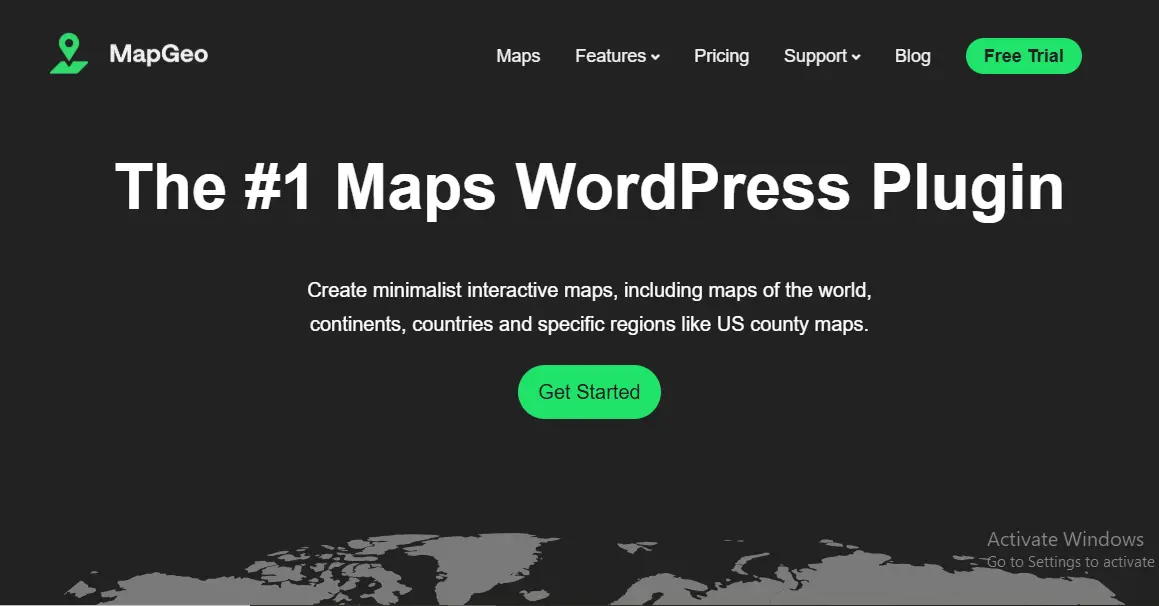
5. Interactive Geo Maps – Perfect for Coverage, Not Addresses
This plugin operates differently from traditional map plugins. Instead of focusing on pins, it emphasizes geographic regions such as countries, states, or zones.
I tested it for service area visualization, and it performed exactly as expected. Hover effects, region coloring, and tooltips worked smoothly, making it excellent for businesses that operate across large areas.
However, if you need precise address-based locations, this is not the right tool. It is purpose-built, and very good at that purpose.
Best for: Regional services, coverage maps
What stood out: Clean region-based interaction
Where it falls short: Not suited for address pins
6. Advanced Google Maps Plugin for WordPress – Feature Rich but Heavy
This plugin lives up to its name. It offers extensive filtering, marker categories, and customization options. During testing, I was impressed by how much functionality it packed into one tool.
However, the interface felt dated. Some settings were buried deep in menus, which slowed me down. I also noticed minor performance drops when loading complex maps.
It is powerful, but it rewards patience. Beginners may find it frustrating.
Best for: Feature-heavy sites
What stood out: Advanced filters
Where it falls short: Interface and performance
7. Hero Maps – Visual Impact Above All
Hero Maps immediately stood out visually. The maps looked polished without much effort, which is rare. If branding and presentation matter to you, this plugin delivers strong first impressions.
While testing, I noticed that animations and transitions added to the experience, but also slightly impacted load times. For image-heavy pages, this is something to consider.
Still, for marketing-focused sites, the tradeoff may be worth it.
Best for: Design-forward brands
What stood out: Visual polish
Where it falls short: Slight performance impact
8. GeoDirectory – A Platform, Not Just a Plugin
GeoDirectory is in a category of its own. It is not just one of the WordPress Google Maps plugins; it is an entire directory system with maps built in.
I tested it with listings, filters, and search features, and everything worked as expected. However, setup took significantly longer than other plugins.
If you only need a map, this is overkill. But if you are building a directory-based business, it is a strong contender.
Best for: Directories and listings
What stood out: Robust ecosystem
Where it falls short: Complexity
9. Elementor Google Maps Widget – Convenience First
Since many beginners use Elementor, I tested its native map widget extensively. The convenience is undeniable. Drag, drop, and configure, it really is that simple.
However, customization is limited, and you are locked into Elementor. If you ever switch page builders, you will likely need another solution.
Still, for Elementor-only sites, this is often good enough.
Best for: Elementor users
What stood out: Speed of setup
Where it falls short: Flexibility
10. Simple Google Maps Shortcode – Minimal by Design
This plugin does exactly what it claims. I tested it for quick map embeds, and it performed flawlessly.
There are no advanced features, no styling tools, and no distractions. If you need a single map and nothing more, this is a lightweight solution.
But growth will quickly outpace it.
Best for: One-off maps
What stood out: Speed and simplicity
Where it falls short: Scalability
What These Plugins Taught Me About Real-World Map Use
After testing all ten tools, a few patterns became very clear. First, most people do not need everything. They need clarity, reliability, and ease of use.
Second, plugins that try to do too much often complicate simple tasks. On the other hand, overly simple plugins can box you in as your site grows.
This is why choosing among WordPress Google Maps Plugins is less about finding the best and more about finding the best fit.
How to Choose the Right Plugin for Your Specific Needs
Instead of focusing on feature lists, I recommend asking yourself a few practical questions before choosing.
- How many locations do I need to show?
- Do I want a simple contact map or a searchable directory?
- How comfortable am I with technical settings?
- Is design or performance more important for my site?
Once you answer those, the field narrows quickly. For most small businesses, one of the simpler WordPress Google Maps Plugins will be more than enough.
Common Mistakes I Made So You Do Not Have To
I made several mistakes during testing that are worth sharing.
First, I underestimated the importance of API limits. A few plugins worked perfectly until I exceeded Google’s free usage tier. Monitoring usage early matters.
Second, I spent too much time tweaking the design when usability mattered more. Visitors care about finding locations quickly, not fancy animations.
Learning from these mistakes saved me time and frustration later.
Performance and SEO What Actually Matters
Maps can affect page speed if not handled carefully. During testing, I noticed that lightweight plugins consistently performed better in speed tests.
Lazy loading, minimal scripts, and clean code made a noticeable difference. If SEO matters to you, avoid bloated solutions unless you truly need them.
This is another reason I now recommend choosing WordPress Google Maps Plugins based on necessity, not hype.
Support, Updates, and Long-Term Reliability
One thing I paid close attention to was plugin maintenance. Frequent updates and responsive support channels mattered more than flashy features.
A plugin that breaks after a WordPress update can cause real business issues. From my testing, actively maintained plugins felt safer and more future-proof.
Comparison Table: How the Plugins Stack Up
| Plugin Name | Ease of Use | Best For | Customization | Performance |
|---|---|---|---|---|
| WP Google Maps | High | Beginners | Medium | Good |
| Maps Marker Pro | Medium | Power users | High | Good |
| WP Go Maps | High | Budget users | Medium | Good |
| MapPress | High | Bloggers | Low | Excellent |
| Interactive Geo Maps | Medium | Regions | Medium | Good |
| Advanced Google Maps | Low | Advanced sites | High | Medium |
| Hero Maps | Medium | Design-focused sites | High | Medium |
| GeoDirectory | Low | Directories | Very High | Medium |
| Elementor Maps | Very High | Elementor users | Low | Good |
| Simple Shortcode | Very High | One-off maps | Very Low | Excellent |

Final Thoughts After Testing All 10 Plugins
After weeks of testing, my biggest takeaway is this. Simplicity wins more often than complexity. Most users do not need enterprise-level features to show their location clearly and professionally.
The good news is that today’s WordPress Google Maps Plugins cover a wide range of needs. Whether you want a quick contact map or a full directory, there is a solid option available.
If you are just starting out, choose something easy and reliable. You can always upgrade later as your site grows.
Interesting Read:
5 Pro Tips for Launching an Online Store