Customers often wonder if the price they see today is really the best deal they can get. Price fluctuations, discounts, and promotional offers can leave buyers unsure. As an online store owner, building transparency is one of the most powerful ways to gain trust. One effective method is to Show Price History on WooCommerce Products. By giving shoppers a clear view of past pricing trends, you not only inspire confidence but also improve conversions.
We will dive deep into why price history matters, what tools you can use, and how to set it up properly using the WC Price History plugin. Along the way, we will also provide tips to maximize its effectiveness for your eCommerce business.

What is Price History in WooCommerce?
Price history refers to the record of changes in a product’s cost over a given period. In WooCommerce, showing this history means displaying a chart or list that highlights how the price of an item has shifted. Instead of guessing if the discount is genuine, buyers see the evidence.
For example, if you run seasonal sales, customers can track whether the current discount is larger than previous ones. This transparency builds trust and encourages purchases. More importantly, when you Show Price History on WooCommerce Products, you demonstrate authenticity in your pricing strategy.
WooCommerce by default does not include a price history feature. That’s why store owners need specialized plugins like WC Price History, which is designed to make the process seamless and effective.
Why Show Price History on WooCommerce Products?
There are several compelling reasons why showing price history can benefit your WooCommerce store.
First, it increases customer trust. Online shoppers often compare prices across multiple platforms. If you openly display your product’s price history, customers feel reassured that your discounts are genuine and not artificially inflated.
Second, it enhances purchase motivation. For example, when customers see that a product’s price usually rises after a promotional period, they are more likely to buy immediately to avoid missing out. In other words, displaying history acts as a subtle motivator that nudges customers toward a quicker decision.
Additionally, showing price history reduces abandoned carts. Shoppers are less likely to hesitate when they clearly understand the pricing journey. This feature addresses the psychology behind buyer hesitation, making your WooCommerce store more competitive and trustworthy.
Introducing the WC Price History Plugin
The WC Price History plugin is a free, easy-to-use solution available on the official WordPress plugin directory. Its primary function is to let you Show Price History on WooCommerce Products directly on your product pages.
Some standout features include:
- Automatic tracking of product price changes.
- Customizable display of the price history chart.
- Integration with WooCommerce without requiring coding knowledge.
- Clear and professional visual representation of price trends.
This plugin helps you stay compliant with European regulations that mandate transparency in product pricing. More importantly, it empowers you to offer a shopping experience rooted in honesty.
How to Install and Set Up WC Price History
Now that we know why this plugin is essential, let’s walk through the setup process step by step.
Step 1: Install the Plugin
- Log in to your WordPress dashboard.
- Go to Plugins > Add New.
- Search for WC Price History.
- Click Install Now and then Activate.
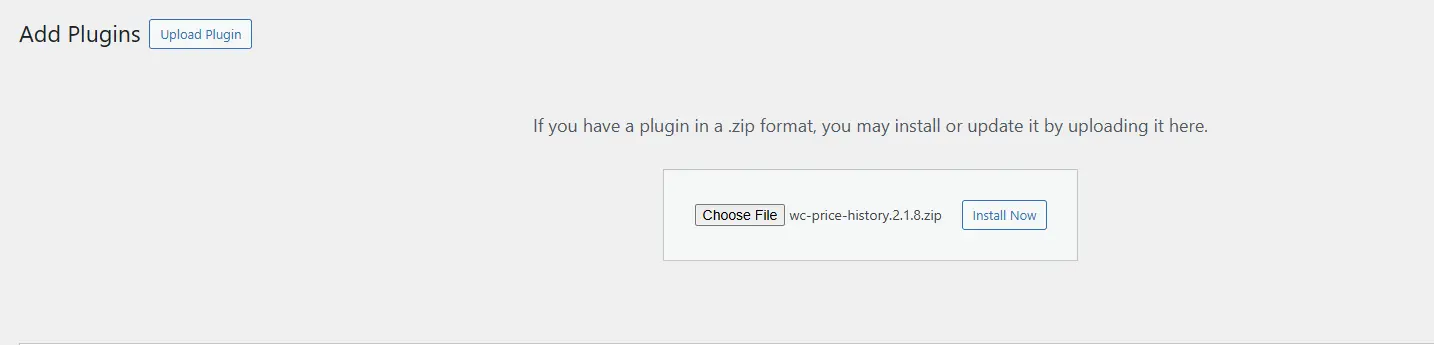
Once activated, the plugin integrates automatically with your WooCommerce environment.
Step 2: Configure Settings
- Navigate to WooCommerce > Settings.
- Look for the Price History tab.
- Here, you can customize how long you want the plugin to track prices. For instance, you may choose 30 days, 90 days, or longer depending on your store policy.

- You can also select how the chart or historical data should appear on product pages.
Step 3: Customize Display Options
- Decide whether to show the price history as a graph or a simple text list.
- Adjust styling so the chart matches your store’s branding.
- Enable or disable display for specific product categories.
Step 4: Test and Verify
- Visit a product page where the price has changed.
- Confirm that the chart or list appears correctly.
- If needed, tweak your settings for better visual integration.

By following these steps, you can easily Show Price History on WooCommerce Products without any technical hurdles.
Benefits of Displaying Price History
When you Show Price History on WooCommerce Products, the advantages extend beyond just customer trust. It also creates data-driven opportunities for your business.
- Informed purchasing decisions: Customers can decide if now is the right time to buy.
- Fewer refund requests: When customers know they got a good deal, they’re less likely to regret their purchase.
- Better marketing campaigns: Historical data can help you plan future sales more effectively.
- Competitive edge: Many online stores still do not offer this transparency, which gives you a clear advantage.
In addition, price history charts make your store appear professional and customer-focused. Shoppers interpret this as a sign that you value honesty over short-term gains.
Common Use Cases for Price History
You may wonder where and when this feature works best. Let’s look at some examples:
- Electronics Stores – Prices of gadgets fluctuate frequently. Displaying history reassures buyers they’re getting the right deal.
- Fashion Stores – Seasonal sales and discounts are common. Showing the past price makes promotions feel more genuine.
- Home Appliances – Big-ticket items often go on sale during holidays. A history chart highlights these cycles.
- Subscription-Based Products – When subscription prices rise, history charts explain the timeline.
Regardless of your niche, if your products have frequent price changes, using the WC Price History plugin can be a game-changer.
Challenges and Solutions
Of course, adding a new feature can come with some challenges.
- Challenge 1: Design Conflicts – Some themes may not display the chart correctly.
- Solution: Adjust CSS settings within the plugin or contact theme support.
- Challenge 2: Too Much Data – If your store has thousands of products, the charts may slow down pages.
- Solution: Limit the display to key categories or top-selling products.
- Challenge 3: Customer Misinterpretation – Some buyers may wait for lower prices if they notice trends.
- Solution: Use persuasive copy around the chart to encourage immediate action, such as highlighting limited-time offers.
By proactively handling these obstacles, you ensure that the benefits of showing price history outweigh any drawbacks.
Tips for Maximizing Price History Effectiveness
Here are some best practices to help you get the most out of the WC Price History plugin:
- Place the chart near the price tag for maximum visibility.
- Use contrasting colors to highlight price drops.
- Combine history with urgency triggers, such as countdown timers.
- Regularly update sale campaigns to show fresh data.
- A/B test whether your customers respond better to charts or simple lists.
Following these strategies will enhance customer engagement and ultimately drive more sales.

Closing Remarks
Transparency is no longer optional in eCommerce; it’s expected. By choosing to Show Price History on WooCommerce Products, you give your customers a reason to trust and buy from you. The WC Price History plugin makes this process simple, effective, and reliable.
From installation to customization, the steps are straightforward, and the benefits are long-lasting. Whether you run a fashion store, electronics shop, or appliance outlet, displaying historical pricing adds a professional edge to your WooCommerce business.
Start today, set up the plugin, and transform your product pages into transparent, customer-trusted hubs.
Interesting Reads:
How to Speed Up Checkout with Wallet-Style Payments in WooCommerce
How to Build a Shopify-Style Multi-Step Checkout in WooCommerce
How to Translate Products, Categories, and Checkout with WooCommerce Multilingual