Google Search Console (GSC) is a powerful tool that every website owner, digital marketer, or SEO enthusiast should know inside and out. Whether you’re running a personal blog, an eCommerce platform, or managing a client’s SEO, understanding how to navigate and use this free tool from Google is essential. In this Step by Step Guide to Google Search Console, we’ll walk you through everything GSC has to offer in 2025 — from setup to advanced features — in a conversational and easy-to-follow way.

What Is Google Search Console and Why Should You Use It?

Before diving into the features, let’s clarify what Google Search Console is. It’s a free service by Google that helps you monitor, maintain, and troubleshoot your website’s presence in Google Search results. Unlike Google Analytics, which focuses on user behavior, Google Search Console (GSC) shows how your site performs in search, helping you fine-tune your SEO strategies.
Benefits of Using Google Search Console:
- Monitor organic search performance
- Fix indexing issues
- Submit sitemaps and individual URLs for crawling
- Get alerts on security and manual actions
- Analyse mobile usability
- Understand the backlink profile
How to Set Up Google Search Console
If you’re new to GSC, don’t worry. Setting it up is quite straightforward.
Step-by-step setup:
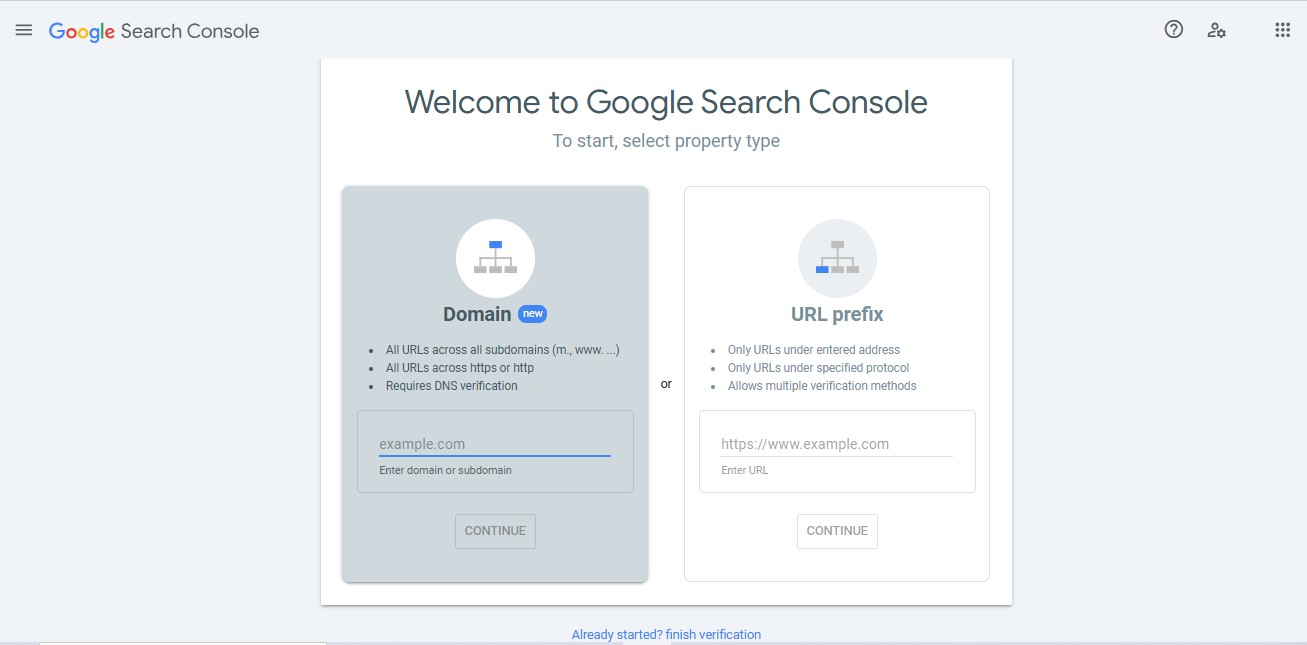
- Go to Google Search Console.
- Click ‘Start Now’ and sign in using your Google account.
- Add a Property: You’ll see two options:
- Domain: Covers all URLs under your domain (recommended)
- URL Prefix: Useful for individual sections or HTTP/HTTPS versions
- Verify Ownership:
- DNS Verification (for Domain)
- HTML File Upload
- HTML Meta Tag
- Google Analytics or Tag Manager
Once verified, you can start using Google Search Console to its fullest potential.
Exploring the Dashboard
After setup, you’ll land on the main dashboard. This gives you a bird’s-eye view of your site’s performance and health in Google Search. Let’s explore the key sections and what each one does.
The dashboard includes quick summaries and alerts, including total clicks, impressions, coverage issues, mobile usability insights, and manual actions. The left-hand navigation is your control panel to access deeper features, while the top menu lets you switch between properties or filter by search type. Enhancements like breadcrumbs, product listings, and FAQ schema—if present—appear directly on the dashboard, allowing you to monitor how structured data is functioning on your site.
1. Performance Report – Your Search Insights Engine
This is where the real SEO magic happens. The Performance report helps you understand how your pages are performing in Google’s search results. In the Performance report, you’ll find vital SEO metrics such as total clicks, total impressions, average click-through rate (CTR), and average position in Google Search results.

For example, the Reign Theme’s recent GSC data shows 3.85K clicks and 822K impressions with an average CTR of 0.5%—a clear indicator of strong visibility but room to improve engagement.

You can also see which search queries are bringing in traffic. Terms like “reign theme” (189 clicks, 538 impressions), “reign theme WordPress,” and “reign BuddyPress theme” show targeted interest, while unrelated high-impression terms like “best YouTube downloader” (47 clicks, 4,331 impressions) highlight opportunities to refine keyword targeting.
Additionally, you can apply filters to drill down into specific insights, such as individual pages, user countries, types of devices, search appearance, and date ranges, making it easier to understand exactly how your content is performing and who is engaging with it.
This makes the Google Search Console Tutorial particularly helpful for analysing keyword data. Want to know what terms people searched before clicking on your page? It’s all here.
2. URL Inspection Tool
The URL Inspection Tool in Google Search Console is a powerful feature that helps website owners understand how a specific page is viewed and processed by Google. It’s especially useful when you want to check whether a particular URL is indexed and if any issues are preventing it from appearing in search results.

For instance, in the case of the Reign Theme URL, the tool shows that the page is currently not indexed. This means it isn’t eligible to appear in Google Search, which could result in missed traffic opportunities. With this tool, you can quickly test if a page is included in Google’s index, request indexing for newly published or recently updated content, and identify crawling or indexing errors that might be affecting visibility.
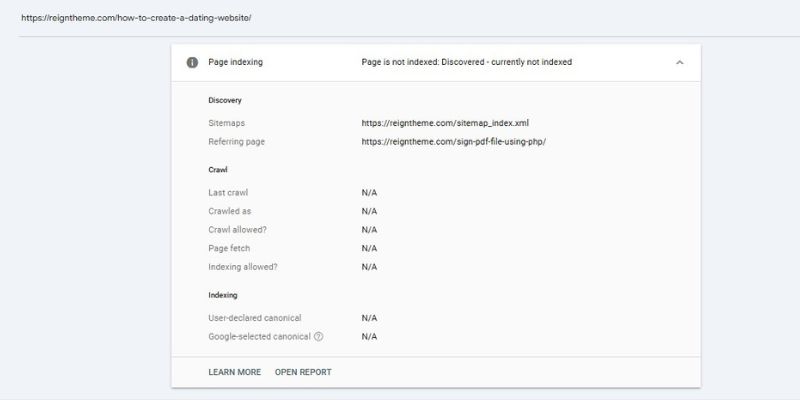
It also shows valuable information like the last time Google crawled the page, the response status, and any enhancements detected. If you’ve made changes to a page, such as updating content, fixing technical issues, or improving SEO elements, using the URL Inspection Tool ensures that Google is made aware of the updates and can re-evaluate the page accordingly.
In this case, clicking “Request Indexing” after verifying the content and structure is a quick next step to get it back on Google’s radar. This helps keep your site’s presence in search results up to date and optimised.
3. Index Coverage Report
The Index Coverage report in Google Search Console gives you a clear and detailed picture of how Google interacts with your website’s pages—what it indexes and what it skips.
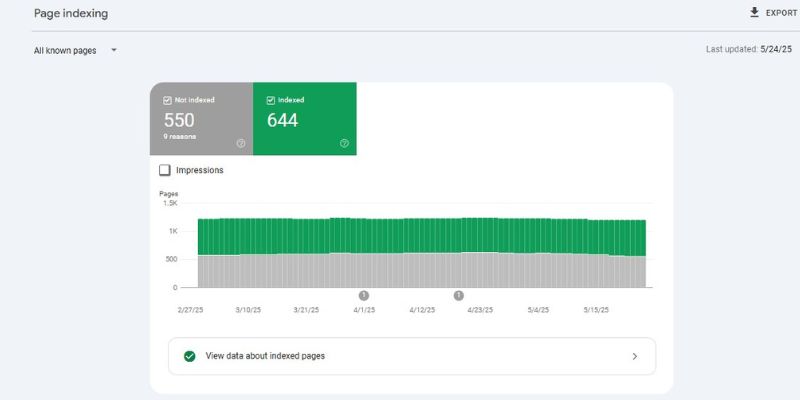
As seen in the data provided, out of 1,194 known pages, 644 are successfully indexed, while 550 remain unindexed due to various reasons. These indexing issues are critical to monitor because unindexed pages won’t appear in search results, directly impacting your SEO and visibility.
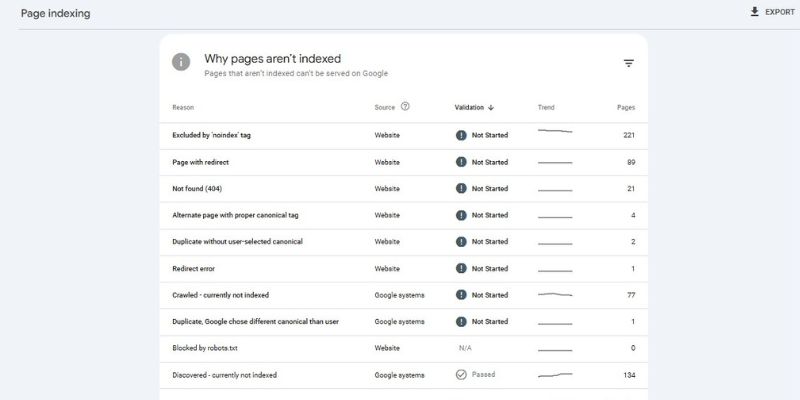
The breakdown of “Why pages aren’t indexed” shows the most common culprits:
- 221 pages excluded by a ‘noindex’ tag – these have explicitly told search engines not to index them.
- 89 pages are redirects, which is fine if intentional, but can be problematic if excessive or unnecessary.
- 77 pages crawled but not indexed, indicating Google has seen them but chosen not to include them in the index, often due to thin content or quality concerns.
- 21 pages returned a 404 (Not Found) error, which can hurt user experience and SEO if they were once valuable.
- Other reasons include canonical conflicts, duplicate content, or pages discovered but not yet indexed.
Most of these issues have a “Not Started” validation status, meaning they haven’t been addressed or reviewed yet. Taking time to fix these errors—whether by improving content, fixing redirects, or updating robot directives—can significantly improve your site’s crawlability and ranking potential.
As the Google Search Console SEO Guide recommends, continuous monitoring and fixing of these issues ensure that your most important pages get the visibility they deserve. Tools like “View data about indexed pages” can help you identify patterns in what Google chooses to include, so you can replicate those successes site-wide.
3. Sitemaps
Submitting a sitemap in Google Search Console isn’t mandatory, but it’s highly recommended as it helps Google discover and index your website’s pages more efficiently. A sitemap acts as a roadmap, guiding search engines to the important content on your site. To submit one, simply navigate to the Sitemaps section within the console, enter the path to your sitemap file (for example, sitemap.xml), and click submit.
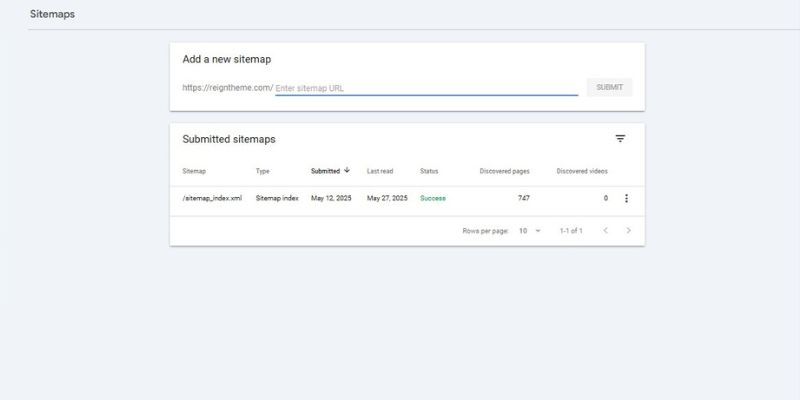
Once submitted, you can monitor its indexing status to ensure everything is being processed correctly. Additionally, if Google encounters any problems reading your sitemap, such as errors in formatting or inaccessible URLs, you’ll receive updates, allowing you to address issues promptly and maintain healthy site visibility in search results.
4. Core Web Vitals
The Core Web Vitals section in Google Search Console focuses on key metrics that reflect the real-world user experience of your website. These metrics include Largest Contentful Paint (LCP), which measures loading performance; First Input Delay (FID), which tracks interactivity; and Cumulative Layout Shift (CLS), which assesses visual stability. Google uses these page experience signals as part of its ranking algorithm, meaning that better scores can positively impact your site’s position in search results.
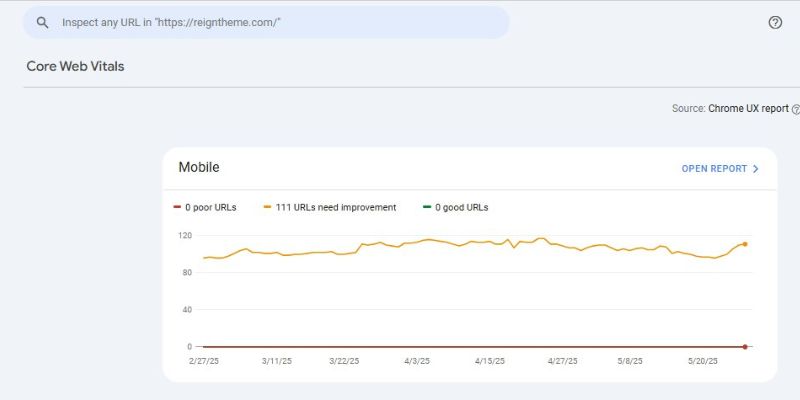
Monitoring and optimising these metrics is essential not only for improving SEO performance but also for enhancing overall user satisfaction. A fast, responsive, and stable site keeps visitors engaged and encourages them to explore more of your content.
As shown in the first image, which presents the mobile Core Web Vitals report for the Reign theme, 110 URLs are marked as needing improvement, while none qualify as “good” and none are classified as “poor.” This steady pattern indicates that although there are no critical failures, the mobile experience lacks the performance required to meet optimal user experience standards.
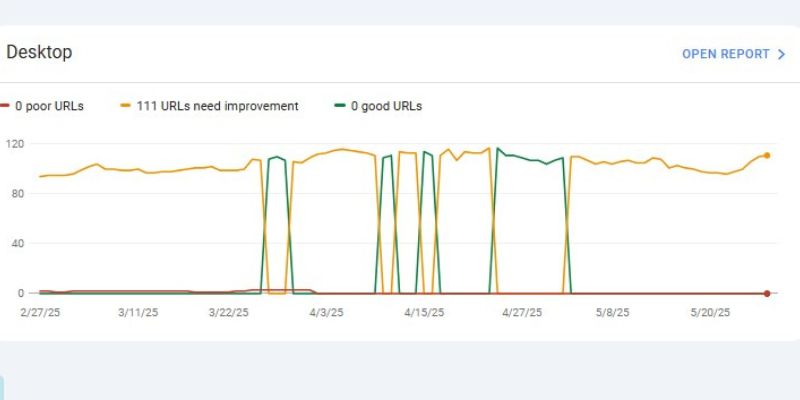
Similarly, the second image shows the desktop Core Web Vitals report, where the results mirror the mobile performance—again, 110 URLs need improvement, with zero URLs meeting the “good” criteria and none falling under “poor.” This consistency across both mobile and desktop platforms suggests a site-wide need for optimisation in areas like loading speed, interactivity, and visual stability.
Together, these insights highlight a significant opportunity to improve the site’s technical health and boost overall SEO and user engagement by focusing on Core Web Vitals enhancements.
5. Enhancements Report
The Enhancements section in Google Search Console is pivotal for monitoring and optimising your site’s structured data. Structured data enables your content to appear as rich results in Google Search, which can significantly boost both visibility and click-through rates. When you access the Enhancements dashboard, you’ll find reports based on the types of structured data detected on your site, such as breadcrumbs, FAQs, products, videos, events, job postings, courses, recipes, reviews, sitelinks searchbox, logos, and even unparseable structured data.
Each report categorises entries into errors, warnings, and valid items, giving you a clear overview of what’s working and what needs attention. This granular level of analysis helps you identify and resolve any issues that may be preventing your content from qualifying for enhanced search results.
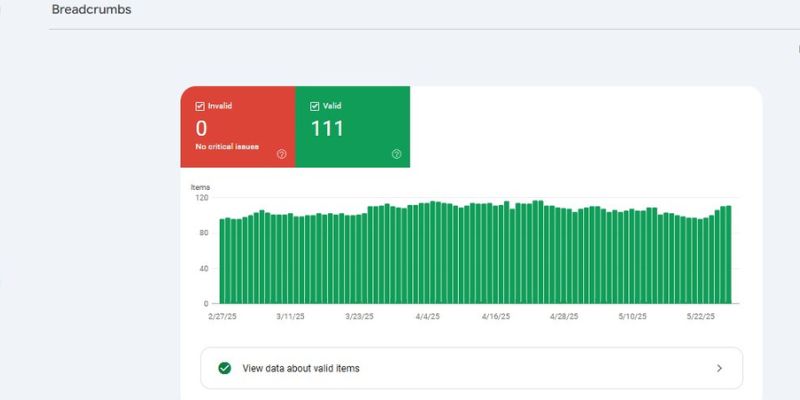
For example, in the image above taken from a website using the Reign theme, we can see a healthy Breadcrumbs report with 111 valid items and zero errors or critical issues—a strong indicator that the structured data is implemented correctly and optimised for SEO benefits
6. Security & Manual Actions – Avoid Penalties
GSC notifies you if your website has security issues like malware or gets hit by a manual action from Google for violating its guidelines.
Fix these issues immediately to prevent drops in traffic. Failure to act quickly can lead to deindexing or a severe drop in rankings. Regularly monitor your site and set up email alerts to stay ahead of potential threats.
7. Links Report – Who’s Linking to You?
Backlinks are a major ranking factor, and the Links section in Google Search Console provides valuable insights into your website’s backlink profile. It shows you the top linking domains, the most linked pages on your site, and the anchor text used in those links.
By analysing this data, you can identify which content is attracting the most links, spot any potentially harmful backlinks, and refine your link-building strategy to focus on high-quality, relevant sources. This ultimately helps improve your site’s authority and visibility in search results.
How to Use Google Search Console for SEO (Practical Tips)
Here’s where theory meets practice. Use these actionable tips to make the most of GSC:
1. Identify High-Impression, Low-CTR Pages
- Go to the Performance tab
- Filter by pages with high impressions but low CTR
- Optimise titles and meta descriptions
2. Fix Indexing Errors Promptly
- Regularly check the Coverage report
- Resolve crawl errors and resubmit URLs
3. Monitor Mobile Usability
- Visit the Mobile Usability section
- Fix design and responsive issues
4. Submit New Content for Indexing
- Use the URL Inspection Tool to submit fresh content or updated pages
5. Improve Core Web Vitals
- Use GSC’s data to prioritise performance fixes
- Focus on LCP, FID, and CLS improvements
Google Search Console Tutorial
If you’re ready to go beyond the basics, here are some power-user techniques:
1. Use Regex to Filter Queries
Want to analyse branded vs non-branded queries? Use regex filters to isolate them in the Performance report.
2. Connect GSC with Google Analytics
Combine GSC’s search insights with GA’s user behavior metrics for a complete view of performance.
3. Track Video and Image Content
Use search appearance filters to see how visual content performs in search results.
4. Download and Archive Reports
Keep historical data for trend analysis by exporting reports regularly.
Google Search Console SEO Guide for 2025
Here are some golden rules every SEO should follow when using GSC:
- Check GSC at least once a week
- Verify all versions of your website (http/https, www/non-www)
- Submit a sitemap after major updates
- Resolve errors promptly
- Optimise low-performing pages using keyword data
- Use Core Web Vitals insights to enhance UX
- Keep track of backlinks and link-building progress
Common Mistakes to Avoid
Even experienced users can slip up. Here are frequent missteps to dodge:
- Ignoring mobile usability warnings
- Not submitting a sitemap
- Overlooking manual action notifications
- Relying solely on impressions without CTR context
- Forgetting to verify all site versions

Why You Should Master Google Search Console
The Step by Step Guide to Google Search Console isn’t just a walkthrough — it’s your roadmap to making better, more informed decisions about your website’s performance. From identifying opportunities to fixing issues that might be hurting your rankings, GSC is an indispensable tool in your digital marketing arsenal.
So, take the time to explore every tab, report, and feature. Whether you’re just getting started or managing multiple sites, Google Search Console will help you stay ahead in the ever-evolving world of SEO.
Interesting Reads
How can a WordPress Site Be Optimized for the Different device sizes
eBay vs Facebook Marketplace: Which Is Better for Online Selling?
Bespoke vs Off-the-Shelf e-Learning: Which One Should You Choose?