Running a WooCommerce store successfully means not only offering great products but also keeping your backend systems well-organized. One of the biggest challenges store owners face is dealing with default WooCommerce order numbers, which are not always sequential and can confuse reporting, auditing, or customer communication. That’s where Sequential Order Numbers Pro in WooCommerce steps in as a lifesaver.
This premium plugin from WooCommerce ensures your store order numbers are clean, sequential, and easy to track. If you have ever scratched your head over gaps in order IDs, duplicate patterns, or accounting mismatches, learning how to enable and use this plugin will make your workflow far smoother. In this guide, we’ll break down everything you need to know about what Sequential Order Numbers Pro is, why you should use it, and how to set it up step by step.

What Is Sequential Order Numbers Pro in WooCommerce?
At its core, Sequential Order Numbers Pro in WooCommerce is a premium plugin that replaces WooCommerce’s default order numbering system with a more streamlined, sequential process. By default, WooCommerce uses WordPress post IDs for orders, which means the numbers may not appear in sequence due to other post types, drafts, and revisions being created in the background.
This plugin ensures every order gets a consecutive and predictable order number. Instead of jumping from, say, order #3457 to #3462, you’ll see order numbers like #1001, #1002, #1003, and so on. You can even customize the format to match your brand or workflow, adding prefixes, suffixes, or setting starting numbers.
Moreover, Sequential Order Numbers Pro in WooCommerce is designed for flexibility. Whether you’re running a small online shop or a large eCommerce platform, it adapts to your needs without disrupting your store’s performance. This small but mighty tool plays a big role in creating clarity and professionalism in your order management system.
Why Should You Use Sequential Order Numbers Pro in WooCommerce?
Clarity is essential in eCommerce, and nothing undermines clarity faster than confusing order numbers. When numbers skip or look inconsistent, customers may doubt whether their order was placed successfully. On your end, reconciling sales with invoices or shipping manifests becomes unnecessarily complicated. This is where Sequential Order Numbers Pro in WooCommerce brings undeniable value.
Using sequential order numbers eliminates the guesswork. You’ll enjoy easy-to-read reports, cleaner bookkeeping, and smoother customer support. For example, when a customer reaches out about “Order #2054,” you’ll immediately know the sequence and timing without cross-checking erratic IDs. Beyond efficiency, this plugin boosts professionalism and customer confidence, making your store appear more reliable and organized.
Another reason to use Sequential Order Numbers Pro in WooCommerce is compliance. Many businesses in regulated industries need clear, consecutive numbering for financial or tax records. By ensuring order IDs are sequential, this plugin helps businesses avoid compliance issues while simplifying the audit trail.
Key Features of Sequential Order Numbers Pro in WooCommerce
Before diving into the setup process, it’s worth highlighting the features that make this plugin so effective.
- Sequential numbering – Orders follow a predictable order without skips.
- Custom starting number – Begin numbering from any number, like #1000 instead of #1.
- Prefix and suffix options – Add identifiers such as “INV-1001-2023.”
- Unique formatting – Tailor numbering formats for invoices, receipts, or special campaigns.
- Bulk update compatibility – Works smoothly even with large order volumes.
- Cross-store consistency – Maintain the same numbering logic across multiple sites.
Each feature exists to save you time and eliminate confusion. When combined, they provide a professional structure to your WooCommerce order management system.
How to Enable Sequential Order Numbers Pro in WooCommerce
Now that you understand the value of this plugin, let’s get practical. Enabling Sequential Order Numbers Pro in WooCommerce is straightforward, but it’s worth following the steps carefully to ensure the setup works exactly as intended.
Step 1: Purchase and Download the Plugin
- Visit the WooCommerce product page for Sequential Order Numbers Pro.
- Click the “Buy Now” or “Purchase” button.
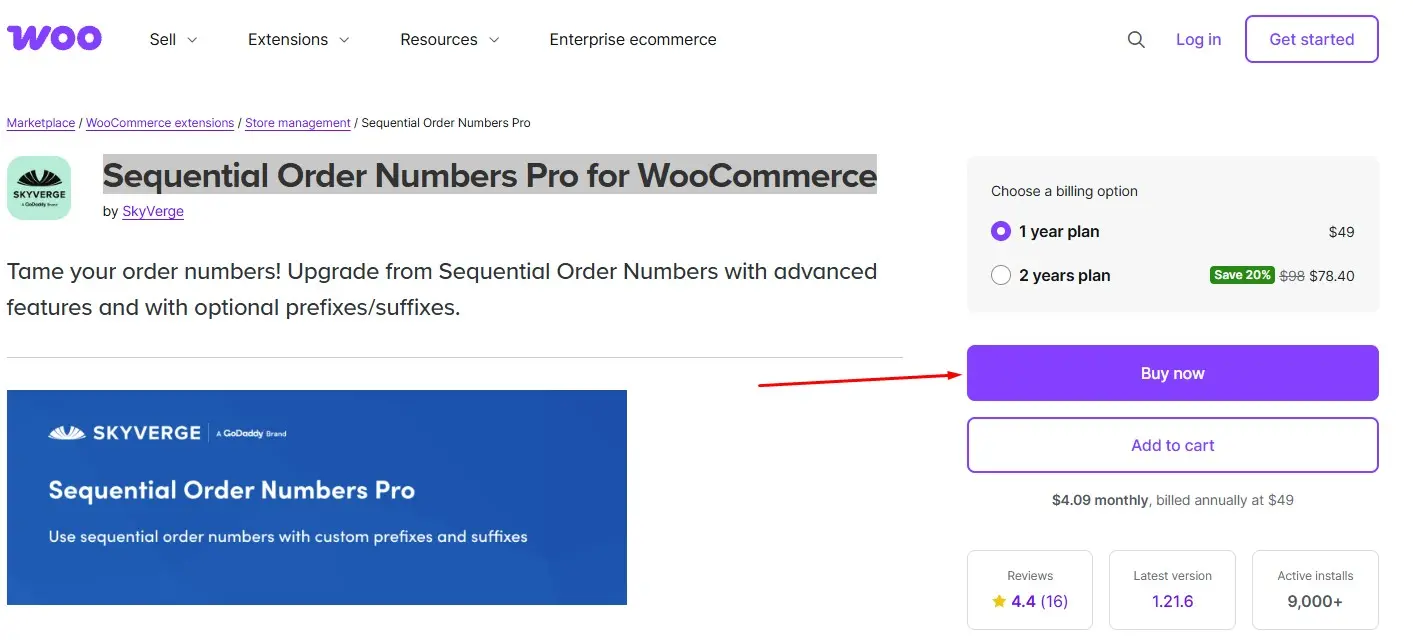
- Complete the checkout process and download the plugin files from your WooCommerce account.
Once you have the .zip file, you’re ready to install it.
Step 2: Install the Plugin
- Log into your WordPress dashboard.
- Navigate to Plugins > Add New > Upload Plugin.
- Choose the downloaded .zip file and click Install Now.
- Once installed, click Activate to enable the plugin on your site.

Step 3: Configure General Settings
- After activation, go to WooCommerce > Settings > Sequential Order Numbers Pro.
- Here, you’ll see options to set your starting order number. For instance, you might want to begin at #1000 instead of #1 to align with existing systems.
- You can also add a prefix (e.g., “INV-”) or a suffix (e.g., “-2025”) to create a more branded order ID.

Step 4: Save and Apply Changes
- Once you’ve customized your settings, click Save Changes.
- New orders will now follow the sequential pattern you’ve defined.
Step 5: Test Your Setup
- Place a test order from your store.
- Verify that the order number matches the sequence you configured.
- Check reporting and invoices to confirm the format looks professional.

That’s it—you’ve successfully enabled Sequential Order Numbers Pro in WooCommerce!
Creative Use Cases for Sequential Order Numbers Pro in WooCommerce
While the main goal of this plugin is simplicity, many store owners find unique ways to take advantage of its customization features. For example, businesses often use prefixes and suffixes to differentiate between product lines, sales channels, or years. Imagine running a multi-vendor platform—you could assign each vendor a prefix so their orders remain distinct yet sequential.
Another clever use is seasonal campaigns. You could reset your numbering system for holiday promotions or annual sales, making it easier to track campaign performance. In addition, integrating Sequential Order Numbers Pro in WooCommerce with third-party invoicing systems often eliminates duplicate order records, creating a single, clear source of truth.
Common Mistakes to Avoid During Setup
Although enabling the plugin is simple, there are pitfalls you should avoid. One common mistake is failing to back up your site before making changes. Always create a backup so you can revert if needed.
Another mistake is overlooking compatibility with other plugins. While Sequential Order Numbers Pro in WooCommerce works well with most extensions, it’s wise to test it in a staging environment if you use complex order management systems. Lastly, don’t forget to double-check your numbering logic after setup. If you want to start at order #5000 but accidentally set it at #50, it may confuse your records.
Benefits Beyond Organization
The advantages of sequential order numbers extend far beyond neat bookkeeping. They foster trust between you and your customers. When shoppers see clear, logical order numbers, they subconsciously feel more confident in your store’s professionalism. This trust often translates into repeat purchases and stronger brand loyalty.
Internally, your team benefits as well. From warehouse staff fulfilling shipments to accountants reconciling invoices, everyone has fewer headaches dealing with clean, predictable order IDs. As your business scales, the clarity provided by Sequential Order Numbers Pro in WooCommerce becomes even more critical to maintaining operational efficiency.
Sequential Order Numbers vs. Default WooCommerce IDs
The difference between WooCommerce’s default system and Sequential Order Numbers Pro is night and day. By default, WooCommerce order numbers reflect WordPress post IDs, which are not exclusively tied to orders. Posts, drafts, and revisions all share the same numbering sequence, leading to random gaps.
Sequential Order Numbers Pro eliminates these inconsistencies. Instead of confusing jumps like #108, #115, #121, your store displays clean, consecutive numbers. This change may seem small, but for reporting, auditing, and customer confidence, it makes all the difference.
Optimizing Sequential Order Numbers for Business Growth
Once you enable Sequential Order Numbers Pro in WooCommerce, consider leveraging its customization features to scale smarter. Start by tailoring prefixes and suffixes to highlight campaigns or fiscal years. For example, prefixing “2025-” ensures your 2025 orders stand out instantly.
Additionally, integrate your order numbers with third-party tools like accounting software, CRMs, or shipping solutions. Doing so ensures data flows seamlessly across platforms, reducing errors and speeding up processes. The more you optimize your sequential numbering system, the more it contributes to long-term business growth.
Troubleshooting Issues with Sequential Order Numbers Pro
Even with a robust plugin, minor issues can occur. If your order numbers don’t appear sequential after setup, start by clearing your site cache and checking if other plugins conflict. Sometimes, older order management tools override numbering formats.
If problems persist, visit the WooCommerce support page or contact the plugin’s developers directly. They often provide quick fixes for common issues. Remember, keeping your plugin updated ensures the smoothest experience and compatibility with WooCommerce updates.

Final Thoughts: Organizing WooCommerce Orders with Ease
Managing an online store is already demanding, so why add unnecessary stress with confusing order IDs? By enabling Sequential Order Numbers Pro in WooCommerce, you create order, clarity, and professionalism in one simple step. The benefits extend from customer satisfaction to internal efficiency, and the setup process is both simple and highly customizable.
If you’re serious about scaling your WooCommerce store while maintaining professional standards, this plugin deserves a spot in your toolkit. Start small by customizing your numbering system today, and watch how much smoother your operations become tomorrow.
Interesting Reads:
How to Set Up and Customize Product Bundles in WooCommerce