WooCommerce is one of the most popular eCommerce platforms for WordPress, offering countless features and tools to build a scalable online store. However, when it comes to tailoring product offerings, the default options can sometimes feel limiting. Customers often want more choices, whether it’s selecting engraving text, choosing a size not listed by default, or customizing materials. This is where the Advanced Product Fields for WooCommerce plugin becomes invaluable.
By using this plugin, store owners can go beyond the basic WooCommerce product fields and provide unique options that meet customer needs. The ability to Add Custom Product Options with Advanced Product Fields helps improve user experience, boost sales, and differentiate your store from the competition. Let’s explore what this plugin is, why it matters, and how you can effectively use it to elevate your WooCommerce store.

What Are Custom Product Options in WooCommerce?
Custom product options are additional fields you can add to products in your WooCommerce store, giving customers more control over their purchase. Instead of offering only fixed attributes like color or size, you can allow buyers to input text, upload files, or make advanced selections before adding a product to the cart.
For example, imagine you sell personalized mugs. Instead of limiting buyers to pre-designed styles, you can enable them to write their own message or upload an image. With the Advanced Product Fields for WooCommerce plugin, you can seamlessly integrate these types of choices. It enables you to Add Custom Product Options with Advanced Product Fields such as text boxes, checkboxes, image swatches, and more.
Why Do You Need Advanced Product Fields?
The default WooCommerce setup works well for simple products, but it’s not built for stores that rely heavily on personalization. Customers today expect a smooth and flexible shopping journey. If they can’t customize or tailor products to their preferences, they might leave your store and shop elsewhere.
When you Add Custom Product Options with Advanced Product Fields, you increase engagement and provide a unique value proposition. Instead of forcing customers to settle for a generic product, you invite them to create something that feels personal and special. This approach builds loyalty and encourages repeat purchases.
Moreover, offering advanced options can increase the average order value. For example, you can upsell premium features like custom engraving, extra accessories, or upgraded materials. In short, the plugin not only improves the shopping experience but also enhances profitability.
The Power of the Advanced Product Fields Plugin
The Advanced Product Fields for WooCommerce plugin is designed to give store owners ultimate flexibility. It integrates seamlessly into WooCommerce and provides a drag-and-drop interface that makes creating custom fields easy. You don’t need coding skills to get started, which makes it ideal for small business owners as well as larger online stores.
With this plugin, you can:
- Add text input fields for personalization
- Allow file uploads (like images for custom printing)
- Use color swatches or image pickers for visual selection
- Enable conditional logic to show or hide fields dynamically
- Charge extra fees based on selected options
These features empower you to Add Custom Product Options with Advanced Product Fields that perfectly align with your products and customer needs. Whether you’re selling apparel, digital goods, or customizable gifts, the plugin adapts to your store’s demands.
How to Add Custom Product Options with Advanced Product Fields
Learning how to implement this plugin is straightforward. Once you install and activate it, you’ll find new settings under the product data section of WooCommerce. From there, you can start creating custom fields that appear on your product pages.
Here’s a quick step-by-step guide:
1. Install and Activate the Plugin
- Go to your WordPress dashboard.
- Navigate to Plugins > Add New.
- Search for “Advanced Product Fields for WooCommerce.”
- Install and activate the plugin.

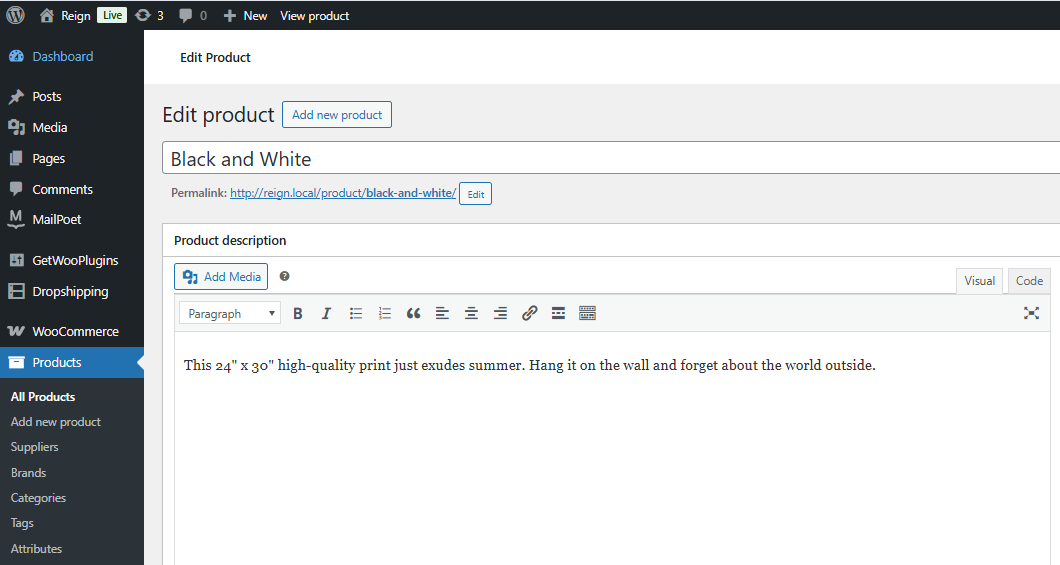
2. Create a New Product or Edit an Existing One
- Go to Products in your dashboard.
- Open the product you want to customize.
3. Add Custom Product Options
- Scroll to the Custom Fields section provided by the plugin.
- Add new fields such as text boxes, checkboxes, or dropdown menus.
- Use conditional logic if needed (for example, show a text field only when a specific option is selected).

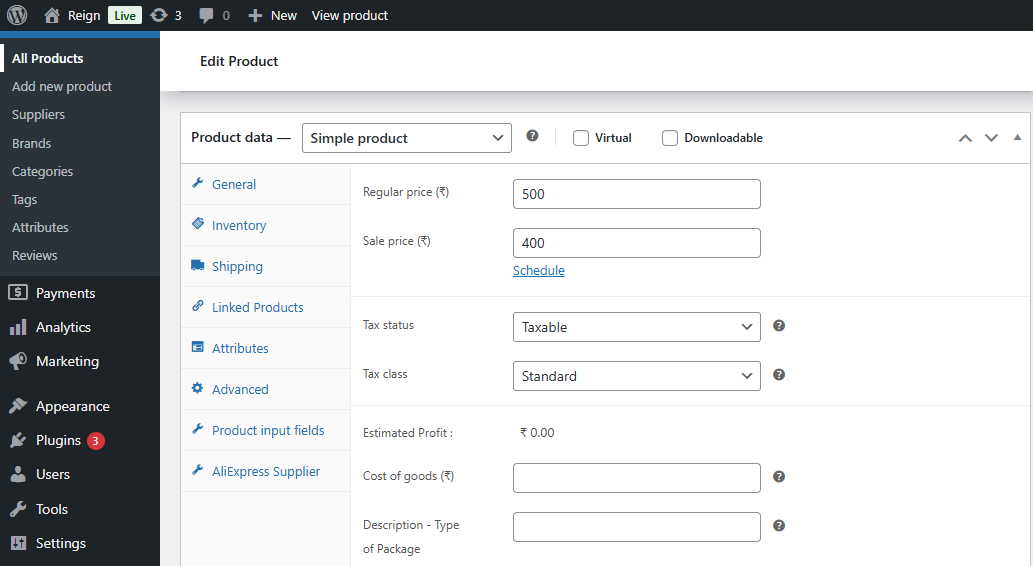
4. Adjust Pricing
- Set rules to increase or decrease the product price based on selected options.
- For example, engraving text could add $5 to the base price.
5. Save and Preview
- Save your product and check the front end of your store.
- Test the new options to ensure everything works smoothly.

By following these steps, you can easily Add Custom Product Options with Advanced Product Fields and transform your store into a fully customizable shopping experience.
Features That Make Advanced Product Fields Stand Out
Unlike other plugins, this tool offers features designed to maximize flexibility and usability. Let’s look at a few standout capabilities:
- User-Friendly Interface: Drag-and-drop functionality ensures you can set up custom fields quickly.
- Dynamic Pricing Options: Charge based on quantity, selections, or file uploads.
- Visual Selectors: Use images, icons, or colors to represent product choices.
- Conditional Logic: Only show relevant options, which keeps your product pages clean and intuitive.
These features allow you to Add Custom Product Options with Advanced Product Fields in ways that are both creative and functional. The result is a professional-looking product page that enhances customer satisfaction.
Common Use Cases for Custom Product Options
The flexibility of this plugin means it can be used in many industries and store types. Here are some common scenarios where it shines:
- Personalized Gifts: Add engraving or printing options for mugs, jewelry, and stationery.
- Clothing and Apparel: Allow customers to select custom sizes, fabrics, or monogram initials.
- Digital Products: Enable buyers to upload files or choose special licensing options.
- Food & Beverage: Offer choices for flavors, toppings, or packaging styles.
By enabling store owners to Add Custom Product Options with Advanced Product Fields, the plugin makes your catalog more versatile and engaging.
Benefits for Customers and Store Owners
The benefits of this plugin are twofold. For customers, it provides a personalized shopping experience where they feel in control. The ability to design or customize their purchase makes them more emotionally attached to the product, reducing cart abandonment.
For store owners, the ability to Add Custom Product Options with Advanced Product Fields means more upsell opportunities and a competitive advantage. Offering customizable products also creates a unique brand identity, making your store memorable in a crowded e-commerce market.
Tips for Maximizing the Plugin’s Potential
To get the most out of this plugin, consider these best practices:
- Keep It Simple: Too many fields can overwhelm customers. Use only what’s necessary.
- Leverage Conditional Logic: Show relevant options at the right time to improve usability.
- Offer Visual Choices: People respond better to images and color swatches than long dropdown lists.
- Test on Mobile: Ensure the custom fields look good and function well on smartphones and tablets.
Applying these tips helps you smoothly Add Custom Product Options with Advanced Product Fields while keeping the shopping journey user-friendly.
Challenges and How to Overcome Them
While this plugin is powerful, store owners may face challenges if they don’t structure their custom options properly. For example, adding too many fields can make product pages cluttered. Similarly, not testing pricing rules might lead to incorrect checkout totals.
The solution is to plan your product options carefully. Before you Add Custom Product Options with Advanced Product Fields, map out which options add real value and which could confuse shoppers. Always preview and test before going live to ensure everything works as expected.

Final Thoughts
The ability to Add Custom Product Options with Advanced Product Fields gives WooCommerce store owners a serious advantage. This plugin goes beyond the basics, providing tools that encourage personalization, improve usability, and increase revenue. Whether you’re running a gift shop, clothing boutique, or a food delivery service, offering advanced customization options helps you stand out.
With its user-friendly interface and robust features, the plugin is an excellent investment for any WooCommerce-powered business. By carefully planning and implementing your product options, you’ll create a shopping experience customers love—and that keeps them coming back for more.
Interesting Reads:
How to Automatically Show Product Prices in Local Currency with WooCommerce
10 Best WooCommerce Plugins SMS Notifications
How to Add Color, Image, and Label Swatches to WooCommerce Products