
Google Analytics has long been the go-to tool for website owners, marketers, and analysts. However, with the evolution of digital tracking and increased privacy concerns, the way we understand user behavior has changed dramatically. Enter Google Analytics 4 (GA4) — a powerful, event-based analytics platform built for the future. If you’re just getting started, this Guide to Google Analytics 4 in 2025 will walk you through everything you need to know.

What is Google Analytics 4?
GA4 is Google’s latest analytics platform designed to offer deeper insights into user journeys across websites and apps. Unlike Universal Analytics (UA), GA4 uses an event-based model that tracks every user interaction as an event, providing a more granular and complete view of behaviour.
GA4 vs Universal Analytics: What’s Changed?
The shift from UA to GA4 is more than a UI upgrade. Here’s how they differ:
- Event-Based Tracking: GA4 uses events instead of sessions and pageviews to track user behaviour.
- Cross-Platform Measurement: It combines website and app data in one property.
- Privacy-Focused: GA4 is designed with GDPR and other data regulations in mind.
- Predictive Metrics: Machine learning models predict user churn and potential revenue.
- Customisable Dashboards: You can tailor reports to your needs.
In short, GA4 offers flexibility, precision, and future-proof analytics.
Why You Need GA4 in 2025
Still clinging to Universal Analytics? It was sunsetted in 2023. GA4 is now the default and only supported Google Analytics tool. If you’re running a business or managing a site, switching to GA4 is non-negotiable.
Google Analytics 4 Setup: A Step-by-Step Guide
Getting started with GA4 may feel daunting, but it’s quite simple if you follow these steps:
1. Create a GA4 Property
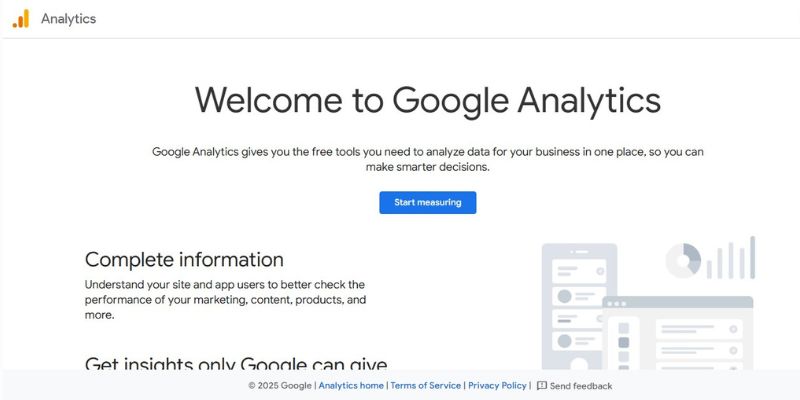
Depending on your account status, you’ll see one of two things:
-
- New Account (No existing property):
- Go to Google Analytics.
- Click “Start Measuring”.
- Enter an account name (e.g., your business or website name).
- New Account (No existing property):

-
-
- Proceed to create a property. Enter your property name, reporting time zone, and currency.
- Google will automatically default to GA4.
- Existing Account:
- Go to your account and click “Admin” (gear icon in the lower left).
- Under the “Account” column, choose the account you want to use.
- Under the “Property” column, click “Create Property”.
- Fill in your property details and proceed with the GA4 setup.
-
2. Install the GA4 Tag
- Use Google Tag Manager (GTM) for a cleaner setup.
- Alternatively, use the Global Site Tag (gtag.js) on your site.
3. Enable Enhanced Measurement
- In the GA4 dashboard, go to Admin > Data Streams > Web.
- Toggle on features like scrolls, outbound clicks, and video engagement.
4. Link to Other Google Tools
- Connect your GA4 property to Google Ads, Search Console, and BigQuery.
Navigating the Google Analytics 4 Dashboard
Once your property is live, your main hub is the Google Analytics 4 dashboard. Here’s a quick tour:
1. Home
This is your analytics control tower. The Home section provides a real-time snapshot of your website or app’s performance. It includes core metrics like users, sessions, engagement rate, and conversions, helping you monitor health and activity at a glance.

This analytics dashboard provides a quick snapshot of ReignTheme’s recent performance. Over the last 60 days, the site recorded 3.3K active users and 4.6K views, both showing a decline of around 12%. The event count dropped to 16K (down 13.5%), and new users also fell to 3.3K, mirroring the drop in overall activity.
The comparison graph highlights a downward trend toward the end of the period. Additionally, there were no active users in the last 30 minutes, indicating either off-peak timing or reduced engagement. This overview helps you quickly identify trends and areas needing attention.

2. Reports
This section gives access to both real-time and historical reports. Dive into detailed data on user acquisition channels, retention trends, and user demographics.

- Acquisition channels reveal how users find your site—whether through organic search, direct visits, referrals, or social media.
- Engagement reports show how users interact with your content, including metrics like page views, session duration, events triggered, and conversions, helping you understand which parts of your site keep users interested.
- Monetization provides insights into your revenue streams, tracking purchases, subscription data, and e-commerce performance to measure the financial impact of your site or app.
- Retention reports highlight how often users return and engage over time, showing patterns of loyalty and identifying opportunities to improve user retention.
- User reports offer detailed insights into your audience, including demographics (age, gender), geographic locations, device types, and interests, allowing you to tailor your content and marketing strategies effectively.
Reports are organised by lifecycle and user behaviour, making it easier to understand what’s working and where improvements are needed.
3. Explore
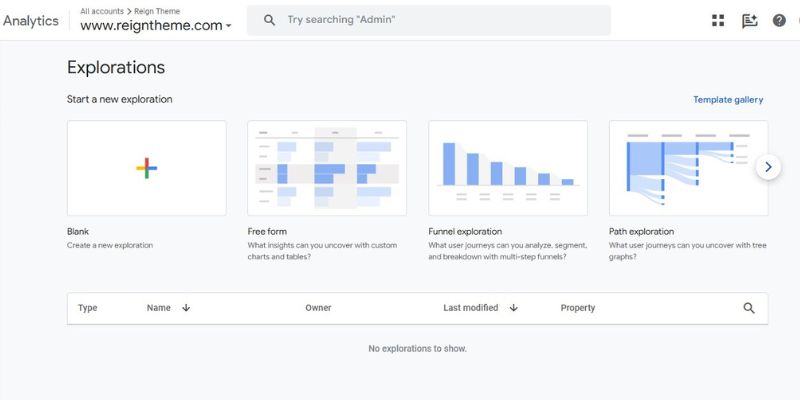
A powerful feature for advanced users, Explore lets you build custom reports using a drag-and-drop interface. Choose from templates like funnel analysis, segment overlap, and path exploration to visualise specific user journeys and uncover patterns not visible in standard reports.
4. Advertising

This is your hub for campaign performance. Track ad clicks, impressions, and conversions across multiple platforms like Google Ads and YouTube. It offers insights into attribution paths and ROAS (Return on Ad Spend), helping you optimise budget allocation.
5. Configure

Think of this as your setup and admin zone. Here, you can create and manage custom events, set up conversion tracking, define audiences, and link GA4 to other Google services. It’s also where you control settings related to data streams, user permissions, and tag configurations.
Features That Make GA4 a Game Changer
1. Event-Based Data Model
GA4 captures every interaction as an event — whether it’s a pageview, scroll, click, or video play. This event-driven model provides far more granularity than the traditional session-based approach used in Universal Analytics. Instead of just knowing that a user visited a page, you can understand exactly what they did on that page, when they did it, and even why they might have dropped off.
This enables deeper behavioural analysis, better attribution, and more informed decision-making for both marketers and product teams. GA4’s event model makes it easier to track user engagement across platforms and touchpoints, helping you build a more accurate and insightful customer journey.
2. Enhanced Measurement
This feature tracks basic interactions automatically:
Page scrolls: GA4 automatically tracks when users scroll through a significant portion of a page, typically 90%. This helps measure content engagement beyond simple pageviews.
Site search queries: It captures what users type into your website’s search bar, offering insight into their intent and what information they may not be finding easily.
Outbound link clicks: GA4 records clicks on links that lead users away from your domain. This is especially useful for affiliate marketers or content sites referencing external resources.
Embedded video engagement: If you have YouTube videos on your site, GA4 tracks key interactions like play, pause, and video completion, giving a sense of multimedia engagement.
File downloads: Downloads of PDFs, spreadsheets, images, or other files are tracked automatically, which is crucial for lead magnets, product brochures, or educational content.
3. Custom Event Creation
GA4 allows you to define and track your custom events based on user interactions that matter most to your business. Unlike predefined events, custom events give you full control over what gets tracked — whether it’s a button click on a promotional banner, a user reaching a specific scroll depth, or a unique e-commerce action like adding a product to a wishlist.
You can label these events with custom parameters for deeper context, such as event value, product category, or user type. This flexibility empowers you to tailor analytics to your exact business goals, and it makes the data significantly more actionable. You can also mark these custom events as conversions directly within the GA4 interface, streamlining reporting and performance tracking.
4. Conversion Tracking
Turn any meaningful interaction into a conversion. Whether it’s a button click or form submission, you can mark any custom event as a conversion with a simple toggle.
5. Real-Time Reporting
Monitor user activity as it happens on your site or app. Real-time reports show events triggered in the last 30 minutes with geographic and source breakdowns.
6. Explorations (Advanced Analysis)
Customise your data analysis with techniques like:
- Free-form reports
- Funnel analysis
- Segment overlap
- Pathing analysis
7. Audience Building
Create user groups based on behaviours, transactions, or demographics. Use them for remarketing or in-depth reporting.
8. DebugView
This diagnostic tool lets you view event data as it flows in real time, useful for checking if custom events or enhanced measurements are working correctly.
9. Predictive Metrics
AI-powered insights forecast metrics like:
- Purchase probability
- Revenue prediction
- Churn likelihood
These help marketers prioritise high-value users.
10. BigQuery Integration
Export raw GA4 data to BigQuery for complex queries, machine learning models, and combining with third-party data — even on the free GA4 tier.
11. Attribution Modeling
GA4 supports data-driven attribution, distributing credit for conversions based on actual user behaviour rather than last-click models.
12. Cross-Platform Tracking
GA4 merges website and mobile app data into a single stream, giving a full view of the user journey.
13. Privacy Controls
- IP Anonymisation
- Consent Mode
- Granular data retention settings
These features ensure you stay compliant with GDPR, CCPA, and other regulations.
GA4 vs Universal Analytics: A Deep Dive
Let’s go beyond the basics and explore major contrasts:
| Feature | GA4 | Universal Analytics |
| Tracking Model | Event-based | Session-based |
| Cross-Device Tracking | Yes | Limited |
| Predictive Metrics | Yes | No |
| Custom Reports | Extensive | Limited |
| Privacy Compliance | Built-in | Requires tweaks |
| BigQuery Export | Free & Paid | Only Paid |
Connecting GA4 to Google Tools
GA4 plays well with the rest of the Google ecosystem:
- Google Ads: Track conversions more accurately
- Search Console: Combine organic search data with user metrics
- BigQuery: Analyze raw GA4 data for deeper insights
- Looker Studio: Build dynamic dashboards for reporting
Common GA4 Challenges & How to Overcome Them
1. Steep Learning Curve
- Use Google’s Skillshop courses
- Explore YouTube tutorials and documentation
2. Missing Familiar Reports
- Use Explore to build similar UA-style reports
3. Delays in Data
- Real-time data is limited; expect a 24-48 hour delay for some reports
Best Practices for Google Analytics 4 in 2025
- Plan your data strategy before implementation
- Use consistent and clean event naming
- Track both micro and macro conversions
- Monitor real-time data for debugging
- Sync GA4 with marketing tools like CRM and Ads

Embrace the Power of GA4
This Guide to Google Analytics 4 gives you a complete overview of how the platform works and why it matters. As we move further into 2025, understanding your user journey and using data ethically will be the key to sustained growth.
GA4 isn’t just a new tool; it’s a new mindset. Embrace its flexibility, explore its features, and stay curious.
Interesting Reads
Your Step-by-Step Guide to Google Search Console in 2025