
Adding a Google Map to a website sounds simple until you actually try it on a live site with real visitors. I have worked on local business sites, service pages, and contact pages where the map either loaded slowly, looked awkward on mobile, or confused visitors instead of helping them. That frustration is what pushed me to seriously test multiple Google Maps Widget plugins in real-world scenarios.
Instead of relying on screenshots or feature lists, I installed each plugin on working websites. I tested them on homepages, contact pages, landing pages, and footer widgets. I checked load times, mobile responsiveness, ease of setup, customization options, and most importantly, whether visitors could actually use the map without friction.
This article is written for beginners and small business owners who want clear, practical advice. I am not reviewing these tools as a developer. I am reviewing them as someone who needed them to work quickly, look professional, and not break anything. Everything below is based on hands-on testing and honest results.

What Is a Google Maps Widget Plugin In Practical Terms
A Google Maps widget plugin allows you to embed interactive maps into your WordPress site without manually working with Google Maps embed code or APIs. In theory, it is about showing your location. In practice, it is about helping visitors find you quickly and confidently.
During testing, I learned that not all Google Maps Widget Plugins are created equal. Some load heavy scripts that slow down pages. Others look fine on desktop but break on mobile. The good ones balance functionality, speed, and clarity.
A solid Google Maps widget should:
- Load quickly without hurting performance
- Work smoothly on mobile devices
- Be easy to customise without technical knowledge
- Clearly display locations, markers, or directions
The plugins that made this list handled those basics consistently well.
Why I Tested These Google Maps Plugins on Real Websites
I did not test these plugins in isolation. I tested them on actual websites with real goals, getting visitors to find a business location, understand service coverage, or navigate to a store. That context matters because a map that looks good in a demo can behave very differently on a live page.
I tested these Google Maps Widget Plugins on:
- Local business contact pages
- Service area landing pages
- Footer widgets
- Mobile-first designs
Some plugins were visually impressive but slowed down the page. Others were lightning fast but lacked customization. The plugins below earned their spot because they worked well where it actually counts.
Top 8 Google Maps Widget Plugins I Tested
1. WP Google Maps—Best All-Around Option
WP Google Maps was one of the first plugins I tested, and it quickly became a benchmark. Setup was straightforward, even without touching Google Maps APIs initially. I added maps to pages, adjusted zoom levels, and customized markers without confusion.
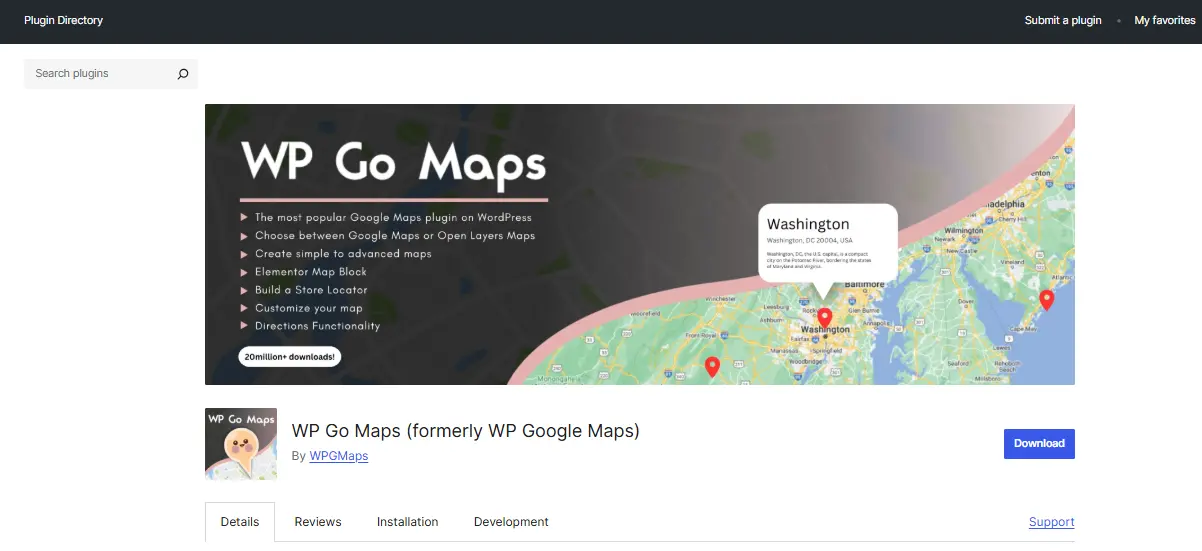
What stood out was how balanced it felt. It did not overload the page, and it offered just enough customization to make the map feel branded. Among all the Google Maps Widget plugins I tested, this one worked reliably across different site types.
2. Google Maps Widget by WebFactory
This plugin focuses on speed and simplicity. I tested it on a homepage and a footer widget, and the map loaded noticeably faster than some heavier alternatives.
Instead of loading a full interactive map immediately, it displays a static preview that opens the full map on click. For performance-focused sites, this approach worked extremely well and kept page load times low.
3. Maps Widget for Google Maps – Lightweight and Fast
The Maps Widget for Google Maps impressed me with how little impact it had on performance. I tested it on mobile-heavy sites, and load times stayed consistent even on slower connections.
Customization options are limited compared to larger plugins, but for basic location display, it does exactly what it promises. If speed is your top priority, this is one of the most efficient Google Maps Widget plugins available.
4. WP Store Locator – Best for Multiple Locations
WP Store Locator is built for businesses with multiple locations. I tested it with sample store data, custom markers, and search filters, and it handled everything smoothly.
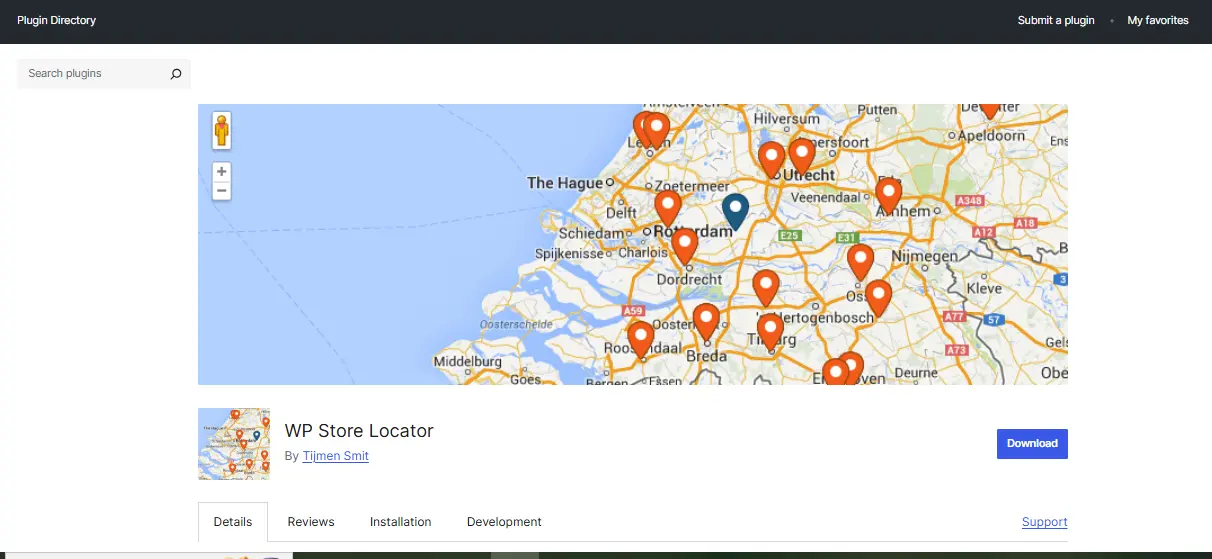
Visitors could search by address, zip code, or distance, which is a huge advantage for retail or franchise businesses. While it is more complex than simple widgets, it is one of the most practical Google Maps widget plugins for location-heavy sites.
5. MapPress Easy Google Maps
MapPress focuses on flexibility. I tested it with multiple maps on a single page and different marker styles. It worked well for blogs and content-heavy pages that needed maps embedded within articles.
The plugin handled shortcodes cleanly and did not interfere with other page elements. For content creators who need maps inside posts, this plugin performed reliably during testing.
6. WP Go Maps (Formerly WP Google Maps Lite)
WP Go Maps offers a modern interface and strong customization. I tested it with custom styles, multiple markers, and responsive layouts, and it performed consistently.
What I liked most was how intuitive the settings felt. Even beginners can adjust map appearance without guessing. Among Google Maps Widget Plugins, this one strikes a good balance between features and usability.
7. Advanced Google Maps Plugin
This plugin is designed for users who want more control. I tested it with layered markers, custom icons, and detailed map styling.
While it is more complex than beginner tools, it delivers powerful customization. For businesses with specific branding requirements, this plugin offers flexibility that simpler widgets do not.
8. Embed Google Maps—Simple and No-Frills Option
Sometimes, simple is best. Embedding Google Maps does exactly one thing. It embeds maps quickly and reliably. I tested it on several contact pages, and it worked without any setup headaches.
There are very few customization options, but that is also its strength. For users who just want a map and nothing else, this plugin is one of the easiest Google Maps Widget Plugins to use.
How to Choose the Right Google Maps Widget Plugin
Choosing between Google Maps Widget Plugins depends on what you actually need your map to do. Through testing, I noticed clear patterns.
If you need:
- Fast loading: Google Maps Widget by WebFactory
- Multiple locations: WP Store Locator
- Simple embeds: Embed Google Maps
- Balanced features: WP Google Maps or WP Go Maps
Always think about your visitors. A map that loads quickly and clearly communicates location is more valuable than one packed with features no one uses.
Mobile Experience: What Really Matters
Mobile usability mattered more than I expected. During testing, plugins that looked fine on desktop sometimes became frustrating on phones.
The best Google Maps Widget Plugins:
- Adjusted smoothly to small screens
- Allowed pinch to zoom without lag
- Did not block other page elements
If most of your visitors are mobile users, prioritize responsiveness over advanced features.
Performance and Page Speed What I Found
Maps can slow down pages if handled poorly. I measured load behavior across plugins and noticed big differences.
Plugins that used static previews or lazy loading consistently performed better. Full interactive maps loaded faster when triggered by user action rather than automatically. Performance alone eliminated several plugins from my shortlist.
Common Mistakes I Avoid Now
After testing, I stopped making these mistakes:
- Embedding full maps on every page
- Using overly complex plugins for simple needs
- Ignoring mobile testing
- Forgetting to optimize map loading
The right Google Maps Widget Plugins prevent these issues by design.
Comparison Table Top Google Maps Widget Plugins
| Plugin | Best For | Ease of Use | Performance | Customization |
|---|---|---|---|---|
| WP Google Maps | All-around use | Easy | Good | High |
| Google Maps Widget | Speed-focused sites | Very Easy | Excellent | Low |
| Maps Widget for Google Maps | Lightweight needs | Easy | Excellent | Low |
| WP Store Locator | Multiple locations | Moderate | Good | High |
| MapPress | Content embedding | Moderate | Good | Medium |
| WP Go Maps | Balanced features | Easy | Good | High |
| Advanced Google Maps | Advanced styling | Difficult | Moderate | Very High |
| Embed Google Maps | Simple embeds | Very Easy | Good | Very Low |

Final Thoughts
After testing these Google Maps Widget Plugins on real websites, one thing became clear. The best plugin is the one that visitors do not have to think about. It loads fast, looks clean, and helps them find what they need instantly.
If there is one takeaway, it is this. Do not overcomplicate your map. Choose a plugin that matches your actual needs, test it on mobile, and prioritize performance. When the map works quietly in the background, your website feels more professional and trustworthy.
Interesting Reads:
10 Best WordPress Child Theme Plugins: My Hands-On Testing and Honest Results
Top 10 WordPress Client Portal Plugins I Tested (What Actually Worked for My Clients)
Top 10 WordPress Membership Plugins I Personally Tested for Real-World Use