Editing photos has become an essential skill, whether for personal projects, social media, or professional work. With the wide variety of software available, choosing the right tool can be challenging. In this blog post, we’ll cover the 10 best software for photo editing that cater to various needs, from beginner to professional levels. Each tool brings unique features to help you create stunning visuals.

1. Adobe Photoshop: The Industry Standard
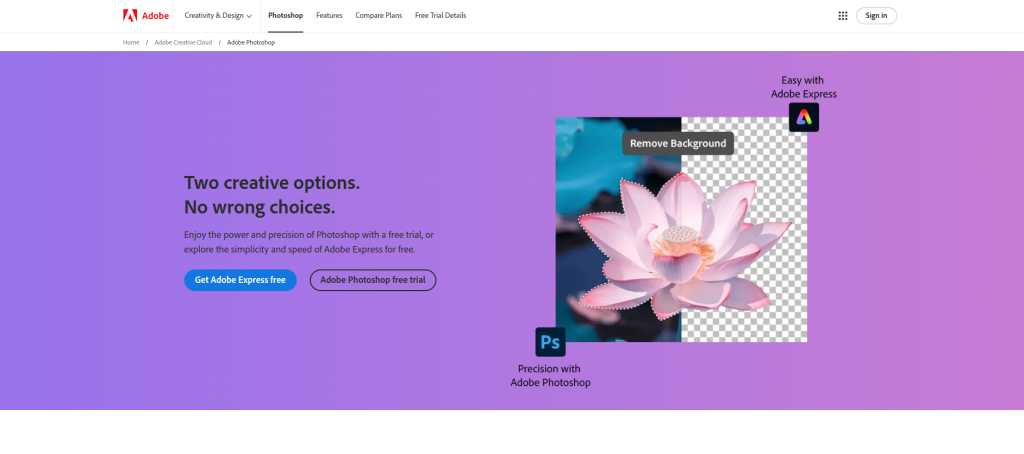
Powerful Tools for Professional Editing
Adobe Photoshop has long been the gold standard in photo editing. Known for its extensive features and tools, Photoshop allows users to edit at a pixel-perfect level, creating everything from simple edits to complex compositions. With tools like layers, masks, and advanced color correction, it offers flexibility and power that cater to professional photographers and designers.
Pros and Cons
Photoshop’s learning curve is steep, but its capabilities are unmatched. The software is ideal for those who want complete control over their images, although its subscription-based pricing may deter casual users.
2. Adobe Lightroom: Perfect for Batch Editing and Organization
User-Friendly with Powerful Features
Adobe Lightroom is another favorite among professionals, but it’s much easier to use than Photoshop. Lightroom is particularly helpful for organizing and editing large batches of photos, making it ideal for event and wedding photographers. The software’s powerful sliders allow users to make adjustments to exposure, contrast, saturation, and more, all without the steep learning curve of Photoshop.
Advantages and Limitations
While it lacks some of the more advanced features of Photoshop, Lightroom excels in workflow efficiency and color correction, especially for RAW files.
3. Capture One Pro: A Game Changer for RAW Photos
Professional-Level RAW Editing
Capture One Pro is known for its advanced RAW editing capabilities, offering superior color correction and detail preservation. It’s especially popular with studio and fashion photographers, as it provides precise control over color tones and lighting.
Pros and Cons
While Capture One’s interface may be unfamiliar to those accustomed to Adobe products, it provides a level of depth and control that makes it worth the adjustment. However, it is also one of the more expensive options on the market.
4. Skylum Luminar AI: The AI-Powered Editing Tool
Intelligent Editing for All Levels
Skylum’s Luminar AI uses artificial intelligence to make photo editing faster and easier. Its smart features like Sky Replacement, Accent AI, and AI Skin Enhancer allow users to perform complex edits with minimal effort. This makes it a fantastic choice for beginners who want professional-looking edits quickly.
Benefits and Drawbacks
While Luminar AI is fast and intuitive, its reliance on AI may not appeal to users who prefer hands-on control. It’s excellent for enhancing images quickly but lacks the in-depth customization of more traditional tools.
5. Affinity Photo: A Powerful Photoshop Alternative
Robust Editing Capabilities at a One-Time Cost
Affinity Photo is gaining popularity as a one-time purchase alternative to Adobe Photoshop. It offers many of the same features, including layers, masks, and advanced retouching tools, but without the subscription.
Advantages and Disadvantages
With a lower price and many advanced editing tools, Affinity Photo is ideal for budget-conscious users who still need professional-level editing. However, it lacks some plugins and integrations that Photoshop offers, which could limit functionality for some users.
6. GIMP: The Best Free Photo Editing Software
Open-Source Flexibility
GIMP (GNU Image Manipulation Program) is a free and open-source photo editor that rivals many paid options. GIMP includes various tools for retouching, cropping, and color correction, making it suitable for users on a budget who want advanced functionality.
Pros and Cons
As a free tool, GIMP is highly accessible and provides robust editing tools. However, its interface is less polished, and it can be less user-friendly than some paid alternatives.
7. Canva: Quick and Easy Design
Ideal for Beginners and Social Media
Canva isn’t strictly a photo editor, but it provides ample editing options along with graphic design features. Perfect for social media managers and small business owners, Canva offers templates and easy editing tools that make creating visuals a breeze.
Pros and Cons
Canva’s simplicity makes it great for non-designers, but it’s limited in its editing depth. For professional-grade photo editing, Canva may not be the right choice, but it’s perfect for quick, easy edits and designs.
8. Pixlr: A Browser-Based Editor
Edit Without Downloading Software
Pixlr is a browser-based photo editor that provides many of the features found in desktop software. It offers layers, masks, filters, and color adjustments, making it a convenient option for quick edits from any device.
Benefits and Drawbacks
While Pixlr is accessible from any browser and has a free version, it lacks some advanced features found in dedicated desktop software. However, it’s an excellent tool for on-the-go editing.
9. ON1 Photo RAW: Ideal for High-Quality RAW Editing
Professional-Level RAW Processing
ON1 Photo RAW is a powerful tool for professional photographers who work with RAW files. It includes features like HDR, focus stacking, and advanced filters, making it a comprehensive tool for serious photographers.
Pros and Cons
ON1 Photo RAW offers many advanced tools, but it has a steeper learning curve than simpler editors like Canva or Luminar AI. However, for photographers who need high-quality RAW processing, it’s an excellent choice.
10. PhotoScape X: All-in-One Editing Suite
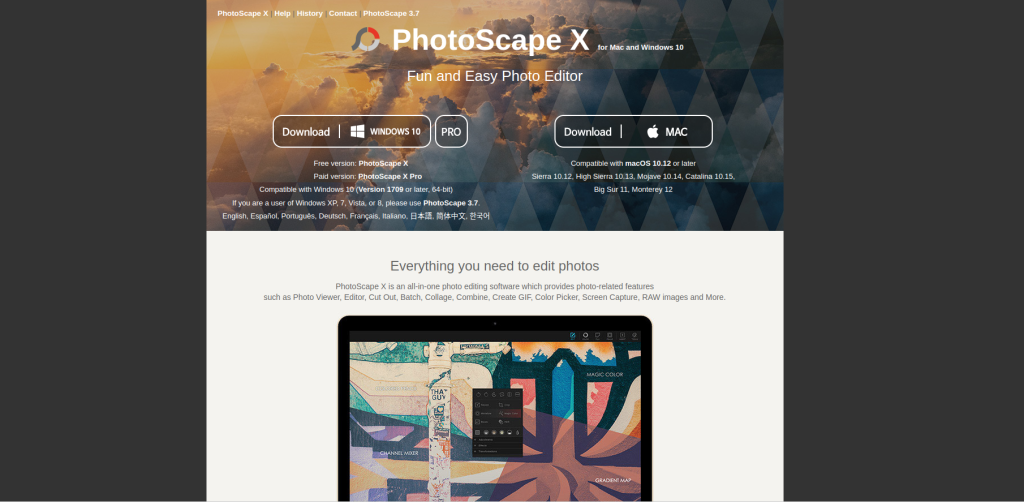
Comprehensive Features in a User-Friendly Package
PhotoScape X offers a wide range of editing options, including filters, color adjustments, and even GIF creation. It’s a versatile option for casual users who need more than basic editing but don’t require professional-level tools.
Pros and Cons
PhotoScape X is user-friendly and provides a good mix of tools, but it lacks the advanced features of Photoshop or Capture One. It’s best suited for hobbyists who want an all-in-one editing suite.
Comparison Table: 10 Best Software for Photo Editing
| Software | Key Features | Pros | Cons |
|---|---|---|---|
| Adobe Photoshop | Advanced editing, layers, masks | Professional-grade, versatile | Steep learning curve, subscription-based |
| Adobe Lightroom | Batch editing, color correction | User-friendly, great for RAW | Limited features compared to Photoshop |
| Capture One Pro | Detailed RAW editing, color grading | Excellent color control | Expensive |
| Skylum Luminar AI | AI editing, sky replacement | Fast and intuitive | Less control for manual edits |
| Affinity Photo | Layers, masks, advanced tools | One-time payment, robust features | Lacks some Photoshop plugins |
| GIMP | Open-source, advanced tools | Free, flexible | Less polished UI |
| Canva | Templates, easy editing | Beginner-friendly, fast | Limited editing depth |
| Pixlr | Browser-based, layers | Accessible, free version | Limited advanced features |
| ON1 Photo RAW | HDR, RAW editing, filters | Professional tools | Steeper learning curve |
| PhotoScape X | Filters, color adjustments, GIF creation | Easy to use, versatile | Not as advanced as Photoshop |

Closing Remarks: Finding the Right Tool for Your Needs
Whether you’re a professional photographer, a social media enthusiast, or a hobbyist, there’s a photo editing software that’s perfect for your needs. From powerful, industry-standard tools like Adobe Photoshop to free options like GIMP and browser-based editors like Pixlr, each tool in this list of the 10 best software for photo editing offers something unique. Explore their features, weigh the pros and cons, and choose the one that aligns with your goals and budget.
Interesting Reads:
10 Best Form Plugins for WordPress