Creating tutorial videos for your iPhone is an effective way to share knowledge, explain how apps work, or provide troubleshooting guides. Whether you’re a content creator, educator, or business professional, the ability to record high-quality screen tutorials is a must. But which software is best for the job? In this blog post, we’ll explore the 10 best software for iPhone tutorial screen recording, highlighting key features, pros, cons, and more.
Let’s dive into each tool, explore its functionalities, and help you find the one that fits your needs.

Why You Need Screen Recording Software for iPhone Tutorials
If you’re creating tutorials, quality screen recording software is essential. Screen recordings help users visually follow steps and understand complex processes with ease. Whether you’re making videos for YouTube, sharing tutorials on social media, or creating internal training content, clear and smooth screen recording can make all the difference. These tools not only capture what’s happening on your iPhone screen but also offer editing features to add voiceovers, highlights, and more.
Key Benefits of Screen Recording Software:
- Visual Clarity: Helps viewers see exactly what’s happening on your screen.
- Ease of Use: Makes it easy to demonstrate steps, especially for app tutorials.
- Shareability: Enables you to distribute professional-quality content on platforms like YouTube, Instagram, or websites.
Now, let’s take a look at the best software for iPhone tutorial screen recording.
1. ScreenFlow

Key Features:
High-quality iPhone screen capture
Advanced editing tools for annotations and transitions
Direct upload to YouTube or Vimeo
ScreenFlow is one of the best tools for iPhone tutorial screen recording, especially if you need editing features beyond just capturing. It offers an intuitive interface with editing tools like transitions, text overlays, and callouts that can make your tutorials more engaging.
Pros:
Powerful editing suite
Direct uploads to video platforms
Cons:
Paid software (no free version)
2. QuickTime Player

Key Features:
Free, built-in macOS software
Simple iPhone screen recording functionality
Supports basic editing
For Mac users, QuickTime Player is an easy-to-use, built-in option that can record iPhone screens. While it doesn’t have the advanced features of paid software, it’s great for beginners or those looking for a free solution.
Pros:
Free with macOS
Simple and user-friendly
Cons:
Lacks advanced editing features
3. Reflector

Key Features:
Wireless iPhone screen mirroring and recording
Supports multiple devices for simultaneous recording
Compatible with Windows and macOS
Reflector is a great option if you prefer to record wirelessly. It allows you to mirror your iPhone screen to a computer without cables and record it in high quality. This is perfect for educators or app developers who want to show a live demo without being tethered to their device.
Pros:
Wireless mirroring and recording
Multi-device support
Cons:
Requires strong Wi-Fi for seamless mirroring
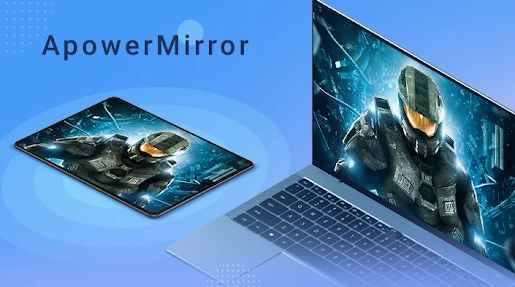
4. ApowerMirror
Key Features:
Cross-platform support (iOS, Android, Windows, Mac)
Allows for screen mirroring and recording
Built-in annotation tools for tutorials
ApowerMirror offers powerful screen recording and mirroring features, plus it’s compatible with both iPhone and Android devices. It also has built-in annotation tools that make it easy to highlight important parts of your tutorial while recording.
Pros:
Cross-platform compatibility
Annotation tools for tutorials
Cons:
Watermark on videos with the free version
5. OBS Studio
Key Features:
Free and open-source software
Supports high-quality recording and live streaming
Advanced audio and video customization
OBS Studio is widely known for live streaming, but it also doubles as a high-quality screen recording tool for iPhone tutorials. It’s feature-rich and perfect for users who want full control over their video and audio setup, though there is a bit of a learning curve for beginners.
Pros:
Free and highly customizable
Great for professionals needing advanced features
Cons:
Not beginner-friendly
6. Camtasia
Key Features:
All-in-one screen recorder and video editor
Extensive library of templates, animations, and effects
Built-in quiz features for interactive tutorials
Camtasia is a powerful tool that combines screen recording with extensive video editing features. It’s perfect for users who want to create polished, professional iPhone tutorial videos with added effects like animations, callouts, and transitions.
Pros:
Professional-level editing tools
Built-in features for creating interactive tutorials
Cons:
Expensive for casual users
7. TechSmith Capture
Key Features:
Free iPhone app from the makers of Camtasia
Easy screen recording with annotation options
Simple sharing options for videos
TechSmith Capture is an excellent free app for iPhone screen recording, made by the same team behind Camtasia. It’s a great choice if you want a simple, no-frills app to record your screen and add basic annotations before sharing your tutorial.
Pros:
Free to use
Easy to share recordings
Cons:
Limited editing capabilities
8. Vidyard

Key Features:
Cloud-based video recording and hosting platform
Built-in editing and sharing options
Great for businesses and educators
Vidyard is primarily known as a video hosting platform, but it also offers screen recording features for iPhone tutorials. With its focus on business and education, it allows users to quickly record and share videos directly from the cloud, making it easy for team collaboration.
Pros:
Cloud-based and easy sharing
Great for team collaboration
Cons:
Limited recording features compared to dedicated software
9. Loom

Key Features:
Cloud-based recording with easy sharing links
Simple and intuitive interface
Works well for short, quick tutorials
Loom is a popular screen recording tool that works great for iPhone tutorials, especially for those who need to record short and quick videos. Its strength lies in its simplicity and the ability to instantly share your recording via a link.
Pros:
Instant sharing with one click
Simple and user-friendly
Cons:
Limited editing features in the free version
10. iMyFone MirrorTo
Key Features:
Screen mirroring and recording for iOS and Android
Stable connection with high-quality video output
Ideal for gaming and live-streaming tutorials
iMyFone MirrorTo offers robust mirroring and recording capabilities for iPhone users, making it ideal for those who want to create high-quality screen recordings with no lag. It’s particularly useful for gaming tutorials and live streaming due to its smooth video output.
Pros:
High-quality output with no lag
Great for live streaming
Cons:
Limited editing features
Comparison Table of 10 Best Software for iPhone Tutorial Screen Recording
| Software | Key Features | Pros | Cons |
|---|---|---|---|
| ScreenFlow | Advanced editing tools, direct upload | Powerful editing suite | Paid software |
| QuickTime Player | Built-in macOS, basic editing | Free, user-friendly | Limited editing features |
| Reflector | Wireless mirroring, multi-device support | Wireless recording | Needs strong Wi-Fi |
| ApowerMirror | Cross-platform, built-in annotations | Cross-platform, annotation tools | Watermark in free version |
| OBS Studio | Free, advanced customization | Highly customizable | Steep learning curve |
| Camtasia | All-in-one recorder and editor | Professional editing tools | Expensive |
| TechSmith Capture | Free, simple annotations | Free, easy to share | Limited editing features |
| Vidyard | Cloud-based, team collaboration | Great for businesses | Limited recording features |
| Loom | Instant sharing links, cloud-based | Simple interface | Few editing options |
| iMyFone MirrorTo | Stable connection, no lag | Great for live-streaming | Limited editing features |

Last Remark’s
Finding the right software for iPhone tutorial screen recording can take your content to the next level, whether you’re creating educational videos or app demonstrations. Each tool on this list offers unique features suited to different needs, from advanced editing to simple, free options. With the 10 best software for iPhone tutorial screen recording in mind, you can make an informed decision based on your specific requirements.
Interesting Reads:
10 Best Software for Showing Your iPhone Screen