In the evolving world of digital art, vector graphics have become a staple for designers and artists alike. They offer scalability without loss of quality, making them ideal for everything from logos to illustrations. With the advent of artificial intelligence, creating stunning vector art has never been easier. This blog post will explore the 10 best AI tool to create vector art, detailing their features, benefits, and how they can enhance your creative process.

Why Choose AI for Vector Art?
AI tools have revolutionized the way artists approach vector graphics, providing innovative solutions that streamline the creative process.
Efficiency and Speed
AI-powered tools can automate tedious tasks such as tracing images or adjusting shapes. This efficiency allows artists to focus on their creative vision rather than getting bogged down in technical details.
Enhanced Creativity
AI can suggest design elements or styles based on your input, inspiring new ideas and pushing the boundaries of traditional design. With these tools, you can experiment with various aesthetics and techniques quickly.
1. Adobe Illustrator with Adobe Sensei
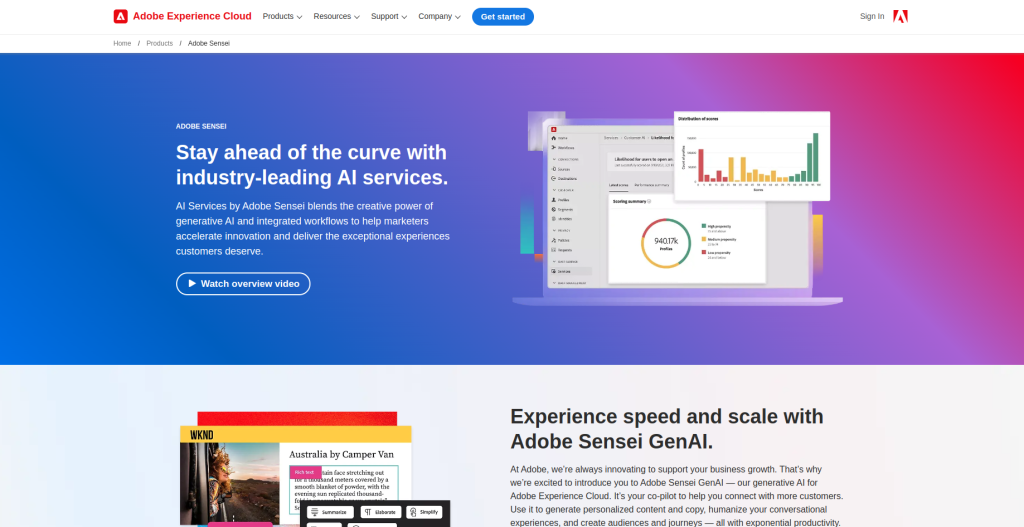
Adobe Illustrator is a leading software for creating vector art, and its integration with Adobe Sensei enhances its capabilities significantly.
Key Features
Intelligent Image Tracing: Converts raster images into scalable vector graphics.
Auto-Coloring: Suggests color palettes based on your artwork.
Pros
Industry-standard tool with extensive features.
Robust community support and resources available.
Cons
Subscription-based pricing can be expensive.
Steep learning curve for beginners.
2. CorelDRAW
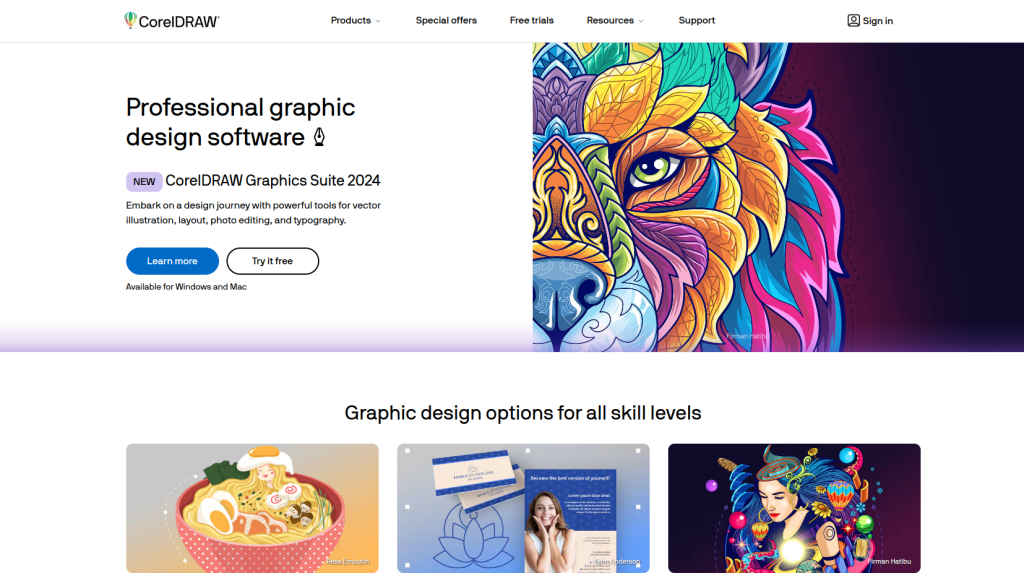
CorelDRAW is another powerful graphic design software that utilizes AI to enhance vector creation.
Key Features
AI-Powered PowerTRACE: Converts bitmap images into editable vector graphics.
Smart Shapes: Automatically adjusts shapes based on context.
Pros
User-friendly interface suitable for all skill levels.
Offers a one-time purchase option, unlike subscription models.
Cons
Some advanced features may require additional plugins.
Limited online resources compared to Adobe products.
3. Vectornator
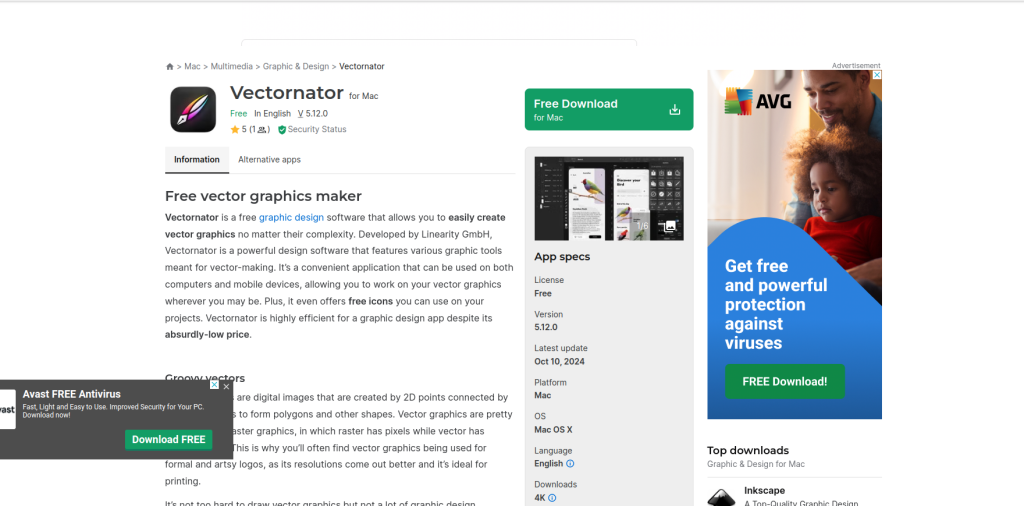
Vectornator is a free vector graphic design software that offers powerful features for creating stunning artwork.
Key Features
Touch-Friendly Interface: Optimized for iPad and Apple Pencil.
Real-Time Collaboration: Work with others in real time on projects.
Pros
Free to use with no hidden fees.
Intuitive design makes it easy to learn.
Cons
Limited to Apple devices.
Some advanced features are still in development.
4. Inkscape
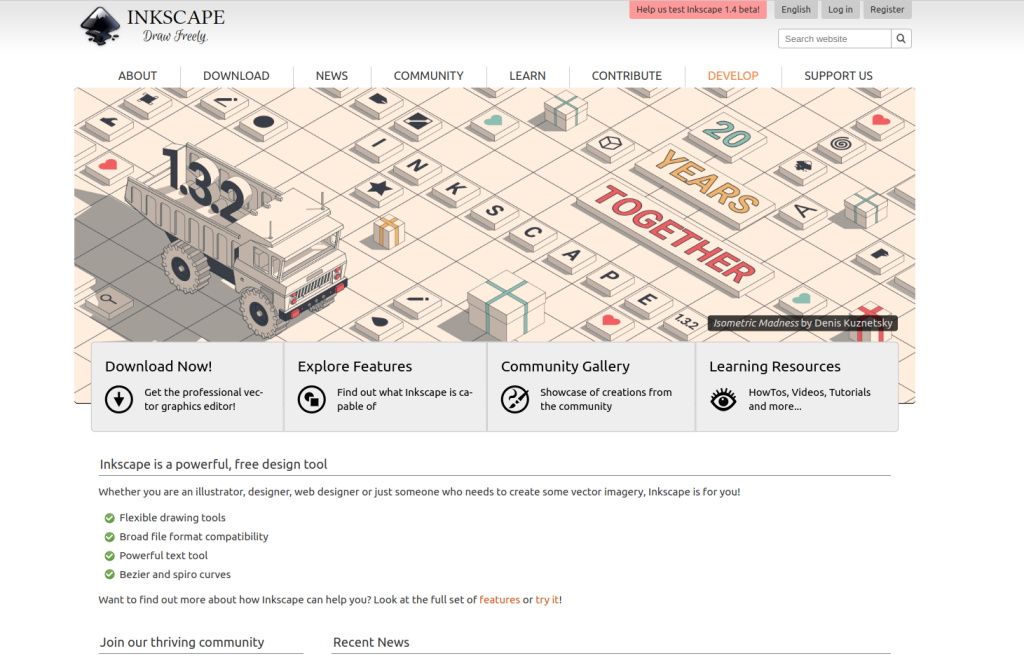
Inkscape is an open-source vector graphics editor that provides a robust set of tools for artists.
Key Features
Node Editing: Allows precise control over paths and shapes.
Extensions and Plugins: Expand functionality with community-created tools.
Pros
Free and open-source, making it accessible to everyone.
Strong community support with numerous tutorials available.
Cons
Interface may feel outdated compared to modern alternatives.
Performance issues on large files or complex designs.
5. Vectr
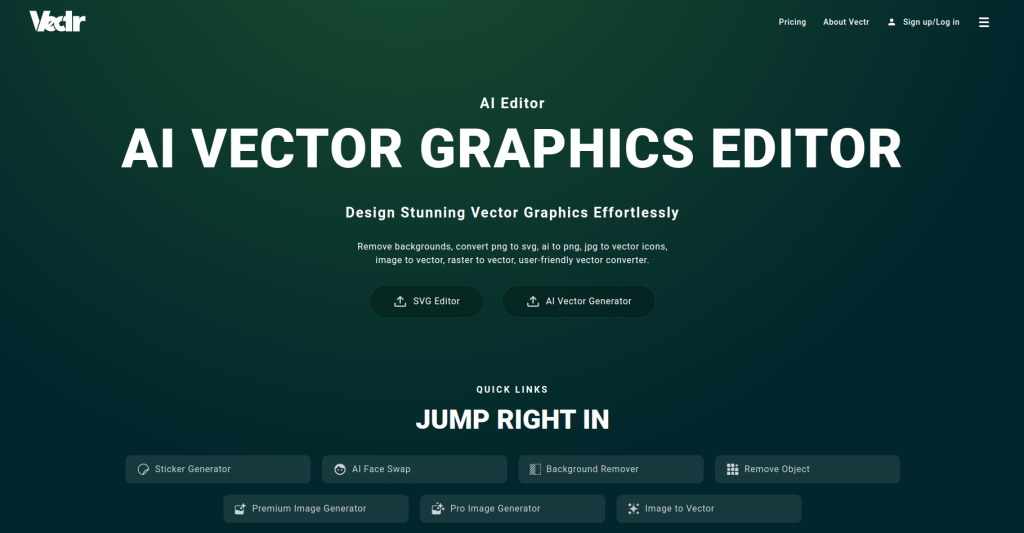
Vectr is a free, web-based vector graphics editor that simplifies the design process.
Key Features
Real-Time Collaboration: Work on designs simultaneously with others.
Cross-Platform Compatibility: Available on multiple devices and operating systems.
Pros
Easy to use for beginners.
No installation required; works directly in your browser.
Cons
Limited features compared to more advanced software.
Requires an internet connection for full functionality.
6. Gravit Designer
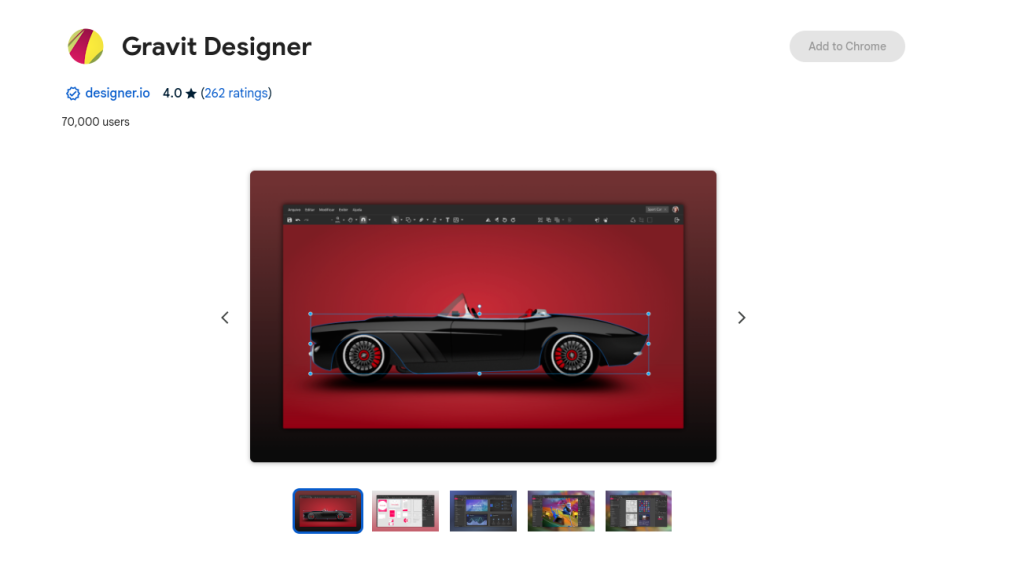
Gravit Designer is a versatile design tool that combines simplicity with powerful features for creating vector art.
Key Features
Cloud-Based Storage: Access your projects from anywhere.
Vector Editing Tools: Comprehensive set of tools for precise design work.
Pros
User-friendly interface suitable for beginners and professionals alike.
Free version available with essential features.
Cons
Some advanced features require a Pro subscription.
Performance may lag on lower-end devices.
7. AutoDraw
AutoDraw is a fun, web-based tool developed by Google that uses machine learning to turn rough sketches into polished drawings.
Key Features
Intelligent Suggestions: Predicts what you’re trying to draw and offers refined versions.
Easy Sharing Options: Download or share your creations instantly.
Pros
Completely free and accessible from any device.
Great for quick sketches or brainstorming ideas.
Cons
Limited customization options compared to traditional design software.
May not produce high-quality results for professional use.
8. DeepArt.io
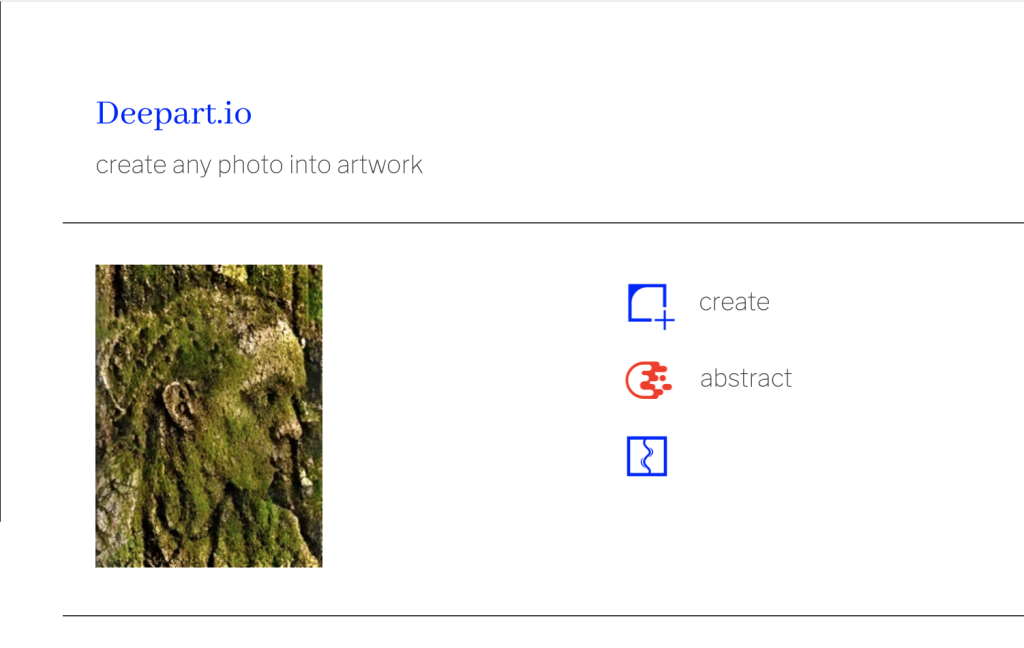
DeepArt.io utilizes deep learning algorithms to transform images into stunning pieces of art, including vector-style graphics.
Key Features
Artistic Filters: Apply various artistic styles to your images.
High Resolution Outputs: Generates high-quality images suitable for printing.
Pros
Unique approach to creating visually striking artwork.
Easy-to-use interface that requires no design skills.
Cons
Limited control over the final output compared to manual editing tools.
Free version has restrictions on image quality.
9. Vector Magic

Vector Magic specializes in converting bitmap images into clean, scalable vector graphics quickly and efficiently.
Key Features
Automatic Tracing: Quickly converts images with minimal input required.
Editability Options: Allows users to fine-tune the resulting vectors after conversion.
Pros
High-quality conversions that maintain detail and clarity.
User-friendly interface designed for quick results.
Cons
Requires a subscription for full access; limited free trials available.
May not handle very complex images as well as manual tracing.
10. Artbreeder
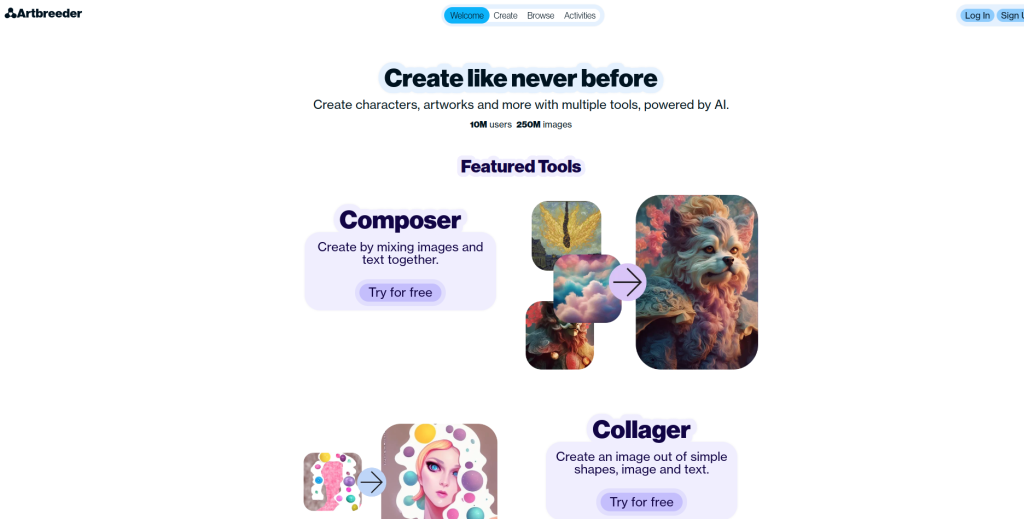
Artbreeder is an innovative platform that allows users to blend images using AI, creating unique artwork including vector-style graphics.
Key Features
Image Blending: Combine multiple images to create new styles effortlessly.
Customization Options: Adjust various parameters like color, style, and more.
Pros
Encourages creativity through collaborative art creation.
Free version available with basic features; premium options unlock more capabilities.
Cons
Results can be unpredictable; may require multiple attempts to get desired outcomes.
Limited direct control over individual elements compared to traditional software.
Comparison Table of the 10 Best AI Tools to Create Vector Art
| Tool | Key Features | Pros | Cons |
| Adobe Illustrator | Intelligent image tracing, auto-coloring | Industry-standard tool | Subscription pricing can be expensive |
| CorelDRAW | AI-Powered PowerTRACE, smart shapes | One-time purchase option | Advanced features may require plugins |
| Vectornator | Touch-friendly interface, real-time collaboration | Free to use | Limited to Apple devices |
| Inkscape | Node editing, extensions | Open-source | Interface may feel outdated |
| Vectr | Real-time collaboration, cross-platform | Easy to use | Limited features |
| Gravit Designer | Cloud storage, vector editing tools | User-friendly | Advanced features require subscription |
| AutoDraw | Intelligent suggestions, easy sharing | Fun and free | Limited customization |
| DeepArt.io | Artistic filters, high-resolution outputs | Unique artistic approach | Limited control over final output |
| Vector Magic | Automatic tracing, editability options | High-quality conversions | Requires subscription |
| Artbreeder | Image blending, customization options | Encourages creative collaboration | Unpredictable results |

Closing Remarks: Elevate Your Artistry!
Exploring the 10 best AI tools to create vector art can significantly enhance your creative process. Each tool offers unique features tailored to different needs—whether you’re looking for ease of use or advanced capabilities. By experimenting with these platforms and utilizing their resources effectively, you can elevate your artistry and produce stunning vector graphics effortlessly.
Interesting Reads:
10 Best AI Websites to Help Find a Job