Every online shopper loves clarity when browsing for products. When customers see a plain drop-down list for variations, they often hesitate, unsure of how the color or style looks in real life. As a store owner, this hesitation can hurt sales and lower customer satisfaction.
Fortunately, WooCommerce offers a way to make product variations more engaging, visual, and user-friendly. By using the WooCommerce Variation Swatches plugin, you can Add Color, Image, and Label Swatches to WooCommerce products seamlessly. This small change dramatically improves the shopping experience and helps customers make faster, more confident purchase decisions.

What Are Color, Image, and Label Swatches?
Swatches are simply visual representations of product attributes. Instead of displaying a boring text-based drop-down menu, swatches show a color box, an image thumbnail, or a styled label to represent each variation.
For example, a clothing store might show a red square swatch for a red T-shirt or display a miniature product image to demonstrate a particular pattern. Label swatches, on the other hand, use text styling to represent sizes like Small, Medium, or Large. By adding these features, you create a highly intuitive selection process for your customers.
When you Add Color, Image, and Label Swatches to WooCommerce, you remove guesswork and enhance the visual appeal of your store. This small tweak can turn product browsing into an interactive experience and boost conversions significantly.
Why Should You Use Variation Swatches in WooCommerce?
The main reason is customer convenience. Shoppers often abandon carts because they cannot visualize product variations. A simple drop-down doesn’t provide enough context, especially for visual attributes like colors, designs, or patterns.
By adding swatches, you give customers an immediate, clear view of their options. They can click on a color box, preview a patterned image, or quickly select their size from well-styled labels. This not only speeds up the buying process but also reduces product returns caused by misunderstandings.
Moreover, swatches make your WooCommerce store look modern and professional. When you Add Color, Image, and Label Swatches to WooCommerce, you present your products in a polished, interactive way that matches customer expectations in today’s competitive eCommerce space.
The WooCommerce Variation Swatches Plugin at a Glance
The WooCommerce Variation Swatches plugin is one of the most popular tools for adding product swatches in WooCommerce. It’s lightweight, easy to configure, and integrates directly with your WooCommerce settings.
Some of its standout features include:
- Displaying color swatches instead of drop-downs.
- Adding image swatches for products with patterns or graphics.
- Using label swatches for sizes, measurements, or other text-based attributes.
- Quick installation and easy customization.
- Compatibility with most WooCommerce themes.
With this plugin, you can Add Color, Image, and Label Swatches to WooCommerce products in just a few clicks. The result is a more attractive product page and a better user experience.
Step-by-Step Guide: How to Add Color, Image, and Label Swatches to WooCommerce
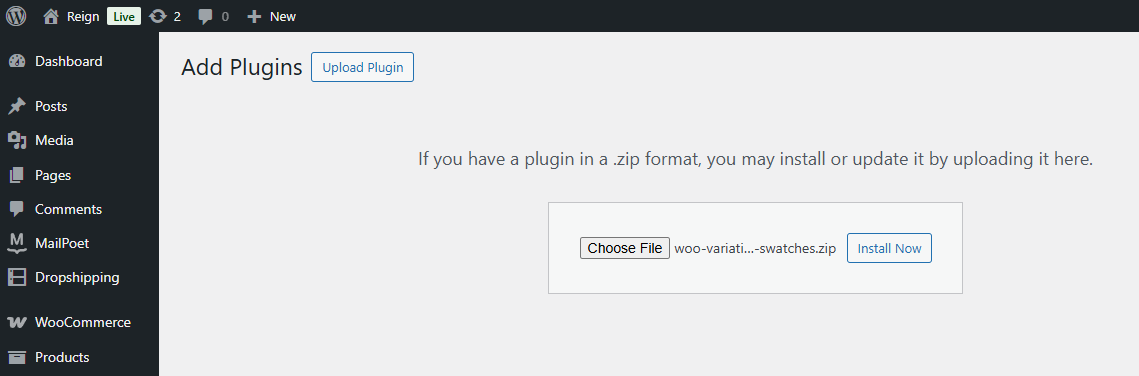
Step 1: Install and Activate the Plugin
- Go to your WordPress Dashboard.
- Navigate to Plugins > Add New.
- Search for WooCommerce Variation Swatches.
- Click Install Now, then Activate.
Step 2: Configure Global Settings
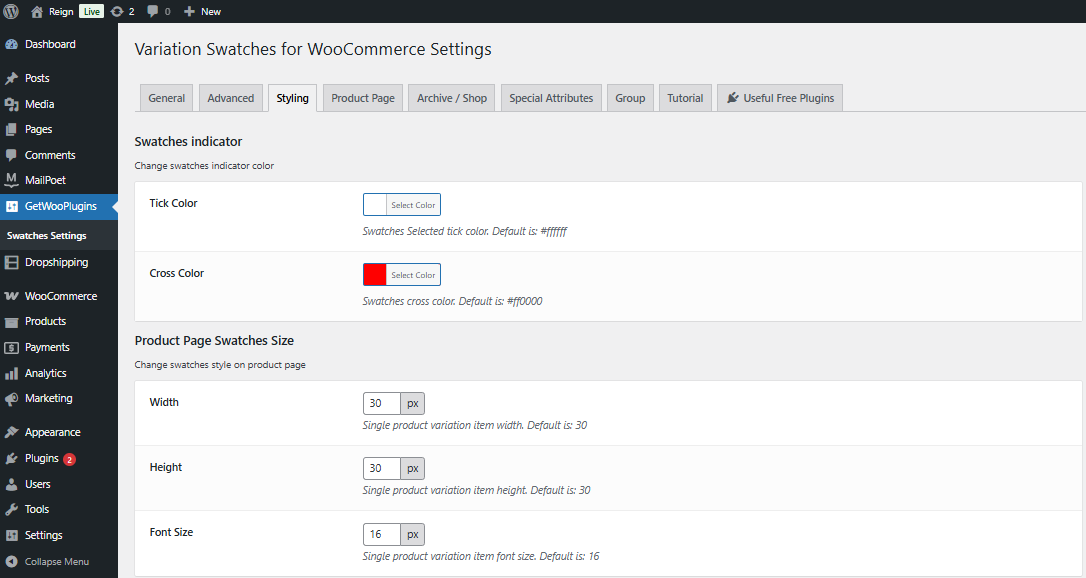
- Once activated, go to WooCommerce > Settings > Variation Swatches.
- Choose how swatches will appear across your store (color, image, or label).
- Adjust swatch sizes, shapes (round or square), and tooltip settings.
- Save your changes to apply these configurations globally.
Step 3: Add Attributes in WooCommerce
- Navigate to Products > Attributes in your dashboard.
- Create a new attribute (e.g., Color, Size, Pattern).
- Decide if the attribute will display as a color, image, or label swatch.
- Save the attribute.
Step 4: Configure Attribute Terms
- After creating an attribute, click Configure Terms.
- Add specific variations such as Red, Blue, or Green for colors.
- Upload corresponding swatch images or pick exact colors using the color picker.
- Save each term.
Step 5: Apply Attributes to Products
- Edit a product in WooCommerce.
- Under Product Data > Variations, assign the attributes you’ve created.
- Save changes, and the product page will now show swatches instead of drop-down menus.
Step 6: Customize Swatch Styles
- Return to WooCommerce > Settings > Variation Swatches.
- Choose your preferred swatch style (round or square).
- Adjust border, hover effect, and tooltip preferences.
- Save the settings for consistent styling across all products.
Step 7: Test Your Setup
- Visit a product page with variations.
- Check that the swatches appear correctly.
- Select different swatches to confirm that product variations update as expected.
- Adjust settings if needed for better display.
By following these steps, you’ll successfully Add Color, Image, and Label Swatches to WooCommerce products and create a visually engaging shopping experience for your customers.
Benefits of Using Swatches Instead of Drop-Downs
Replacing traditional drop-down menus with swatches offers several advantages. First, it eliminates confusion by showing customers exactly what they’re selecting. A red color box is much easier to understand than a text label that simply says “Red.”
Second, swatches make product pages visually appealing. They create an interactive shopping environment that feels modern and professional. Customers spend less time scrolling through menus and more time enjoying the shopping experience.
Finally, swatches can boost conversion rates. By helping customers quickly identify their desired variation, you reduce hesitation and increase the likelihood of completing a purchase. When you Add Color, Image, and Label Swatches to WooCommerce, you invest in both aesthetics and usability.
Extra Features Worth Exploring
The WooCommerce Variation Swatches plugin comes with extra customization options that can make your store even more engaging. For example, you can:
- Show tooltips with additional information when hovering over swatches.
- Adjust the shape of swatches (square or rounded).
- Set default swatch sizes for better layout consistency.
- Customize border styles for active or hovered swatches.
- Enable AJAX variation selection for faster loading.
These small but powerful features make it easier to personalize your store’s product pages. By using them effectively, you enhance usability while keeping your brand’s unique style intact.
Practical Tips for Maximizing Swatch Effectiveness
To get the most out of swatches, follow these best practices:
- Keep colors accurate: Always use the exact shade of your products for color swatches.
- Use high-quality images: For image swatches, choose clear, high-resolution visuals.
- Keep labels short: Labels should be concise and easy to read, such as S, M, L.
- Maintain consistency: Use the same swatch style across all products for uniformity.
- Test regularly: After updates, check swatch functionality on different devices.
By following these tips, you’ll not only Add Color, Image, and Label Swatches to WooCommerce effectively but also ensure they enhance the customer experience consistently.
Common Mistakes to Avoid
While adding swatches improves usability, certain mistakes can hurt performance. One common error is using low-quality or unclear images for swatches, which can confuse customers instead of helping them.
Another mistake is inconsistency. Some store owners use swatches for one product but leave others with default drop-downs. This creates a disjointed shopping experience. Also, avoid overloading swatches with too many options, as this can overwhelm shoppers. Keeping things simple and clear will always yield better results.
Future of Product Variations in WooCommerce
As online shopping evolves, product variation displays will become even more advanced. We’re already seeing eCommerce platforms integrate 3D previews, augmented reality try-ons, and AI-powered personalization. Swatches are the foundation of this visual shopping revolution.
By learning to Add Color, Image, and Label Swatches to WooCommerce today, you prepare your store for future enhancements. As technology evolves, customers will expect even more visual clarity and interactivity, and swatches are the first step in meeting those expectations.

Final Reflection
Improving customer experience should always be a top priority for online stores. Replacing text-based drop-downs with color, image, and label swatches can dramatically change how customers interact with your products. With the WooCommerce Variation Swatches plugin, it’s easy to configure and implement these features in minutes.
By choosing to Add Color, Image, and Label Swatches to WooCommerce, you create a store that is not only more engaging but also more profitable. A visually enhanced shopping process reduces confusion, increases conversions, and sets your brand apart from the competition.
Interesting Reads:
How to Create and Send PDF Invoices & Packing Slips in WooCommerce